Sign up and sign in
You sign in to Maxint Work with a Maxint account. The same account works in every Maxint app and in every workspace you belong to. There is no password to remember: Maxint emails you a 6-digit code, or you use Google, Apple or a passkey.
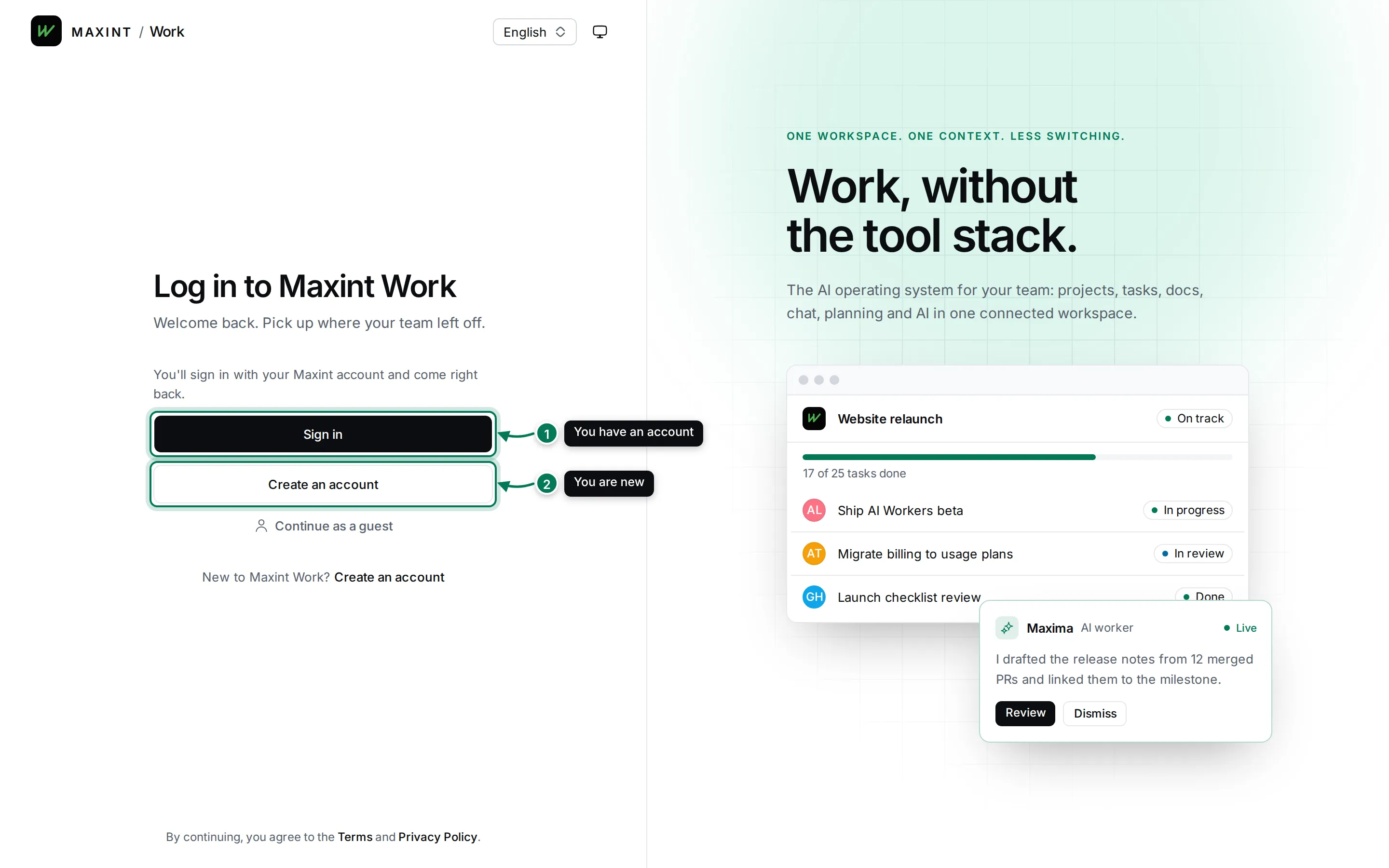
The Maxint Work sign-in page has two buttons. Sign in is for people who already have an account, and Create an account is for everyone else. Both open the Maxint account pages and bring you back when you’re done.
Create your account
Section titled “Create your account”-
On the Maxint Work sign-in page, click Create an account.
-
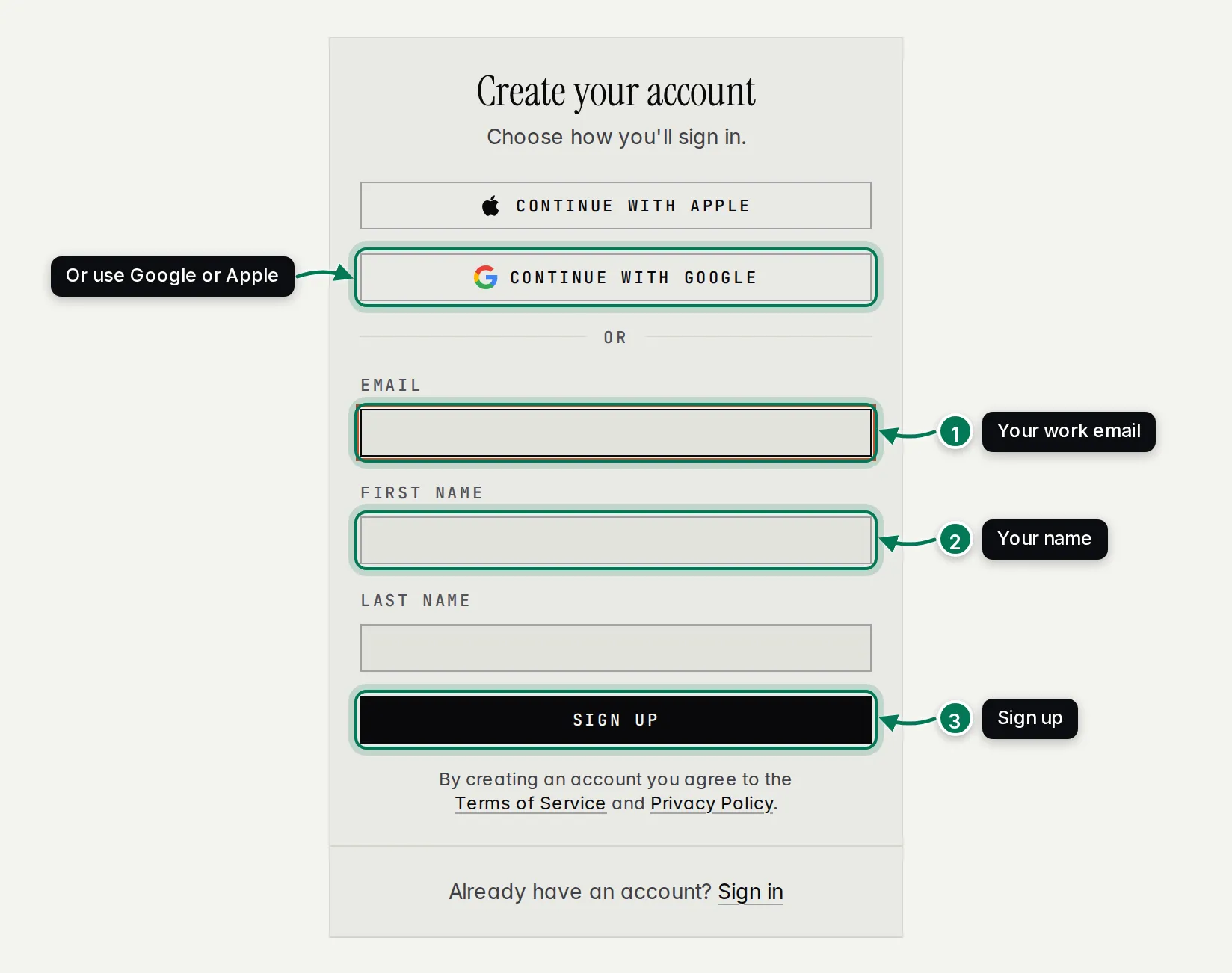
Enter your work email (1) and your first and last name (2), then click Sign up (3).
-
Click Send sign up code. Maxint sends a 6-digit code to your email.
-
Type the code and click Continue. You come back to Maxint Work, signed in.
You can also click Continue with Google or Continue with Apple on the same form. Your account then uses that Google or Apple address, and you sign in with it from then on.
If someone sent you an invite link, open the link instead: it walks you through creating an account and joins you to their workspace in one go. See Join from an invite link.
Sign in with an email code
Section titled “Sign in with an email code”-
Click Sign in on the Maxint Work sign-in page.
-
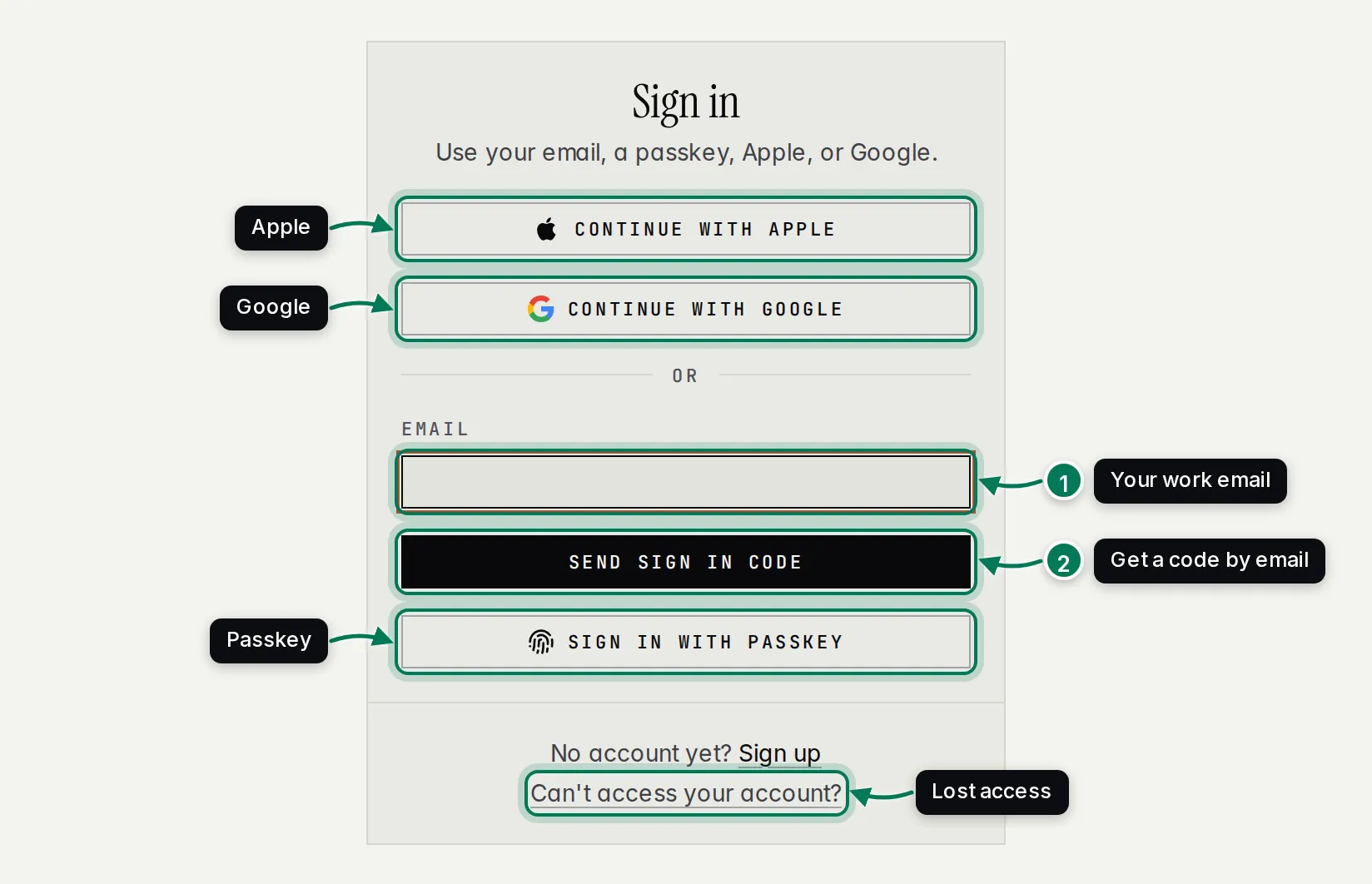
Enter your email (1) and click Send sign in code (2).
-
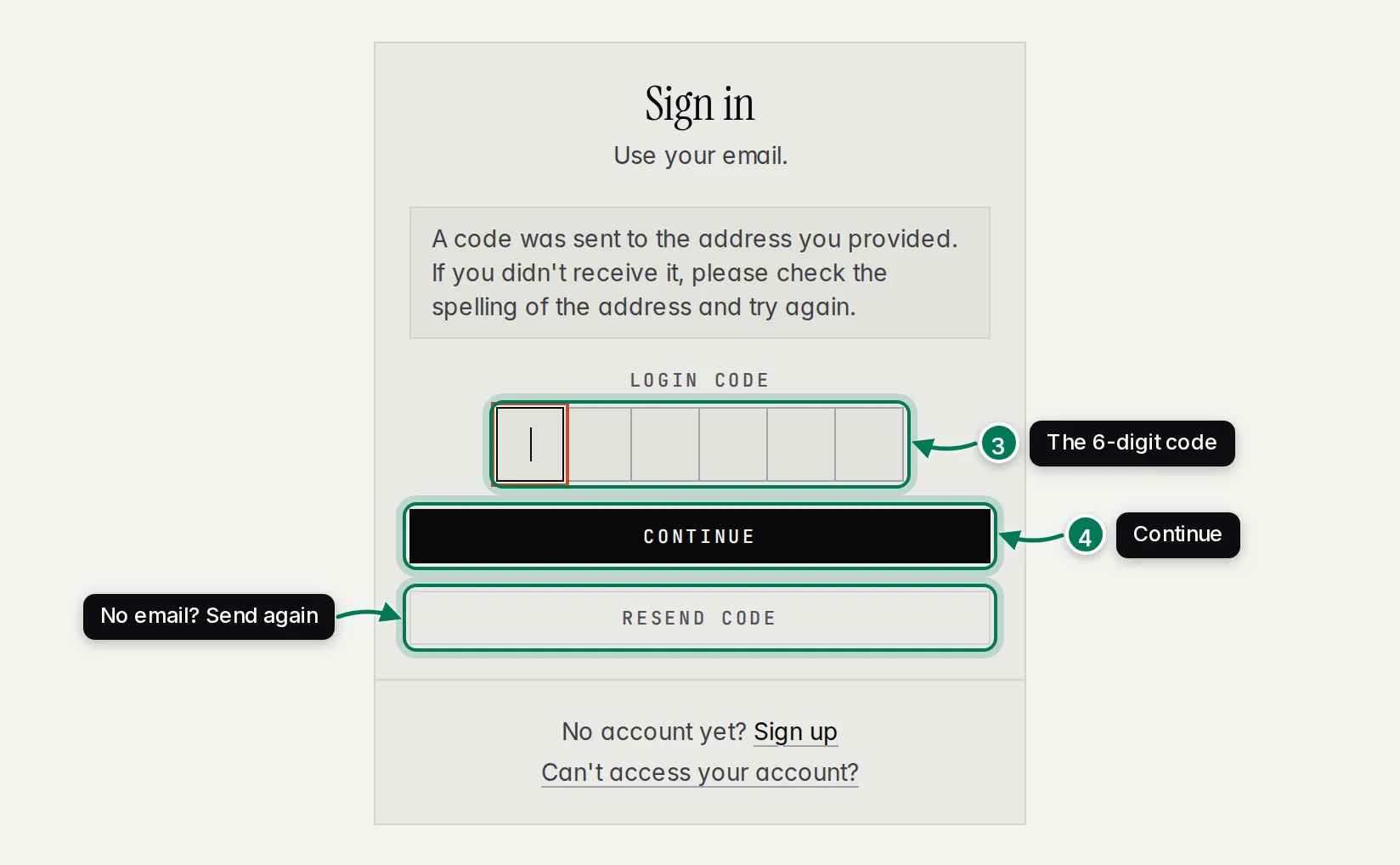
Open the email from Maxint, type the 6-digit code (3) and click Continue (4).
Maxint Work opens your last workspace. If you belong to several, or to none yet, you see Choose a workspace.
No email? Check the spelling of the address and your spam folder, then click Resend code.
Sign in with Google, Apple or a passkey
Section titled “Sign in with Google, Apple or a passkey”- Continue with Google and Continue with Apple sign you in with that account. The first time, connect it in Sign-in methods or create your account with it.
- Sign in with passkey uses Face ID, Touch ID, Windows Hello or your phone. Add a passkey to your account first.
Manage your Maxint account
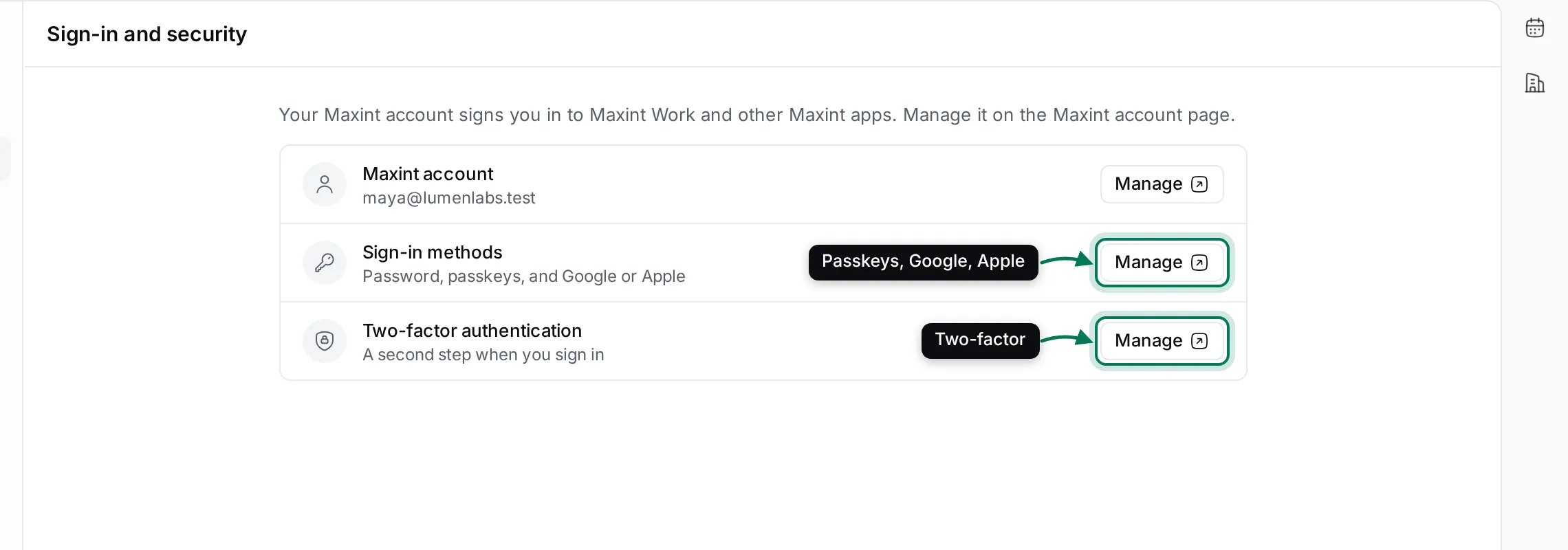
Section titled “Manage your Maxint account”Your Maxint account has its own pages for your name, photo, email, sign-in methods and devices. Open them from Settings › Security in Maxint Work: each Manage button opens the matching page, and Back brings you back.
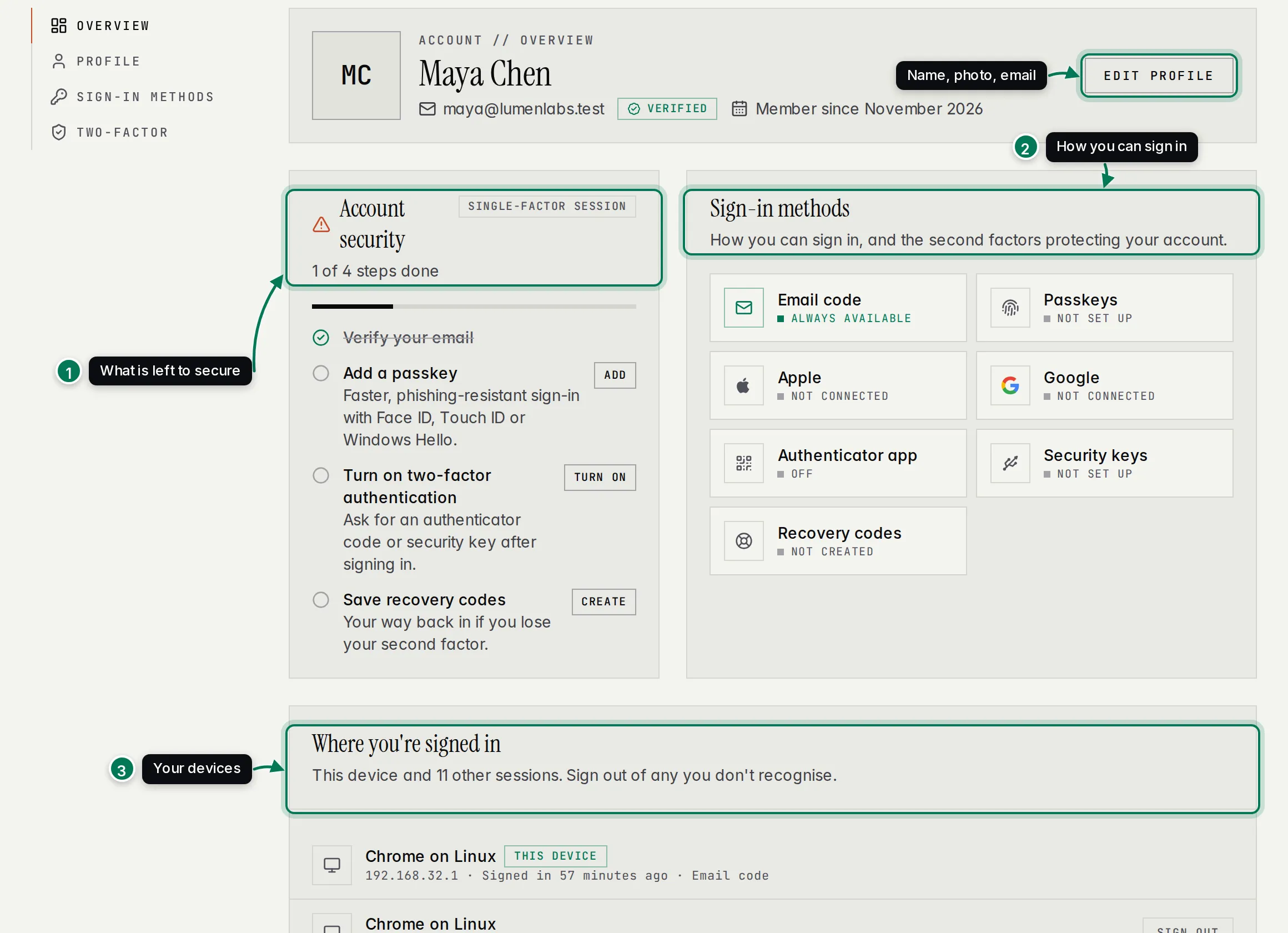
The account Overview shows what is left to secure your account (1), how you can sign in (2) and every device where you are signed in (3). Next to a device, Sign out ends that session; Sign out of all other sessions ends every session but this one. Edit profile changes your name, photo and email. Changing your email sends a code to the new address.
Add a passkey, Google or Apple
Section titled “Add a passkey, Google or Apple”-
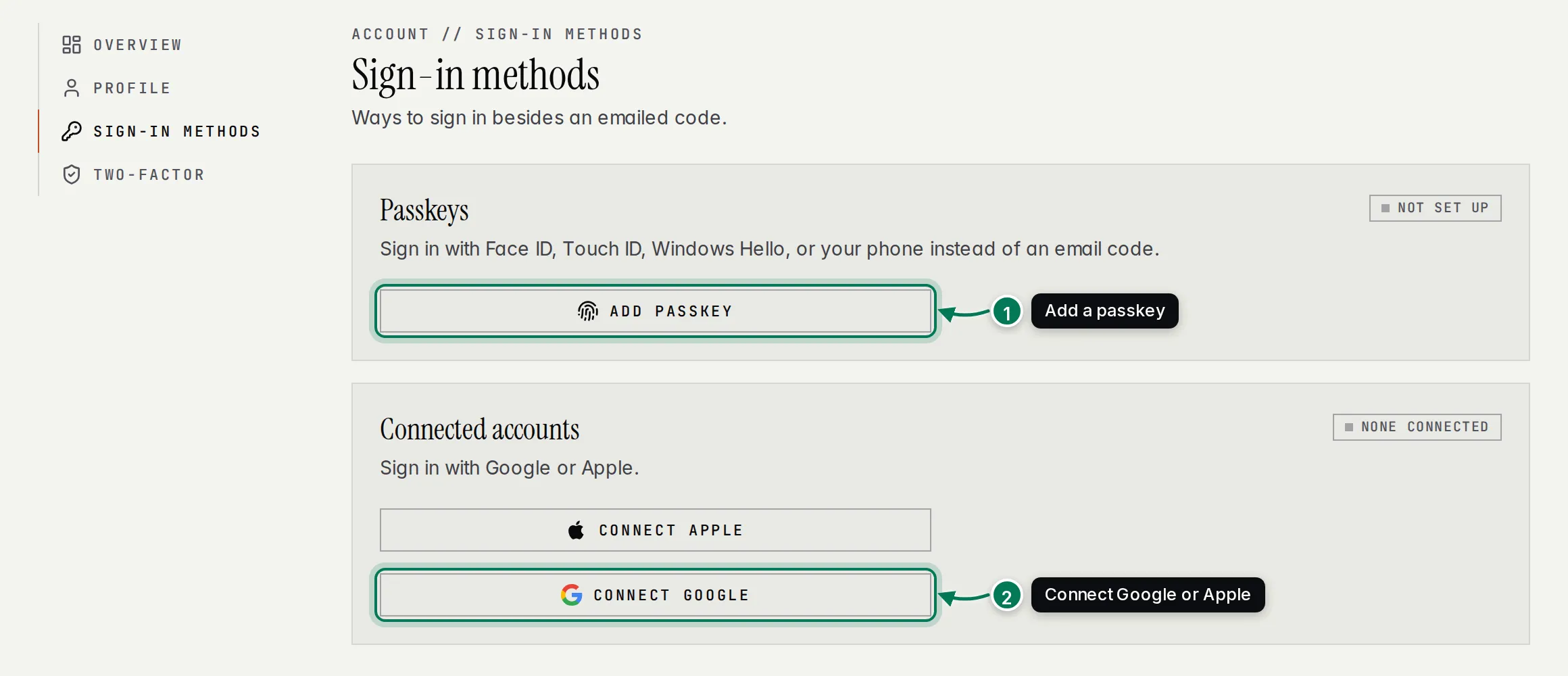
In Settings › Security, click Manage next to Sign-in methods.
-
Click Add passkey (1) and follow your device’s prompt, or click Connect Google or Connect Apple (2) and sign in to that account.
Turn on two-factor authentication
Section titled “Turn on two-factor authentication”Two-factor authentication adds a second step after you sign in. Once it is on, Maxint asks for it every time.
-
In Settings › Security, click Manage next to Two-factor authentication.
-
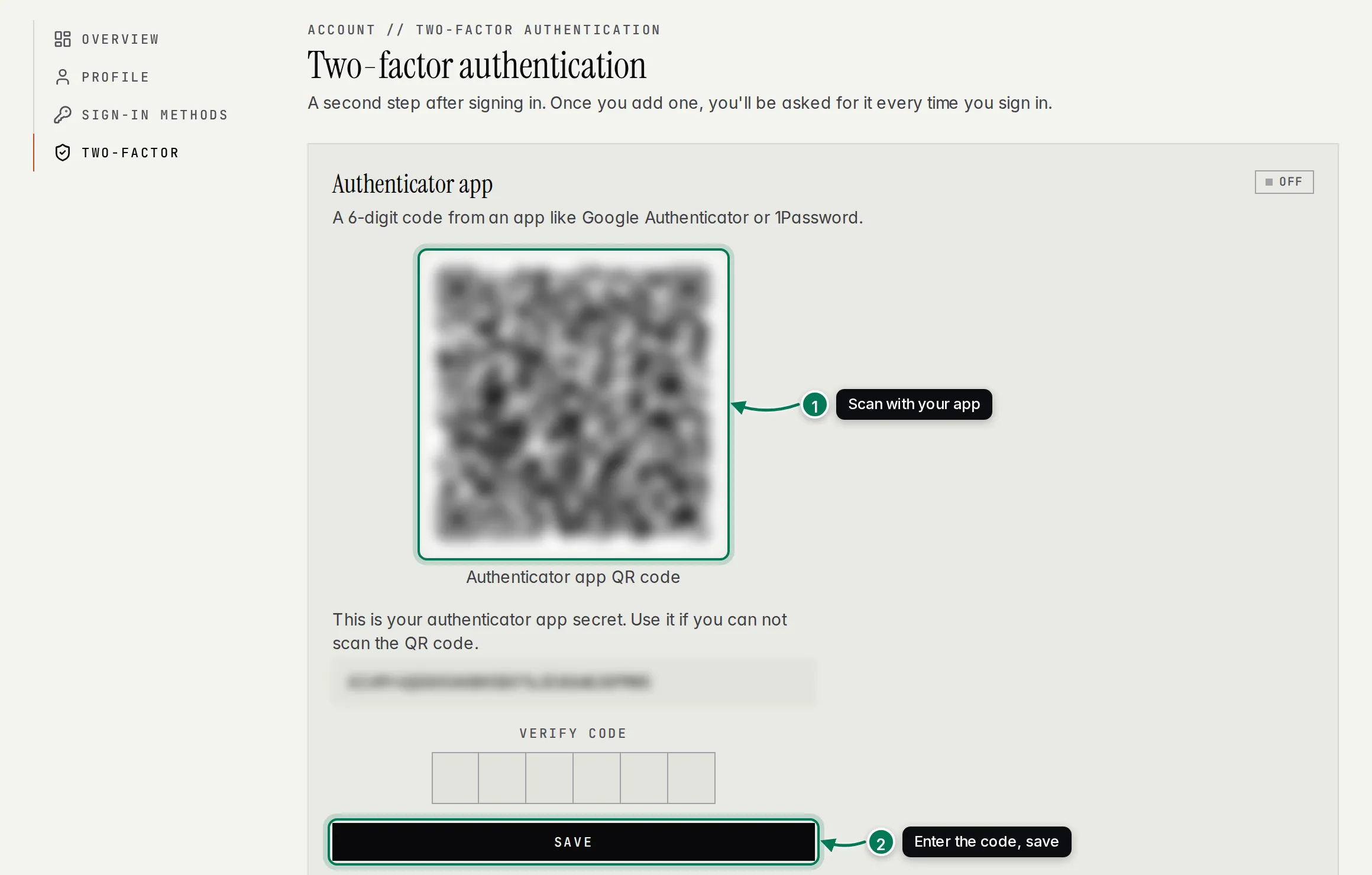
Under Authenticator app, scan the QR code with an app such as Google Authenticator or 1Password (1). If you can’t scan it, type the secret shown under the code into the app.
-
Type the 6-digit code the app shows into Verify code and click Save (2).
-
Under Recovery codes, click Generate new backup recovery codes and keep them somewhere safe. Each code works once, for when you can’t use your app.
You can also add a security key, such as a YubiKey: give it a name and click Add security key.
If you can’t sign in
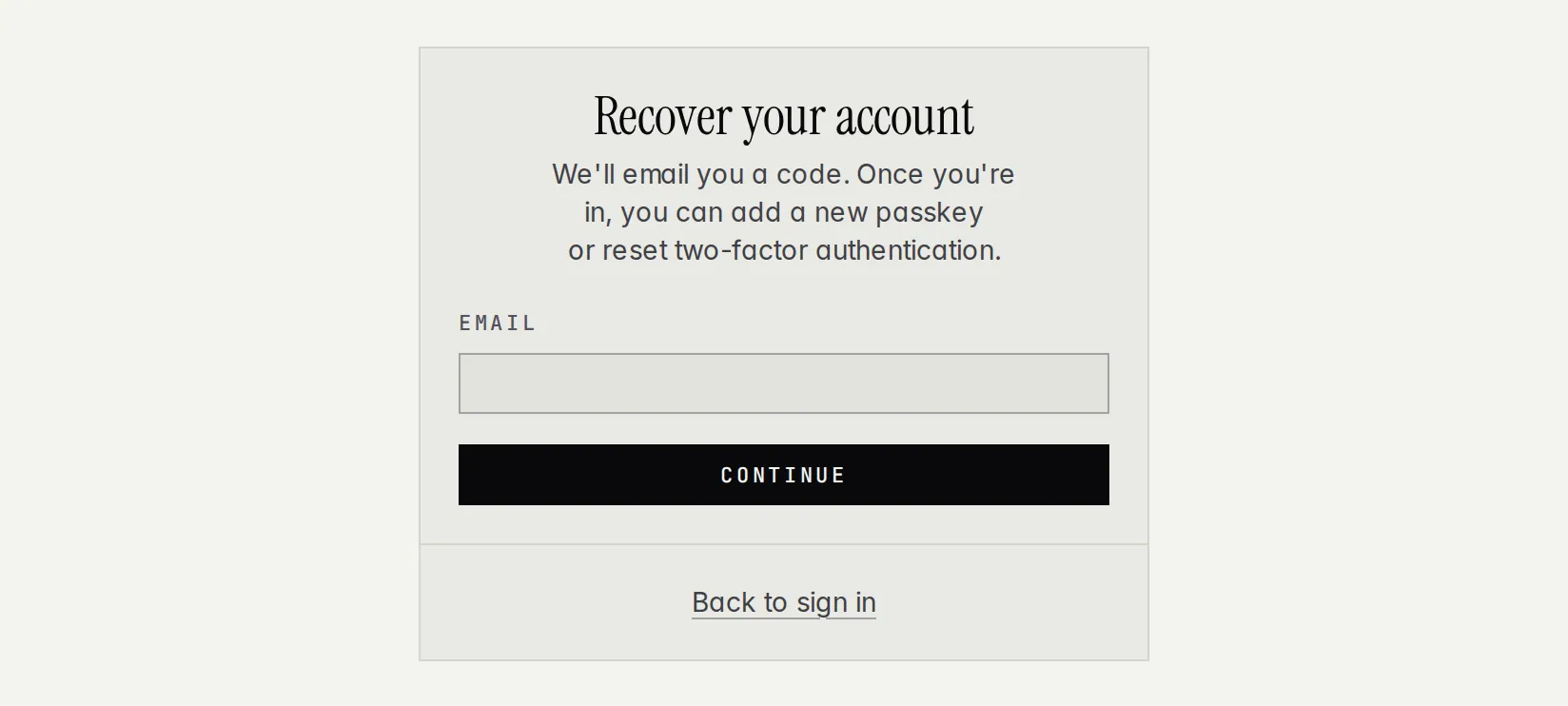
Section titled “If you can’t sign in”Click Can’t access your account? on the sign-in card. Enter your email and click Continue: Maxint emails you a code. Once you are in, you can add a new passkey or reset two-factor authentication.
Sign out
Section titled “Sign out”Click your avatar at the bottom of the rail and choose Sign out. This signs you out of Maxint Work and of your Maxint account on this device.