Google Drive
With Google Drive connected you can attach Drive files to issues, documents and comments, and copy whole Drive folders into Drive. Google Drive is personal: each person connects their own Google account and only picks from the files they can open in Google.
Connect Google Drive
Section titled “Connect Google Drive”-
Open Settings › Integrations and click Connect on the Google Drive card.
-
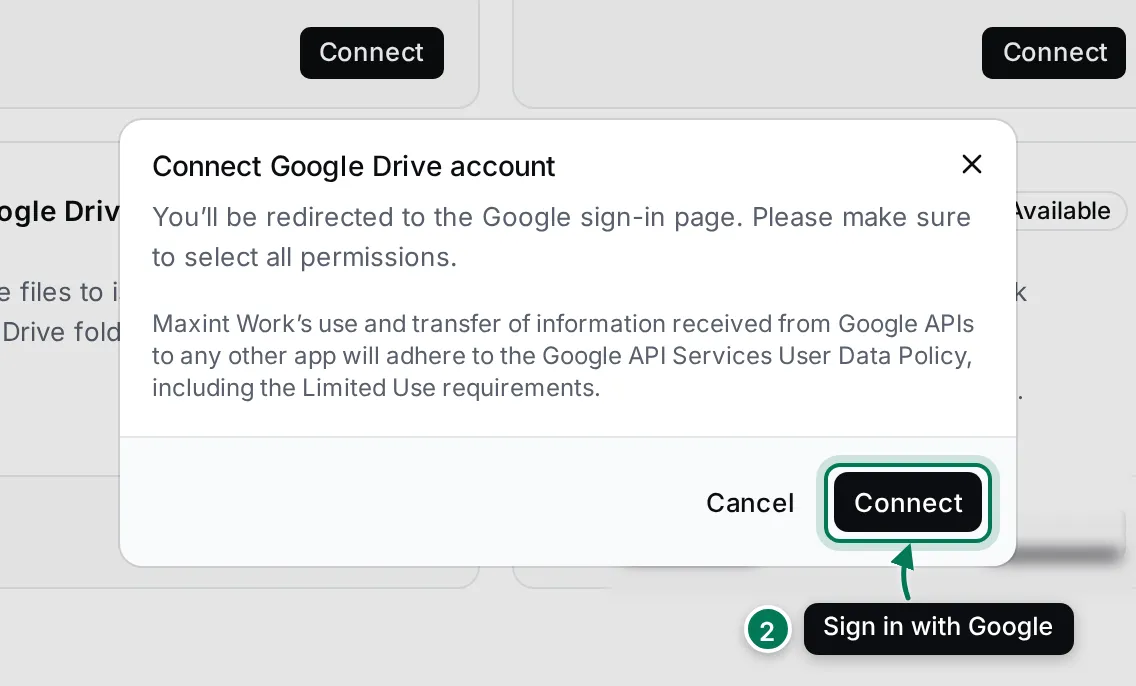
Click Connect in the dialog.
-
Sign in to Google and allow every permission it asks for. You come back to Settings and the card says Integrated, with your Google account.
You can also connect from the Drive picker: if you choose From Google Drive before connecting, it offers Connect Google Drive and brings you back afterwards.
Attach Drive files to an issue
Section titled “Attach Drive files to an issue”-
Open the issue and click into its description (or a comment box).
-
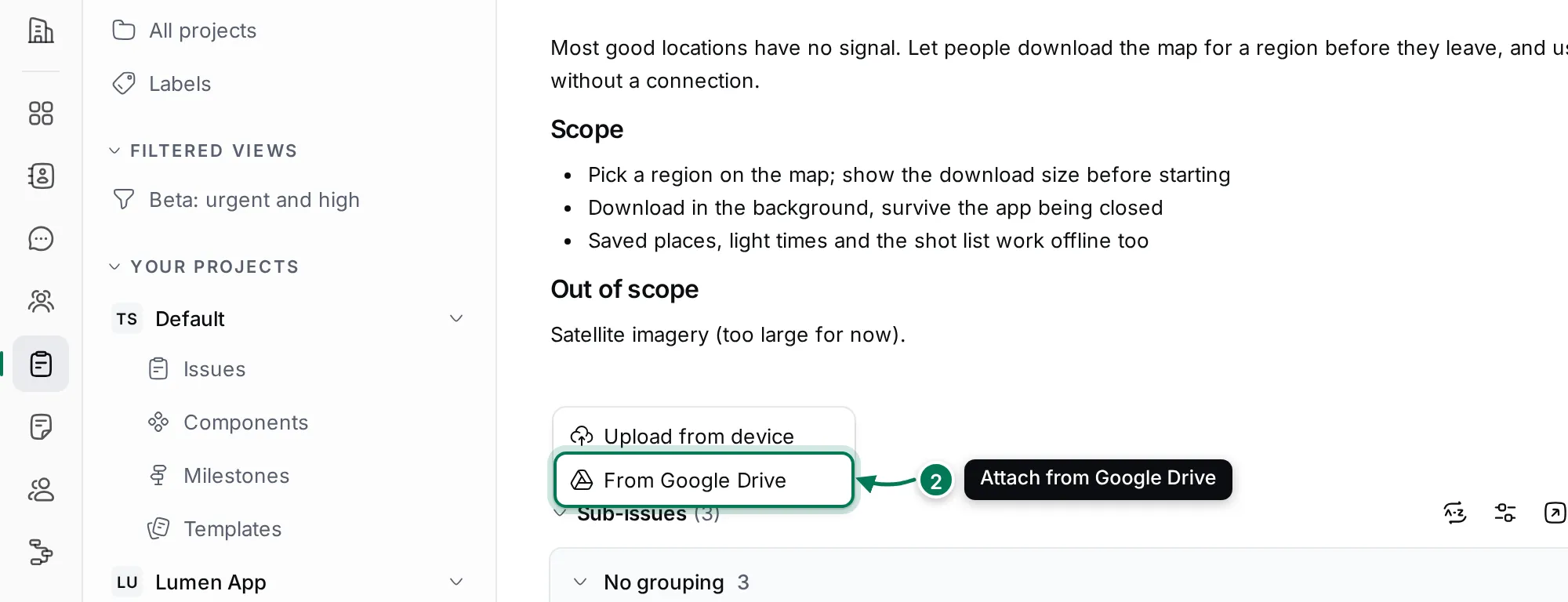
Click Attach files and choose From Google Drive.
-
In Attach from Google Drive, find your files.
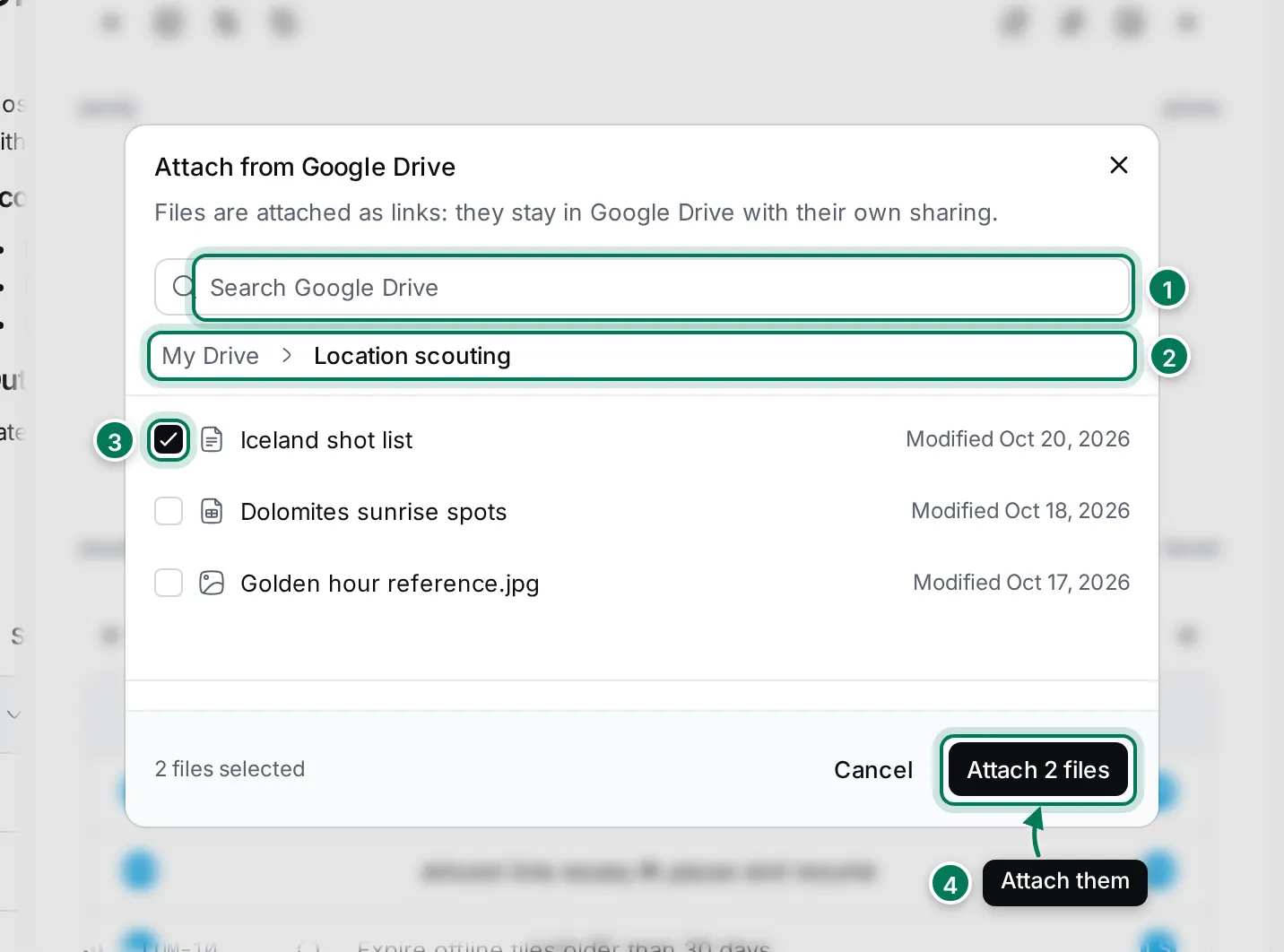
- Search Google Drive looks through all your files.
- The path shows where you are. Click a folder to open it, or My Drive to go back.
- Tick the files you want. You can tick files in several folders.
- Click Attach to add them.
Files are attached as links: they stay in Google Drive with their own sharing. Someone without access in Google sees the link but can’t open the file. Click an attached Drive file to open it in Google Drive.
Copy a Drive folder into Drive
Section titled “Copy a Drive folder into Drive”-
Open Drive and the drive or folder you want to copy into.
-
Click the arrow next to Upload files and choose Import from Google Drive.
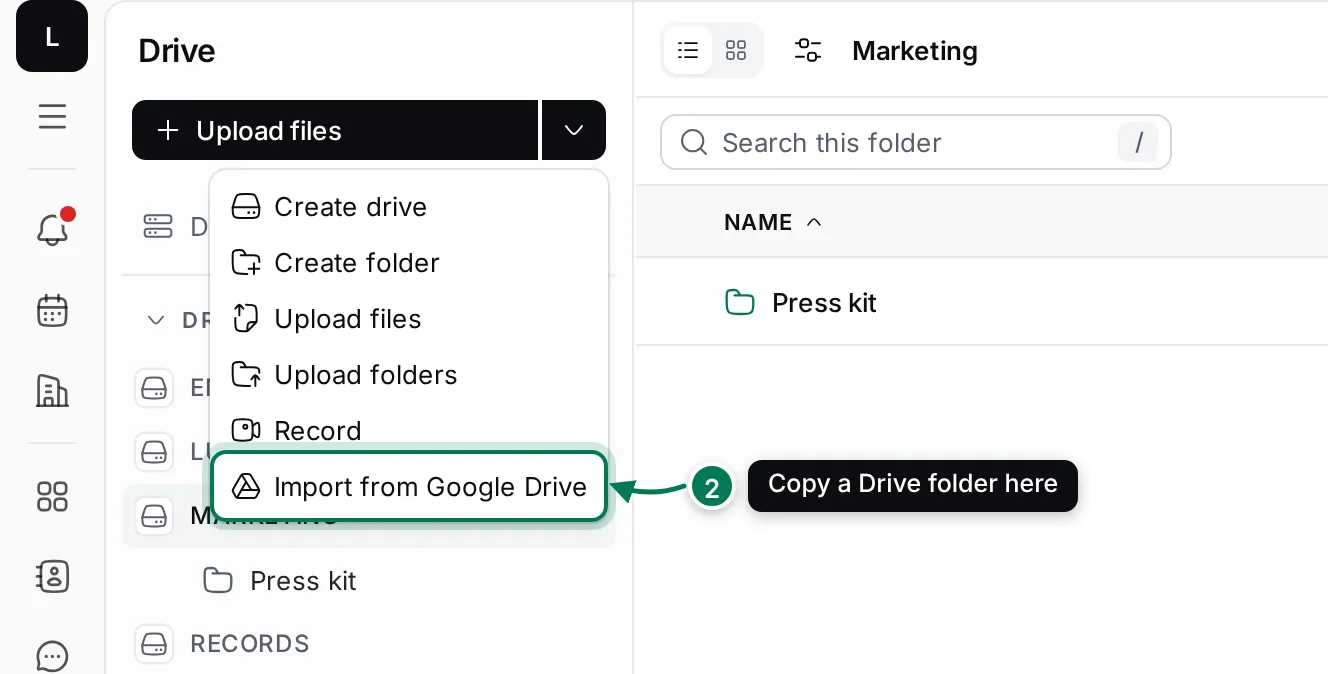
-
Click Choose folder, open the Google Drive folder you want and click Choose “…”.
-
Click Import.
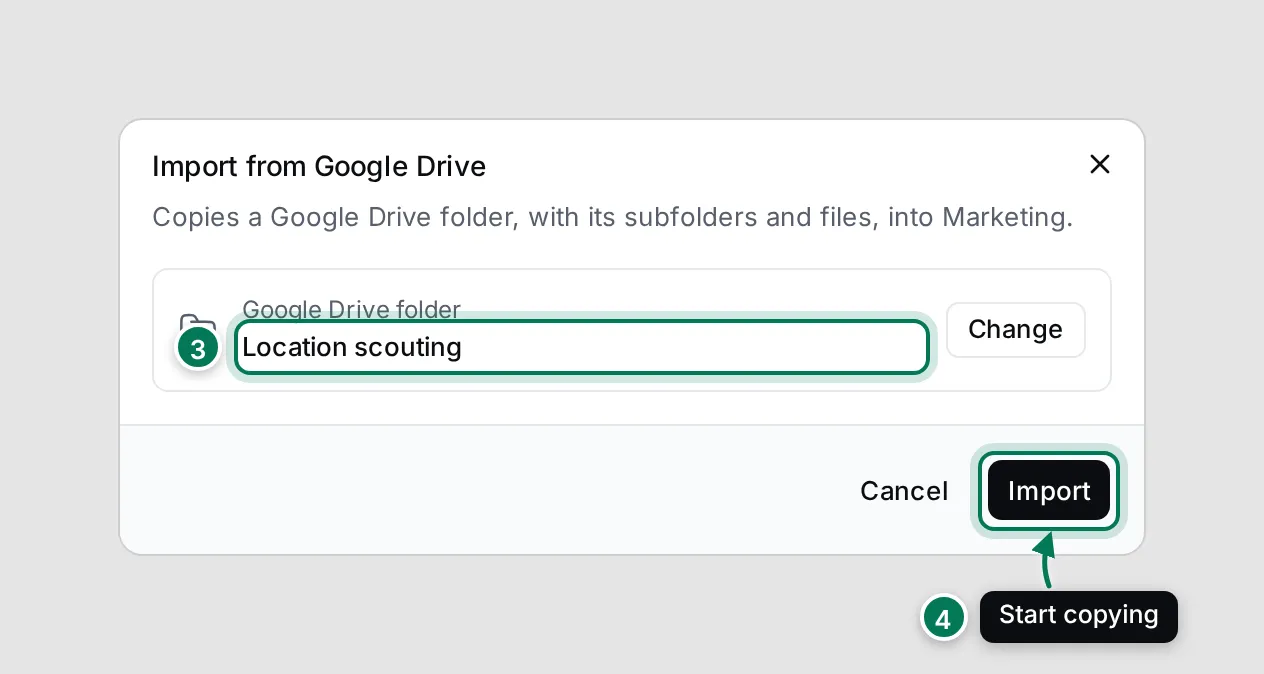
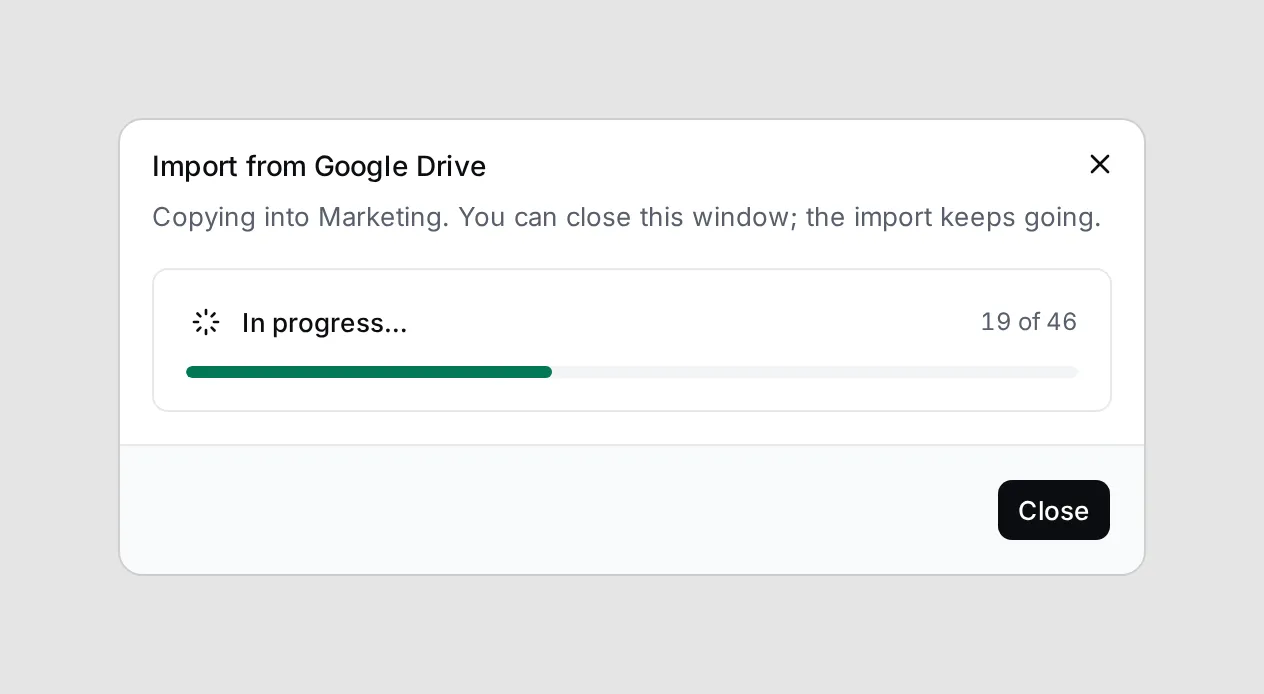
The folder is copied with its subfolders and files. The dialog shows the progress; you can close it and the import keeps going. The copied files appear in Drive as they arrive, and Import another folder starts the next one.
Unlike attached links, imported files are real copies in Maxint Work. Later changes in Google Drive don’t reach them.
Disconnect Google Drive
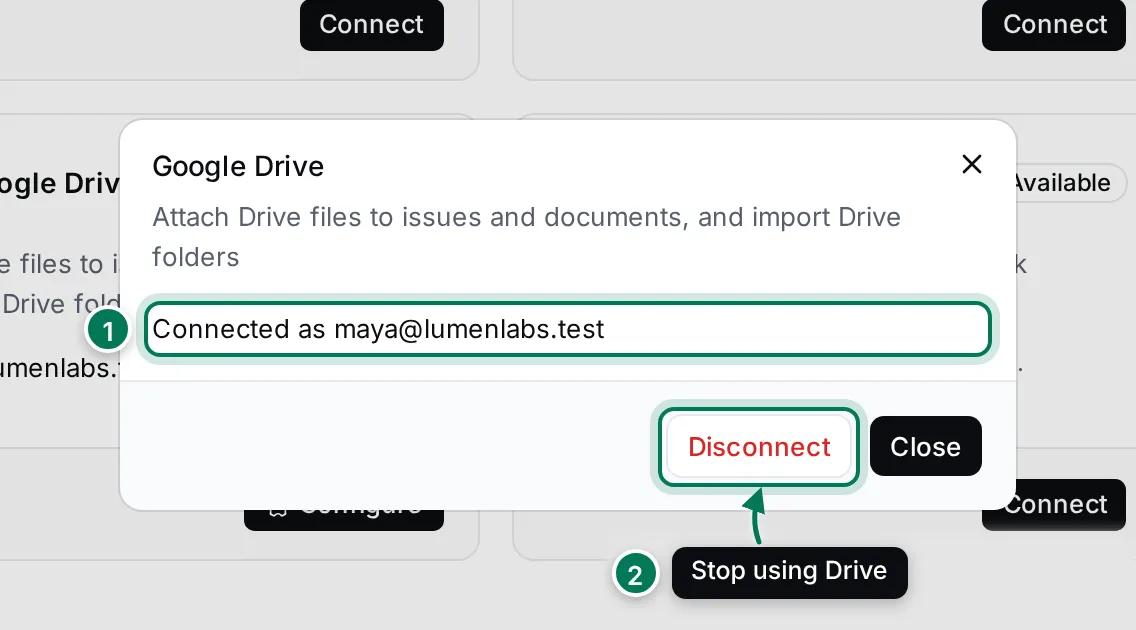
Section titled “Disconnect Google Drive”Click Configure on the Google Drive card. It shows Connected as your Google account. Click Disconnect and confirm. Maxint Work stops using your Google Drive; files you already attached stay as links.