Work // Settings and administration
Guests and public access
Guests are people from outside your team, such as a client reviewing the website or a partner following a launch. They join with the Guest role and only see what you allow. Settings › Guests sets this for the whole workspace. Only owners see it.
Choose what guests can use
Section titled “Choose what guests can use”Open Settings › Guests and choose Guest.
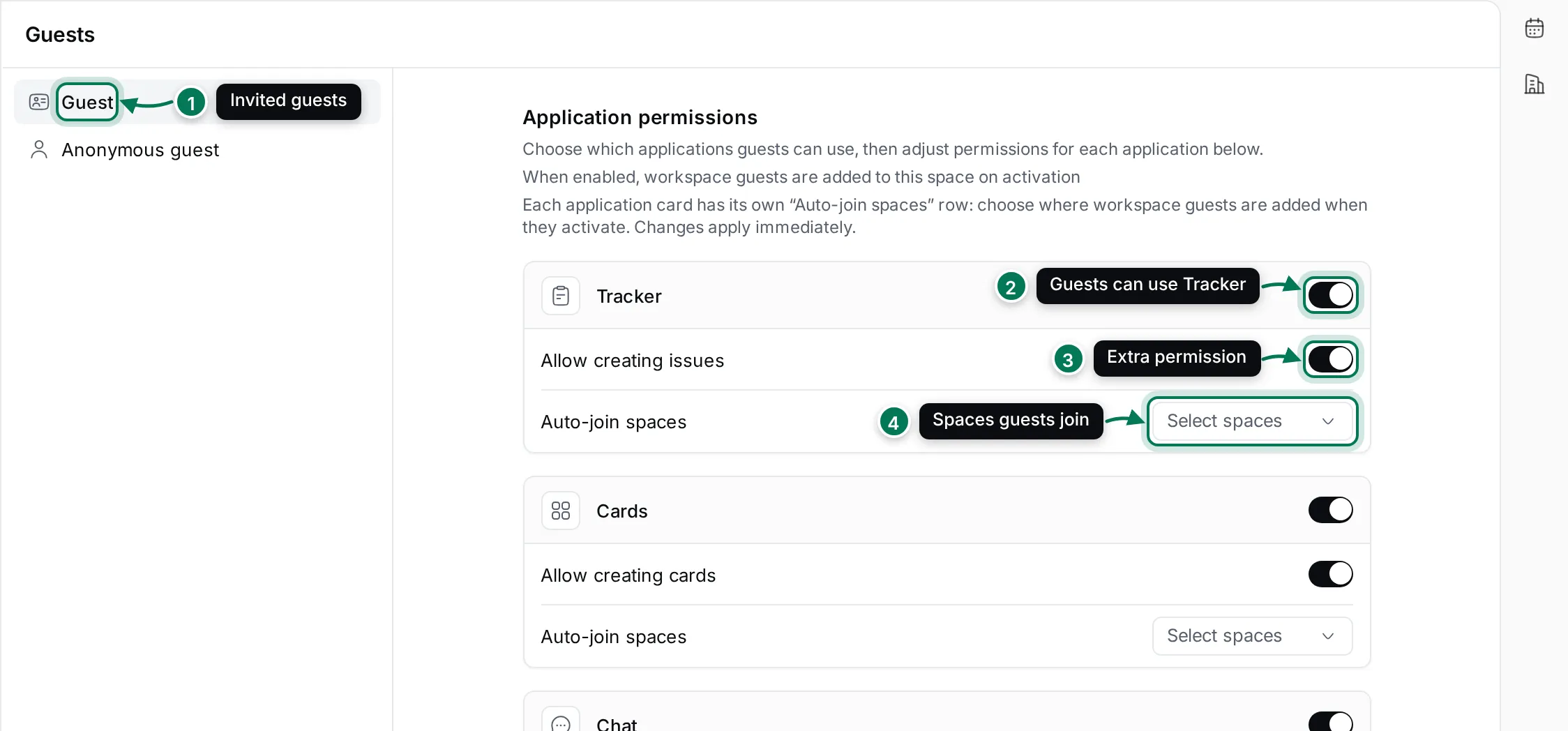
- Guest holds the settings for invited guests.
- Each app has a card with a switch. Turn it off and guests can’t use that app. The cards are Tracker, Cards, Chat, Documents, Office, Planner, Drive and Test Management.
- Some apps have extra permissions: Allow creating issues (Tracker) and Allow creating cards (Cards). Turn them off to let guests read and comment only.
- Auto-join spaces picks the spaces guests are added to when they join, such as the Website project. Click Select spaces and check the spaces.
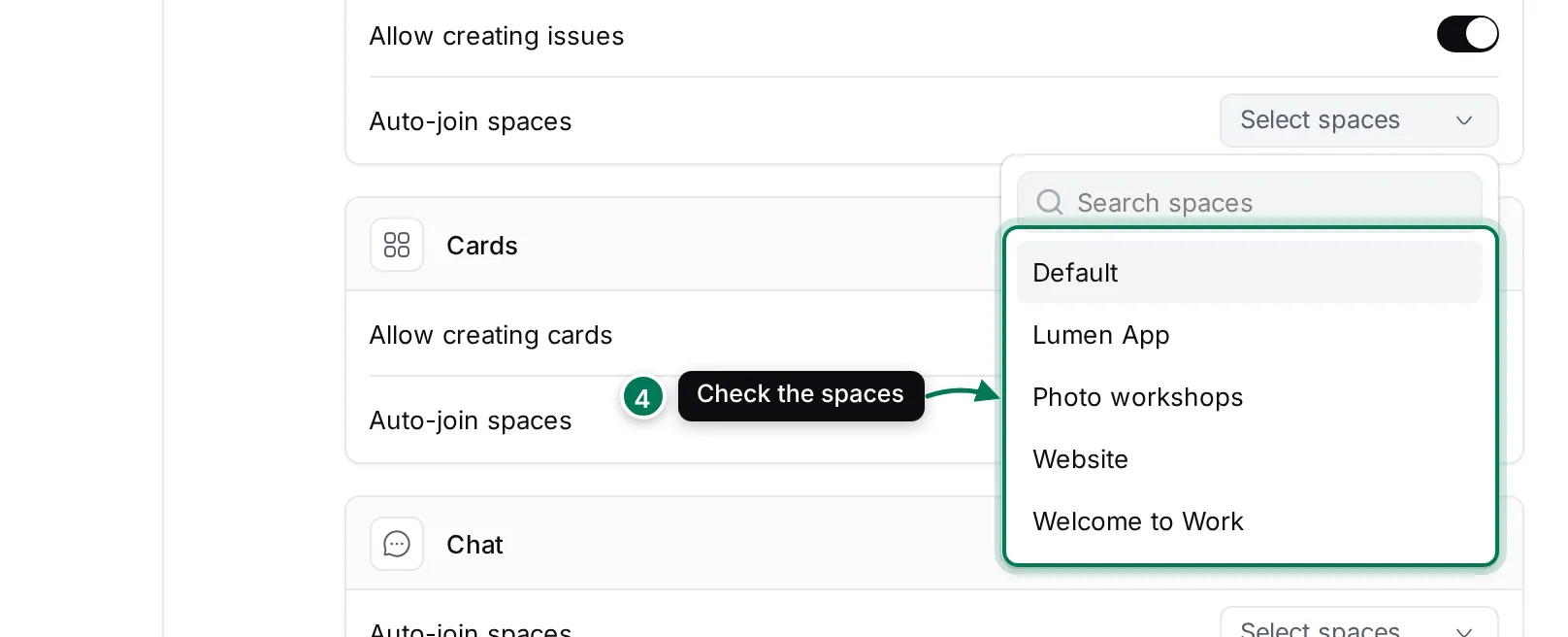
Every change saves at once and applies straight away.
Let anonymous visitors in
Section titled “Let anonymous visitors in”Anonymous visitors don’t need an account. Use it to share a public roadmap or help pages.
- Open Settings › Guests and choose Anonymous guest.
- Turn on Allows anonymous users to visit your workspace in read-only mode.
- Optionally turn on Allows anonymous users to join your workspace as guests with limited editing rights.
- For each app, pick the Spaces visible to anonymous. Visitors see only these spaces.
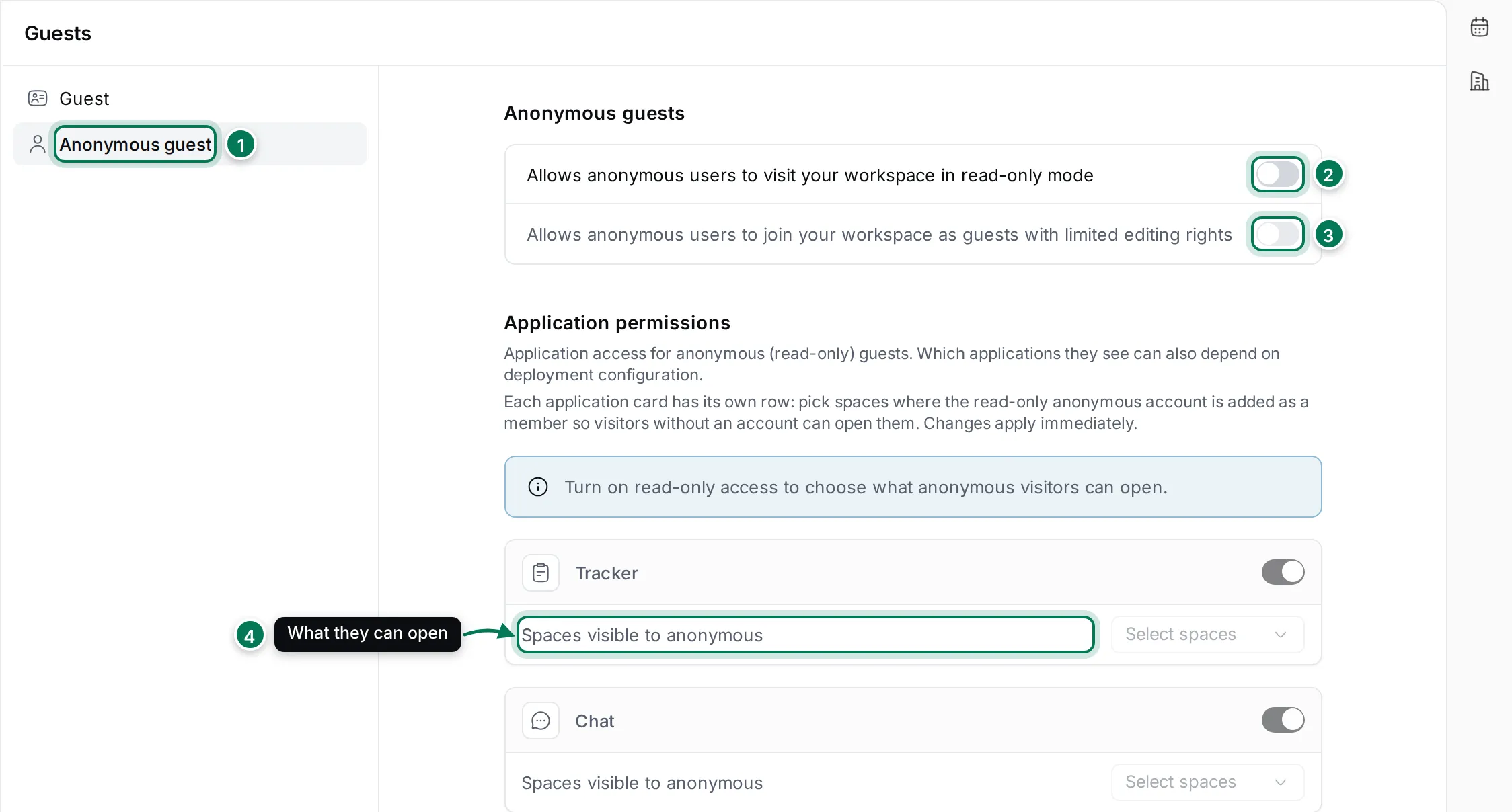
While read-only access is off, the app cards and space pickers are disabled.
To invite a guest, create an invite link with the Guest role: see Invite people.