Welcome to Maxint Work
Maxint Work is one workspace for your team’s work: projects and issues, documents and files, chat, planning, calls and AI Workers. Everything lives side by side, so an issue can link to a document, a chat message can mention a teammate, and an AI Worker can pick up a task where your team left it.
You sign in with a Maxint account, open a workspace (usually one per company or team), and find every app on the left rail.
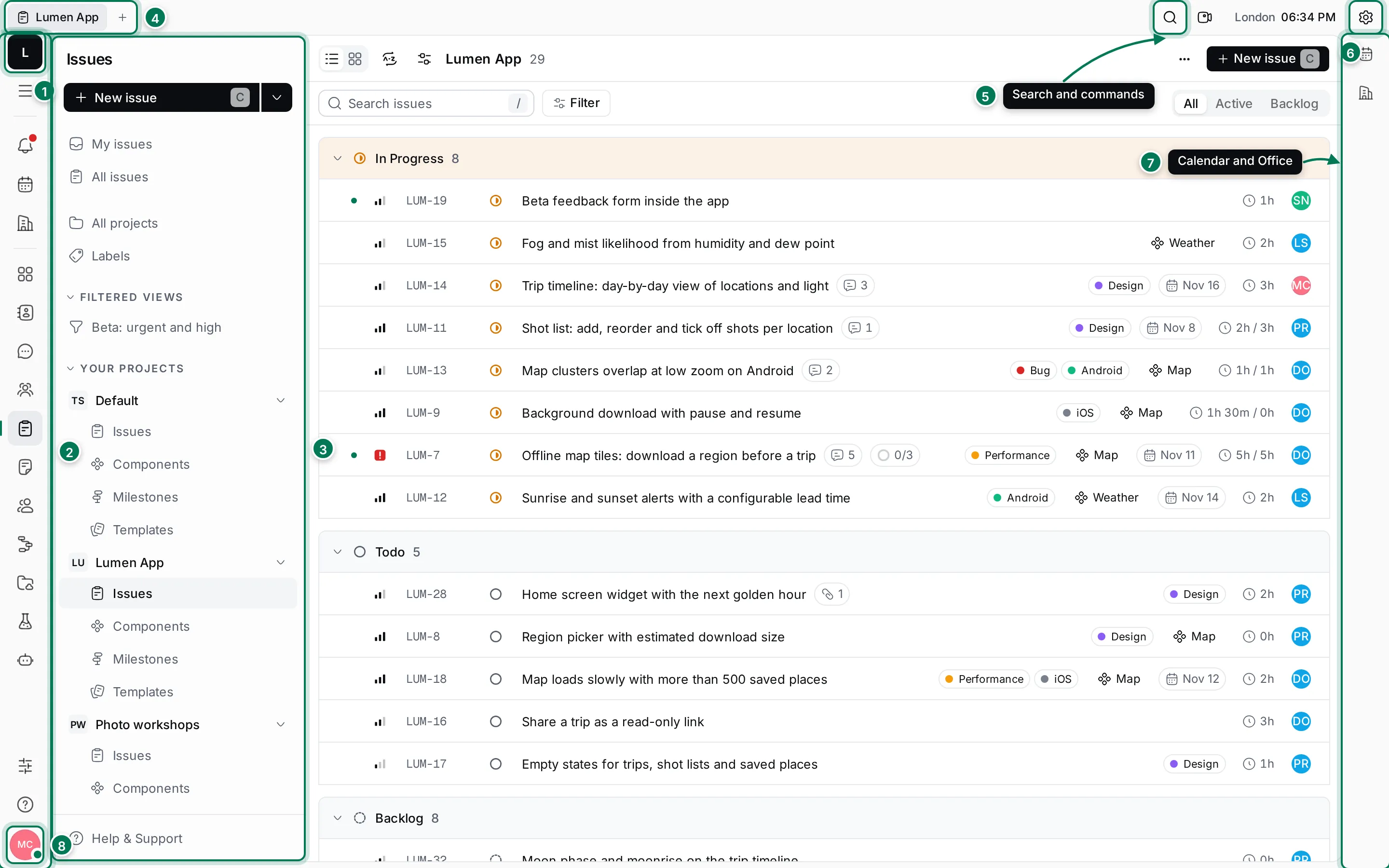
- Your workspace. Click the tile to switch workspaces.
- Apps. The rail lists Inbox, Planner and Office at the top, then the apps your team shares.
- Navigator. What’s inside the open app: views, projects, teamspaces, channels.
- Tabs. Keep several places open at once, like in a browser.
- Search and commands. Find anything or run a command. Press Ctrl+K (⌘+K on a Mac).
- Appearance. Theme, accent colour and language.
- Calendar and Office. Open your day or the office floor next to whatever you are doing.
- You. Your settings, status, invitations, help and sign out.
Find your way around explains each part in detail.
The apps
Section titled “The apps”| App | What it is for |
|---|---|
| Inbox | Notifications about the work you follow: mentions, assignments, comments and replies. |
| Planner | Your own to-do list and calendar. Plan your day with time blocks. |
| Office | A floor plan with offices and meeting rooms for calls, and minutes for every meeting. |
| Cards | Records of any type you define, such as features, assets or customers. |
| Contacts | People and companies your team works with, and your colleagues. |
| Chat | Channels, direct messages and threads. |
| Human resources | Departments, time off and the team’s schedule. |
| Tracker | Projects and issues, with milestones, components, labels and views. |
| Documents | Pages your team writes together, organized in teamspaces. |
| Team | A shared agenda and calendar of what everyone is working on. |
| Processes | Step-by-step workflows that run on cards. |
| Drive | Files and folders with versions, previews and comments. |
| Test management | Test cases, test plans and test runs, linked to issues. |
| AI Workers | Maxima and your other AI teammates, who can chat, write and take on issues. |
Workspace owners can hide apps the team doesn’t use, and you can choose which ones show on your rail. See Customize the rail.
Your first steps
Section titled “Your first steps”- Sign up and sign in with your work email, Google or Apple.
- Open your team’s workspace from an invite link, or create a workspace.
- Work through the Welcome to Work issues and the Quick-start docs for Work guides that every new workspace gets.
- Invite your team.
- Say hello to Maxima, your AI coordinator.
In this section
Section titled “In this section”Sign up and sign inYour Maxint account: email codes, Google, Apple, passkeys and two-factor.
Create a workspaceMake a workspace, see what it starts with, and switch between workspaces.
Find your way aroundThe rail, navigator, tabs, search, command palette and side panels.
Invite your teamShare an invite link and choose what role people join with.
Your profile and statusYour menu, your account settings and your status.
Appearance and languageTheme, accent colour, density, motion, corners and 15 languages.
On your phoneThe phone layout and installing Maxint Work as an app.
ReferenceKeyboard shortcuts, roles, a glossary and the REST API.