Keyboard shortcuts
Press ? anywhere (outside a text box) to see every shortcut. The same list is in the Help Center: click Help & Support, then Keyboard shortcuts.
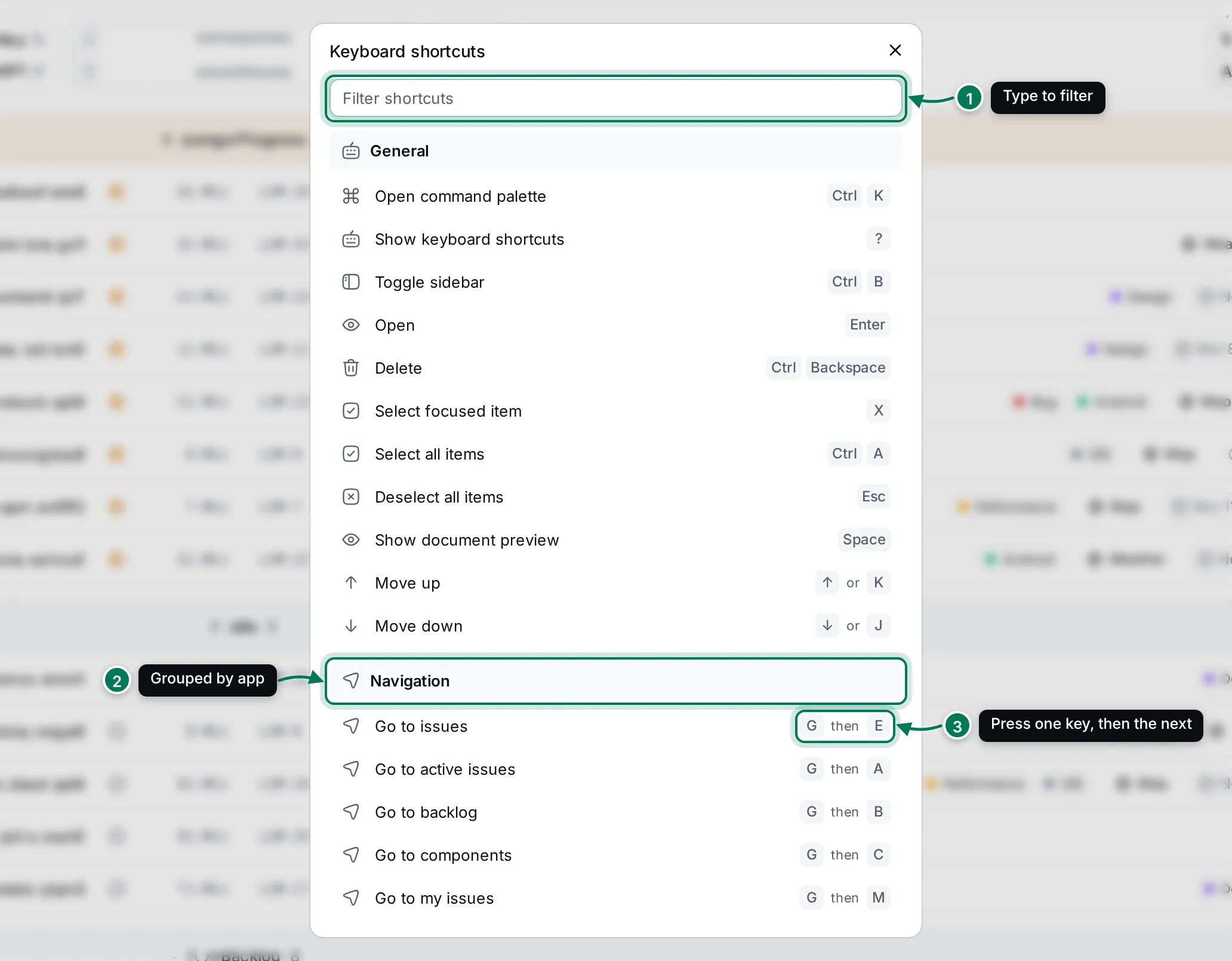
- Filter shortcuts narrows the list as you type.
- Shortcuts are grouped by app.
- then means two keys one after the other: press G, let go, then press E within about a second. or means either key works.
On a Mac, press ⌘ wherever the list shows Ctrl. Shortcuts with a single letter work when the app they belong to is open and you’re not typing in a text box.
General
Section titled “General”| Action | Keys |
|---|---|
| Open command palette | Ctrl+K |
| Show keyboard shortcuts | ? |
| Hide or show the navigator (Toggle sidebar) | Ctrl+B |
| Open the focused item | Enter |
| Delete | Ctrl+Backspace |
| Select the focused item | X |
| Select all items | Ctrl+A |
| Deselect all items | Esc |
| Show a preview of the focused item | Space |
| Move up | ↑ or K |
| Move down | ↓ or J |
In any long list you can also use Home, End, Page Up and Page Down.
Navigation
Section titled “Navigation”| Action | Keys |
|---|---|
| Go to issues | G then E |
| Go to active issues | G then A |
| Go to backlog | G then B |
| Go to components | G then C |
| Go to my issues | G then M |
Tracker
Section titled “Tracker”| Action | Keys |
|---|---|
| New issue | C |
| Add time report | T |
| Status of the focused issue | S then S |
| Priority of the focused issue | P then R |
| Assignee of the focused issue | A |
| Component of the focused issue | M then T |
| Milestone of the focused issue | S then P |
| Labels of the focused issue | L |
| Due date of the focused issue | D |
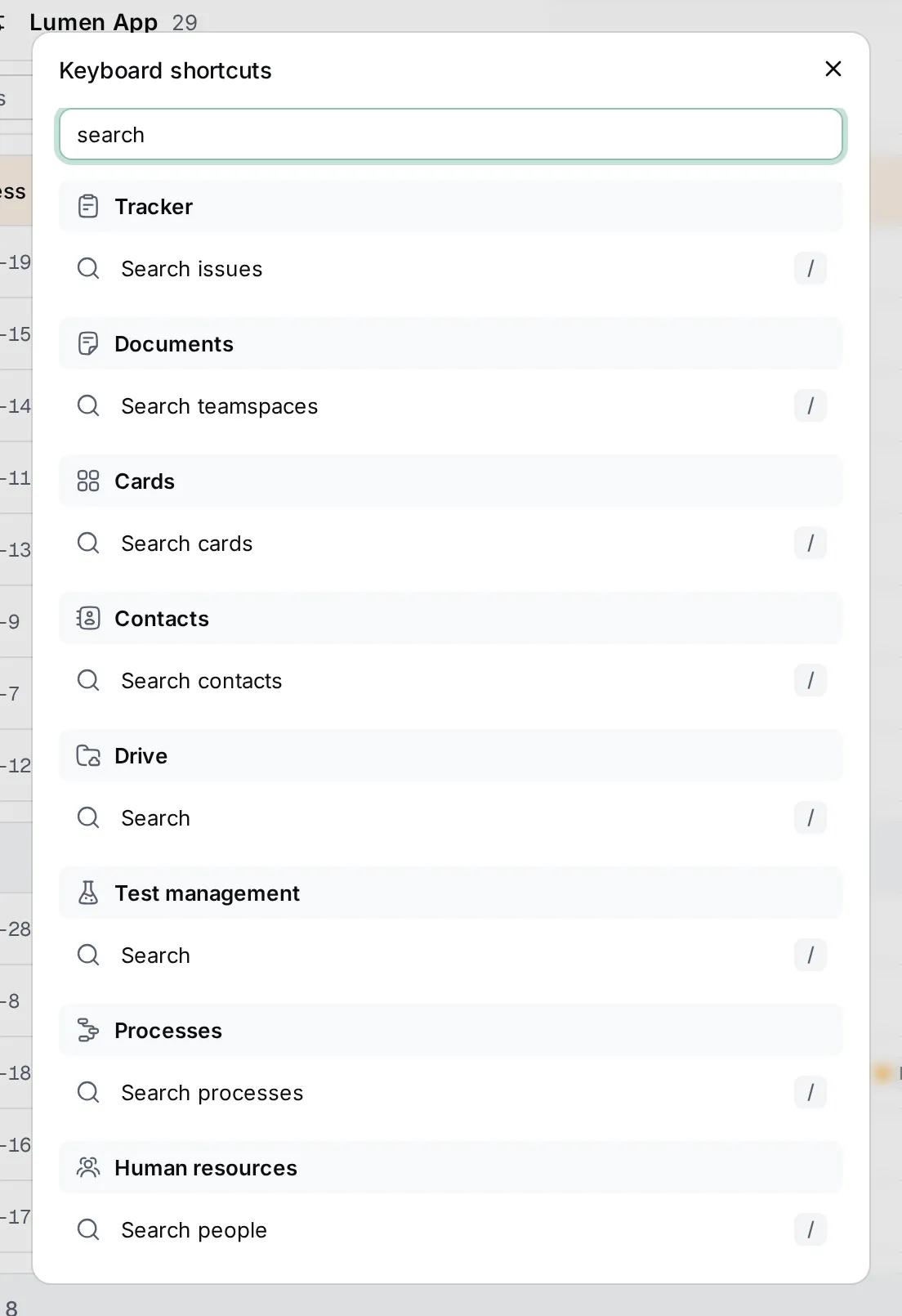
| Search issues | / |
| Select the focused issue | X |
| Select all issues | Ctrl+A |
| Next issue | J |
| Previous issue | K |
More on working with issues from the keyboard: Bulk changes and shortcuts.
Documents, Cards, Contacts and Drive
Section titled “Documents, Cards, Contacts and Drive”| App | Action | Keys |
|---|---|---|
| Documents | Create document | C |
| Documents | Search teamspaces | / |
| Cards | New card | C |
| Cards | Search cards | / |
| Contacts | Search contacts | / |
| Drive | Search | / |
| Drive | Select all items | Ctrl+A |
| Action | Keys |
|---|---|
| Close the open panel, such as a thread | Esc |
| Hide the focused conversation from the navigator | Backspace |
| Close the focused conversation | Backspace |
| Leave the focused channel | Backspace |
The Backspace shortcuts act on the conversation that has focus in the navigator, and do what fits it: leave a channel, close a direct conversation, or hide anything else. In the message box, Enter sends and Shift+Enter starts a new line. See Write messages.
Office
Section titled “Office”| Action | Keys |
|---|---|
| Microphone on or off | Ctrl+D |
| Camera on or off | Ctrl+E |
| Call full screen | F |
These work during a call.
Test management, Processes and Human resources
Section titled “Test management, Processes and Human resources”| App | Action | Keys |
|---|---|---|
| Test management | New test case | C |
| Test management | Mark as passed | P |
| Test management | Mark as failed | F |
| Test management | Mark as blocked | B |
| Test management | Go to the next test | N |
| Test management | Search | / |
| Processes | Run process | C |
| Processes | Search processes | / |
| Human resources | Search people | / |
The pass, fail and block keys work while you run tests.
Find a shortcut fast
Section titled “Find a shortcut fast”Type part of its name in Filter shortcuts, for example “search” to see the search key of every app.