Chat with Maxima
Maxima is your AI coordinator. Its chat is the quickest way to get an answer about your work, have something done, or plan a bigger goal. Maxima looks things up in the workspace, uses its tools, and brings in specialist workers when a job needs them.
Start a conversation
Section titled “Start a conversation”- Open AI Workers from the left rail. You land in Chat.
- To start from an idea, click a suggestion: Research a topic, Plan a goal for my team, What are my workers doing? or Draft an outreach email. It is sent to Maxima straight away, and Maxima asks you for the details it needs.
- Or type your own question or task in Message Maxima and press Enter. Shift + Enter starts a new line.
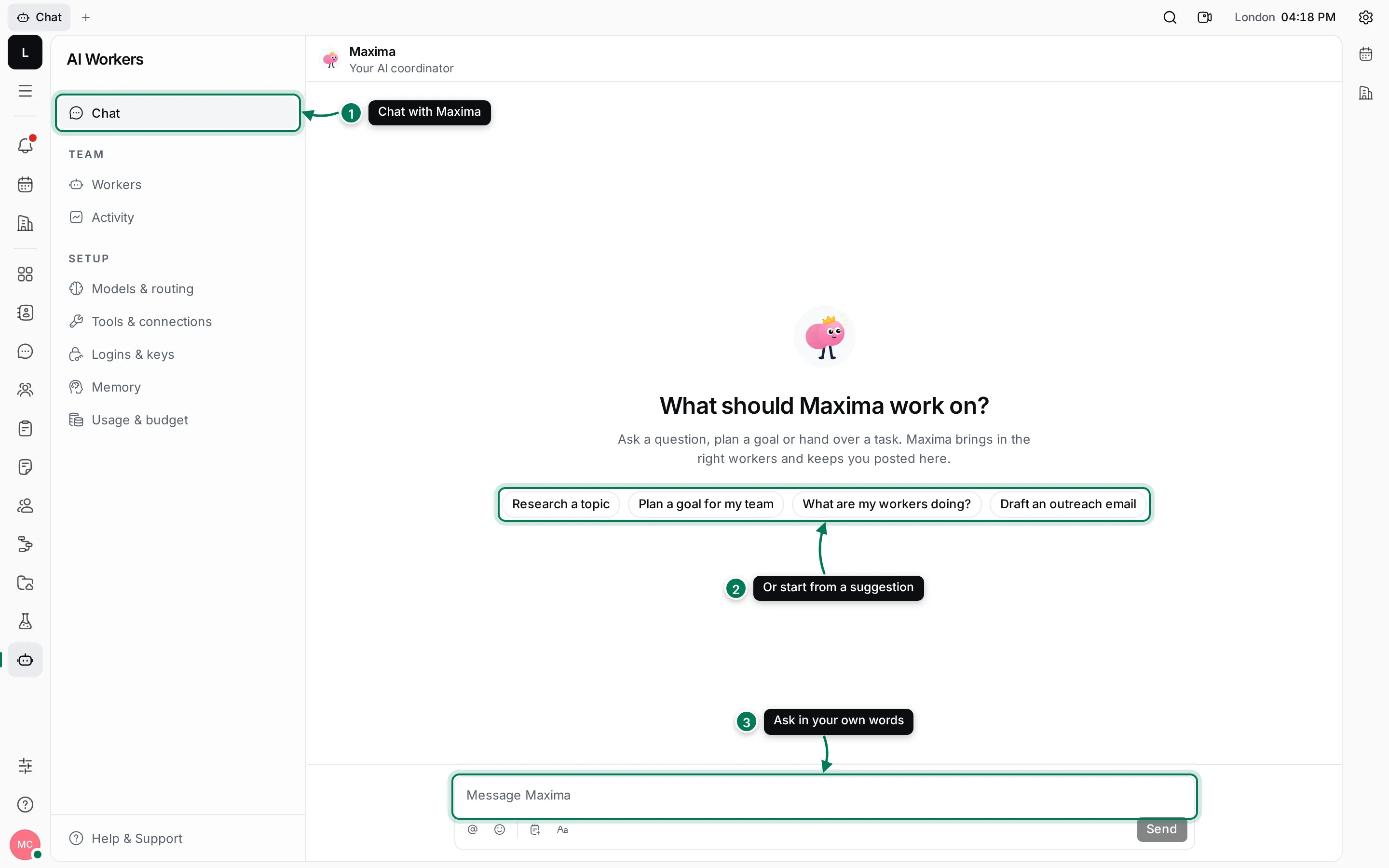
Write the way you would to a colleague. “Which Lumen App issues are in progress, and who has them?” works better than a list of keywords. Maxima knows the projects, people, documents and channels you can see.
Follow along while Maxima works
Section titled “Follow along while Maxima works”While Maxima works on an answer, the last row of the conversation says what it is doing, for example looking through issues or reading a document. You can leave the page: the answer waits in the conversation. The same conversation is listed under Direct messages in Chat, as Maxima.
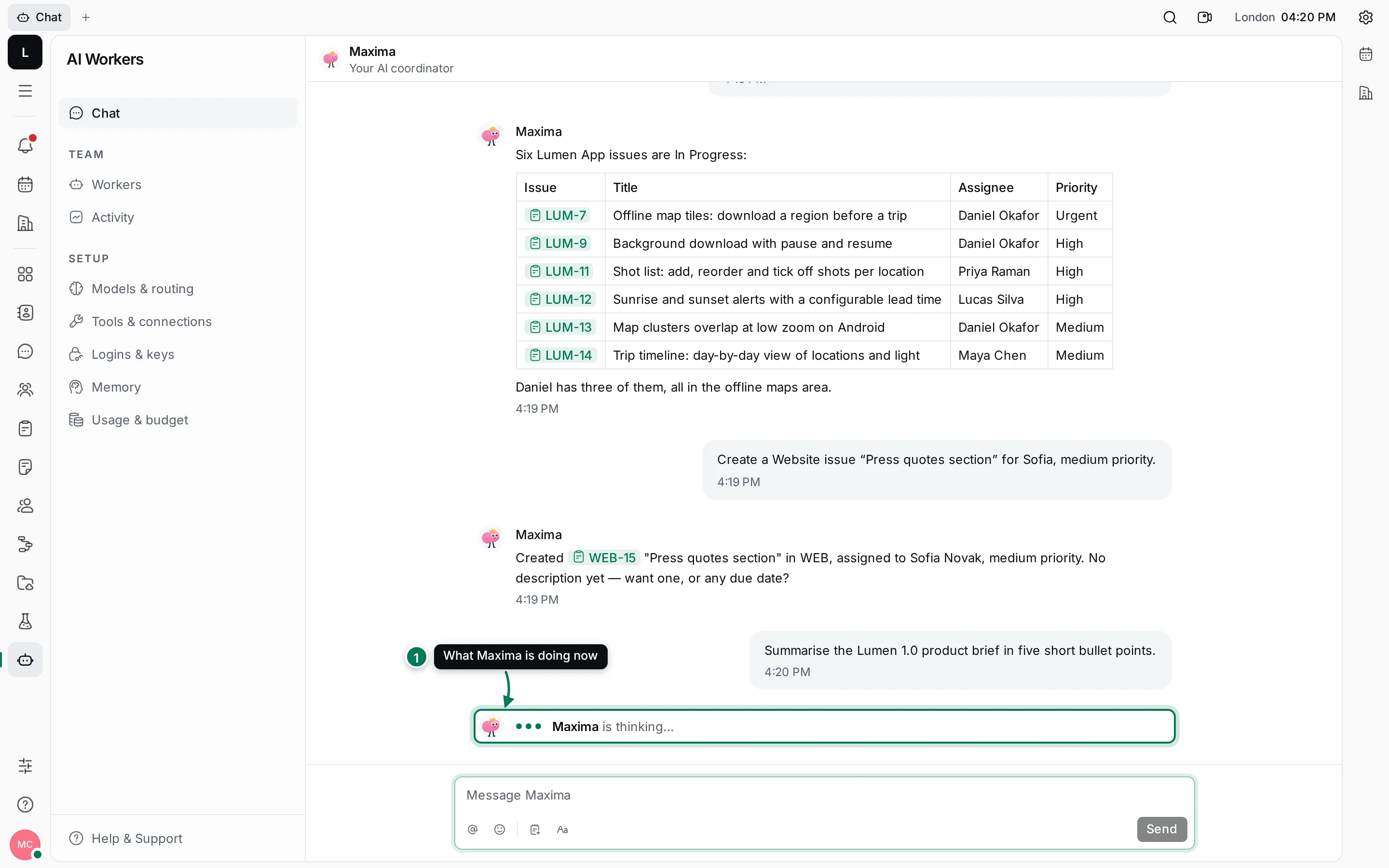
Answers can include tables, lists and references. A reference such as LUM-7 or a document title is shown as a chip; open the item from the tracker or from Documents.
Have Maxima do things
Section titled “Have Maxima do things”Maxima can change things in the workspace for you: create and update issues, write documents, post in channels, add to-dos and more. Ask for the result you want, with the details that matter.
- Tell Maxima what to do, for example: Create a Website issue “Press quotes section” for Sofia, medium priority.
- If Maxima asks you to confirm, reply Yes (or say what to change).
- Maxima answers with what it did. Open the item to check it, for example the issue in Tracker.
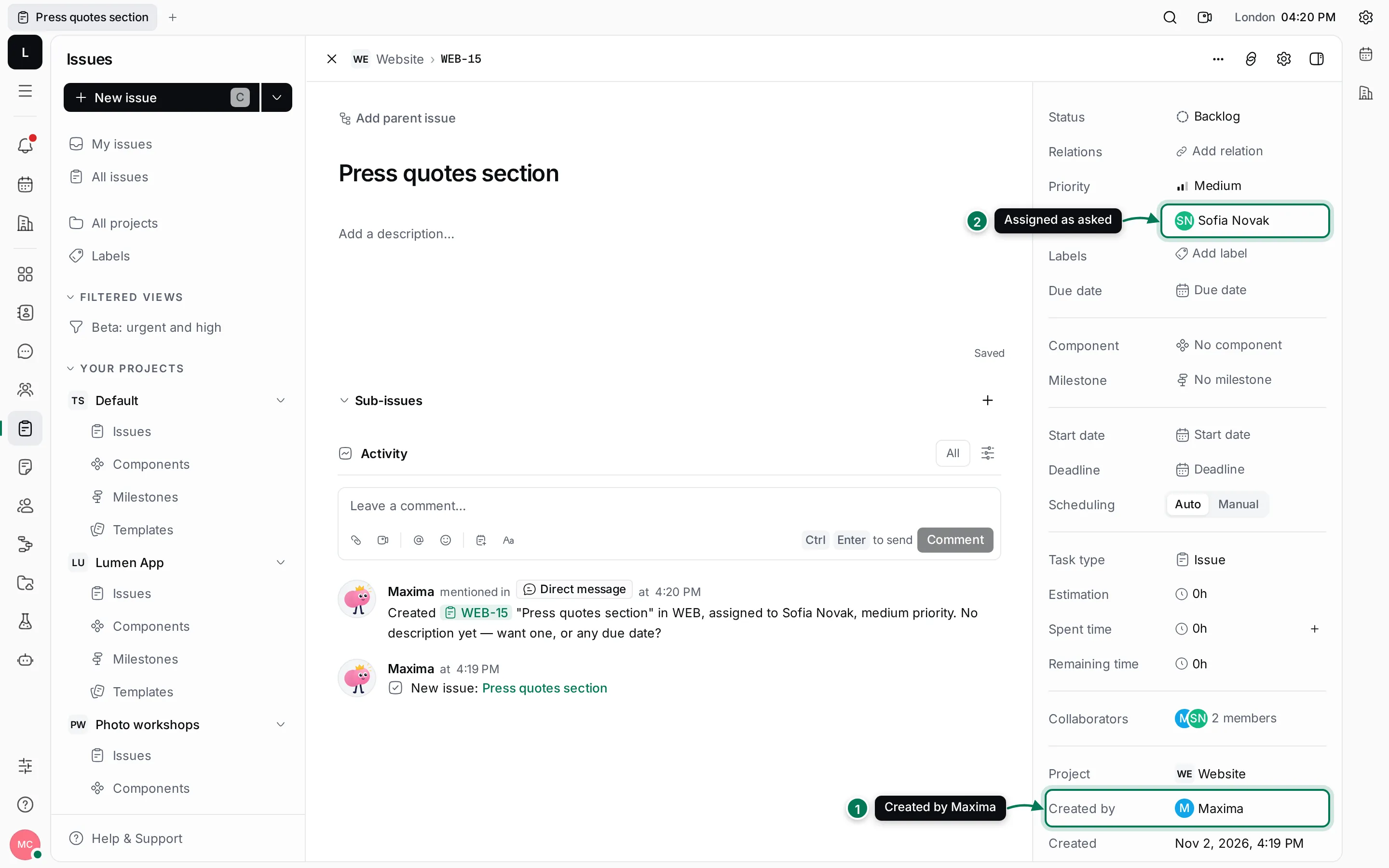
The issue belongs to the project like any other. Maxima is shown as its creator, and the change appears in the issue’s activity.
Summarise and explain
Section titled “Summarise and explain”Ask Maxima to read something and give you the short version: a document, an issue and its comments, or a busy channel.
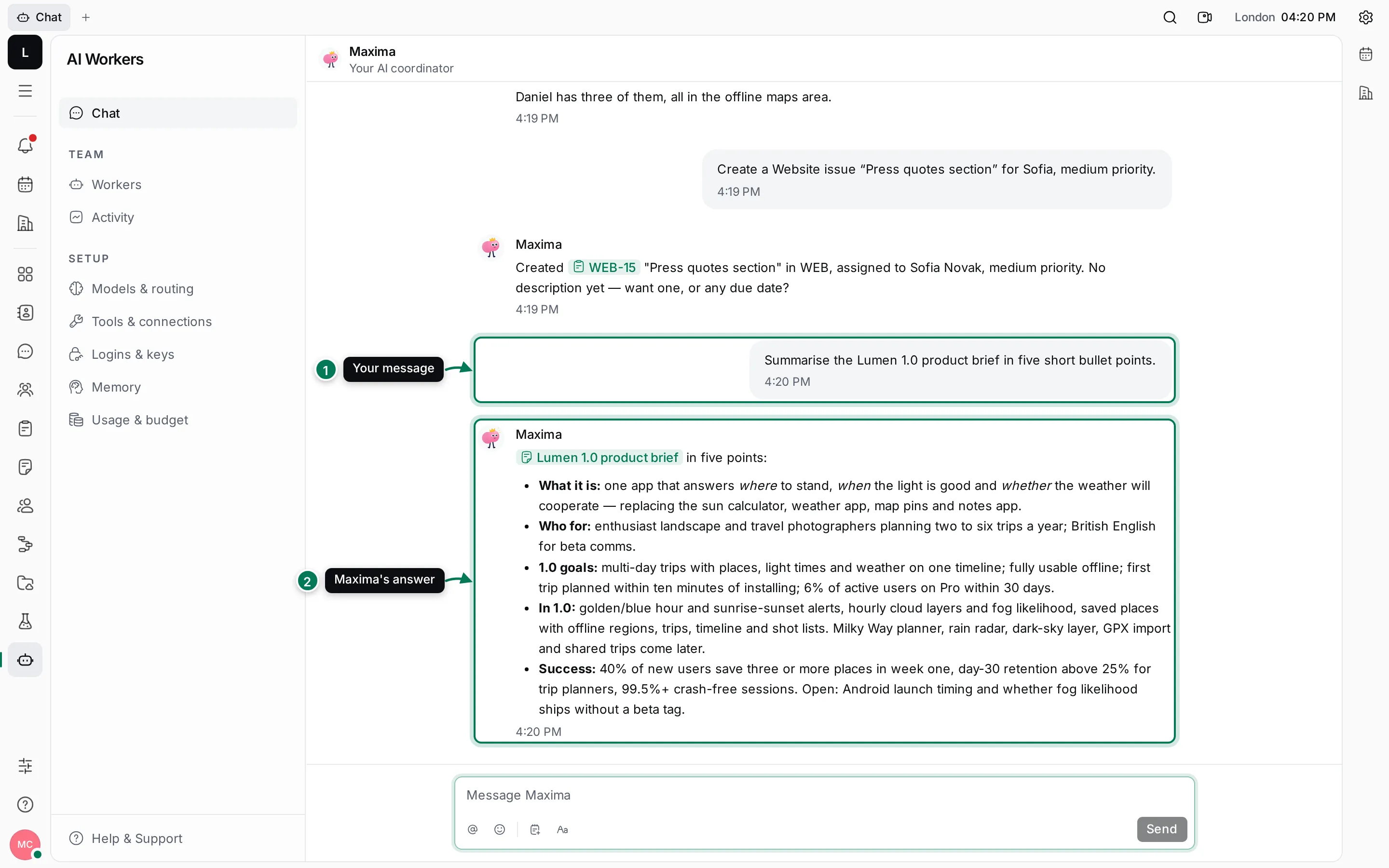
Good things to ask for:
- Summarise the Lumen 1.0 product brief in five bullet points.
- What is left before we can close LUM-7?
- What did the team decide about the Pro trial in #product?
- What are my workers doing?
Plan a bigger goal
Section titled “Plan a bigger goal”For work with several steps, give Maxima the goal: Plan the public launch for January. Maxima splits it into tasks, proposes who does each one (people or workers), and once you agree, creates the tasks and hands them out. You can follow the goal under Activity › History. See Activity and memory.
The welcome issue “Say hello to Maxima”
Section titled “The welcome issue “Say hello to Maxima””New workspaces have a Welcome to Work project with a first issue, Say hello to Maxima, your AI coordinator. It walks you through this page in a few short steps. When you have said hello, move the issue to Done.
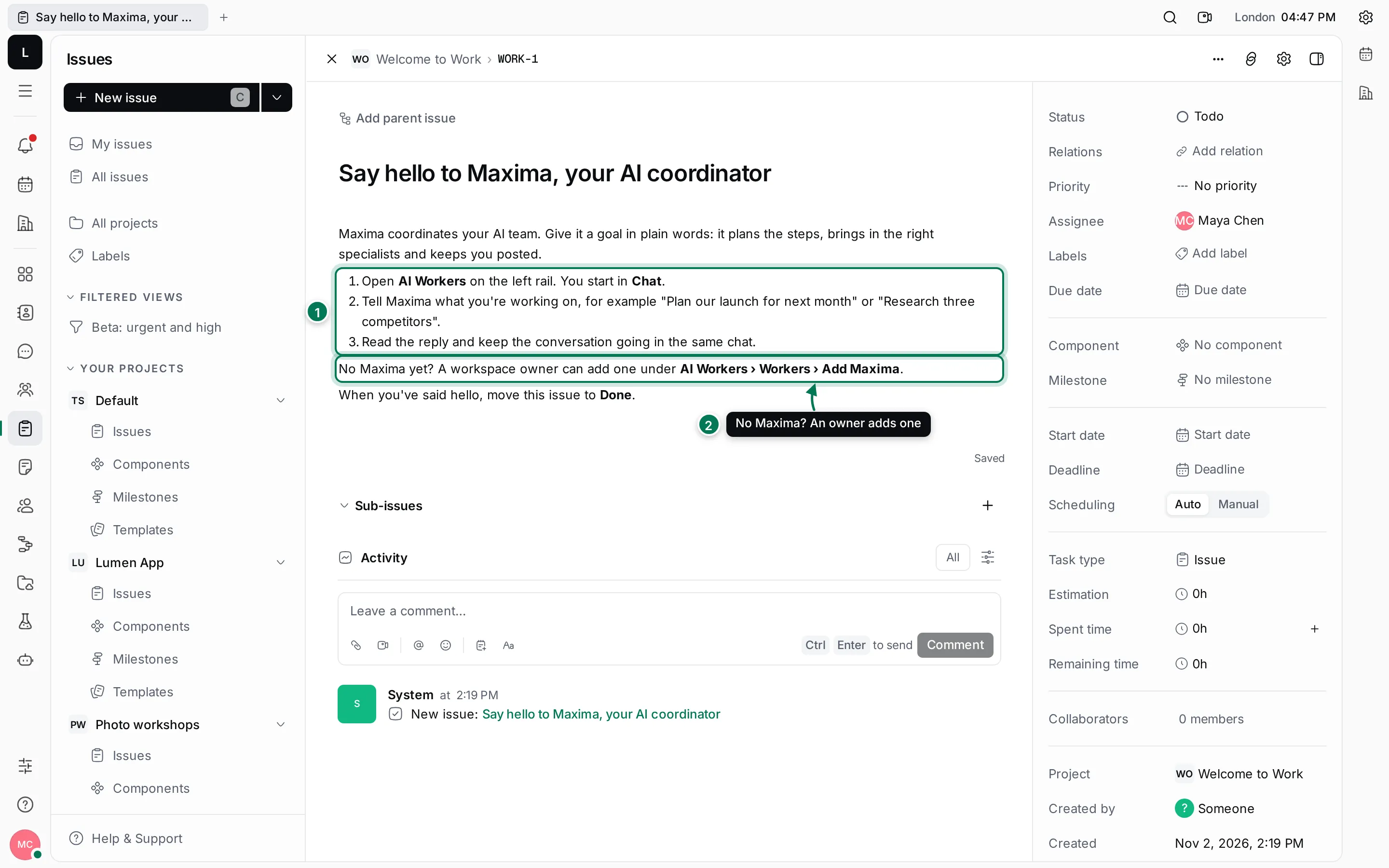
- The three steps: open AI Workers, tell Maxima what you are working on, and keep the conversation going.
- What to do when the workspace has no Maxima yet.
- Keep one topic per message. Follow-up questions in the same chat keep their context.
- Name the project, issue or document when you can. “LUM-7” is faster to find than “the offline maps issue”.
- Want a worker to remember something for next time? Say so: Remember that our beta testers are in the UK and Norway. It shows up in Memory.
- To bring a worker into a discussion that is already happening, mention it there instead of copying the text into Chat.