Human resources overview
Human resources keeps track of who is in which department and who is away. Everyone can see the team’s schedule: vacations, sick days, remote days and public holidays, a row per person and a column per day.
Open it from Human resources in the left rail.
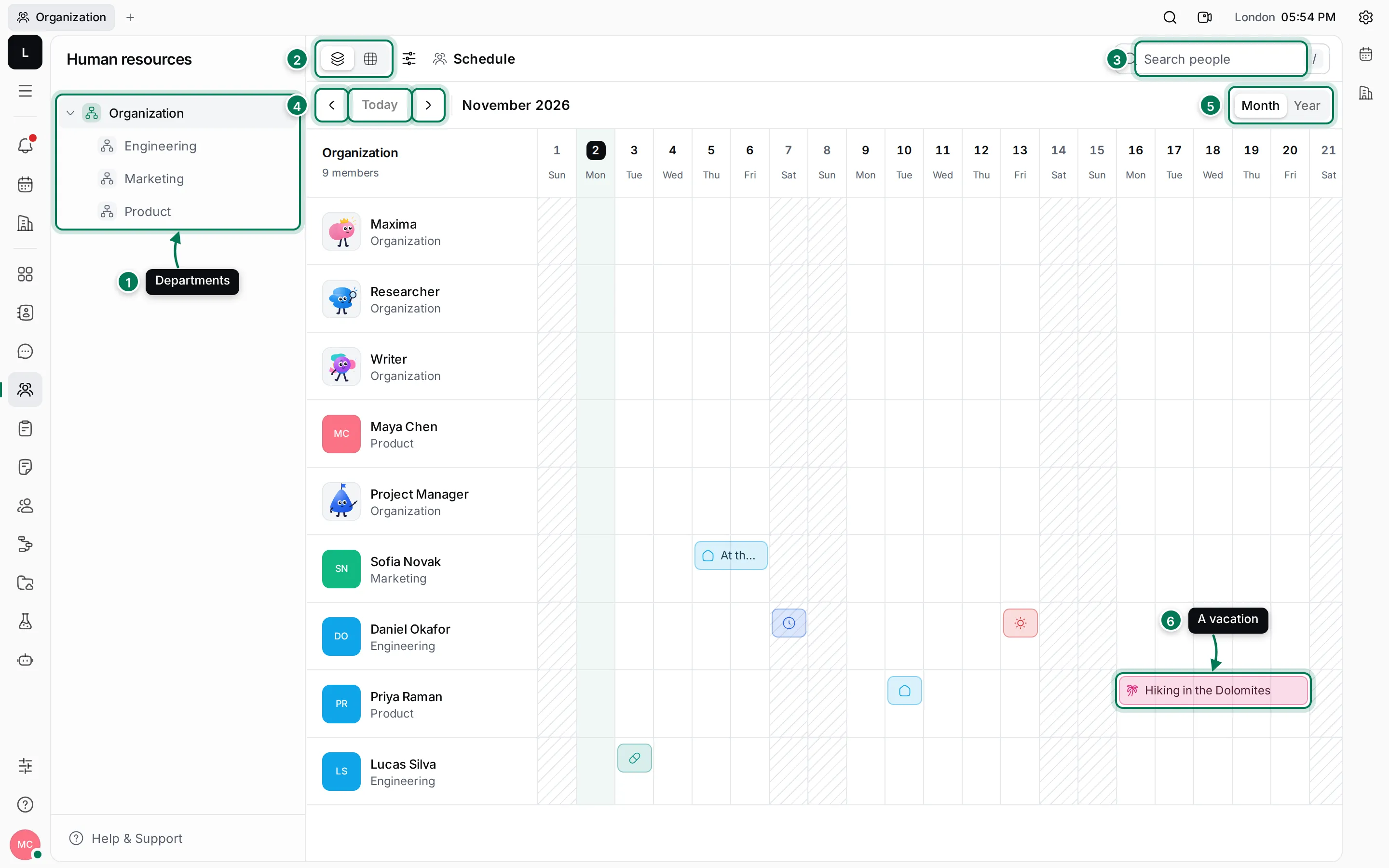
- Departments: Organization is the whole company, with its departments under it. Click one to see its people.
- Schedule or Statistics: the calendar of requests, or a table of numbers per person.
- Search people: narrow the list by name. Press / to jump to it.
- ‹ Today ›: move a month at a time, or back to this month.
- Month or Year: one month day by day, or the whole year in totals.
- A request: a coloured bar across the days someone is away or working differently. Hover over it to see its type, dates and note.
The schedule of a department includes the people in its sub-departments. The corner above the names says how many people there are.
Request types
Section titled “Request types”| Type | What it means | Counts as |
|---|---|---|
| Vacation | Planned time off | a day off |
| Sick | Sick leave | a day off |
| PTO | Paid time off | a day off |
| PTO/2 | Half a day of paid time off | half a day off |
| Overtime | Working an extra day | an extra day |
| Overtime/2 | Working an extra half day | half an extra day |
| Remote | Working from somewhere else | neither |
Weekends and public holidays don’t count, so a week of vacation from Monday to Friday is five days.
What you can do
Section titled “What you can do”Request time offAdd vacations, sick days and remote days, and change or delete them.
DepartmentsBuild your company's structure, choose team leads and move people.
Schedule and public holidaysRead the month and year views and mark public holidays.
StatisticsWorking days, time off and reported time per person, and export it.