Meeting minutes
When people meet in a room, Office starts meeting minutes for that meeting. They collect everything about it in one place: notes anyone can edit, the chat from the call, the transcript and any files. The minutes stay after the meeting, so you can come back to the decisions later.
Find a meeting
Section titled “Find a meeting”- Click Meeting minutes in the Office navigator.
- Click a meeting to open its minutes. Use Search meeting minutes (or press /) to find one by title.
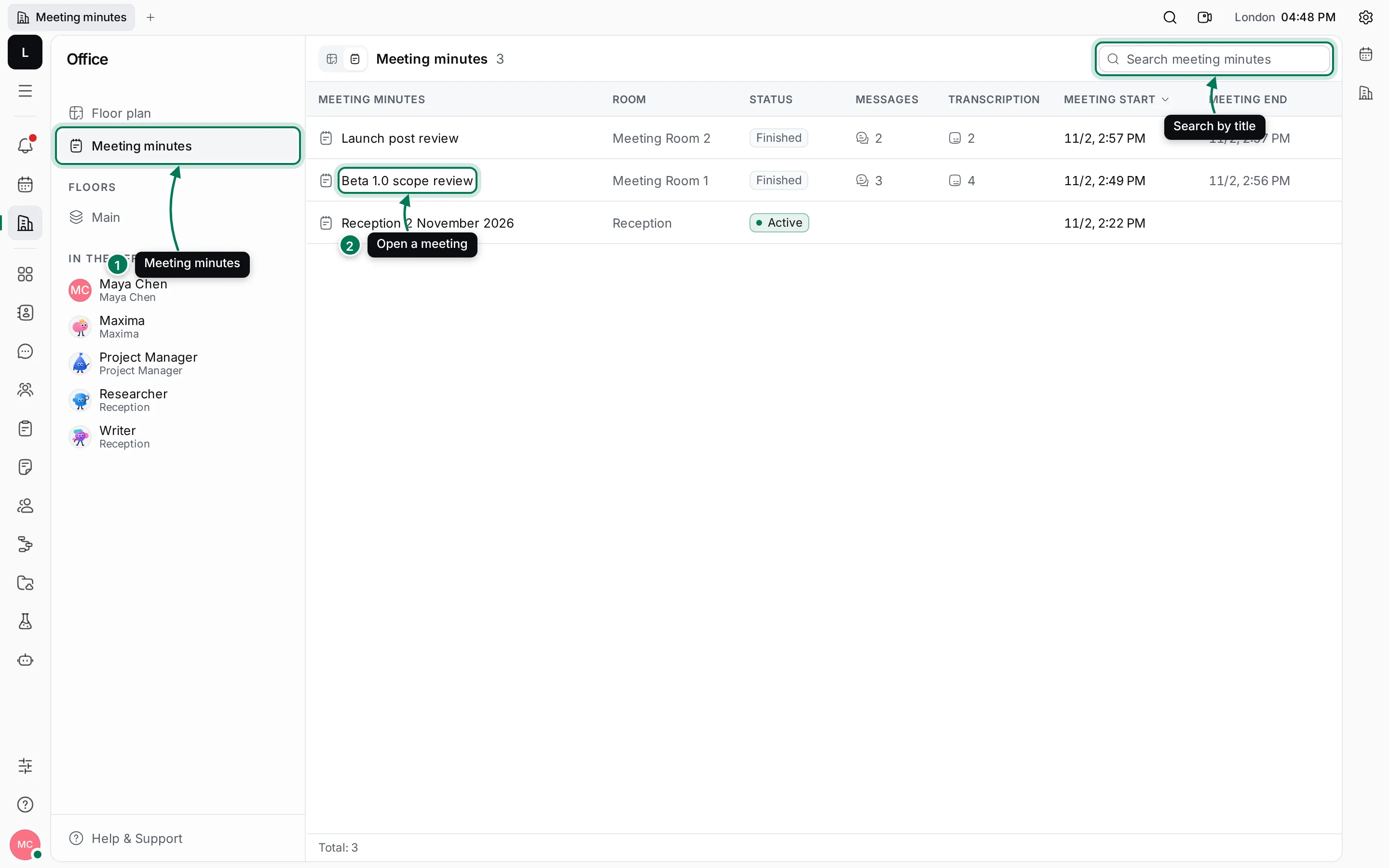
The table shows each meeting’s room, its status (Active while it’s going on, Finished after), how many messages and transcript lines it has, and when it started and ended. Click a column header to sort by it. A room’s page shows the minutes of the meetings held in that room.
New minutes are named after the room and the date. Click the title at the top of the minutes to rename them, for example “Beta 1.0 scope review”.
What’s in the minutes
Section titled “What’s in the minutes”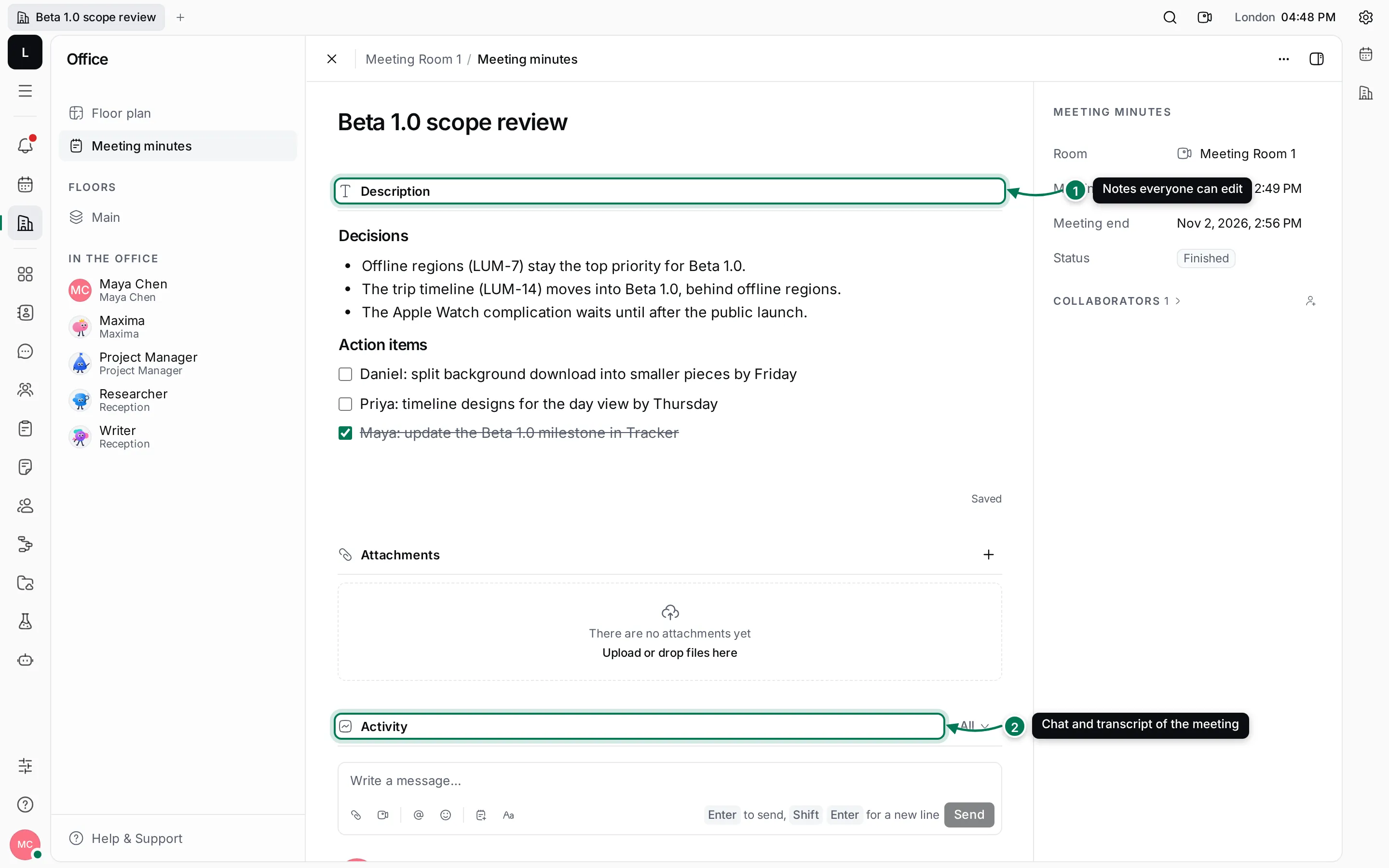
- Description holds the meeting notes. Everyone can edit them at the same time, during or after the meeting; use headings, lists and to-dos for decisions and action items.
- Activity has the meeting’s chat and transcript, plus changes such as a new title. Write in the box to add a message. The All button filters to Messages, Transcript or Updates, newest or oldest first.
Attachments keeps files shared in the meeting; click + or drop files there.
The column on the right shows the room, when the meeting started and ended, its status, and its collaborators. While a meeting is still going on, Join meeting appears in the header.
More actions
Section titled “More actions”Click ⋯ at the top of the minutes for:
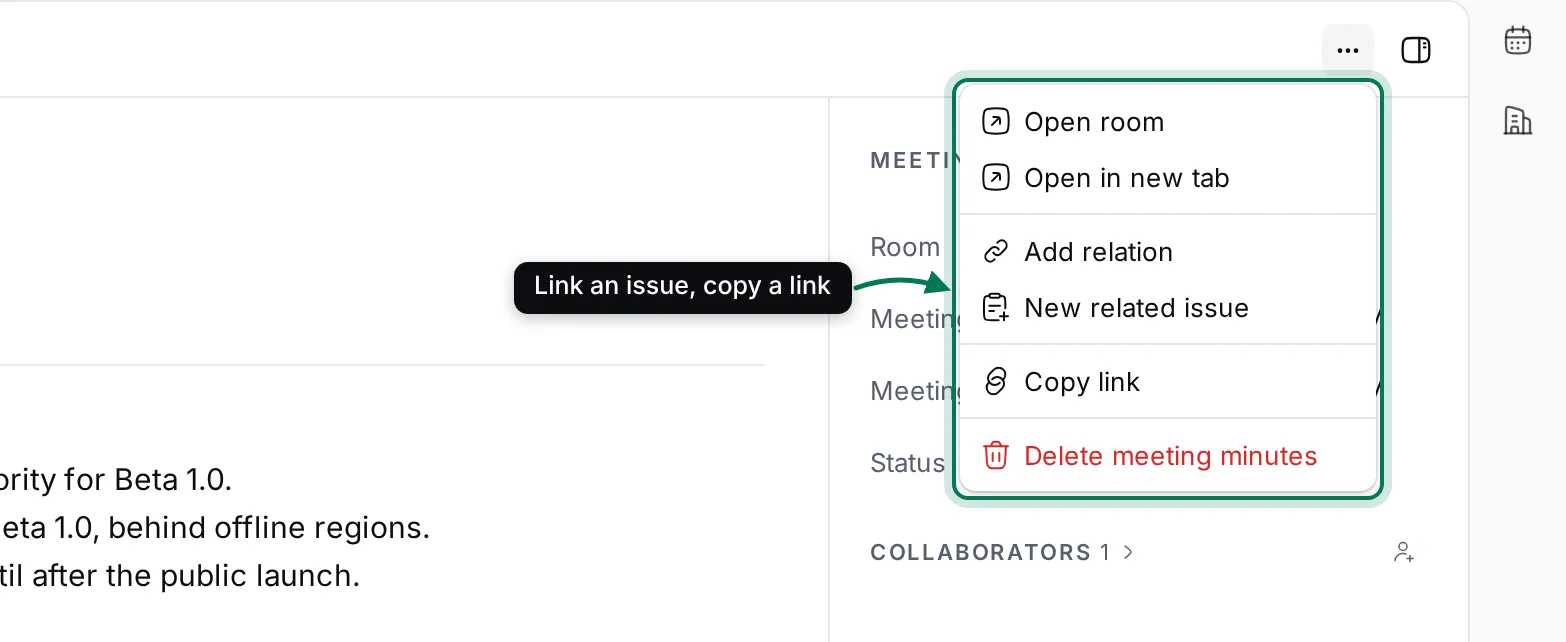
- Open room and Open in new tab.
- Add relation: link the minutes to an issue or another item.
- New related issue: turn an action item into an issue in Tracker, linked back to the meeting.
- Copy link.
- Delete meeting minutes, after you confirm. The notes and messages are deleted for everyone.
You can also right-click a meeting in the list for the same actions.