Logins and keys
Some work needs a login: reading a report in your analytics tool, calling a weather API, or sending email from a team mailbox. Logins & keys keeps these secrets safe for the workers. A worker never sees the secret itself: it works with a placeholder, and the service fills in the real value on the way to the site. Every use is logged.
Every member can open Logins & keys and add their own logins. Workspace owners can also add logins for the whole workspace.
Add a login or key
Section titled “Add a login or key”- Open AI Workers › Logins & keys and click Add login or key.
- Pick the Type: Website login, API token, API username and password or OAuth client (client id and secret).
- Under Sites, list where it may be used, separated by commas.
*.example.comcovers subdomains. - Fill in the secret: a username and password, a token, or a client id and secret.
- Choose Who it belongs to: Only me: used when I ask a worker, or The whole workspace.
- Optional: tick the Workers that may use it (none ticked means every worker), and set the options below.
- Give it a Name and click Save.
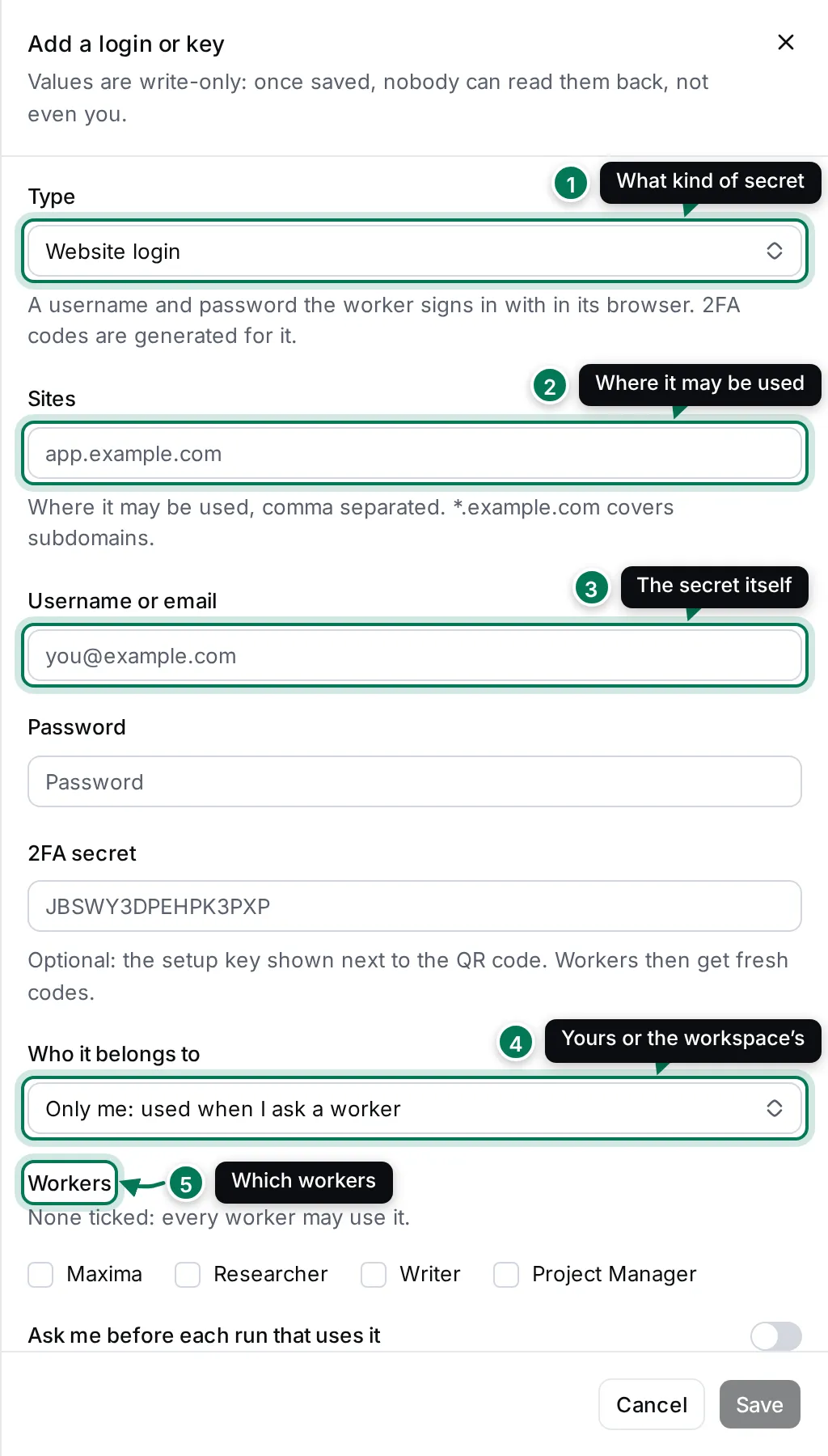
- Type: what kind of secret it is.
- Sites: where it may be used.
- The secret itself. The fields change with the type.
- Who it belongs to: you, or the whole workspace.
- Workers: which workers may use it.
Values are write-only: once saved, nobody can read them back, not even you. To change a secret, edit the entry and type the new value; leave the field empty to keep the stored one.
The types
Section titled “The types”| Type | Use it for |
|---|---|
| Website login | A username and password the worker signs in with in its browser. Add the 2FA secret (the setup key next to the QR code) and the worker gets fresh codes. |
| API token | A token sent as a header on requests to the sites, for example Authorization: Bearer …. Set Header and Prefix if the API uses others. |
| API username and password | HTTP basic auth on requests to the sites. Also a mailbox: its SMTP server and an app password, for the Email tool. |
| OAuth client | A client id and secret. The service trades them at the Token URL for short-lived tokens. |
Options
Section titled “Options”- Who may ask a worker to use it (workspace logins): Any member, Maintainers and owners or Owners only.
- Ask me before each run that uses it: the worker asks you first, every time.
- Keep the run’s internet to these sites: while it uses this login, the worker’s computer can reach only the listed sites and package registries. Recommended.
- Expires: a date after which it can no longer be used. Leave it empty and it never expires.
- Note for the workers: what the account is for and what to avoid, for example Read-only reporting account; never change settings.
See where a login was used
Section titled “See where a login was used”The list shows each entry with its type, sites, owner (Yours or Workspace), which workers may use it, and when it was last used. Tags such as asks first, internet locked and expired show its options.
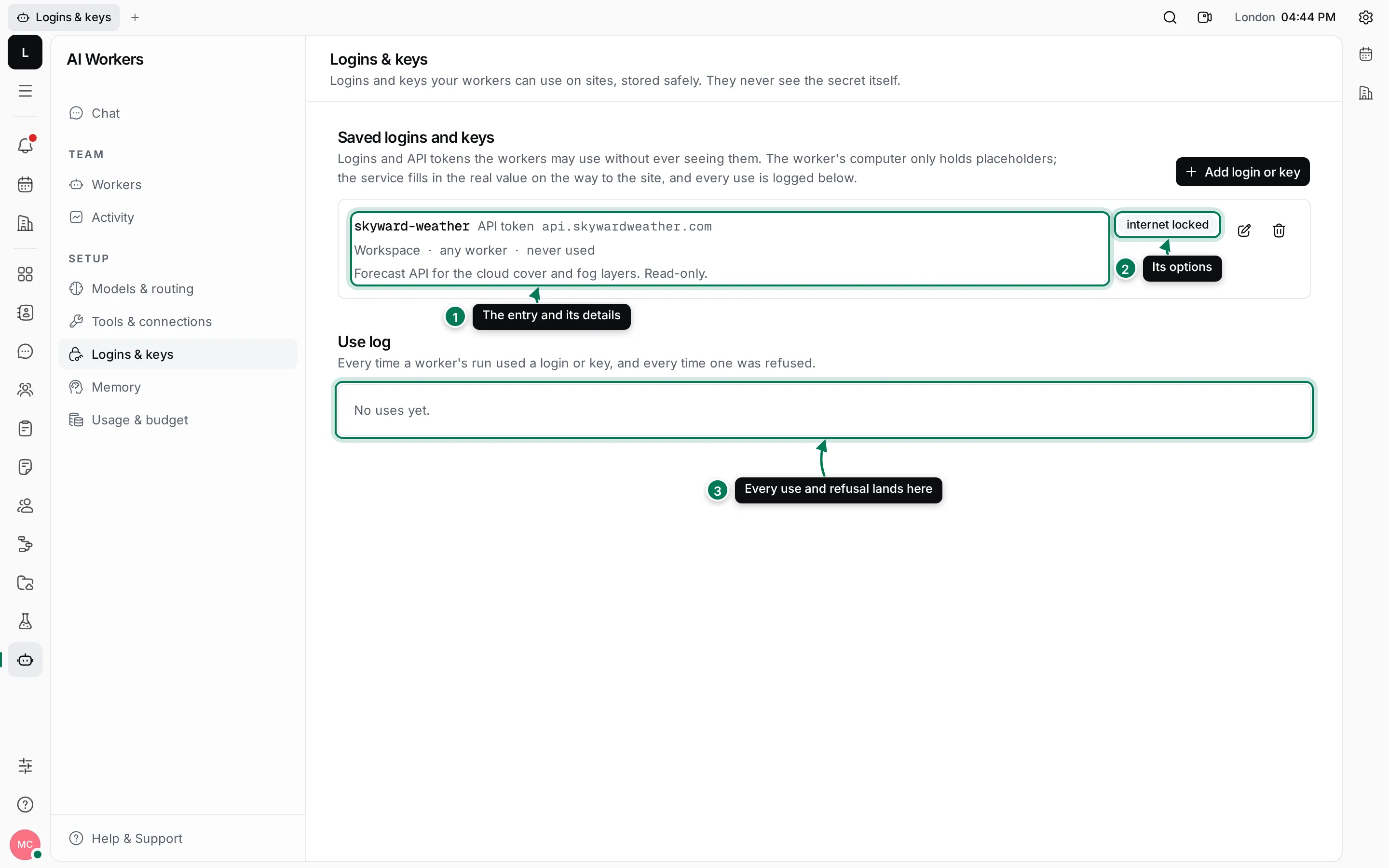
- The entry: its name, type and sites, then who it belongs to, which workers may use it, when it was last used, and the note for the workers.
- Its options, such as internet locked.
- The Use log lists every time a worker’s run used a login or key, and every time one was refused: when, for whom, on which site, and what happened (added to requests, filled into a form or refused).
Use the pencil button to edit an entry and the bin to delete it. Once deleted, runs can no longer use it.
Logins used by an MCP server are picked in its settings. See Connect an outside service over MCP.