Drive overview
Drive keeps your team’s files: design exports, PDFs, specs, data and recordings. Files live in drives, which you share with the people who need them, and in folders inside each drive. You can preview most files without downloading them, comment on them, and upload new versions without losing the old ones.
A quick tour
Section titled “A quick tour”Open Drive from the left rail and pick a drive.
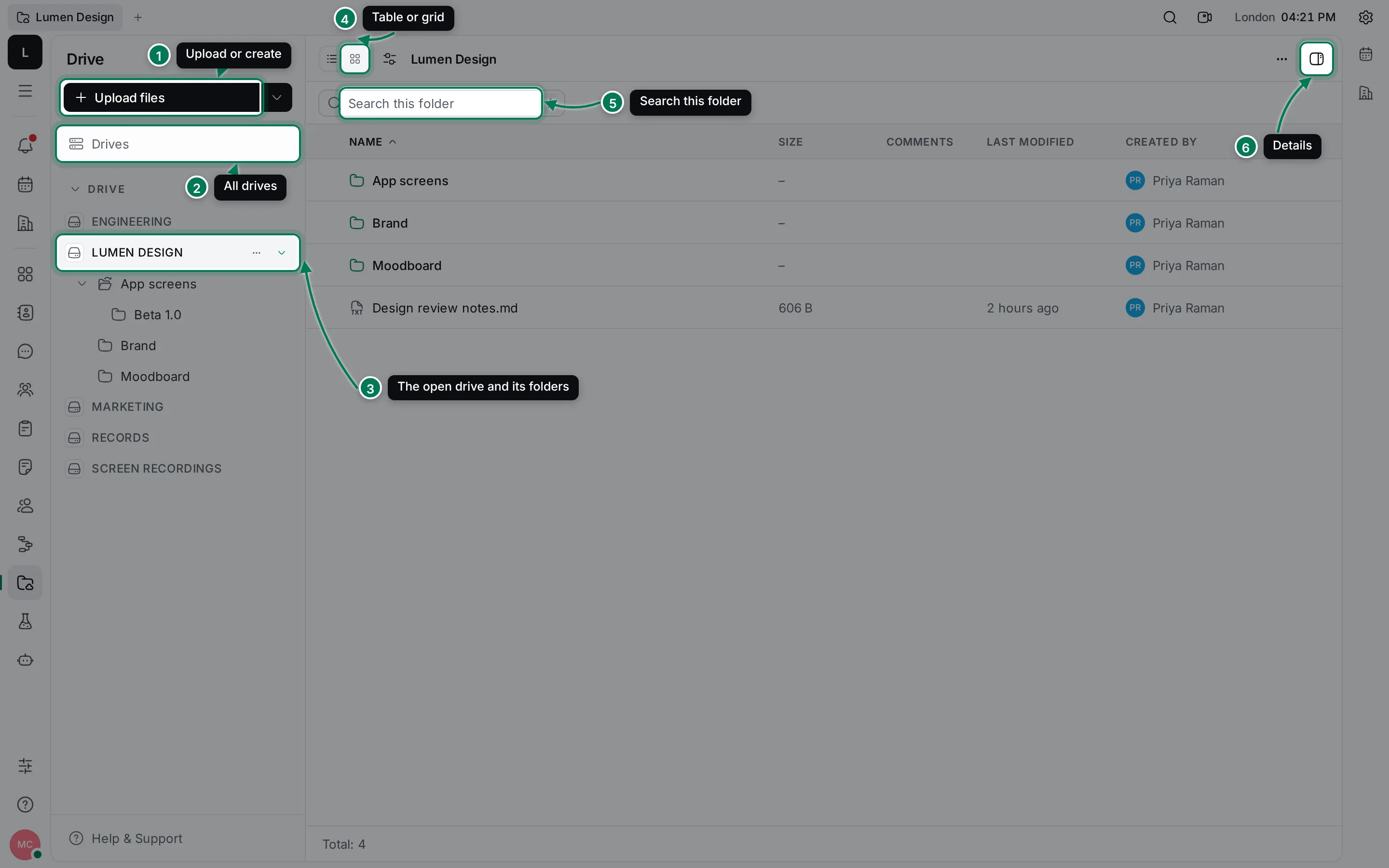
- Upload files uploads into the open drive or folder. Its arrow also has Create drive, Create folder, Upload folders and Record.
- Drives lists every drive in the workspace.
- The open drive shows its folders underneath. Click a folder to open it, or the arrow to fold the tree.
- Switch between the table and a grid of previews.
- Search this folder filters what is shown. Press / to jump to it.
- Details shows the drive’s or folder’s settings and the people following it.
In this section
Section titled “In this section”DrivesCreate drives, choose who can use them, and star, archive or leave them.
Upload and organize filesUpload files and folders, record videos, and rename, move or delete items.
Browse and previewTable and grid views, sorting, columns, search and quick previews.
Files, versions and commentsThe file page: versions, details, comments, downloads and links.
To write text together, use Documents instead. Copying folders in from Google Drive is covered in Integrations.