Arrange the office
Shape the office to fit your team: a big room for the all-hands, small rooms for one-to-ones, audio-only rooms for quick talks, and a floor per team if you need one.
Add a room
Section titled “Add a room”- On the floor plan, click Edit office. Every room shows its seats and a trash button.
- Click Add and choose Meeting room, Team room, Office or Floor. The new room appears in the first free spot.
- Double-click the new room to name it and choose its settings, then click Save.
- Click Done (or press Esc) to leave edit mode.
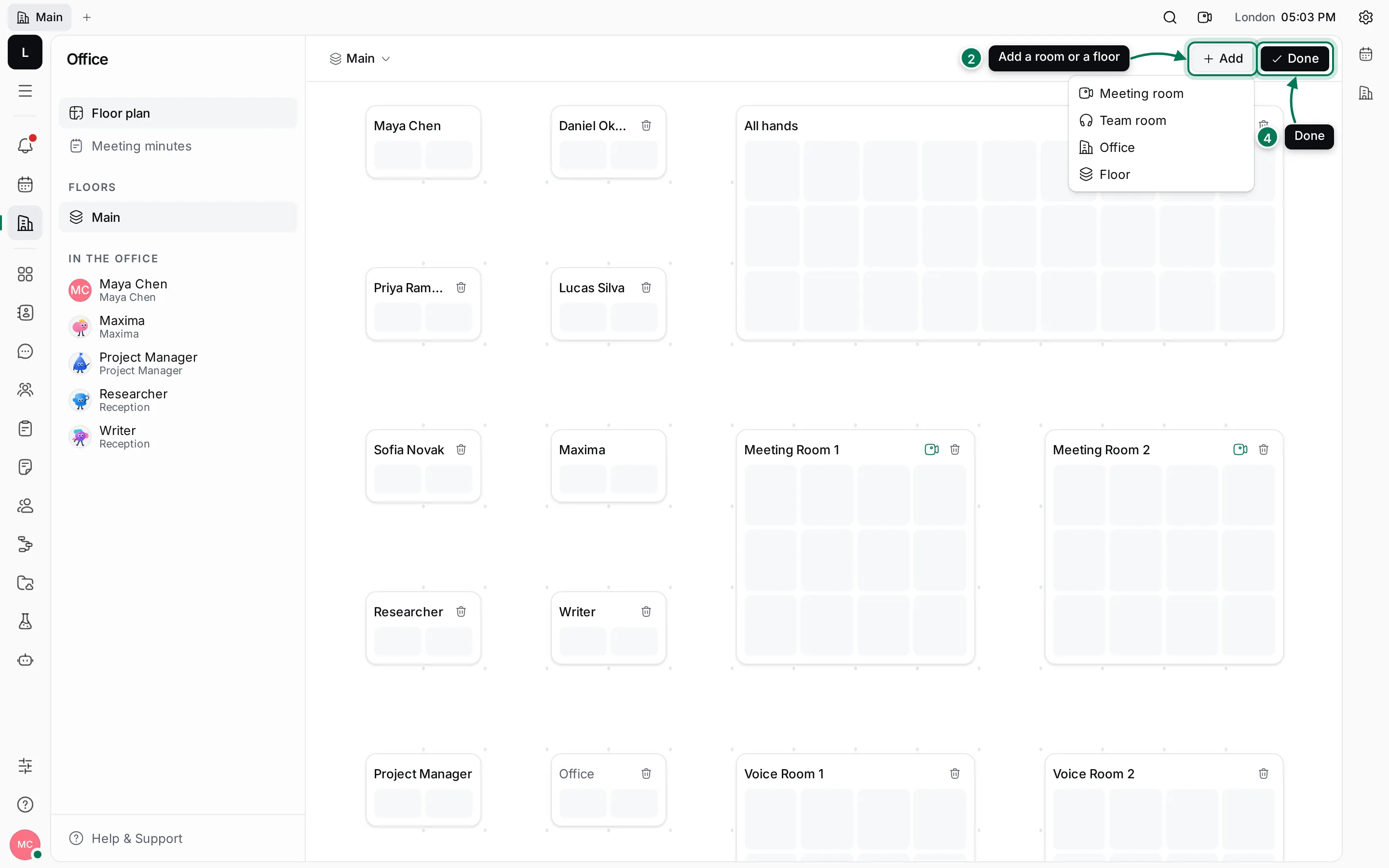
A Meeting room starts as a video room, a Team room as an audio room, and an Office as an audio room with Knock access and no owner. A Floor adds an empty floor and opens it.
Move, resize and delete rooms
Section titled “Move, resize and delete rooms”In edit mode:
- Drag a room to move it, and drag its corner to resize it. A dashed outline shows where it will land; it turns red when the room would touch another one. Rooms keep one free cell around them.
- With the keyboard, select a room, then use the arrow keys to move it and Shift with the arrow keys to resize it.
- Click the trash button to delete a room. You’re asked first, because the room’s meeting minutes, messages and files are deleted with it. Rooms with someone in them can’t be deleted.
Floors are managed from the floor name at the top of the plan, or from ⋯ next to a floor in the navigator: Add a floor, Rename floor and Delete floor (only when it has no rooms).
Room settings
Section titled “Room settings”Open a room’s settings by right-clicking it and choosing Room settings…, or by double-clicking it in edit mode.
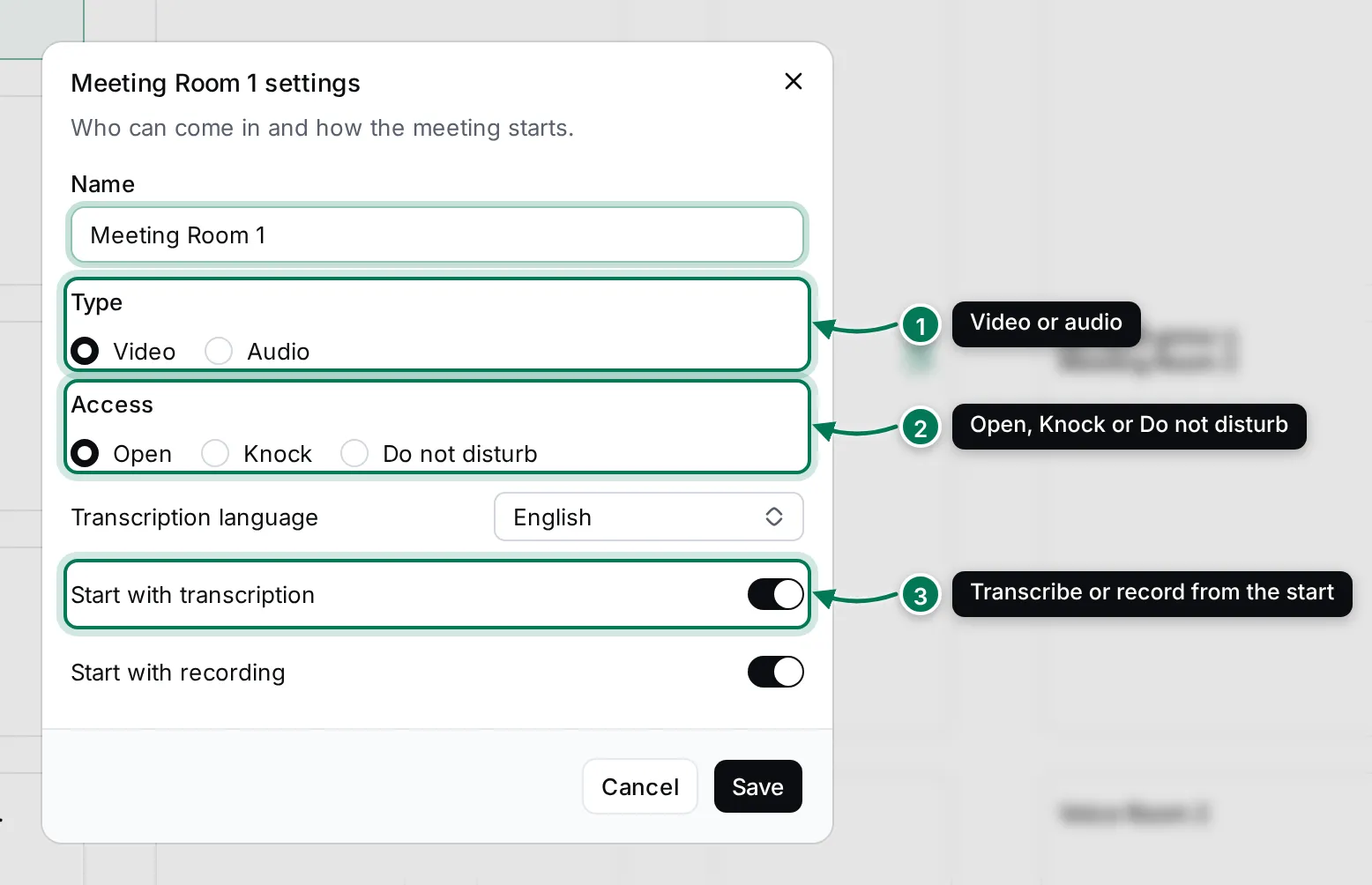
- Name of the room.
- Type (1): Video or Audio.
- Access (2): Open lets anyone walk in; Knock makes people knock first; Do not disturb keeps everyone out.
- Transcription language: the language the meeting is transcribed in.
- Start with transcription and Start with recording (3): turn them on when the meeting starts.
Offices belong to one person, shown as the room’s Owner. Offices are given out automatically, one per member.
The room’s page
Section titled “The room’s page”Right-click a room and choose Open room to see its page: a description of what the room is for, files, the minutes of past meetings held there, and the room’s own chat.
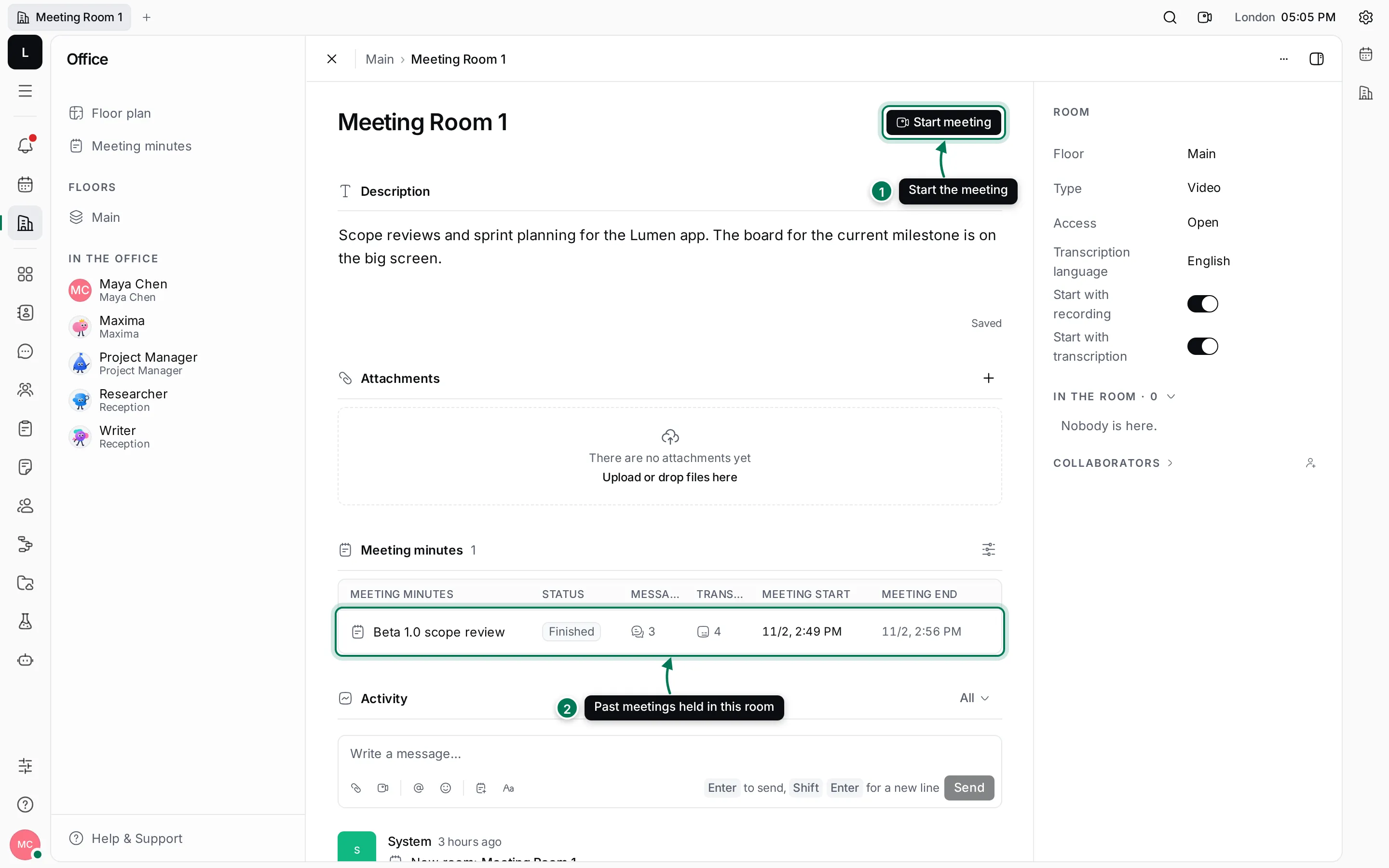
- Start meeting takes you into the room. It reads Join meeting when people are already inside.
- Meeting minutes lists this room’s past meetings. See Meeting minutes.
The column on the right shows the room’s settings, who is in the room and its collaborators.