Processes overview
A process is a set of states that a card moves through, with rules for when it moves and what happens on the way. Lumen Labs uses a Feature launch process on its Feature cards: a feature starts in Spec, goes to Approval when the spec is written, to In development when the Head of Product approves it, and to Shipped when it reaches the stores.
Each step can do work for you: give someone an action item, ask for an approval, update or tag the card, create or link other cards, or start another process.
Open Processes from the left rail.
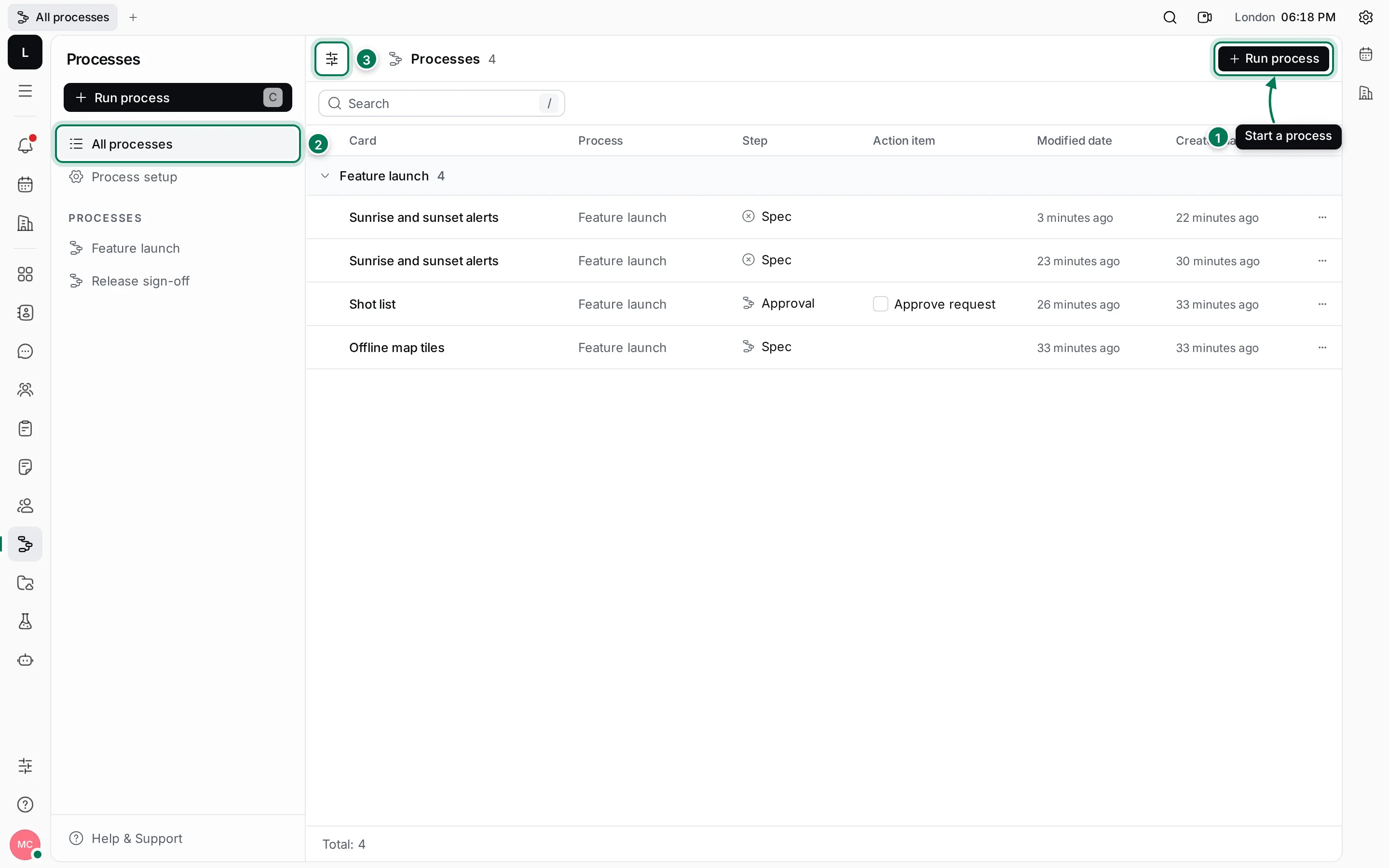
- Run process starts a process on a card. Press C to do the same.
- All processes lists every process in the workspace. Each process, such as Feature launch, also has its own entry in the navigator.
- View options groups the list by process, step or card, and shows or hides finished processes.
Process setup lists every card type with its processes. That’s where owners and maintainers create and edit processes.
How a process works
Section titled “How a process works”- States are the stages a card goes through, such as Spec, Approval, In development and Shipped.
- Transitions move a card from one state to another. The first transition starts the process.
- Each transition has a trigger that decides when it happens: when the process starts, when an action item is done, when an approval is approved or rejected, when a field changes, at a set time, and more.
- Each transition can run actions in order: create an action item, request an approval, update the card, add a tag and others.
A card’s processes show on the card page, in its Processes section. People who must do something see their action items and approval requests there and on their list of to-dos.
What you can do
Section titled “What you can do”Processes work on cards. Set up the card type first, then add its processes.