Channels
A channel is a conversation for a topic or a team, such as #engineering or #design. Public channels are open to everyone in the workspace; private channels are visible only to their members.
Create a channel
Section titled “Create a channel”-
In Chat, click + next to the title (its tooltip is New message).
-
Choose New channel.
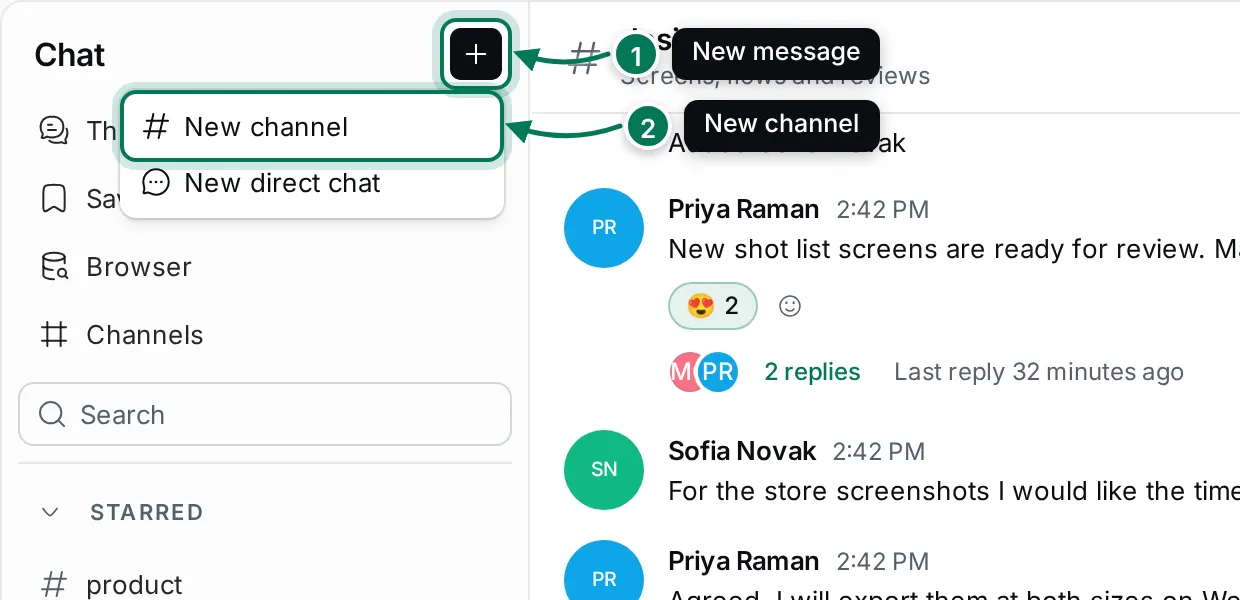
-
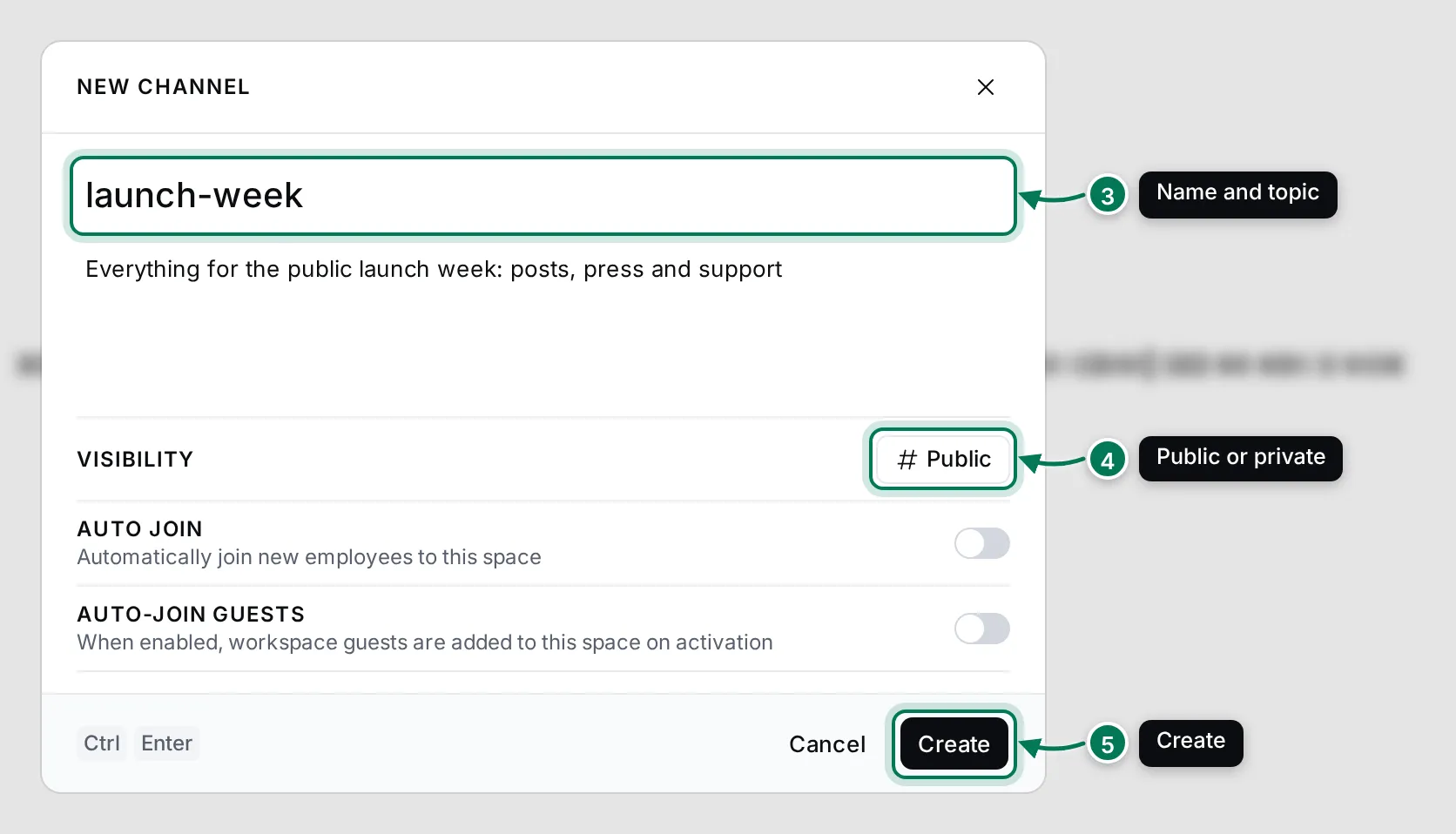
Type a name, and if you like a topic that says what the channel is for.
-
Under Visibility, keep Public or pick Private.
-
Click Create. The new channel opens, with you as its only member.
You can also create a channel from the Channels section menu in the navigator, or with New channel in the Channels view.
The dialog has two switches:
- Auto join adds everyone who joins the workspace later to the channel.
- Auto-join guests does the same for workspace guests.
The dialog has no member picker: add people from the channel’s settings once it exists (see below).
Find and join a channel
Section titled “Find and join a channel”- Click Channels at the top of the navigator. The table lists every channel in the workspace, including ones you aren’t in, with their topic, whether they are private or archived, and their members.
- Click a channel’s name. If it is a public channel you haven’t joined, you join it and it opens.
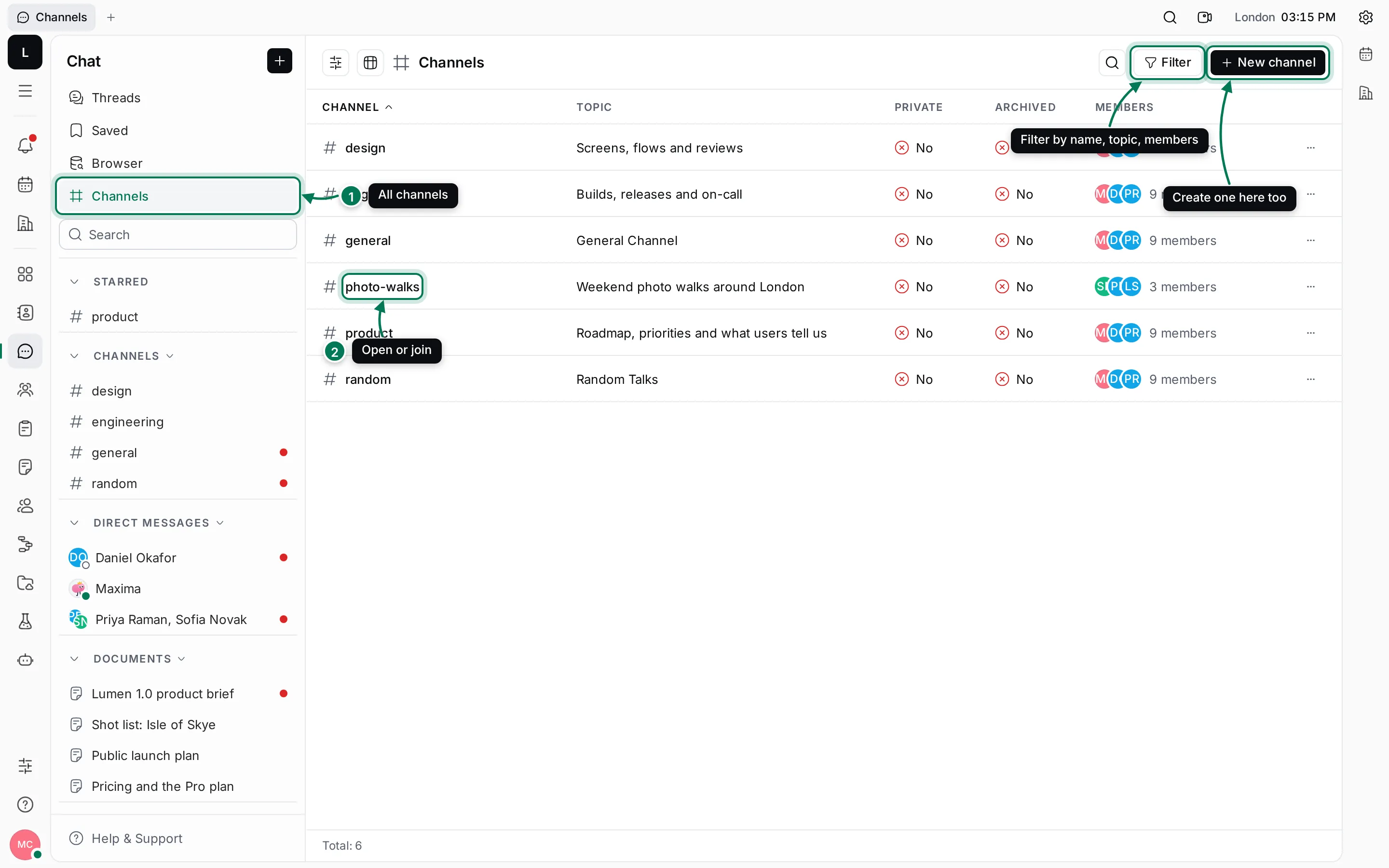
Use Filter to narrow the table by name, topic, private, archived or members, and the search button to find a channel by name or topic. Configure columns shows more columns, such as who created a channel and when.
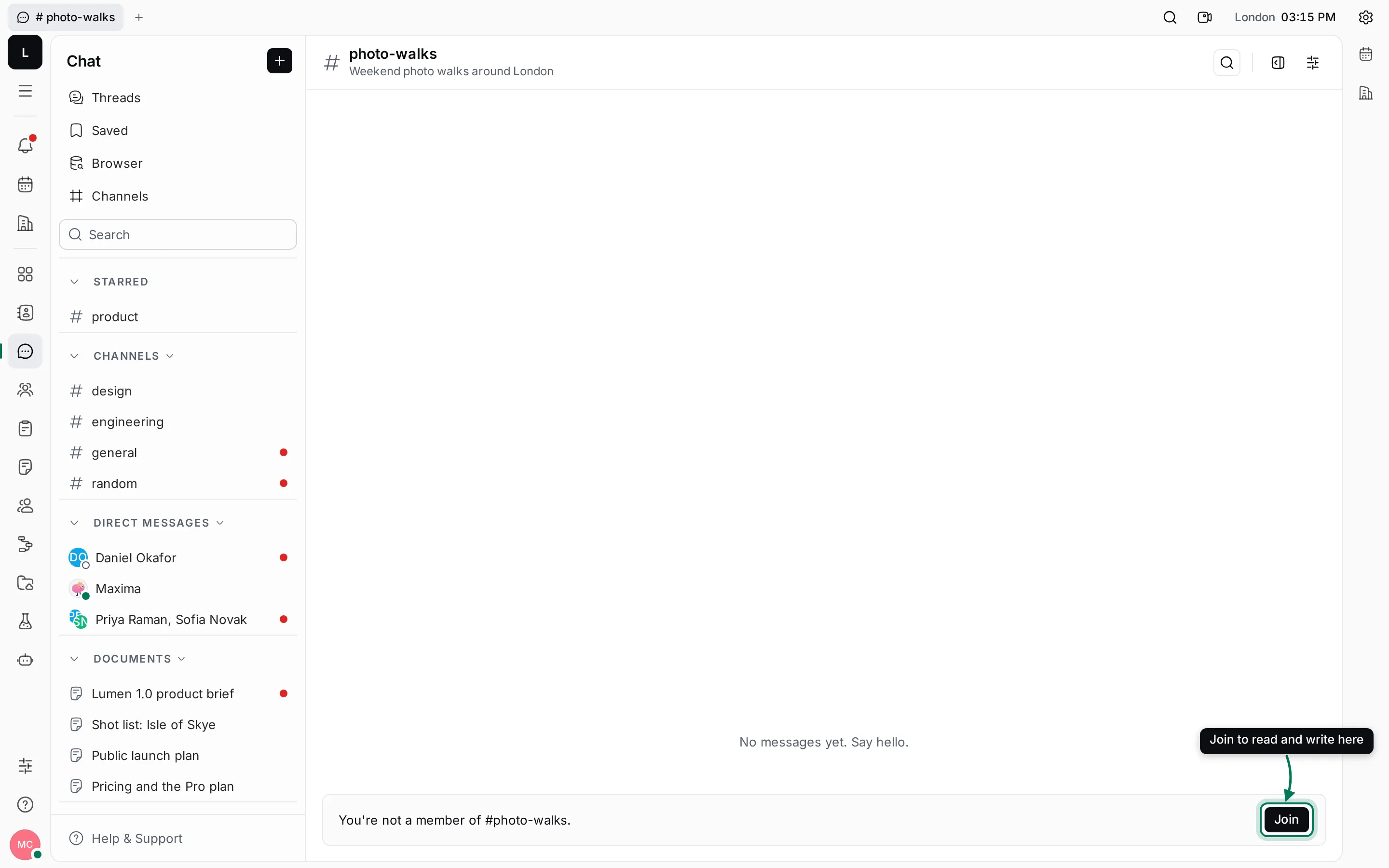
When you open a link to a public channel you aren’t in, the channel shows a Join bar where the message box would be. Click Join to take part.
Add people and change settings
Section titled “Add people and change settings”- Open the channel and click Settings (the sliders button) in its header.
- Click a value to change it: Topic, Name, Auto join or Private.
- Click Add members, tick the people to add in Select users, and click Add.
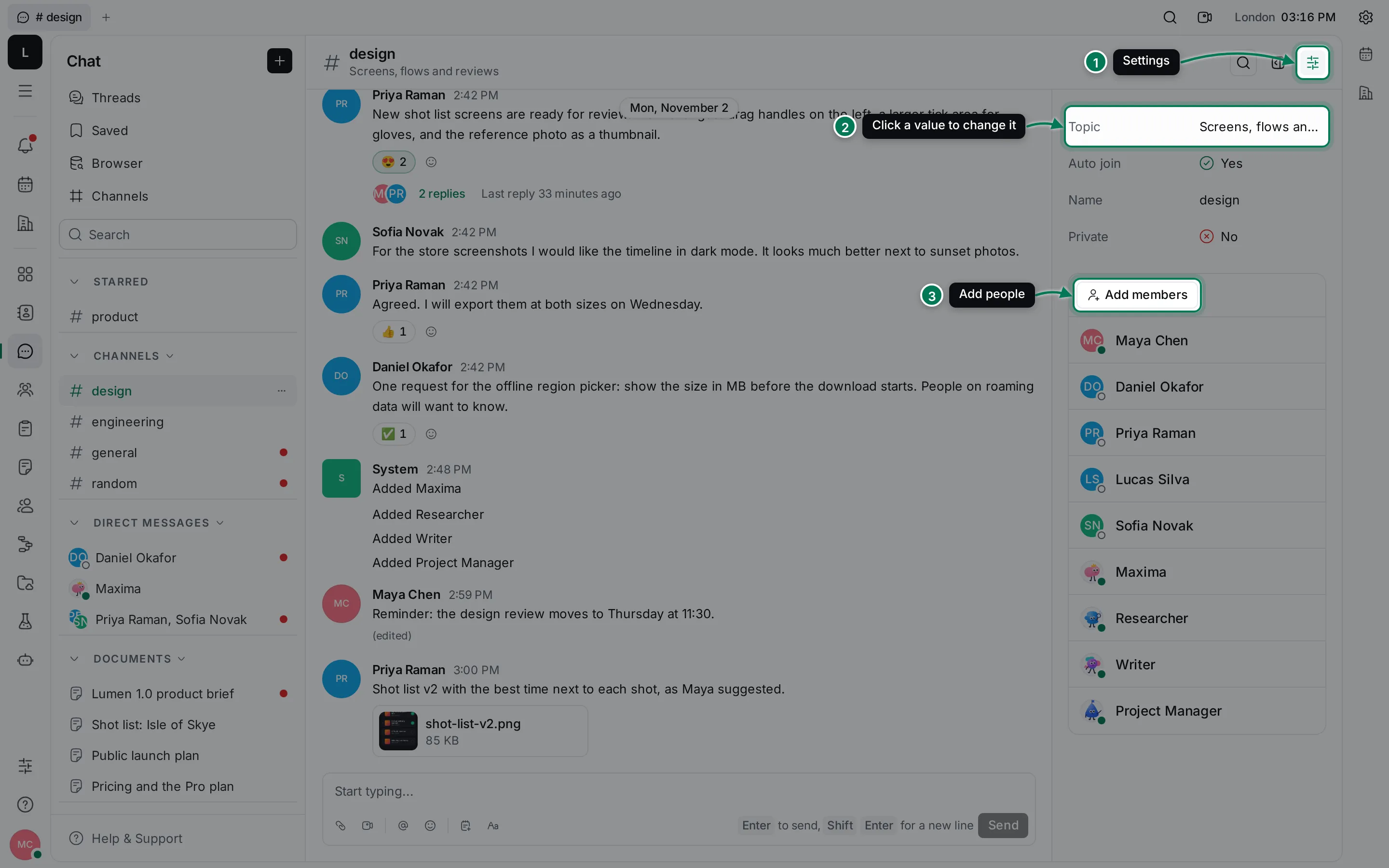
To remove someone, hover their row under Members and click the trash button. Removing yourself leaves the channel.
Star, leave or archive a channel
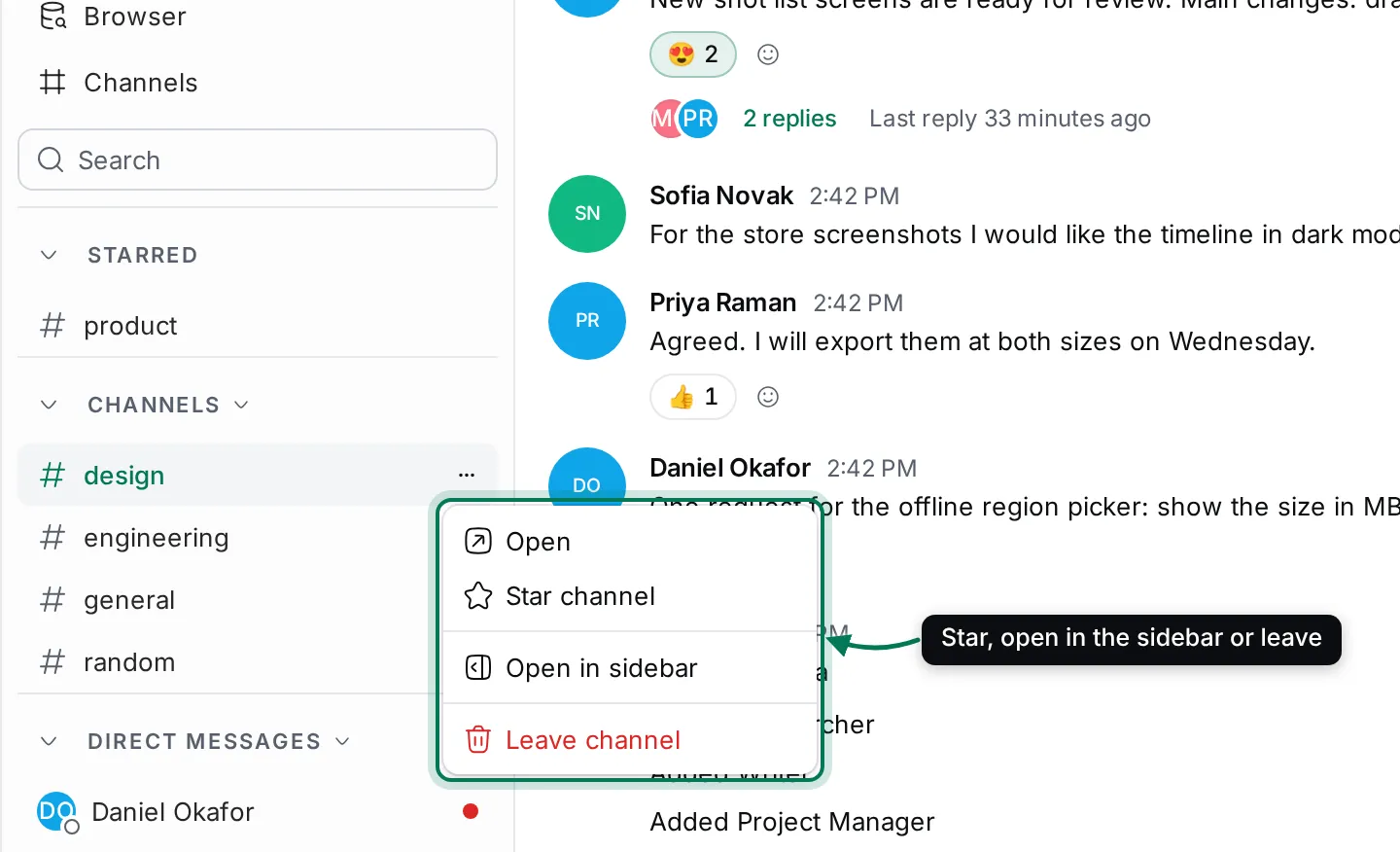
Section titled “Star, leave or archive a channel”Hover a channel in the navigator and click ⋯ (or right-click it) for its menu:
- Star channel moves it into the Starred section at the top of the navigator. Unstar moves it back.
- Open in sidebar keeps the channel open beside whatever you’re doing (see Threads and reactions).
- Leave channel removes you from it after you confirm. You can join a public channel again from the Channels view. To come back to a private channel, a member has to add you.
To archive a channel, right-click it in the Channels view and choose Archive channel. Archived channels are hidden while Customize view › Hide archived is on; turn it off to see them and choose Unarchive channel. Channels can’t be deleted.