Work // Planner and calendar
The Calendar panel
The Calendar panel shows one day of your schedule in the sidebar on the right. It stays open while you move between issues, documents and chat, so you can see what’s next without leaving your work.
Open the Calendar panel
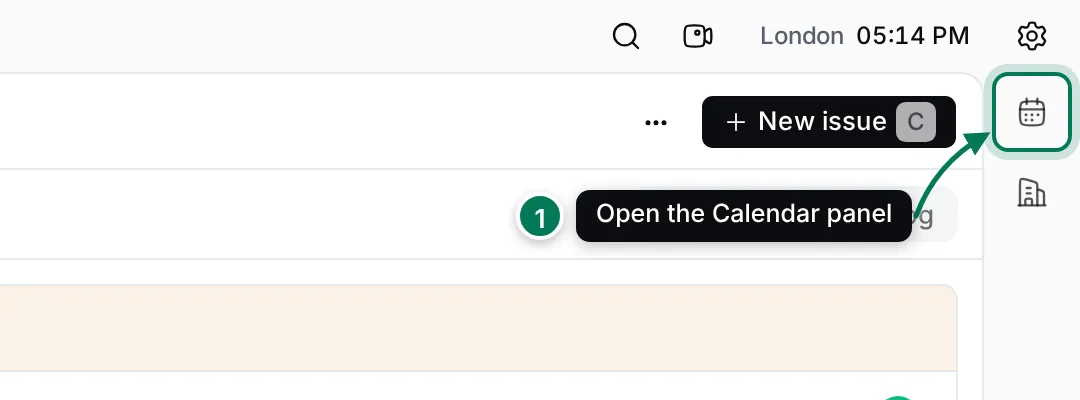
Section titled “Open the Calendar panel”- Click the calendar button at the top of the right sidebar (1).
- The panel opens on today, scrolled to the current time.
- Click × at the top of the panel to close it.
Use the panel
Section titled “Use the panel”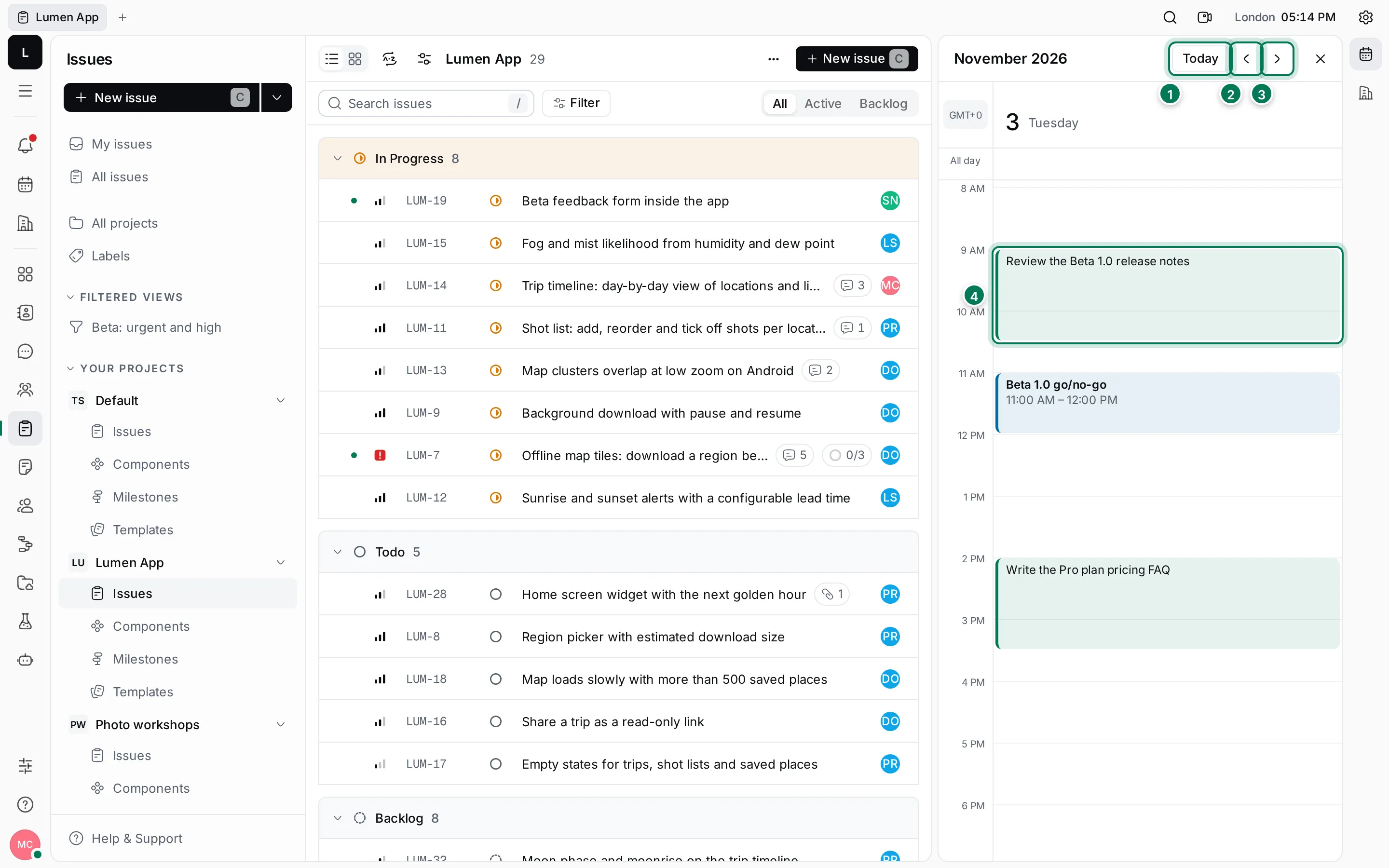
- Today jumps back to today.
- ‹ shows the day before.
- › shows the day after.
- Your time slots and events for the day. Click one to open that day in the Planner; a time slot opens its action item.
The panel shows the same things as the Planner’s schedule: time slots in green, events in blue, all-day events in the All day row, and a red line at the current time.
You can drag your own slots and events in the panel to move them, or drag an edge to change their length, just as on the Planner’s schedule. Recurring events and events you were invited to can’t be moved here.