Integrations overview
Integrations connect Maxint Work to the tools your team already uses. Your calendar and mail sync both ways, GitHub issues and pull requests show up in your projects, Google Drive files attach to issues, and Slack gets your workspace’s news. You set them all up in one place: Settings › Integrations.
A quick tour
Section titled “A quick tour”Open Settings (the gear at the top right, or your avatar) and choose Integrations.
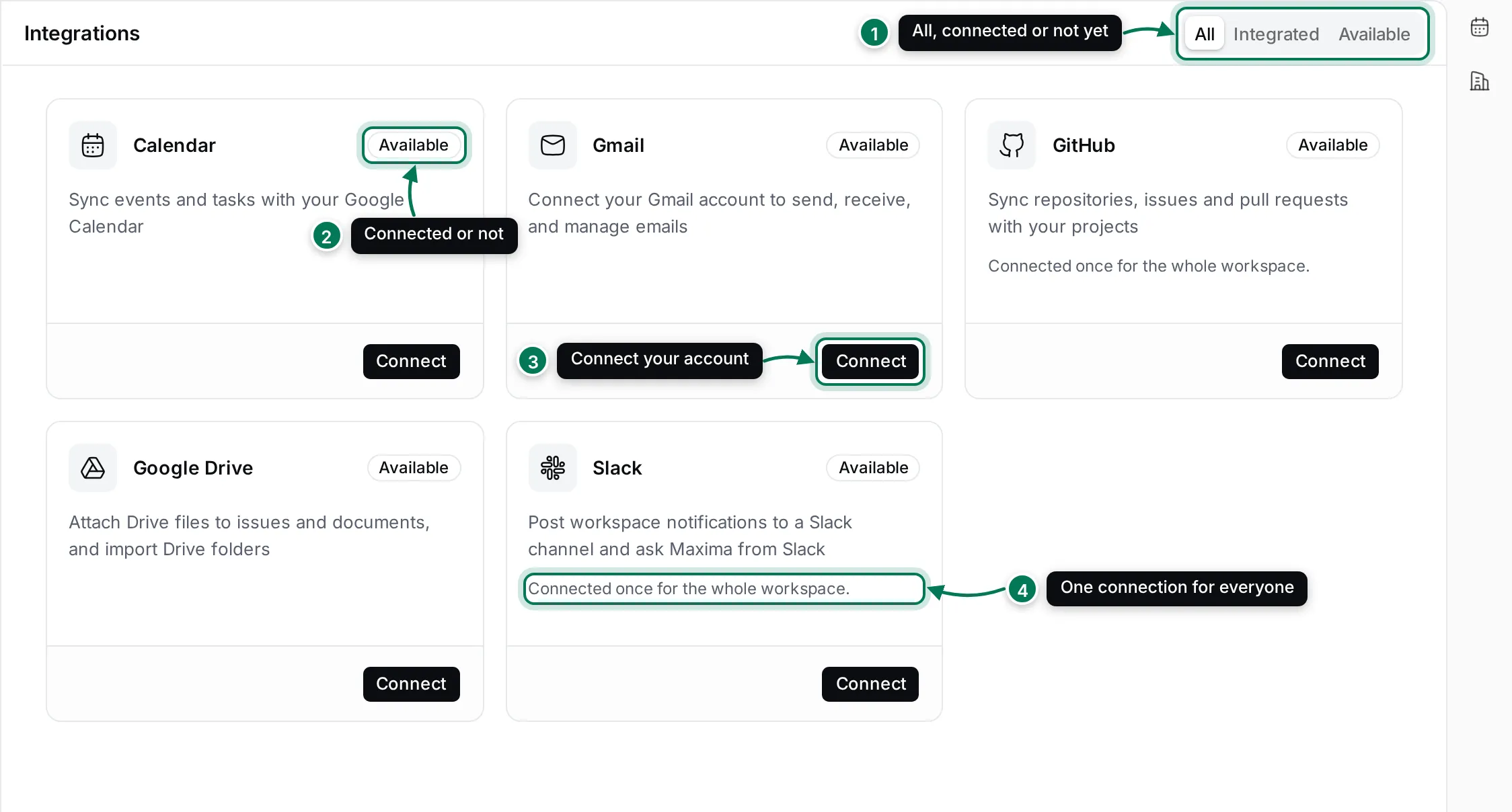
- All, Integrated and Available filter the cards: everything, what is connected, and what isn’t yet.
- Each card says whether it is Integrated (connected) or Available.
- Connect starts the connection. Once connected, the button becomes Configure, where you see the connected account and can disconnect it.
- Some integrations are Connected once for the whole workspace. The others are personal: each person connects their own account.
Yours or the workspace’s
Section titled “Yours or the workspace’s”| Integration | Who connects it | What it does |
|---|---|---|
| Google Calendar | Each person, for their own account | Syncs your events and tasks with Google Calendar |
| Gmail | Each person, for their own account | Sends, receives and manages your email |
| GitHub | Once for the whole workspace | Syncs repositories, issues and pull requests with your projects |
| Google Drive | Each person, for their own account | Attaches Drive files to issues and documents, and imports Drive folders |
| Slack | Once for the whole workspace, by an owner | Posts workspace notifications to a Slack channel and lets people ask Maxima from Slack |
Guests don’t see Integrations. Every member with the User role or higher does (see roles).
When a card can’t be used
Section titled “When a card can’t be used”- Not available on this server. The service behind it isn’t part of your deployment, so the card has no button. Ask whoever runs your Maxint Work.
- Couldn’t reach the … service. The service is set up but didn’t answer. Try again later.
- A card is missing: its module is switched off in Settings › Configure.
In this section
Section titled “In this section”GitHubInstall the GitHub App, link repositories to projects and keep issues in sync.
Google Calendar and GmailConnect your Google account, choose your primary calendar and who sees your events.
SlackSend notifications to a Slack channel, ask Maxima from Slack and turn threads into issues.
Google DriveAttach Drive files to issues and import Drive folders into Drive.
AI Workers connect to other tools in their own way, through tools and logins: see Tools and connections.