Schedule time for your work
A time slot is a block of time you set aside for an action item, like a meeting with yourself. An action item can have several slots, on one day or spread over the week. Once it has a slot, it moves from Unplanned to Planned.
The schedule on the right of the Planner shows three days, starting with the day you picked. Weekends are shaded, and a red line shows the current time.
Drag an action item onto the schedule
Section titled “Drag an action item onto the schedule”- In the Planner, find the action item in the list.
- Drag it onto the schedule and drop it at the time you want to start.
- A one-hour slot appears there. Click it to change the times.
Schedule with the dialog
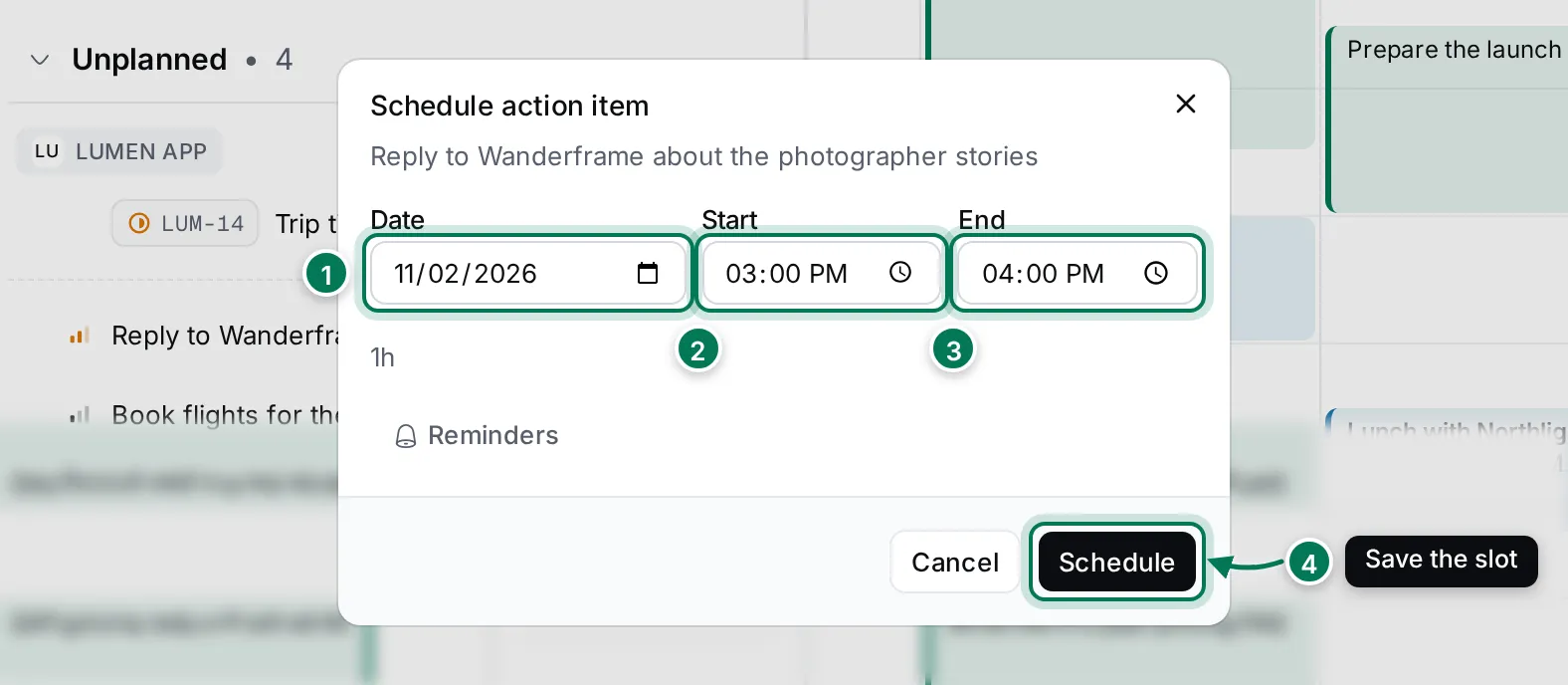
Section titled “Schedule with the dialog”- Right-click the action item and choose Schedule….
- Pick the Date (1), the Start (2) and the End (3). The length shows under the times.
- Add Reminders if you want them, and click Schedule (4).
Add slots from the action item
Section titled “Add slots from the action item”The Work schedule part of an action item’s panel lists its slots.
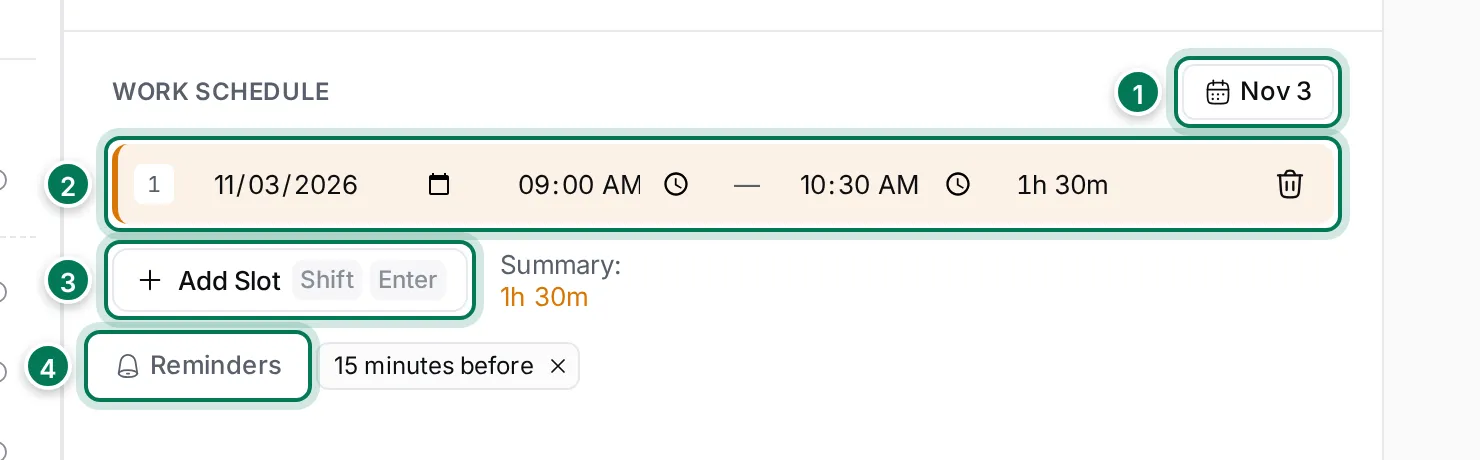
- The due date of the action item.
- Each slot, with its date, start and end and its length. Change any of them here, or click the bin to remove the slot.
- Add Slot (or Shift Enter) adds a one-hour slot at the next free quarter hour after your last slot. Summary shows the total time.
- Reminders (see below).
Move and resize slots
Section titled “Move and resize slots”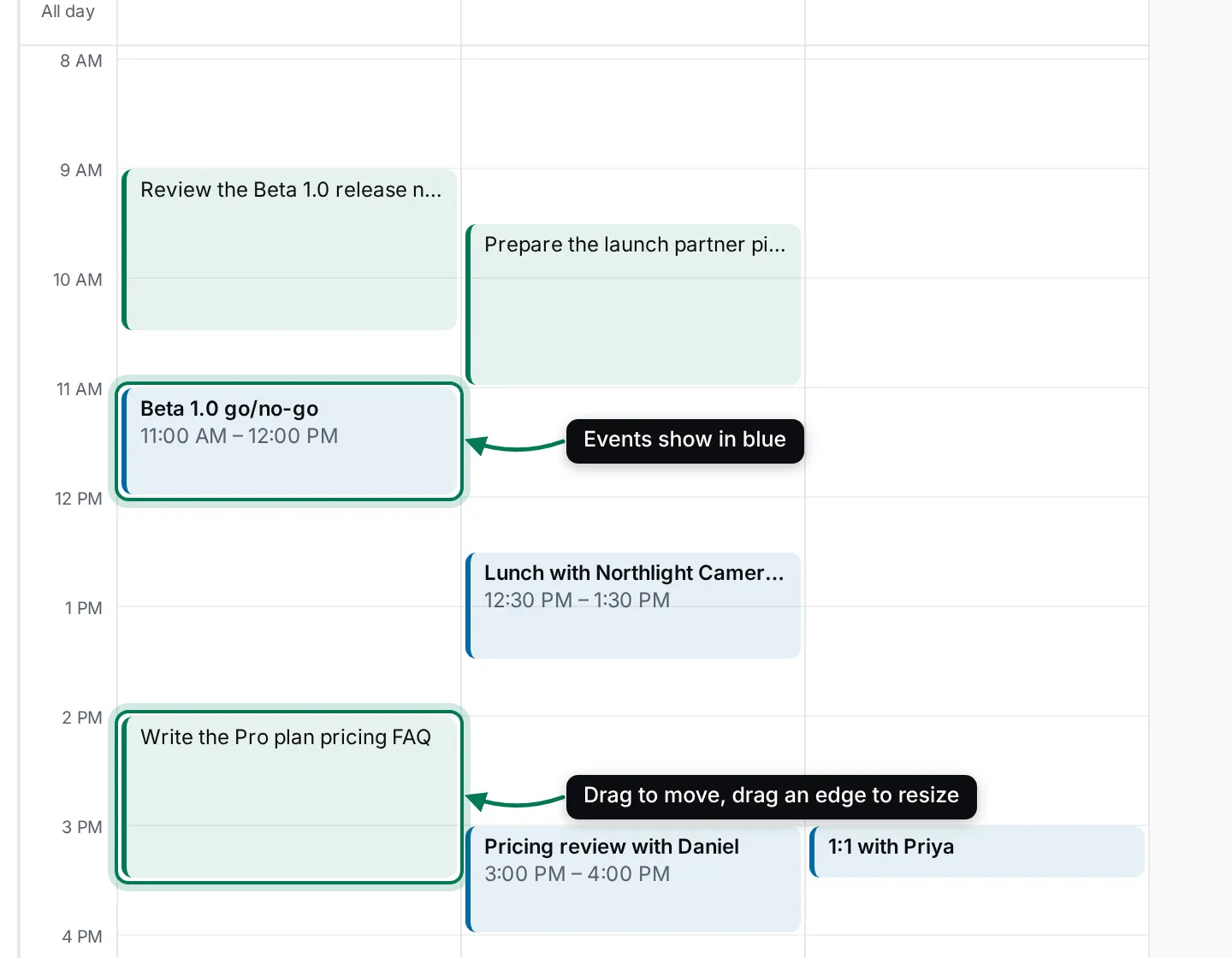
- Move: drag a slot to another time or another day.
- Resize: drag its top or bottom edge. Times snap to 15 minutes.
- Keyboard: click a slot to select it, then use ↑ and ↓ to move it 15 minutes, Shift with the arrows to make it longer or shorter, and ← → to move it a day. Delete removes it.
Click a slot to open the Time slot dialog. You can change the title and description of its action item, the date and times, the visibility and the reminders.
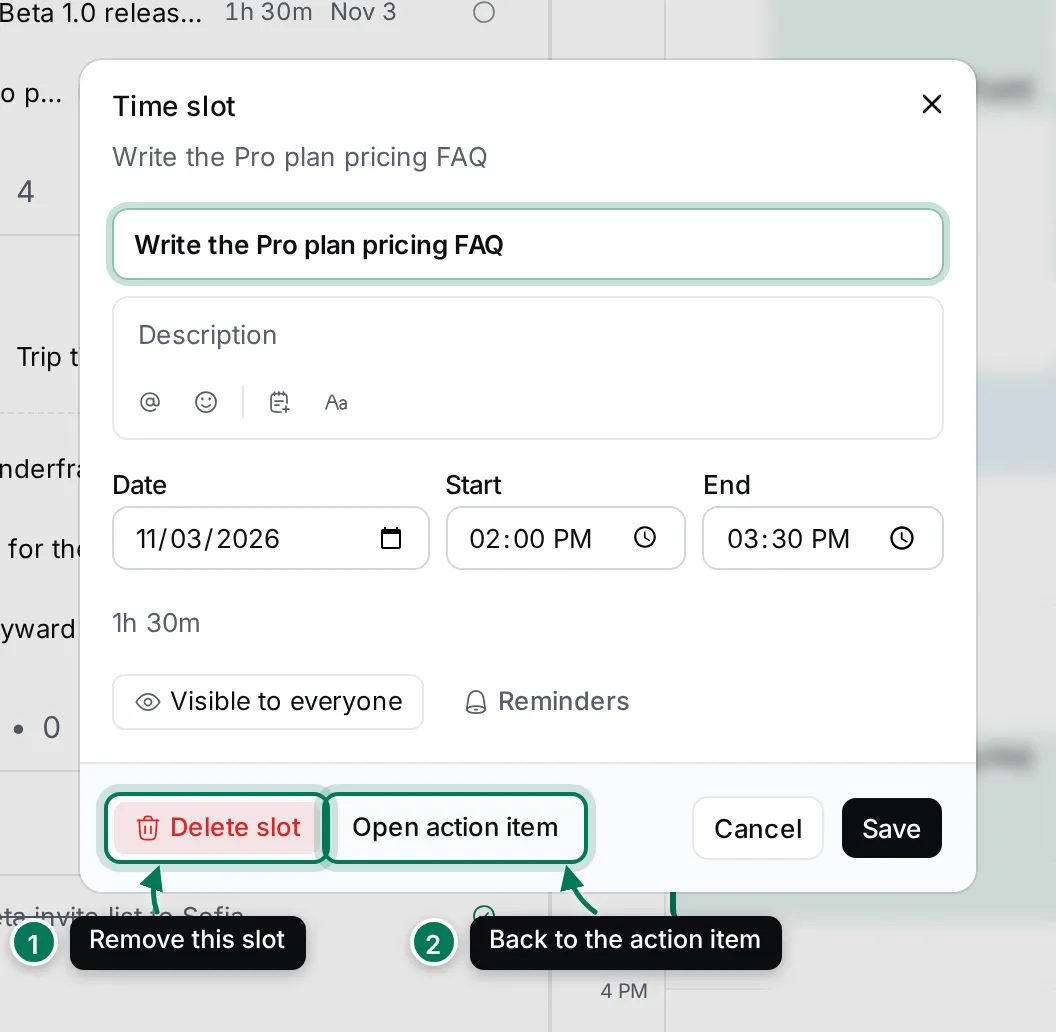
- Delete slot removes this slot. The action item stays.
- Open action item goes to the action item’s panel.
Get reminders
Section titled “Get reminders”A reminder notifies you before a slot starts. Reminders belong to the slots, so add a slot first.
- Open the action item and click Reminders in its work schedule.
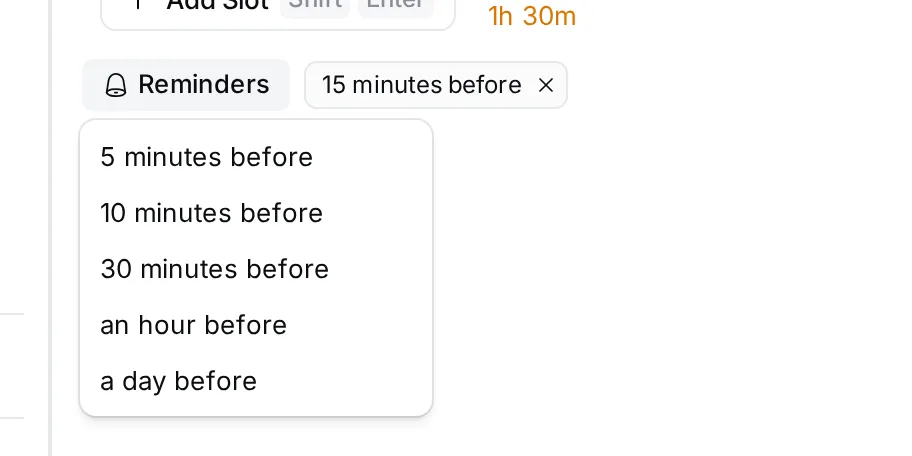
- Pick when to be reminded: 5 minutes before, 10 minutes before, 15 minutes before, 30 minutes before, an hour before or a day before.
- Add more if you like. A time you already picked isn’t offered again. Click × on a reminder to remove it.
The reminders apply to every slot of the action item, including slots you add later.
Look at another day
Section titled “Look at another day”Use ‹ and › above the schedule to move a day at a time, or click a day in the month calendar. The list then shows what is planned for that day. Click Today to come back.