Find and organize contacts
As your address book grows, use search, filters and the table’s settings to find the right contact fast.
Search
Section titled “Search”Type in Search by name above the table, or press / to jump to it. The list narrows as you type. Search also finds contacts by their location and contact info.
Filter the list
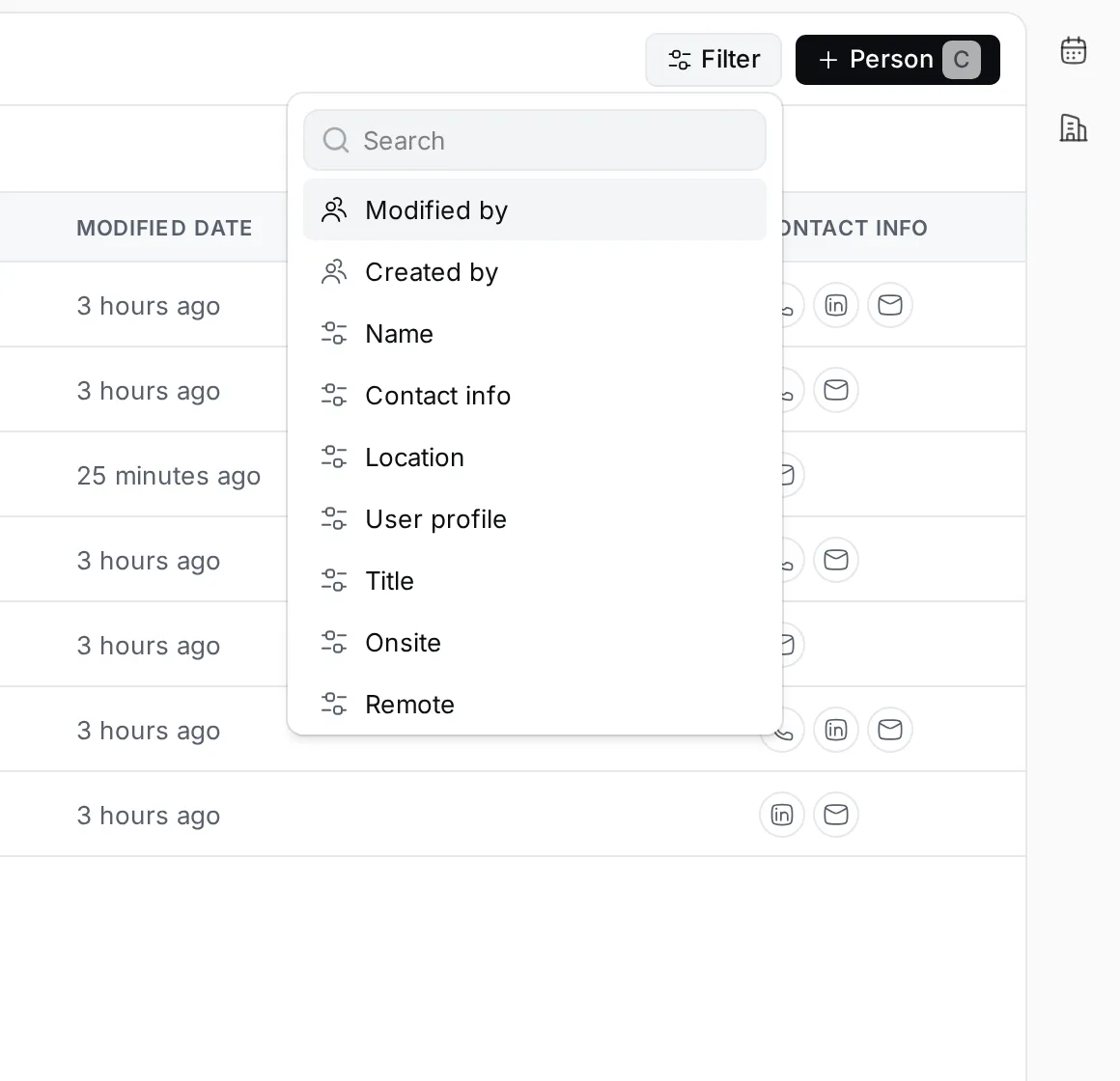
Section titled “Filter the list”- Click Filter at the top right.
- Pick what to filter by, such as Location, Contact info or Created date.
- Pick one or more values. For Location, type a place and click Apply.
- Close the menu. The filter shows as a chip above the table.
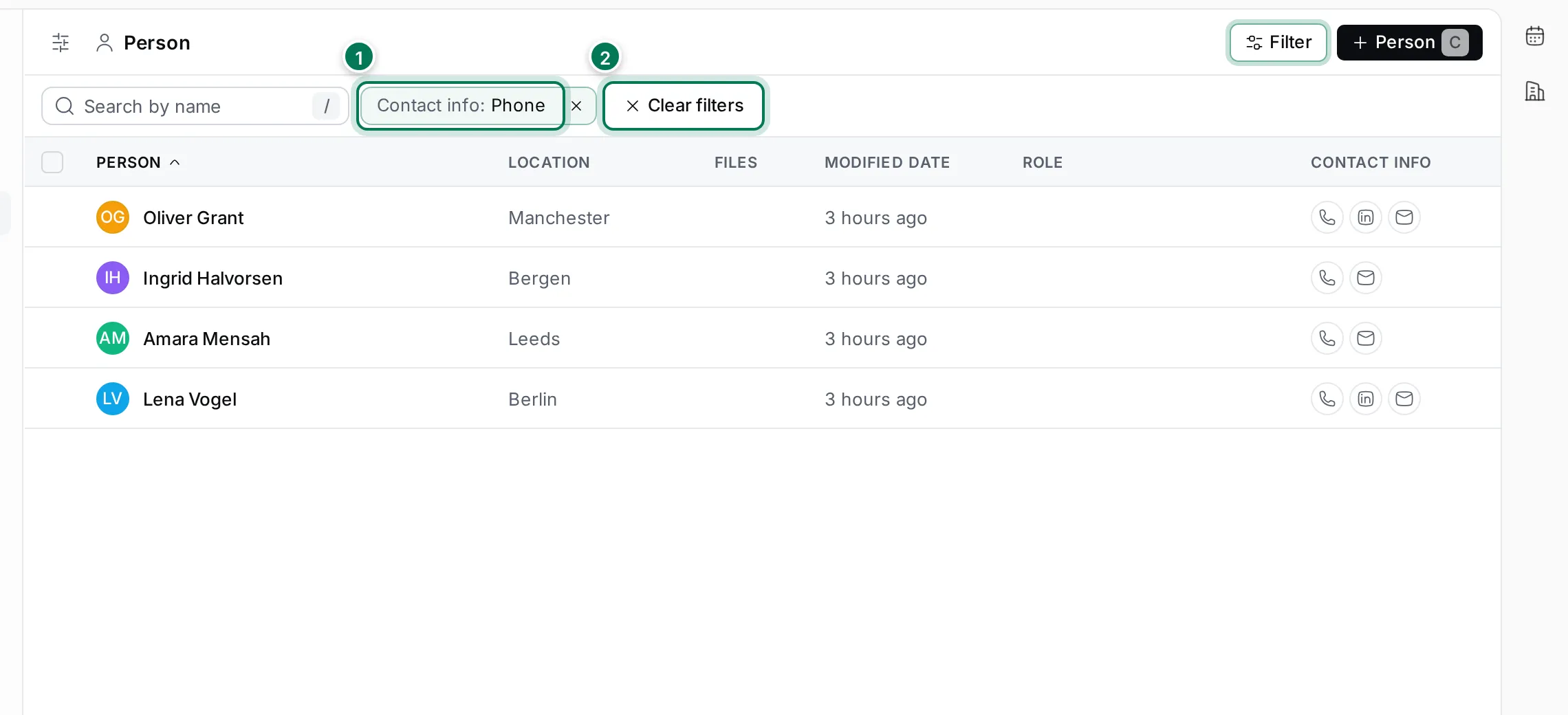
- The filter chip, such as Contact info: Phone. Click it to change the values, or × to remove it.
- Clear filters removes them all.
A few filters worth knowing:
- Contact info: contacts that have a certain channel, such as a phone number or LinkedIn.
- Modified date and Created date: Today, This week, This month, or a date or range you pick.
- Birthday: also Next week and Next month, handy for cards and messages.
- Department: colleagues in a department of Human resources.
Filters are part of the page address, so you can copy the link to share a filtered list.
Sort and choose columns
Section titled “Sort and choose columns”Click a column header to sort by it, and click it again to reverse the order. An arrow marks the sorted column.
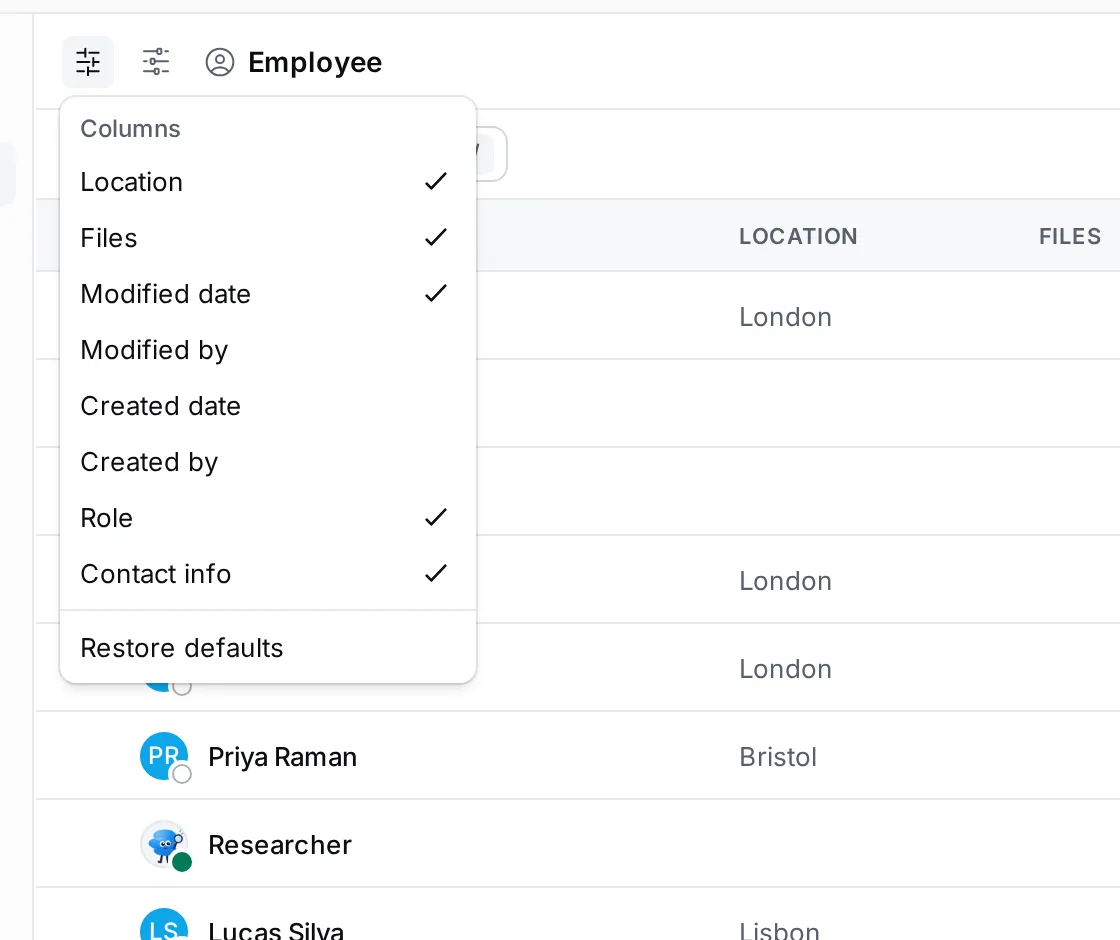
To choose the columns, click Customize view (the sliders button at the top left) and switch columns on or off. Restore defaults brings back the standard set.
In the Employee view, View options has Hide inactive, which hides people who have left the workspace. It’s on by default.
Act on several contacts
Section titled “Act on several contacts”- Hover over a row and tick its checkbox, or press X on the focused row. The checkbox in the header selects them all.
- A bar shows how many you selected.
- Right-click a selected row for Copy links or Department, or click Delete in the bar to delete selected persons or companies.
- Press Esc to clear the selection.
See Work with a contact for what you can do on a contact’s page.