Migrate from your old workspace
Already have a Maxint Work workspace? You can move your data from your old workspace in a few minutes. Preparing the ZIP backup extracts it to disk; the CLI then checks the repacked archive before any bytes are sent.
Move your data
Section titled “Move your data”-
Download your old workspace backup. In the old workspace you are leaving, open Settings › Backup (the URL is
<your-workspace-url>/setting/setting/backup).Click Download full backup to get a single
.zipwith every backup file. For a large workspace, choose Copy download script instead: it fetches the files one by one, so your browser doesn’t build the whole archive. -
Repack the ZIP as a gzipped tar. The CLI expects a gzip-compressed tar archive (
.tar.gz), not the.zipthe browser downloads. Extract it and repack it:Terminal window unzip backup.zip -d backuptar -czf backup.tar.gz -C backup . -
Install the Maxint Work CLI. It needs Node.js 20 or later. No Python or system
taris needed.Terminal window npm install --global @maxint/work-cli -
Create an API token in the destination workspace. The CLI signs in with an API token, and a token works only in the workspace it was created in, with the role of the person who created it. Restoring needs an owner’s token.
- Open Maxint Work and sign in as an owner of the destination workspace.
- Switch to the destination workspace before you create the token. The workspace switcher is at the top left.
- Click your avatar at the bottom left and choose Settings › API Tokens.
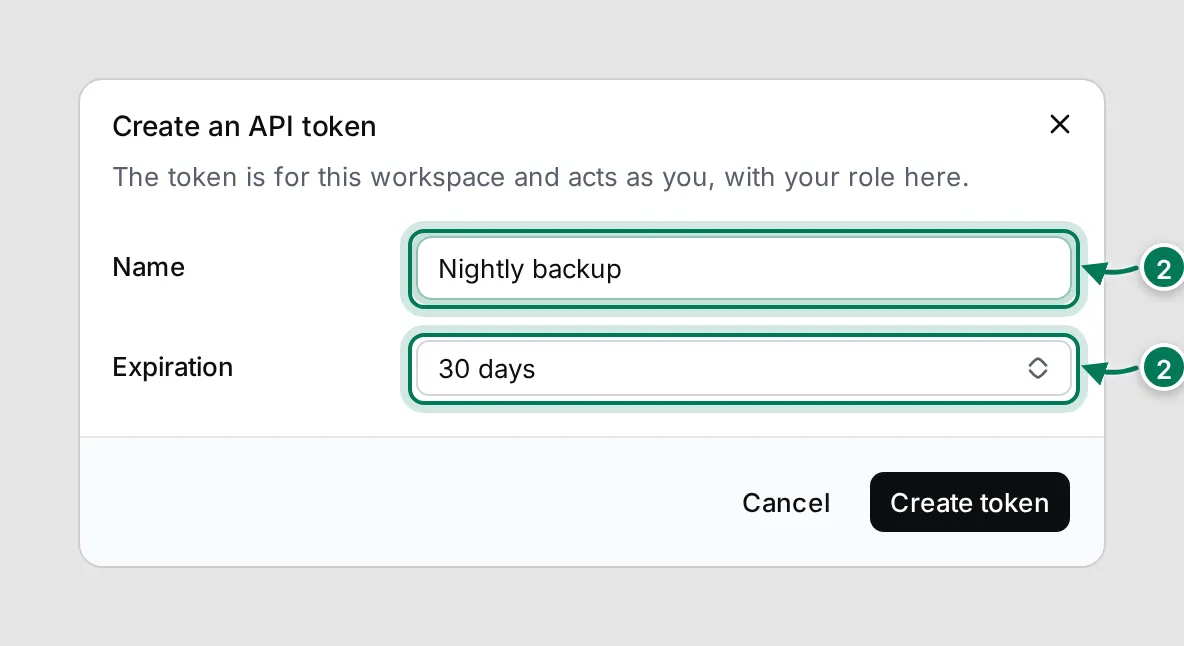
- Click Create token, name it after what will use it (for example “Backup restore”) and pick an expiry that covers the migration.
- Click Create token, then Copy. The token is shown only once; if you lose it, create a new one.
Give the token to the CLI. In a POSIX shell:
Terminal window export WORK_API_TOKEN="<your token here>"Or in PowerShell:
Terminal window $env:WORK_API_TOKEN="<your token here>"You can also pass it to a single command with
--token "<your token here>". The CLI restores into hosted Maxint Work by default. SetBACKUP_API_URLonly when you restore into another deployment:Terminal window export BACKUP_API_URL="https://work.maxint.app/_backup/api/backup" -
Upload and restore.
Terminal window maxint-work upload backup.tar.gzThe CLI checks the archive on your computer first: its gzip and tar structure, safe paths and entry types,
backup.json.gz, snapshot metadata, referenced files and their gzip payloads. If a check fails, nothing is sent. Otherwise it uploads the archive, prints the restore job ID, and follows the restore and the identity remapping that comes after it. -
Resume or list restore jobs. List recent jobs, or follow one again after the first command exited:
Terminal window maxint-work list --limit 20maxint-work watch <job-id>
What gets restored
Section titled “What gets restored”- All documents and data in the backup are written into the destination workspace, replacing its current document data.
- Accounts and workspace memberships from the old workspace are not imported. Invite anyone who isn’t already a member so they can sign in.
- People are matched to Maxint Work accounts by email and reconnected automatically: profiles, space memberships, notification contexts and who wrote what. This happens right after the restore, and again whenever someone joins later.
- On a self-hosted deployment, automatic remapping needs PostgreSQL. Hosted Maxint Work handles it for you.
Configuration reference
Section titled “Configuration reference”| Setting | What it does |
|---|---|
WORK_API_TOKEN |
The owner’s API token for the destination workspace. Required. |
BACKUP_API_URL |
The backup API address. Defaults to https://work.maxint.app/_backup/api/backup. |
--api-url |
Overrides BACKUP_API_URL for one command. |
--token |
Overrides WORK_API_TOKEN for one command. |
POLL_INTERVAL |
Seconds between progress checks while following a job. Defaults to 5. |
RESTORE_MAX_UPLOAD_SIZE |
The largest archive, in bytes, the CLI accepts for upload. |
Troubleshooting
Section titled “Troubleshooting”401 Unauthorized
Section titled “401 Unauthorized”The token expired, or its account is no longer an owner of the destination workspace. Create a new token as an owner.
People are missing after the restore
Section titled “People are missing after the restore”Accounts are not imported. Invite each person by email; they are matched and reconnected automatically when they join.
A file or video is missing
Section titled “A file or video is missing”It was left out of the backup. Check the Not backed up list on the old workspace’s Backup page and download those files one by one.
The archive is rejected before upload
Section titled “The archive is rejected before upload”The CLI accepts .tar.gz archives only. If you downloaded a .zip, repack it as in step 2.
A model or version error
Section titled “A model or version error”The backup comes from a newer platform version than the destination supports. Restore into an up-to-date Maxint Work workspace.
To see the destination workspace’s own backups and manage its tokens, see Workspace settings.