Create and edit documents
A new controlled document starts as a v1.0 draft with its template’s content and category. While it’s a draft, you and your co-authors can change its title, abstract and content; once it’s sent for review or approval it’s read-only until it comes back.
Create a document
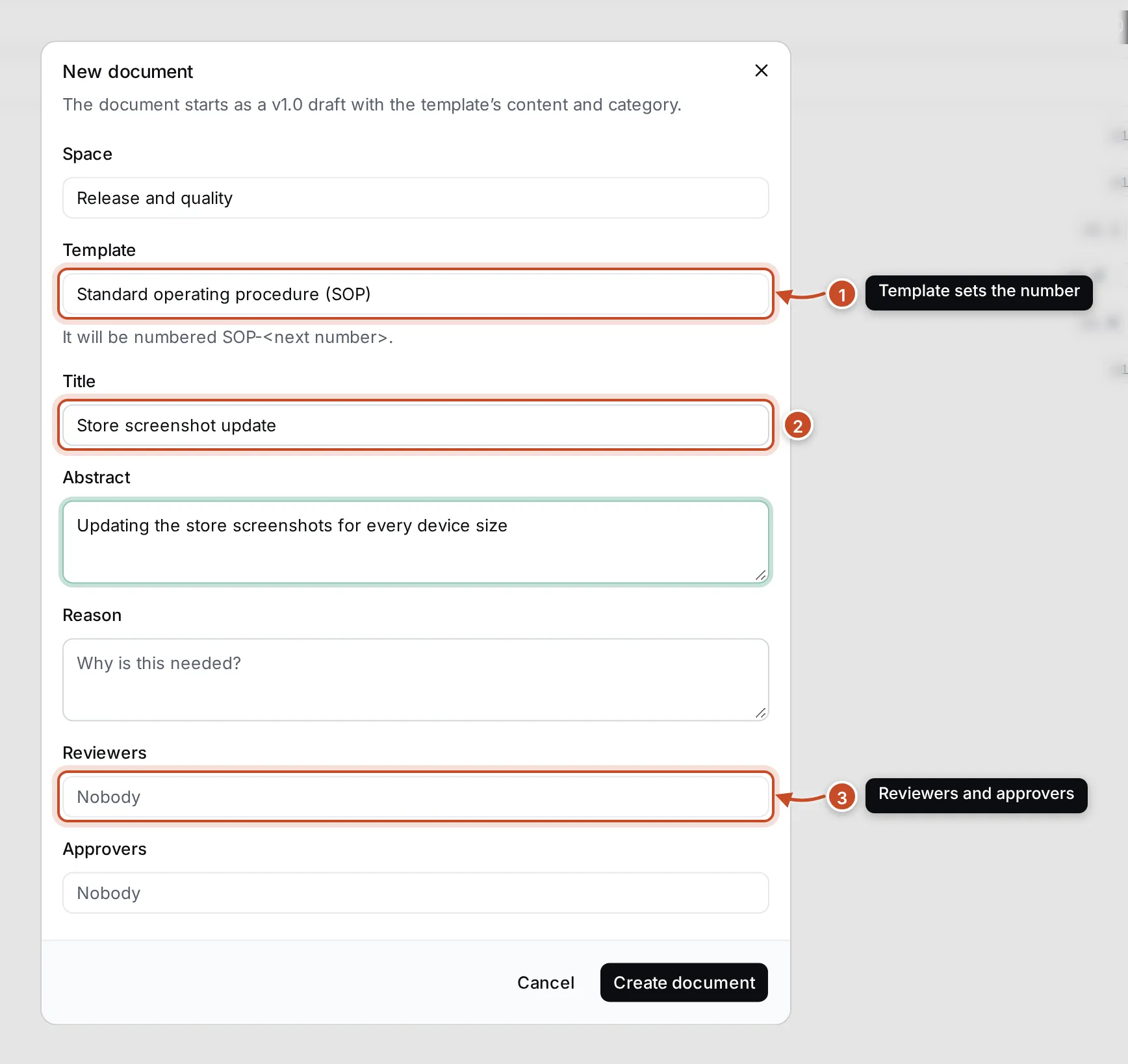
Section titled “Create a document”- Open the space and click New document (or press C).
- Check the Space, and pick the Template. The dialog shows how the document will be numbered, for example SOP-<next number>.
- Enter the Title, and an Abstract: a one-line summary.
- Enter the Reason the document is needed. It’s kept with this version as its change control.
- Choose the Reviewers and Approvers now, or later.
- Click Create document. The new draft opens.
To place the document under another one in the space’s tree, right-click that row and choose Create child document.
Write the draft
Section titled “Write the draft”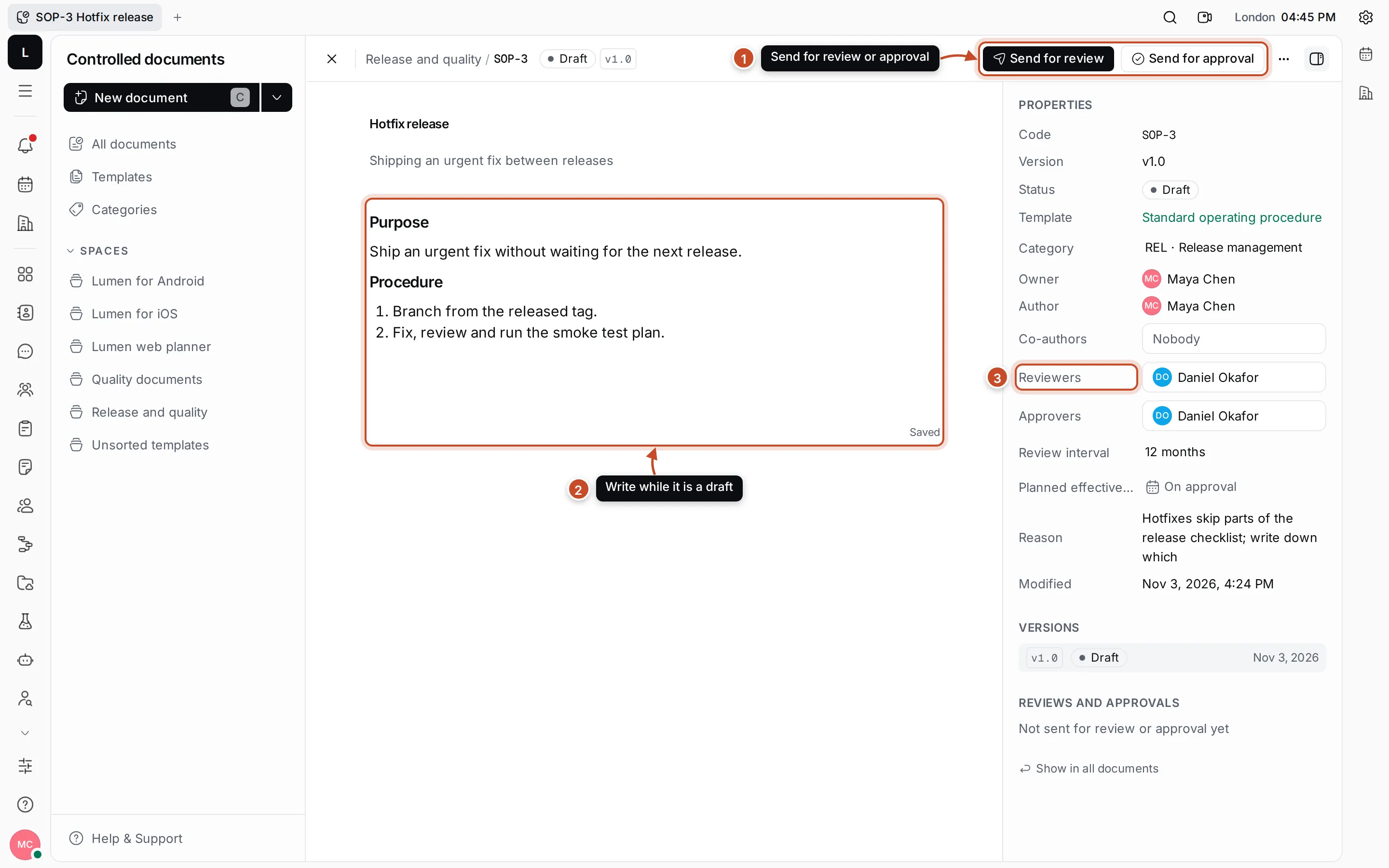
- Send for review and Send for approval start the review and approval.
- The content is a shared editor: write it like any document, with headings, lists and tables. It saves as you type, others see changes live, and Saved in the corner tells you it’s stored.
- The Properties panel holds the document’s people and dates.
Click the title or the abstract at the top to change them. Outside an editable draft, the content and title are read-only.
Set people and dates
Section titled “Set people and dates”In the Properties panel of a draft:
- Co-authors may edit the draft with you.
- Reviewers and Approvers are the people suggested when you send the draft for review and approval.
- Review interval is how often the effective document should be looked at again, from 6 to 36 months.
- Planned effective date is the day an approved document becomes effective. Leave it as On approval to make it effective as soon as it’s approved.
- Category can be changed from the template’s.
The panel also shows the Code, Version, Status, Template, Owner, Author, the Reason and when it was last changed, the list of Versions and the history of Reviews and approvals.
Change the owner
Section titled “Change the owner”The owner is responsible for the document and its next versions. To hand it over, click ⋯ at the top of the document, choose Change document owner, pick the person and click Save. This works in every status.
Delete a draft
Section titled “Delete a draft”Choose Delete from the ⋯ menu of a draft and confirm. The draft is marked Deleted, leaves the lists and the tree, and any open review or approval is cancelled. Only drafts can be deleted; effective documents are archived or made obsolete instead.