Create and manage products
A product holds its versions and the people who work on it. Create one product for each thing you ship, such as each app.
Create a product
Section titled “Create a product”- In Products, click New product.
- Enter the Product name and a Short description.
- Choose the Owners. You’re an owner to begin with.
- Turn on Private if only the product’s members should see it.
- Choose the Members.
- Pick who holds each role: Manager, QARA and Qualified User. You can leave them empty and fill them in later.
- Click Create (or press Ctrl Enter). The new product opens.
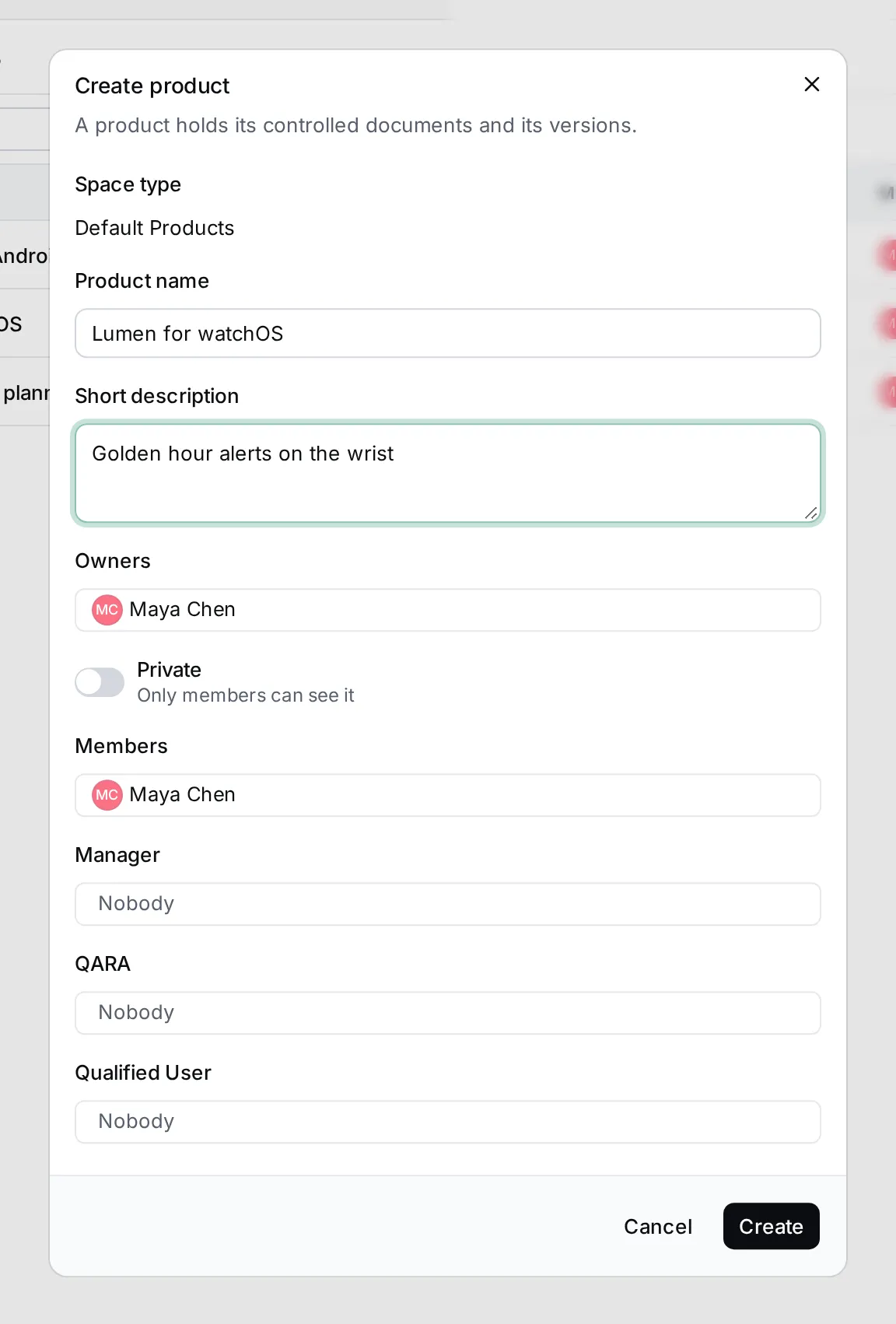
A product’s page
Section titled “A product’s page”Click a product to open it.
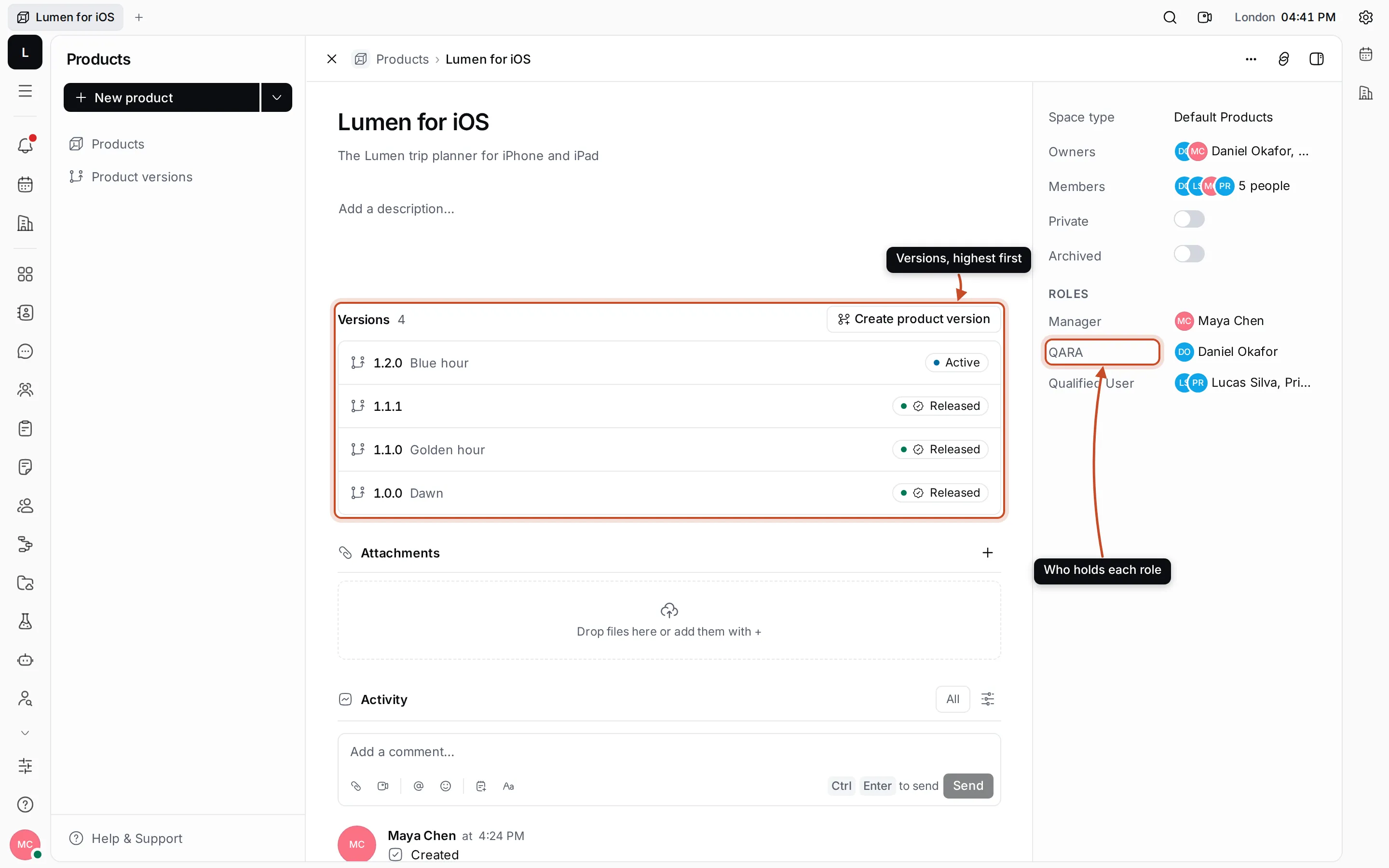
- Click the name or the short description to change them. Write the full story of the product in Add a description…; it’s saved when you click elsewhere.
- Versions lists the product’s versions, highest first, with their state. Create product version adds one. See Product versions.
- Attachments holds files: click + or drop them on the section.
- Activity shows what changed and the team’s comments.
The details panel has the Owners, Members, Private and Archived settings, and under Roles the people who hold Manager, QARA and Qualified User. Click any of them to change it.
Find a product
Section titled “Find a product”The Products list shows each product with its owners, members and the date it was last changed. Type in Search (or press /) to find a product by its name or description. A lock shows next to private products.
Press Ctrl K and type a product’s name to open it from anywhere.
Archive a product
Section titled “Archive a product”Archive a product you no longer work on, so it and its versions leave the lists.
- Click ⋯ on the product’s row, or at the top of its page.
- Choose Archive and confirm.
To bring it back, turn on Show archived in the list, then choose Unarchive from its ⋯ menu. You can also switch Archived off in the product’s details panel.
The ⋯ menu also has Open in new tab, Create product version and Copy link.