Work // Surveys
Create a survey
A survey is a name, a short prompt and a list of questions. Write it once, and your team answers it as polls as often as they need.
Create a survey
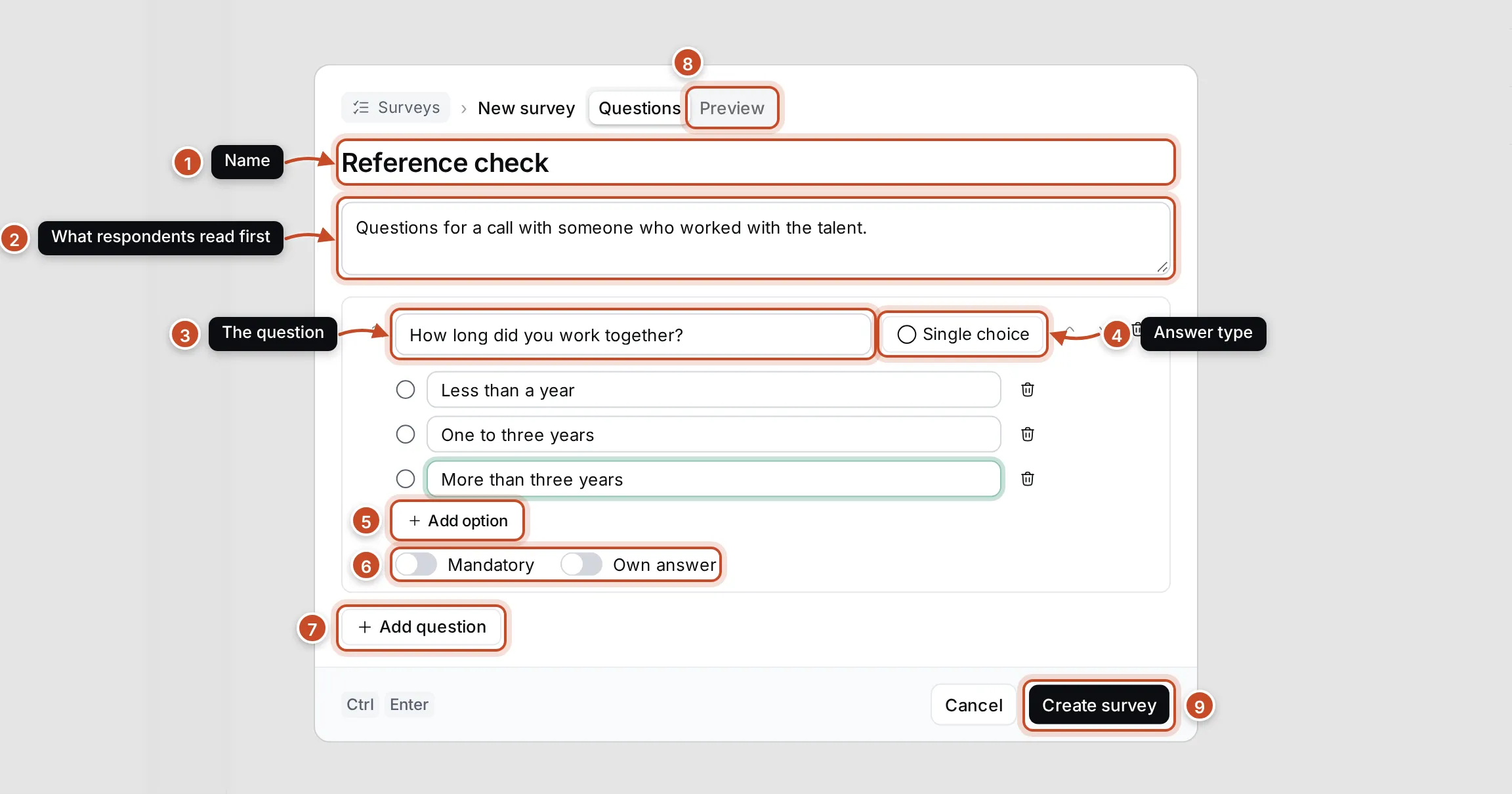
Section titled “Create a survey”- Open Surveys and click Create survey, or press C.
- Type the survey’s Name (1), such as Reference check.
- Write a Prompt (2): a sentence or two that respondents read before the questions.
- Click Add question (7) and type the question (3).
- Choose its Answer type (4): Text, Single choice or Multiple choice.
- For a choice question, type the options. Press Enter in an option to add the next one, or click Add option (5).
- Switch on Mandatory if the question must be answered, and Own answer if people may type an answer of their own instead of choosing an option (6).
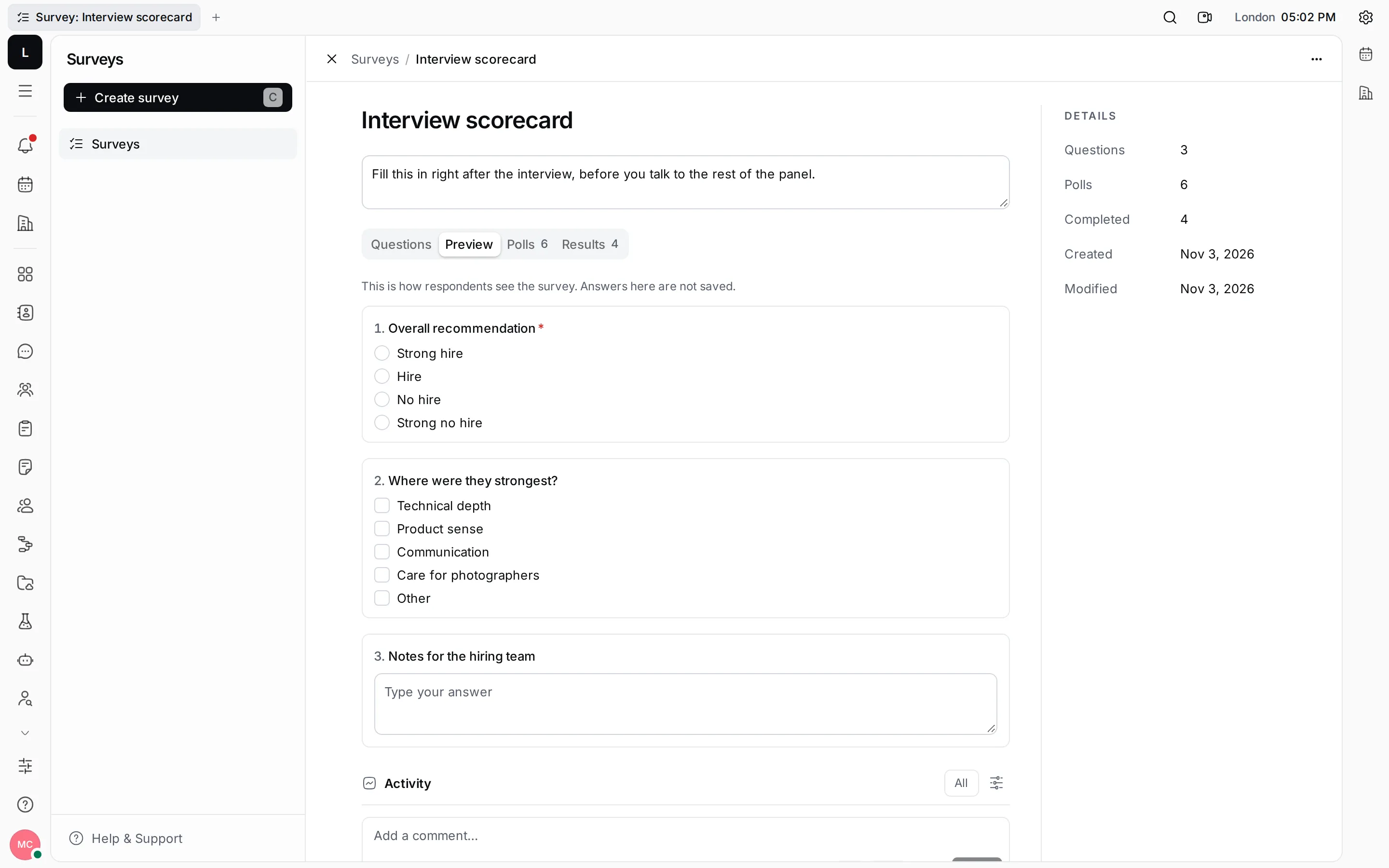
- Repeat for every question. Check the form in Preview (8).
- Click Create survey (9), or press Ctrl Enter. The new survey opens.
Answer types
Section titled “Answer types”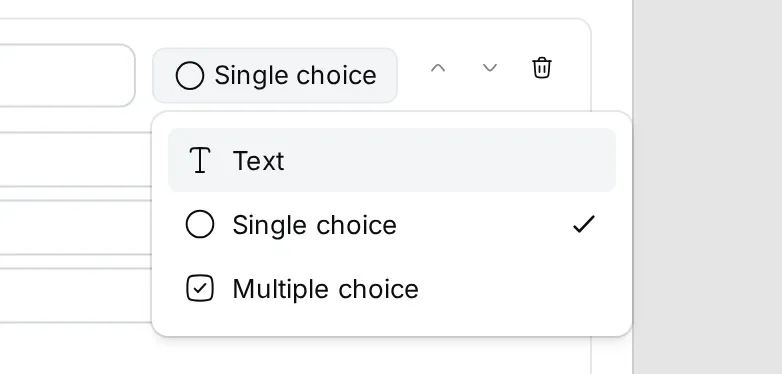
| Answer type | How people answer |
|---|---|
| Text | They type a few words or sentences. |
| Single choice | They pick one option. |
| Multiple choice | They tick as many options as apply. |
With Own answer on, a choice question gets an extra option, Other, with a field for the respondent’s own text.
Change a survey
Section titled “Change a survey”Open a survey from the list. Its page shows the name and the prompt at the top, and below them the Questions view, where you change the questions the same way as when you created it.
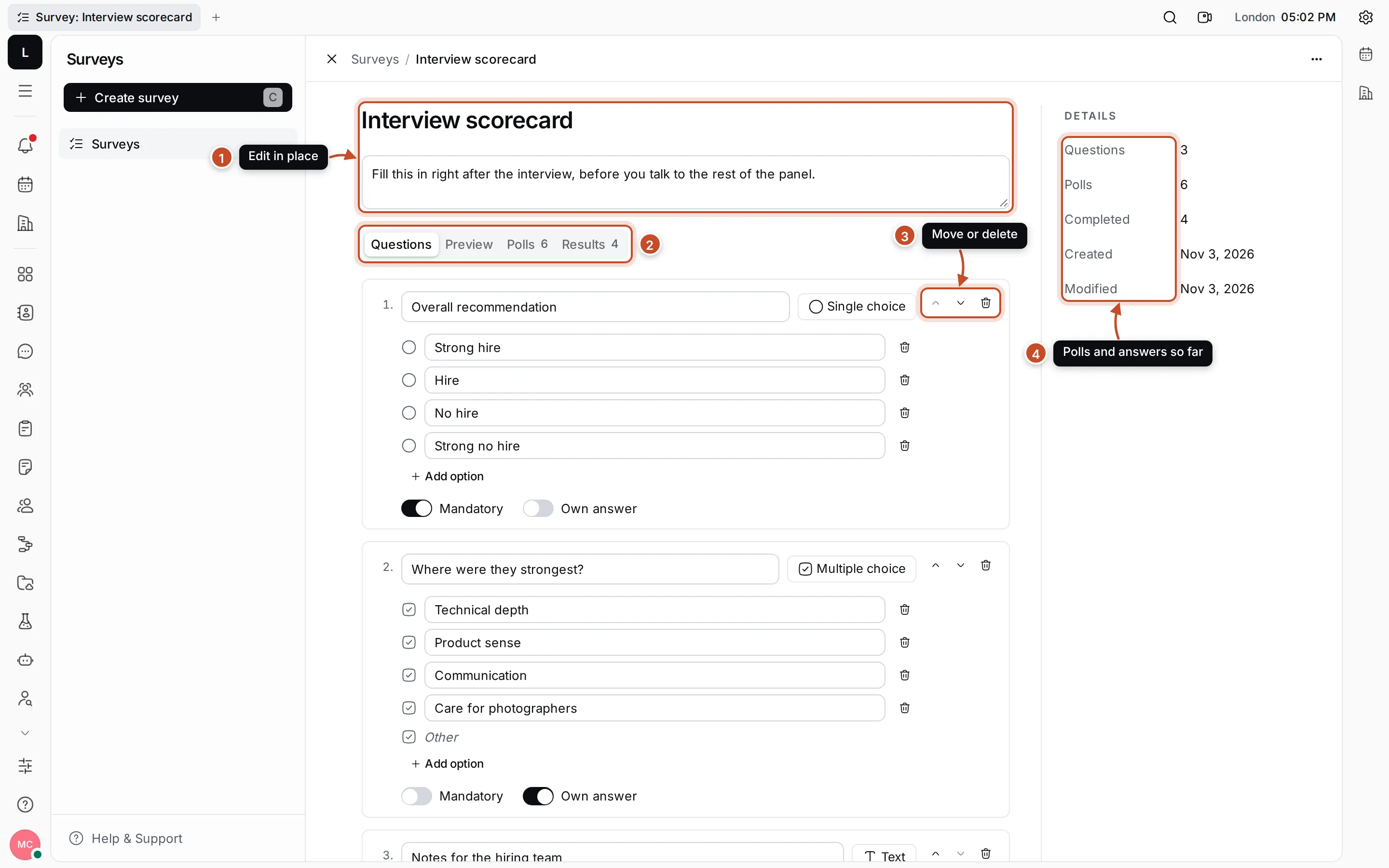
- Name and prompt. Click to change them. They are saved a moment after you stop typing.
- Views. Questions to edit, Preview to see the form as respondents do, and the survey’s Polls and Results with their counts.
- Move up, Move down and Delete question. Change the order of the questions or remove one (you confirm first).
- Details. How many questions, polls and completed polls the survey has, and when it was created and changed.
Below is the survey’s activity, where you can comment.
Duplicate or delete a survey
Section titled “Duplicate or delete a survey”Click ⋯ on the survey’s row or in its page’s top bar, or right-click the row.
- Duplicate opens a new survey with the same prompt and questions, named “… (copy)”. Change what you need and click Create survey.
- Delete removes the survey after you confirm. Polls already made from it keep their questions and answers.
- Copy link copies a link to the survey; Open in new tab opens it in another tab.