Create a training
A training starts as a draft. You write its description and questions, then release it so people can take it.
Create a draft
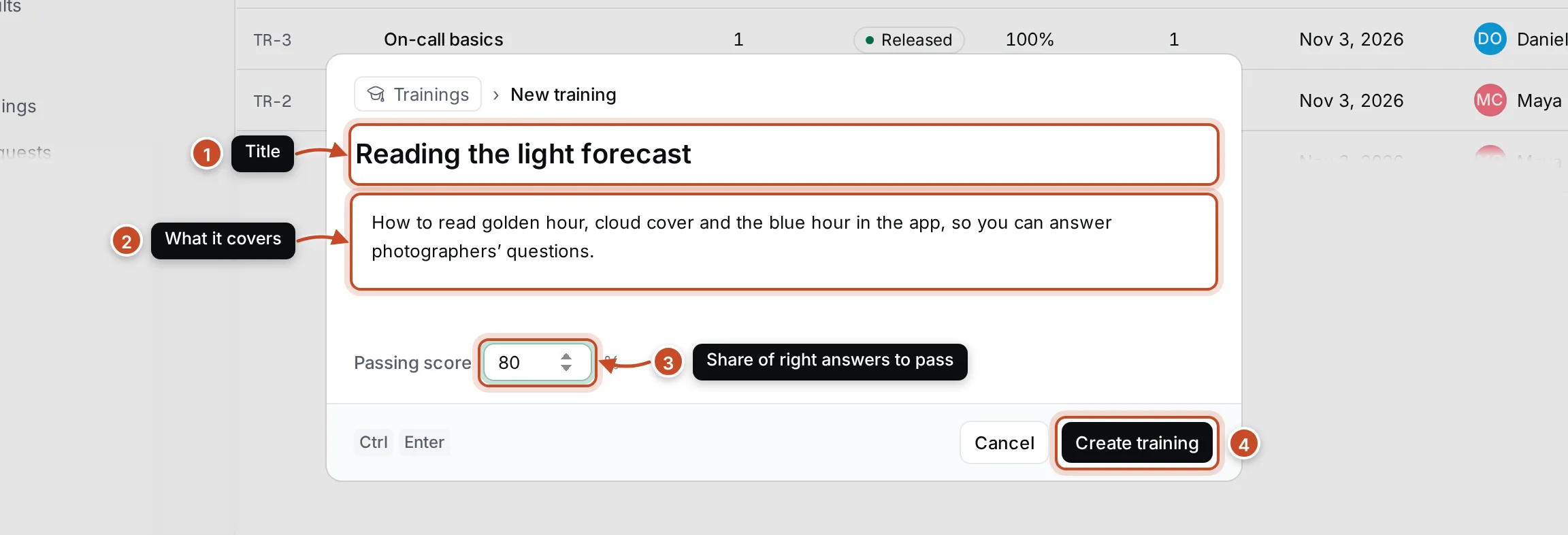
Section titled “Create a draft”- Open Trainings and click New training, or press C.
- Type the Training title (1).
- Describe what it covers (2). Trainees see the description when they take the training.
- Set the Passing score (3): the share of scored questions a trainee must answer right, in percent. It starts at 100%.
- Click Create training (4), or press Ctrl Enter. The draft opens.
The training gets a code, such as TR-5, and revision 1. You are its author and owner.
Add questions
Section titled “Add questions”Open the draft’s Questions tab.
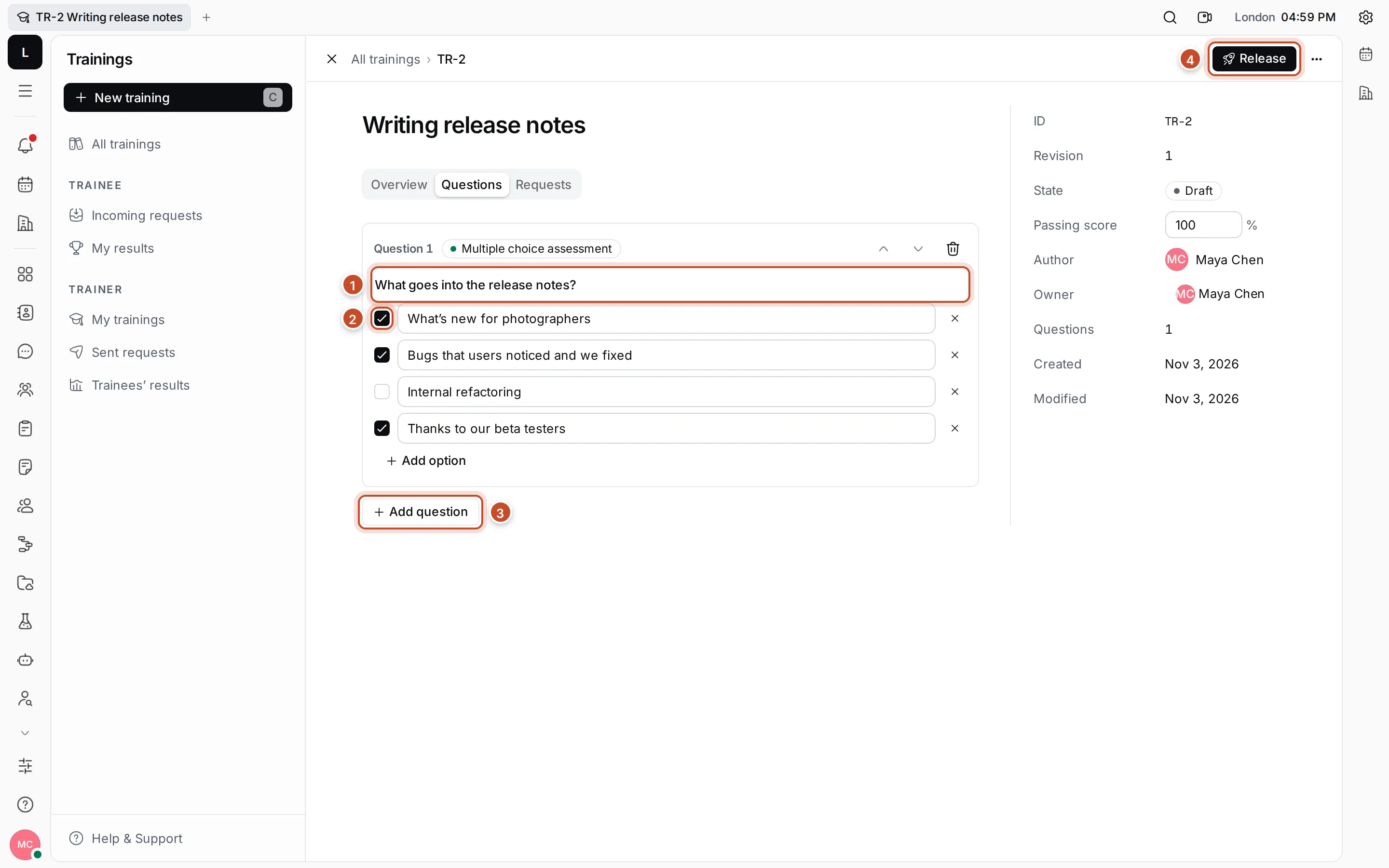
- Click Add question (3) and choose the kind of question.
- Type the question (1) and its options. Press Enter after each option to save it. Click Add option for more, or the × next to an option to remove it.
- For a scored question, mark the right answer (2): the right option, every right option, or each option’s right position.
- Add the next question. Use the arrows to move a question up or down, or the bin icon to delete it.
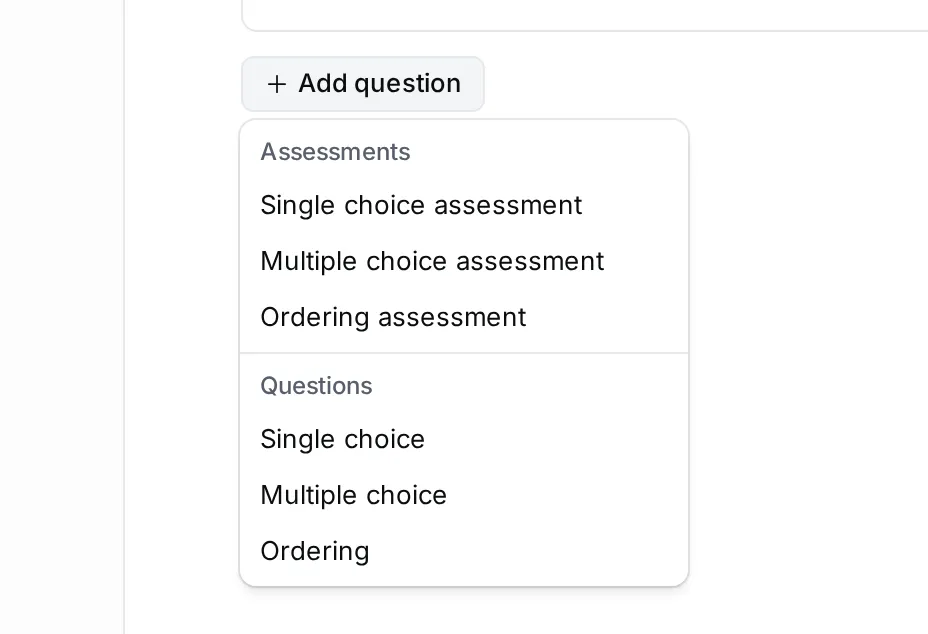
There are three kinds of questions, each as a plain question or as an assessment:
| Kind | Trainees… | As an assessment, you set |
|---|---|---|
| Single choice | pick one option | the right option |
| Multiple choice | pick every option that applies | all the right options (at least one) |
| Ordering | put the options in order | the right position of each option |
Only assessments are scored. Plain questions ask for an opinion, such as “How confident do you feel?”, and never count as wrong. A training with no assessments is passed by everyone who submits it.
Everything in a draft is saved as you type. You can also change its title, description and passing score on the Overview tab and in its properties.
Release the training
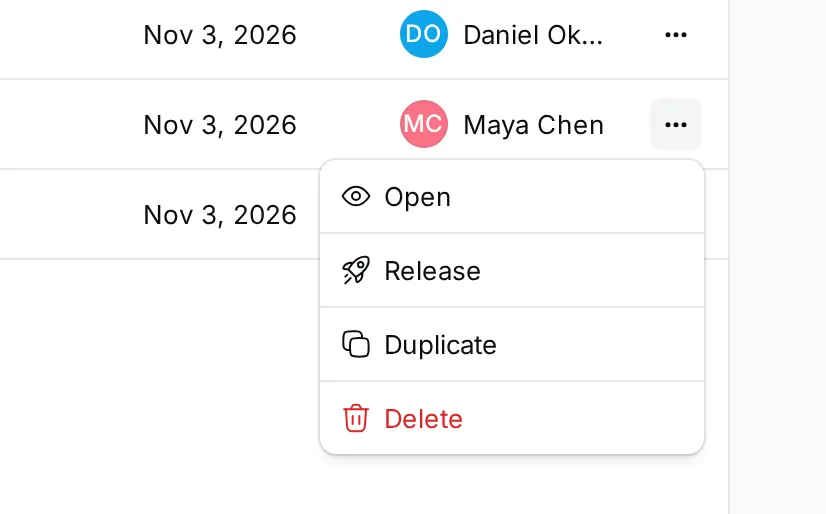
Section titled “Release the training”When the questions are ready, click Release at the top of the draft and confirm. The training is now Released: it can’t be changed any more, and you can assign it.
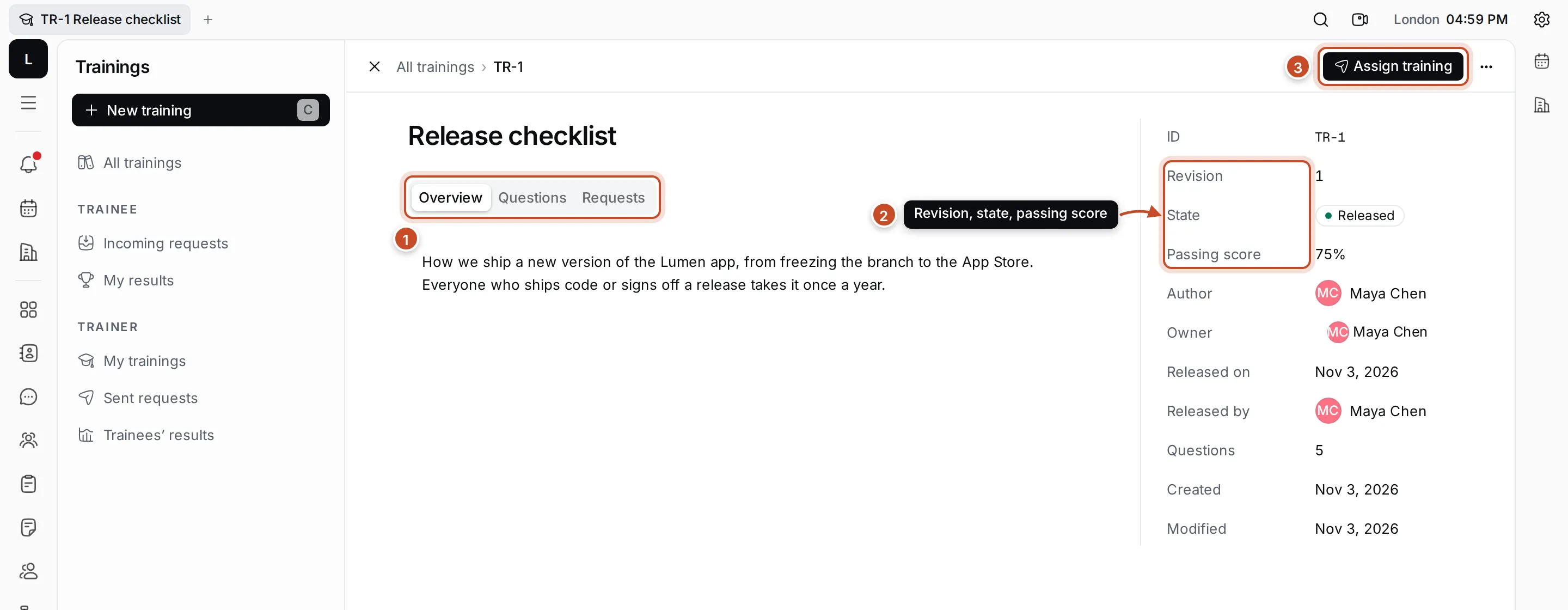
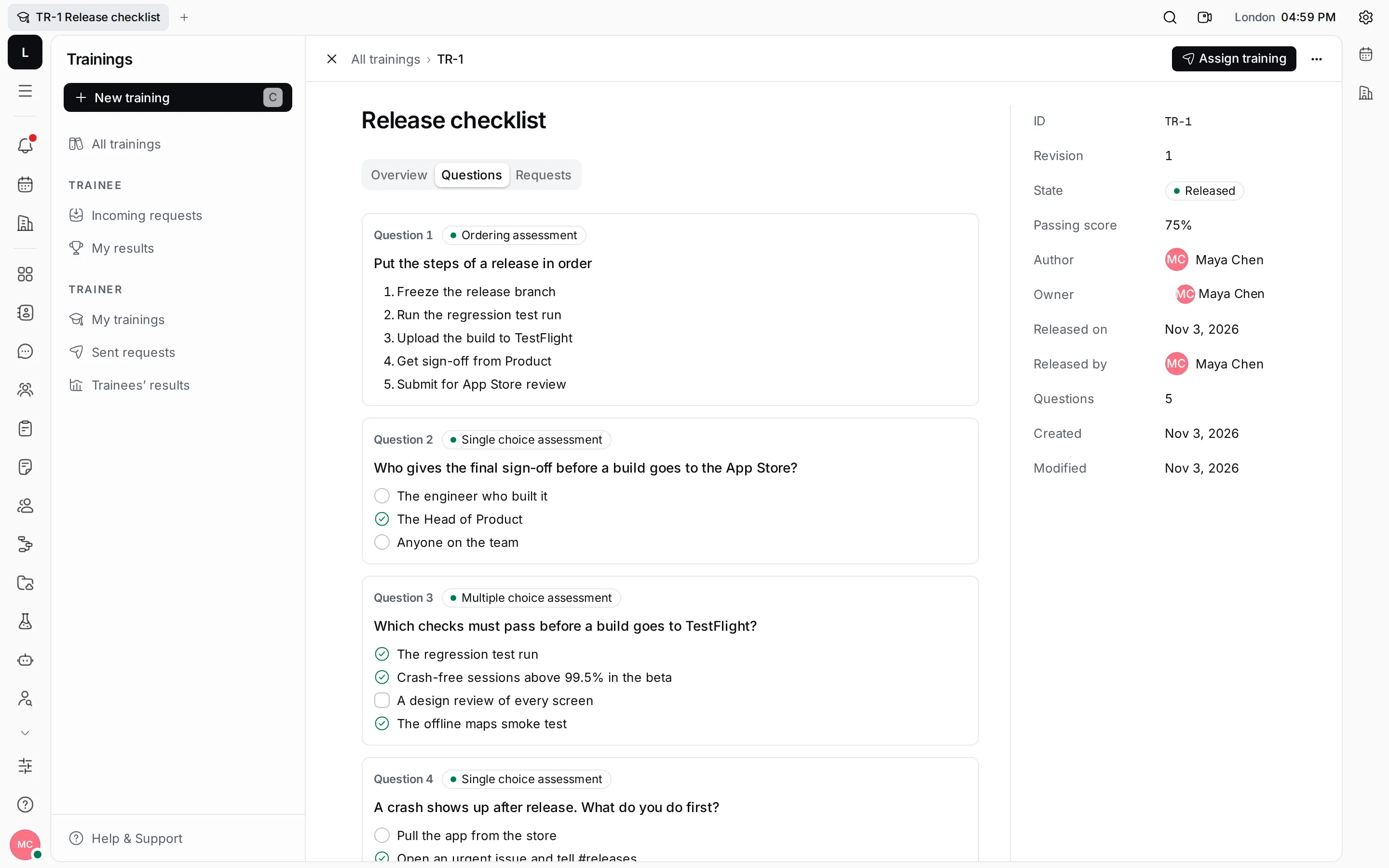
- Overview, Questions and Requests: the description, the questions with the right answers marked, and the requests sent for this training.
- Properties: its code, revision, state and passing score, author and owner, who released it and when, and how many questions it has. Change the Owner here.
- Assign training: send a request.
New versions and copies
Section titled “New versions and copies”The ⋯ menu of a training, on its row or in its top bar, holds what you can do with it next.
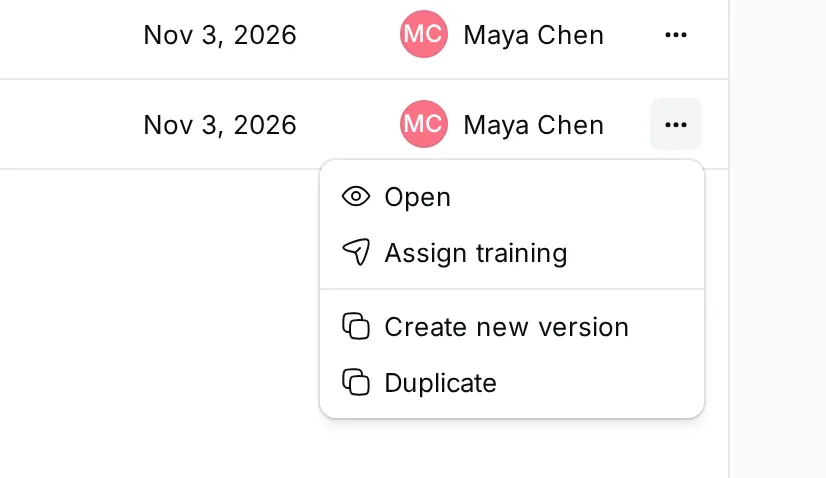
- Create new version makes a draft with the same code, the next revision number and a copy of the questions. Change it and release it: the previous revision becomes Archived. A training can have only one draft at a time.
- Duplicate makes a new draft with a new code, starting again at revision 1, with a copy of the questions.
- Delete removes a draft (released trainings can’t be deleted).
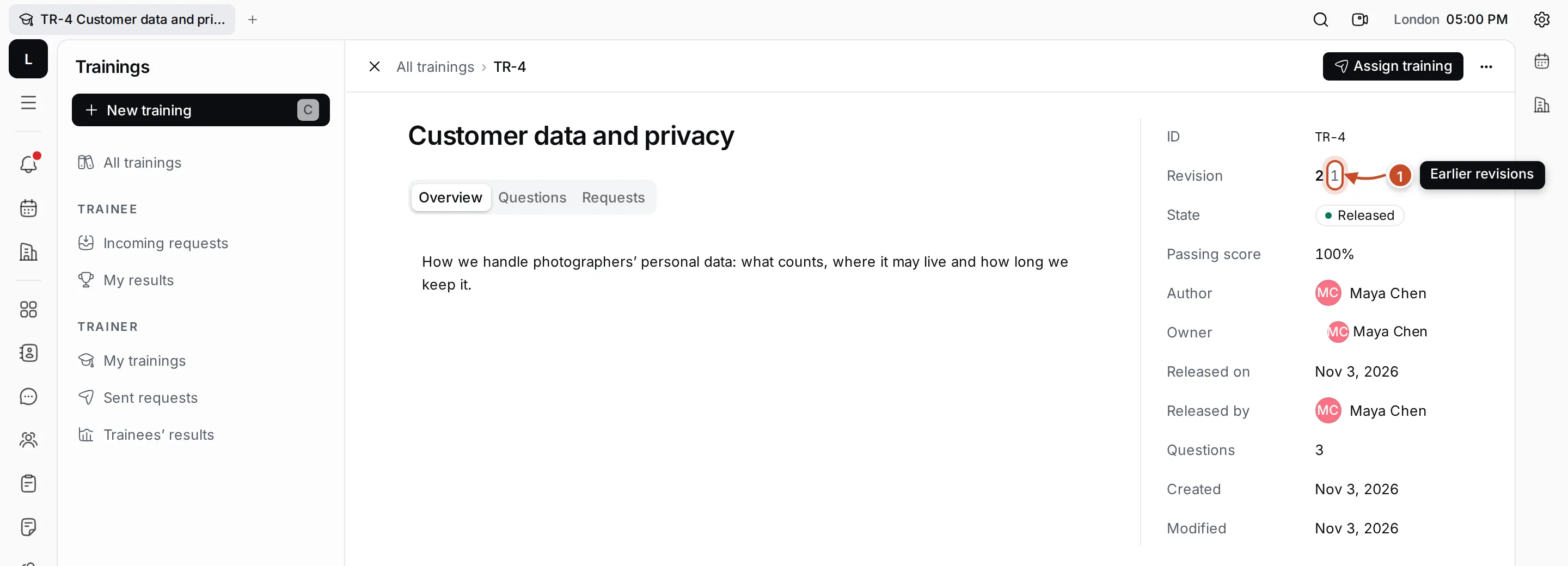
The revision in a training’s properties links to its other revisions.