Product versions
A product version is one release of a product. Its number has three parts, major.minor.patch: raise the major number for big changes, the minor number for new features, and the patch number for fixes. A version is Active while you work on it and Released once it ships.
Create a version
Section titled “Create a version”- Open the product and click Create product version. You can also click the arrow next to New product and choose Create product version.
- Check the product and the parent version at the top of the dialog. The parent starts as the product’s highest version.
- Check the number under Version. It’s suggested as the next minor version after the parent. Type your own Major, Minor and Patch, or click Next Major, Next Minor or Next Patch.
- Enter a Codename if the release has one, and a description.
- Click Create (or press Ctrl Enter). The new version opens.
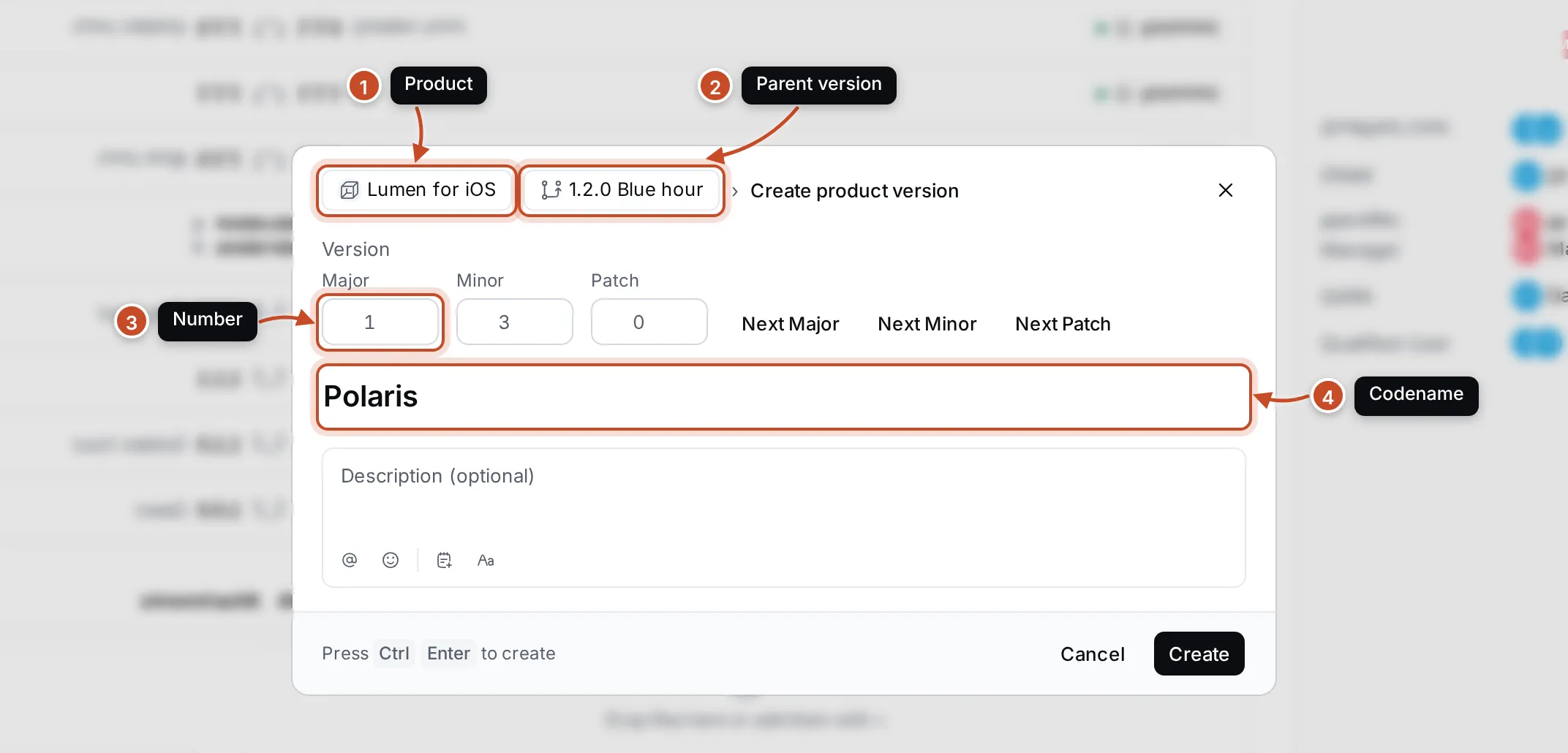
The number must be new for the product and higher than its parent’s. If it isn’t, the dialog tells you why and Create stays greyed out.
To create the version after a particular one, choose Create product version from that version’s ⋯ menu. The dialog then starts with it as the parent.
A version’s page
Section titled “A version’s page”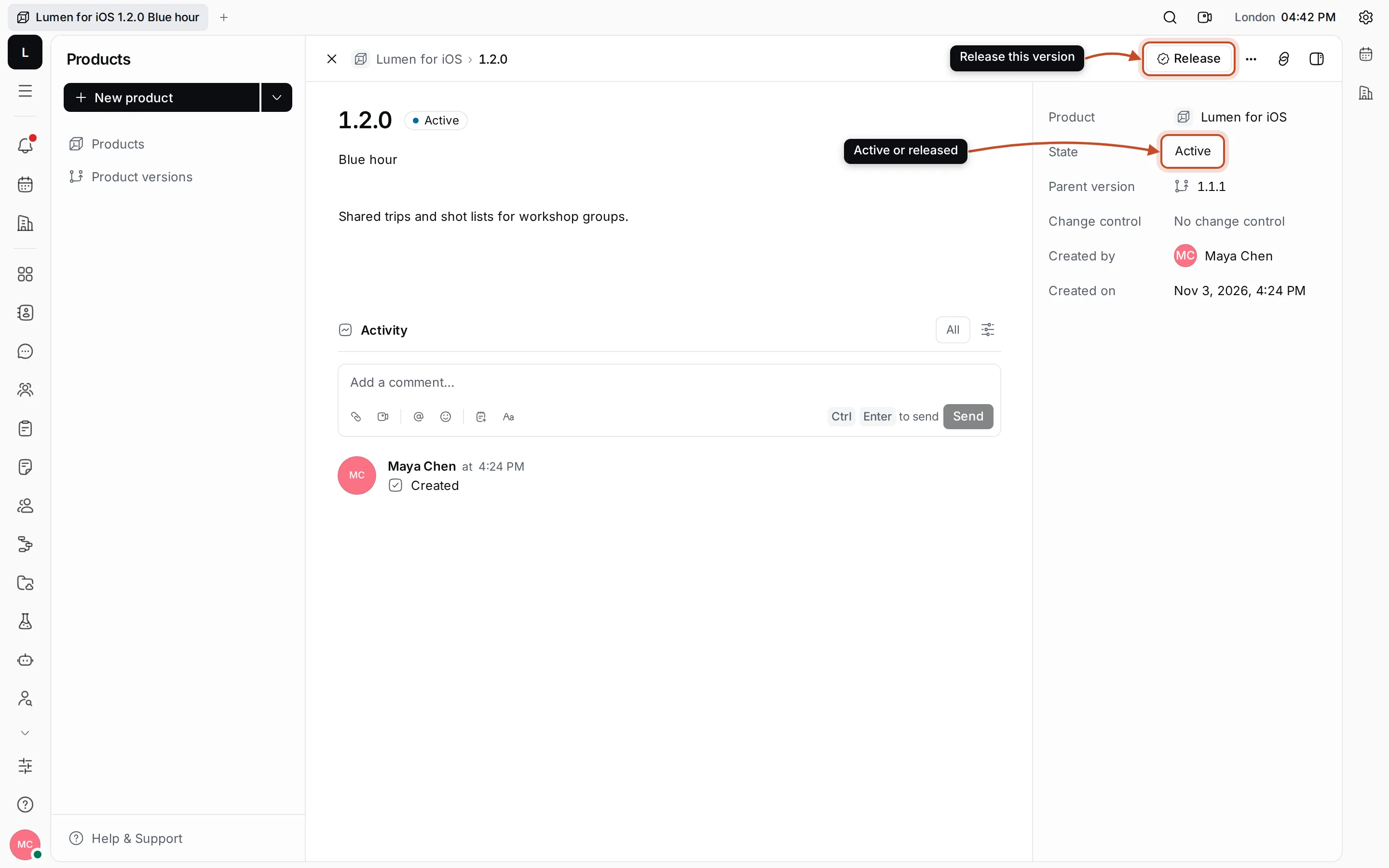
- The number can’t be changed once the version exists. Click the codename or the description to change them.
- Following versions lists the versions that have this one as their parent.
- Activity shows the changes and the team’s comments.
The details panel shows the Product, the State, the Parent version, Change control and who created the version and when.
Release a version
Section titled “Release a version”When a version ships, click Release at the top of its page, or choose Release from its ⋯ menu. Its state becomes Released.
If you released it by mistake, choose Make active from the ⋯ menu, or set the State back to Active in the details panel.
See all versions
Section titled “See all versions”Click Product versions in the navigator to see the versions of every product.
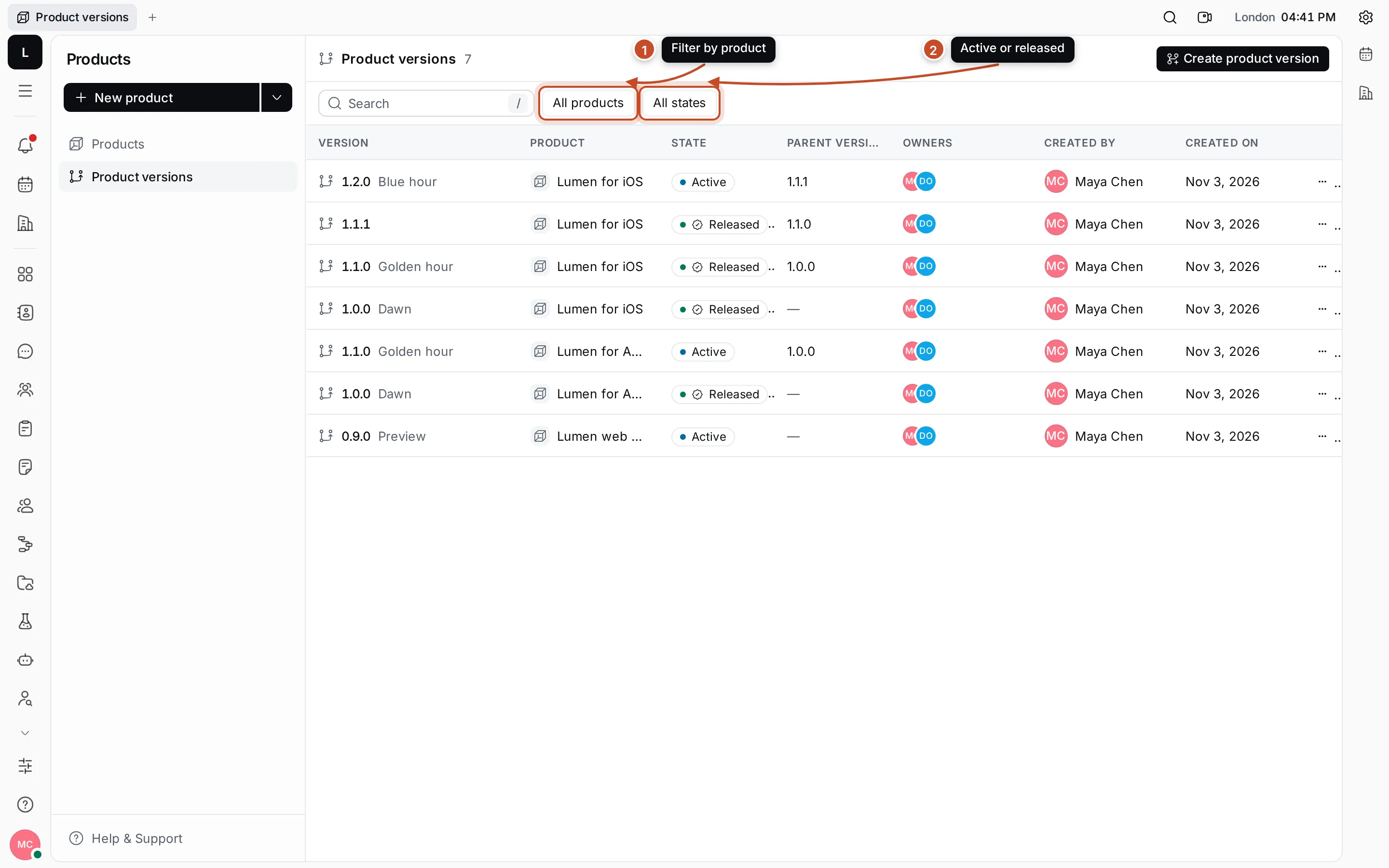
- Show only one product’s versions.
- Show only Active or only Released versions.
Type in Search (or press /) to find a version by its number or codename. Click a row to open the version.
Delete a version
Section titled “Delete a version”Choose Delete from the version’s ⋯ menu and confirm.