Move leads through the funnel
A lead moves from status to status as the deal progresses: from Backlog and Incoming through Negotiation, Offer preparing, Make a decision and Contract conclusion, to Won or Lost. Each funnel can be shown three ways, and you can change a lead’s status from any of them.
Choose a view
Section titled “Choose a view”Use the view switch at the top left of a funnel:
- List groups the leads by status, in the funnel’s order. Each row shows the ID, status, title, customer, counts of files and comments, the due date, when it was last changed, and the assignee. A due date turns red when it has passed and the lead is still open.
- Board shows one column per status, with a card for each lead.
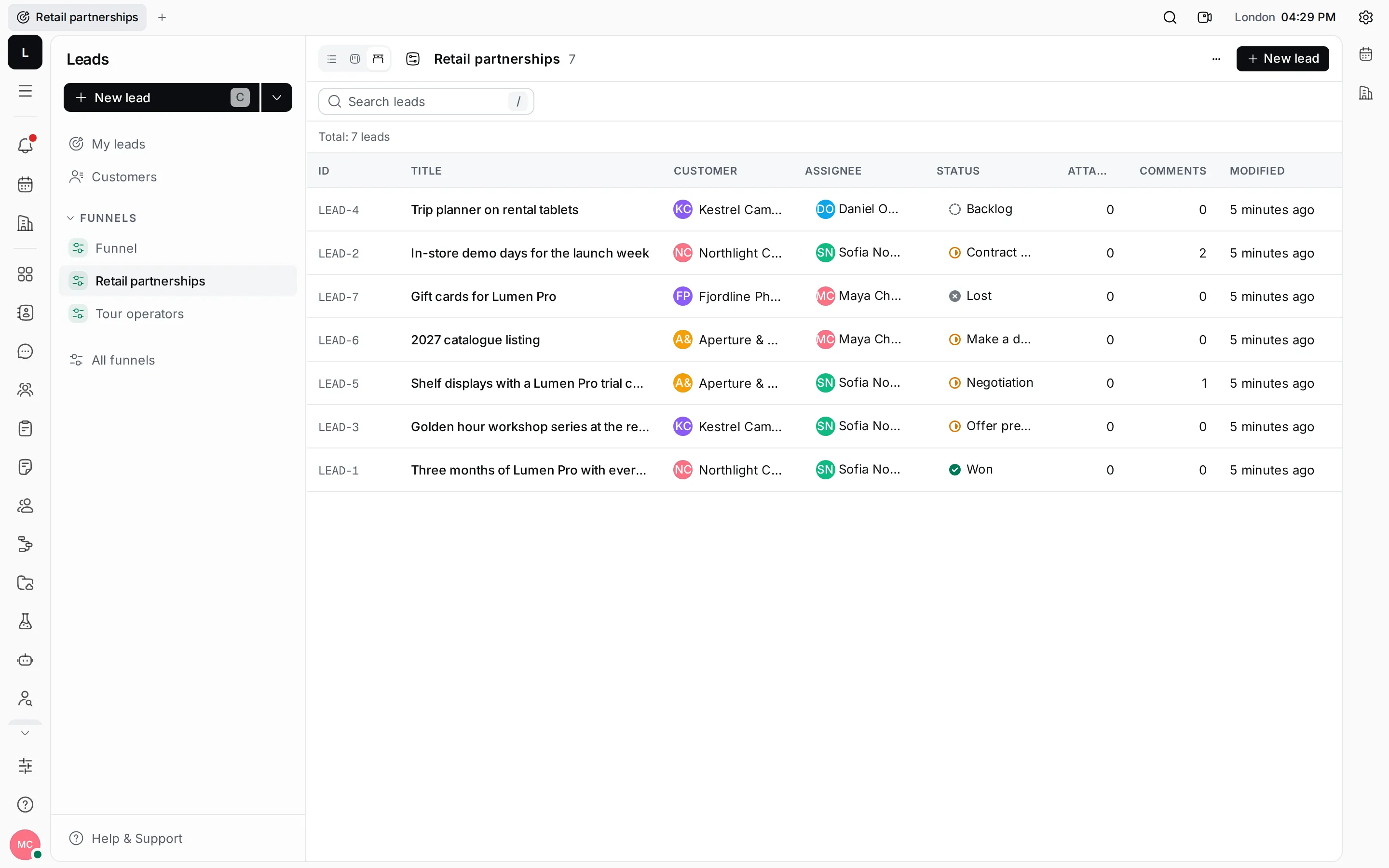
- Table shows the ID, title, customer, assignee, status, attachments, comments and modified date as columns, with the total at the bottom.
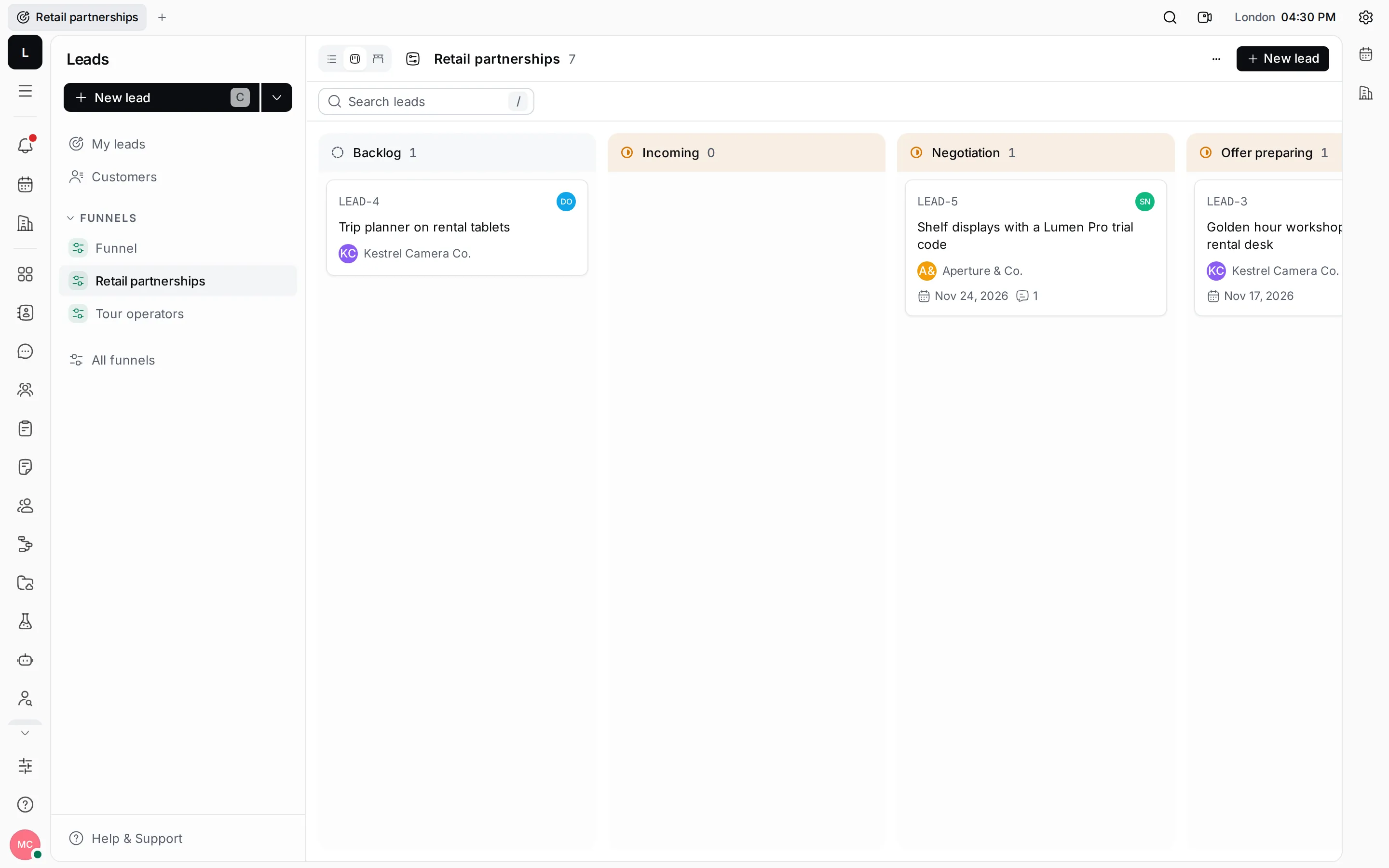
Click the arrow on a status group in the list to fold it. Leads keeps the groups you fold.
Change a lead’s status
Section titled “Change a lead’s status”- Switch the funnel to Board.
- Drag the lead’s card to another column. Its status changes to that column’s.
Drag a card up or down within a column to change the order of the leads by hand. With the keyboard, focus a card, press Space to pick it up, move it with the arrow keys, and press Space again to drop it. On a touch screen, press and hold a card before you drag it.
You can also click the status icon of a row in the list, or the Status on the lead’s page, and pick the new status.
Group, sort and filter
Section titled “Group, sort and filter”Click the View options button next to the funnel’s name.
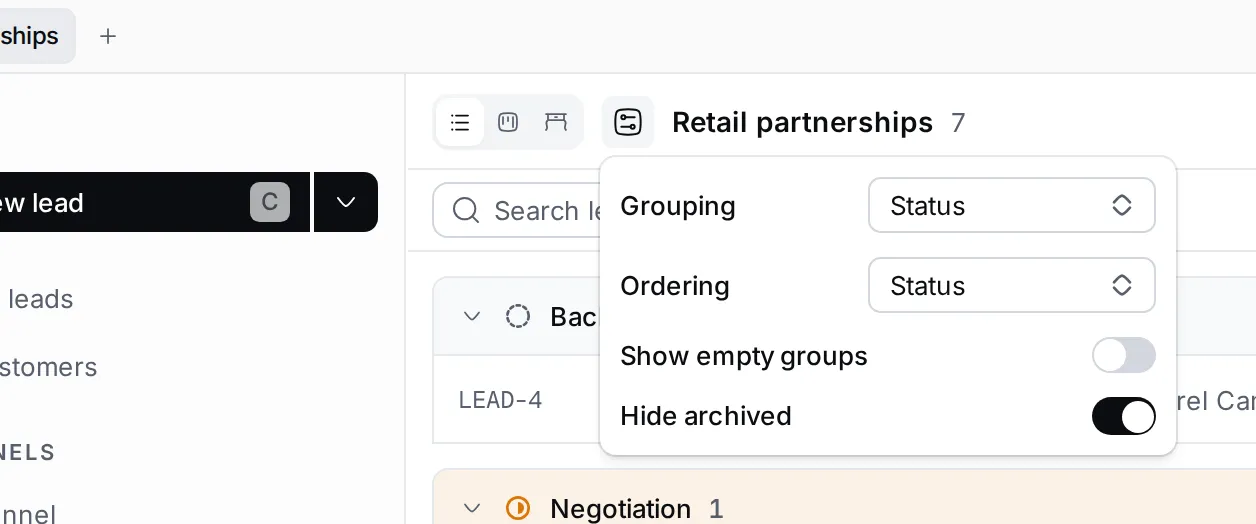
- Grouping groups the list by Status, by Assignee, or not at all (No grouping).
- Ordering sorts by Status, Modified date, Created date or Due date. Manual keeps the order you set by dragging.
- Show empty groups also shows statuses that have no leads.
- Hide archived leaves out leads in archived funnels.
To find a lead by its title, type in Search leads, or press / to jump to the search box.
Right-click a lead
Section titled “Right-click a lead”Right-click a row or a card (or press Shift F10) for Open, Open in new tab, Copy link, Copy ID and Delete.
My leads
Section titled “My leads”My leads collects your leads from every funnel. Pick a tab:
- Assigned: leads assigned to you.
- Created: leads you created.
- Subscribed: leads you follow. You follow the leads you create and the ones assigned to you.
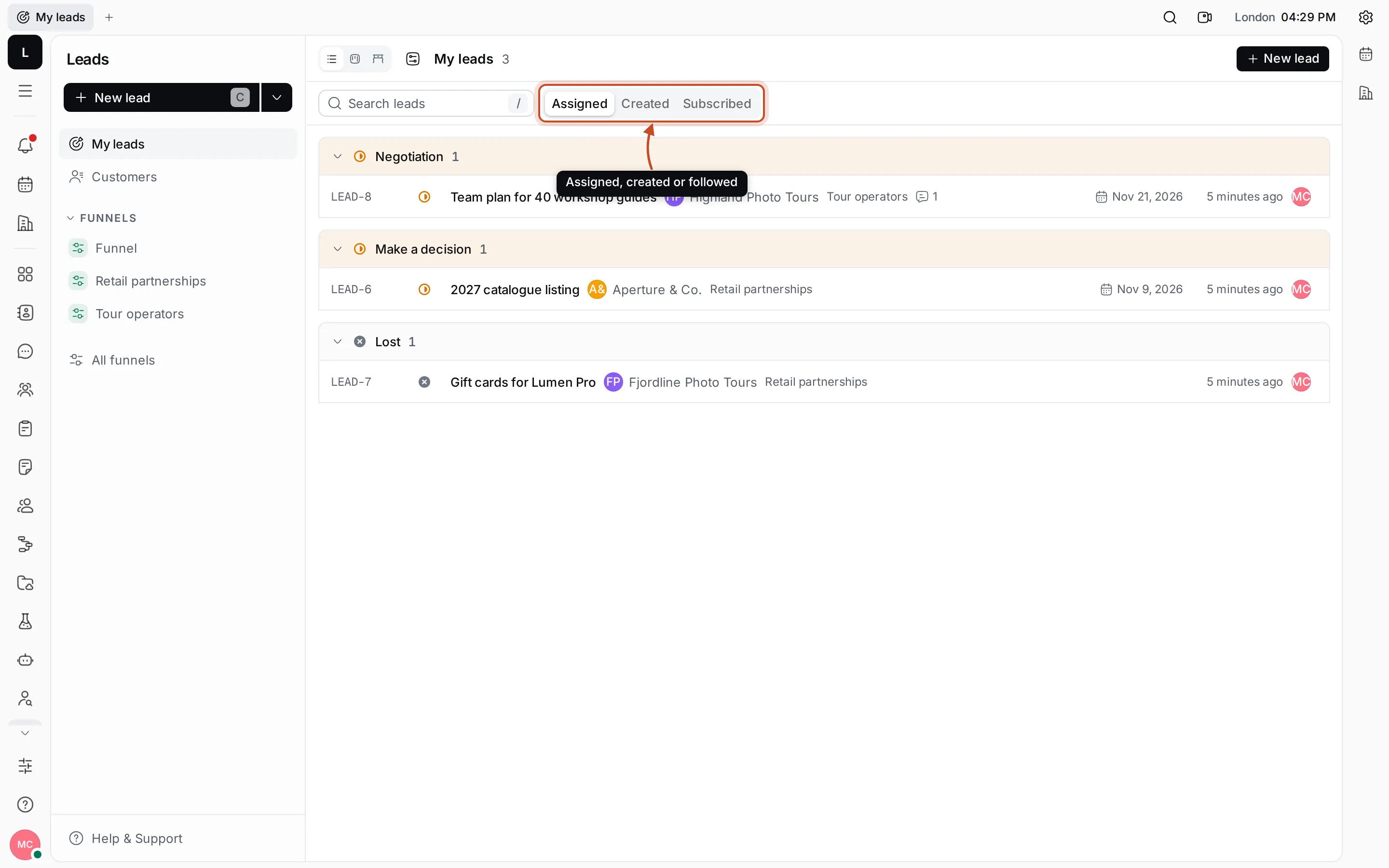
My leads has the same views, options and search as a funnel. Each row also shows which funnel the lead is in.