Templates
Every controlled document is made from a template. The template decides three things about the documents made from it: their prefix (and so their codes, such as SOP-1), their category, and the content they start with. Lumen Labs has two: Standard operating procedure (prefix SOP) and Work instruction (prefix WI).
Create a template
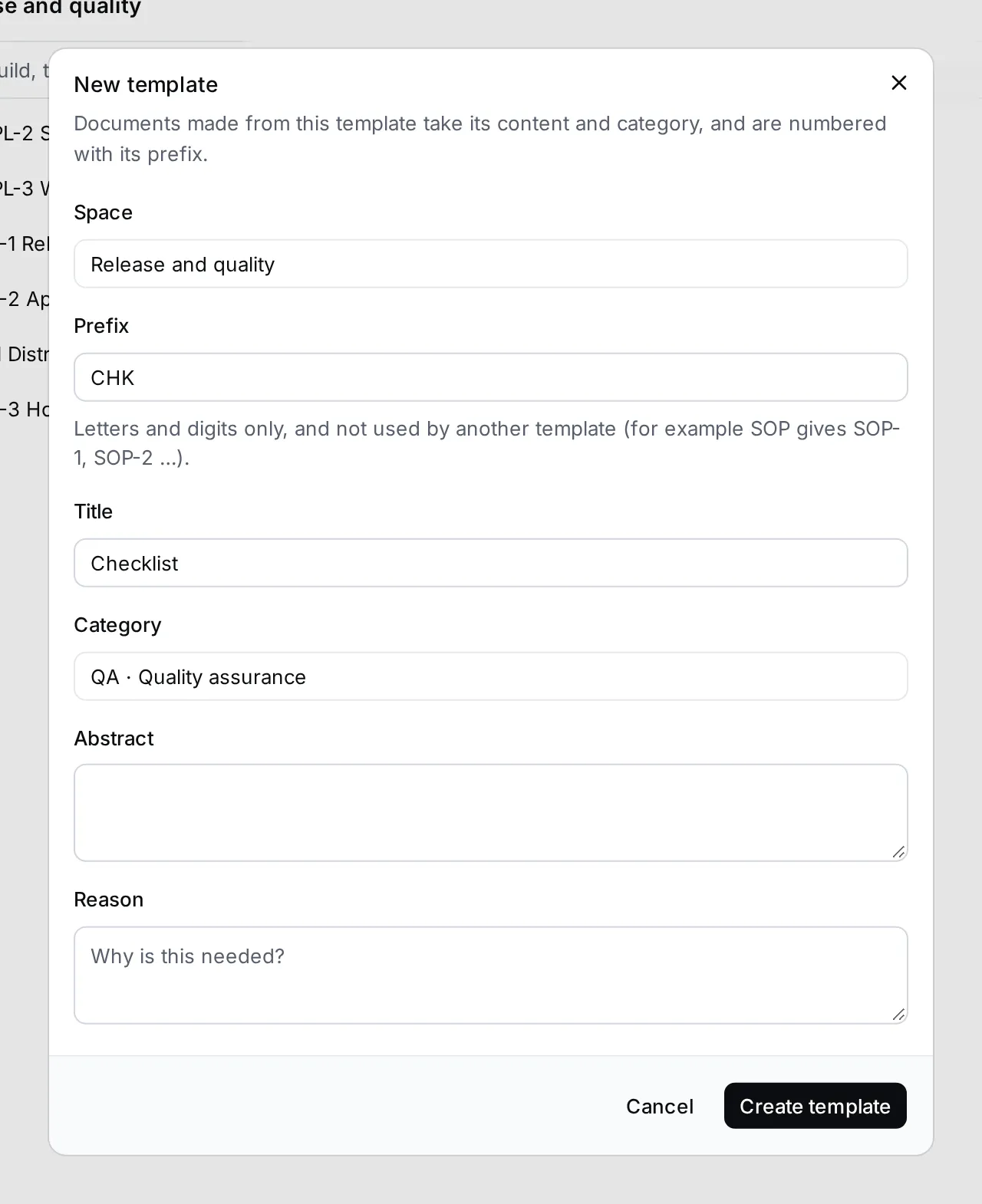
Section titled “Create a template”- Open the space the template belongs in, click the arrow next to New document and choose New template. The button with the files icon at the top of a space does the same.
- Check the Space.
- Enter the Prefix: letters and digits only, and not used by another template. SOP gives SOP-1, SOP-2 and so on.
- Enter the Title, such as “Standard operating procedure”.
- Choose the Category the documents will be in.
- Add an Abstract and the Reason for the template if you like.
- Click Create template. The template opens.
Templates are numbered too: their codes start with TMPL.
Write the template’s content
Section titled “Write the template’s content”Open the template and write the outline every document should follow, in the content under its title. Lumen Labs’ SOP template has the headings Purpose, Scope, Responsibilities, Procedure and Records, with a short hint under each.
The content saves as you type, and others see your changes live. A new document gets a copy of the template’s content at the moment it’s created; changing the template later doesn’t change existing documents.
Find templates
Section titled “Find templates”Click Templates in the navigator to list the templates of all your spaces, with their prefix. Templates also appear in their space’s tree, and a template’s page shows Template · SOP (with its prefix) above the title.