Work // Leads
Leads overview
Leads is where your team keeps its sales opportunities. Each lead is one deal with one customer, such as a camera store that wants to bundle your app. Leads live in funnels, and each funnel moves its leads through the same statuses, from Backlog to Won or Lost.
Lumen Labs keeps two funnels: Retail partnerships for camera stores that sell or bundle Lumen Pro, and Tour operators for workshop companies that plan their trips with Lumen.
Open Leads from the left rail.
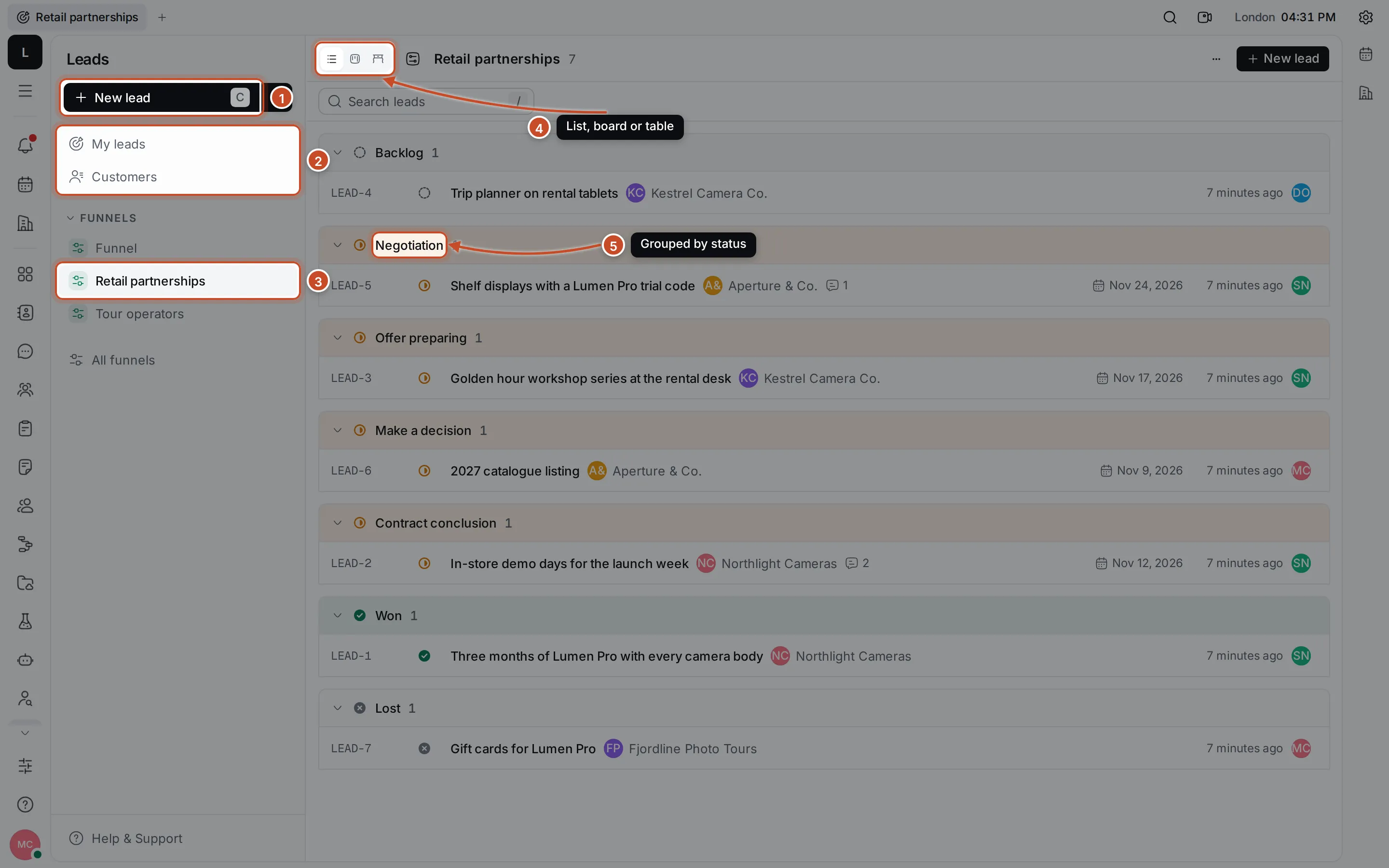
- New lead creates a lead. Press C anywhere in Leads to do the same. The arrow next to it also offers Create customer and Create funnel.
- My leads shows the leads you’re assigned, created or follow. Customers lists every person and organization you sell to.
- Funnels lists your funnels. Click one to see its leads. All funnels, below the list, shows them in a table.
- The view switch shows a funnel as a List, a Board or a Table.
- In the list, leads are grouped by status, in the funnel’s order.
How the parts fit together
Section titled “How the parts fit together”- A funnel holds leads and decides who can see them. Every workspace starts with one called Funnel; create more for different kinds of deals.
- A lead has a title, a customer, a status, an assignee and optional start and due dates. Each lead gets an ID such as LEAD-2.
- A customer is a person or an organization. One customer can have many leads, in any funnel. Any contact from Contacts can become a customer.
- The statuses are Backlog, Incoming, Negotiation, Offer preparing, Make a decision, Contract conclusion, Won and Lost. A workspace owner can change them in Settings › Space types.
What you can do
Section titled “What you can do”FunnelsCreate funnels, choose who can see them, and archive old ones.
Create and edit leadsAdd a lead for a customer and keep its details up to date.
Move leads through the funnelList, board and table views, statuses, search and My leads.
CustomersCreate customers, keep their contact info and see their leads.