Applications and the pipeline
An application is one talent applying to one vacancy. It moves through your hiring stages, from Backlog to Won or Lost, and has a recruiter who looks after it.
Create an application
Section titled “Create an application”- Click New application: above Applications, on a vacancy’s page, or on a talent’s page. You can also open the menu next to New talent and choose New application.
- Choose the Vacancy (1) and the Talent (2). On a vacancy’s or talent’s page, one of them is already filled in.
- If you like, change the status (it starts at Backlog), pick the Assigned recruiter and set a Due date (3).
- Click Create (4), or press Ctrl Enter.
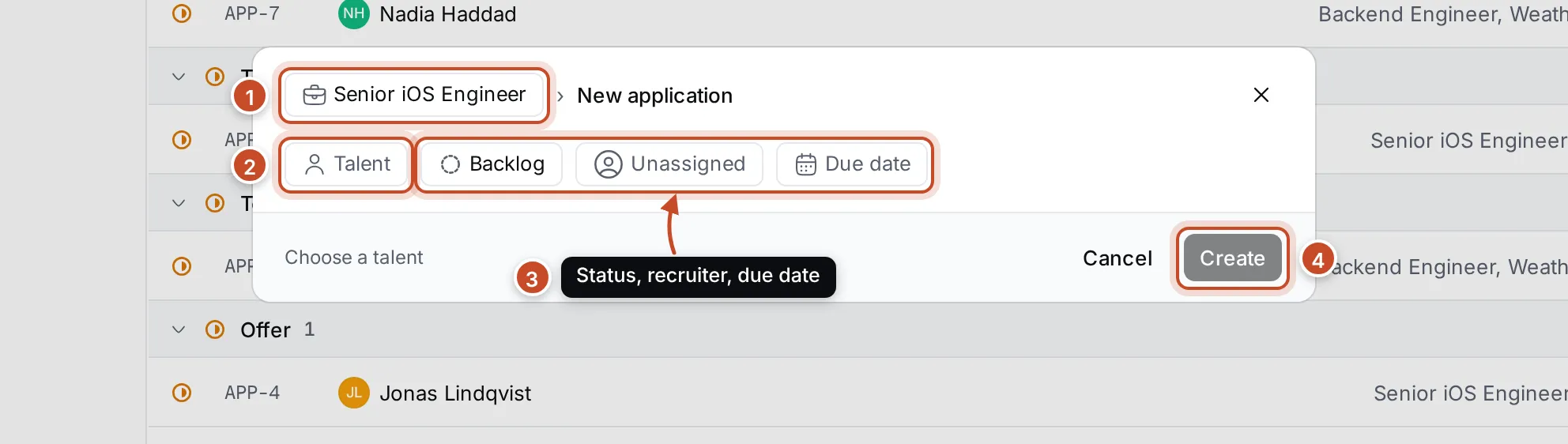
The application gets a number, such as APP-10.
The stages
Section titled “The stages”Every vacancy uses the same stages, in this order:
| Stage | What it means |
|---|---|
| Backlog | Not contacted yet |
| HR Interview | A first call about the role, expectations and timing |
| Technical Interview | An interview about their skills |
| Test task | A task to do at home, reviewed by the team |
| Offer | You’ve made them an offer |
| Won | They accepted. The application is done |
| Lost | They declined, or you didn’t go on. The application is done |
The stages belong to the vacancy type, Default vacancy. To rename them or add new ones, see space types and statuses.
Follow applications
Section titled “Follow applications”Applications in the navigator lists every application, grouped by stage.
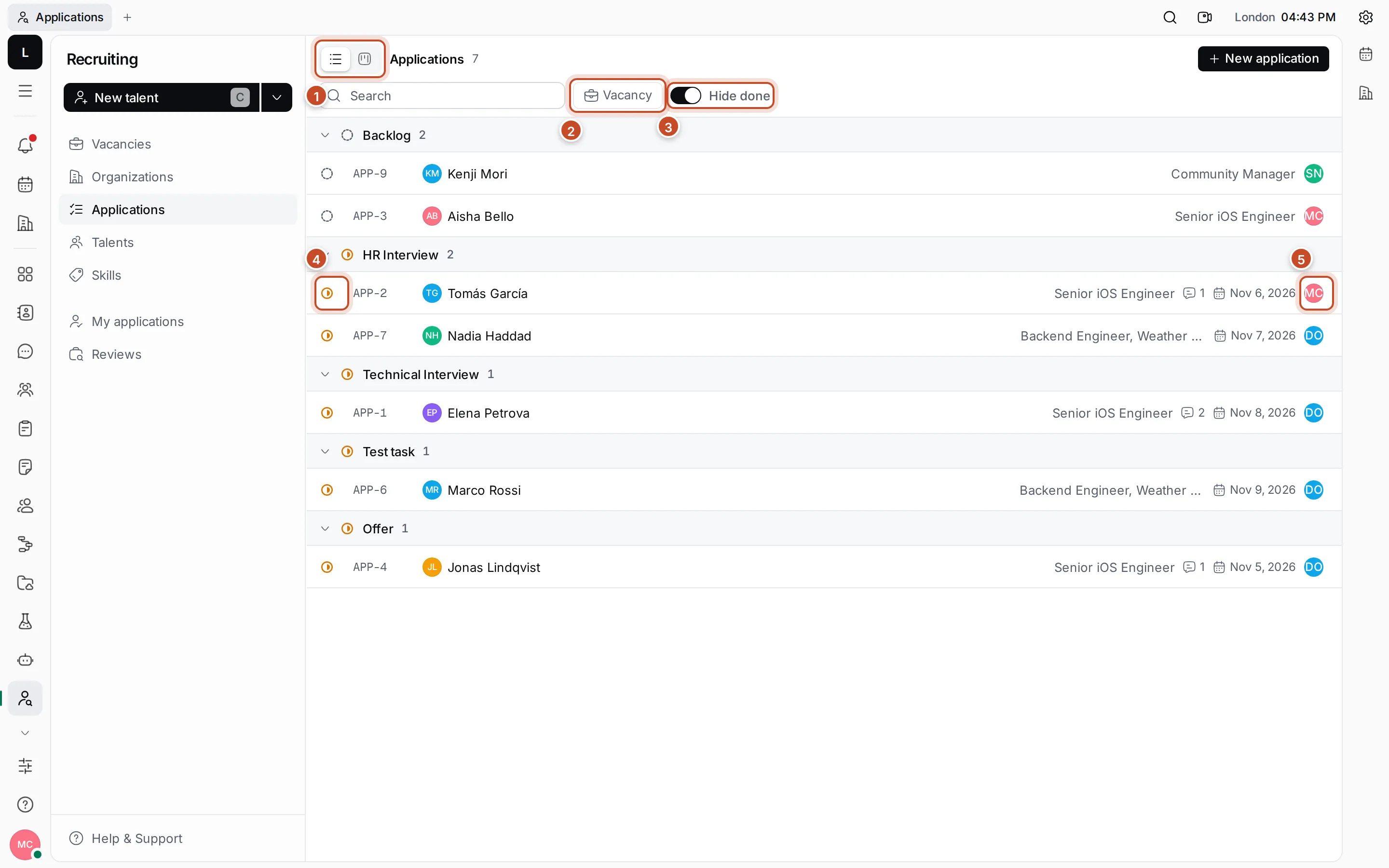
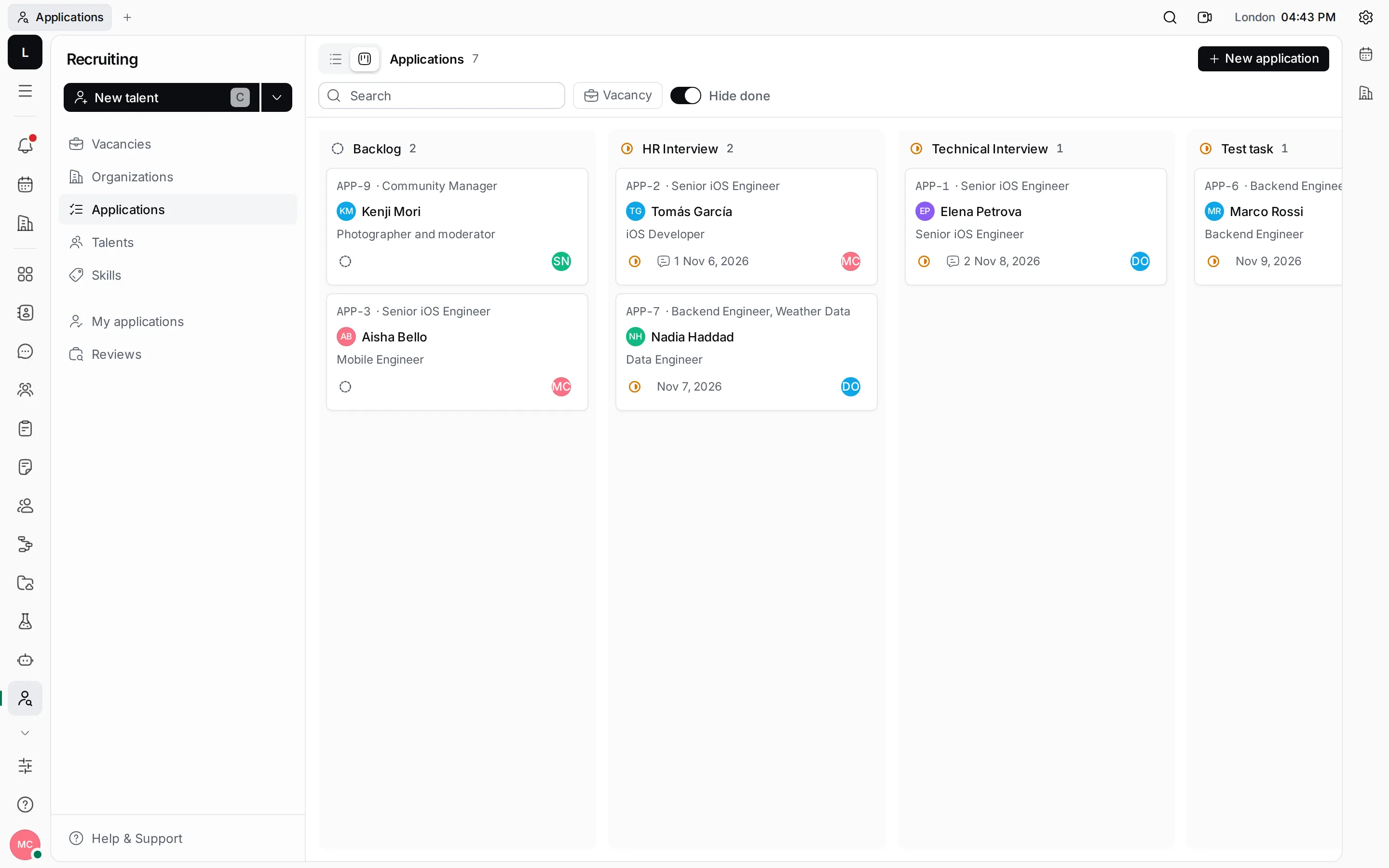
- List or board. Switch between this list and a board with a column per stage.
- Vacancy. Show only one vacancy’s applications.
- Hide done. On at first: applications that are Won or Lost are hidden. Switch it off to see them.
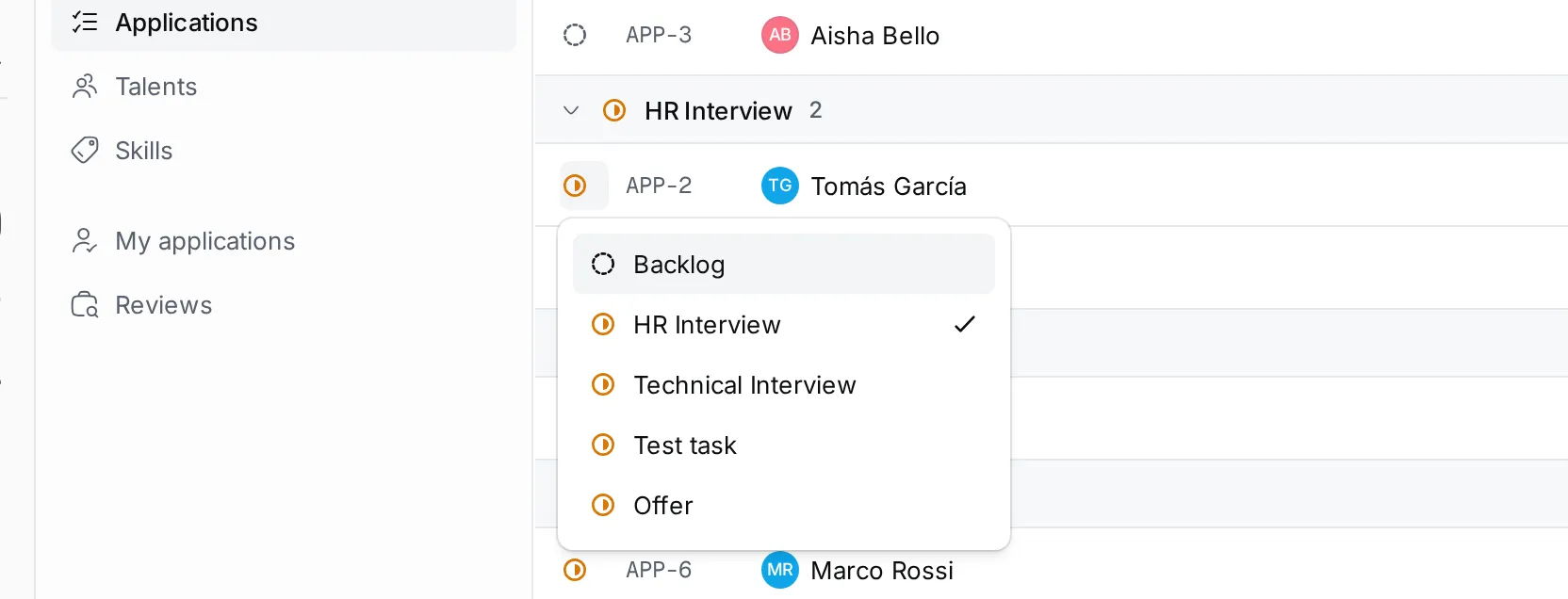
- Status. Click a row’s status icon to move it to another stage.
- Recruiter. Click the avatar to assign the application to someone else.
Each row also shows the talent, the vacancy, the comments and the due date. Click a row to open the application. Collapse a stage with the arrow next to its name. Search finds applications by talent or by number.
My applications shows only the applications you are the recruiter of, in the same list or board.
The board
Section titled “The board”On the board, each stage is a column. Drag a card to another column to move the application to that stage. With the keyboard, focus a card, press Space to pick it up, use the arrow keys to move it, and press Space again to drop it.
The application page
Section titled “The application page”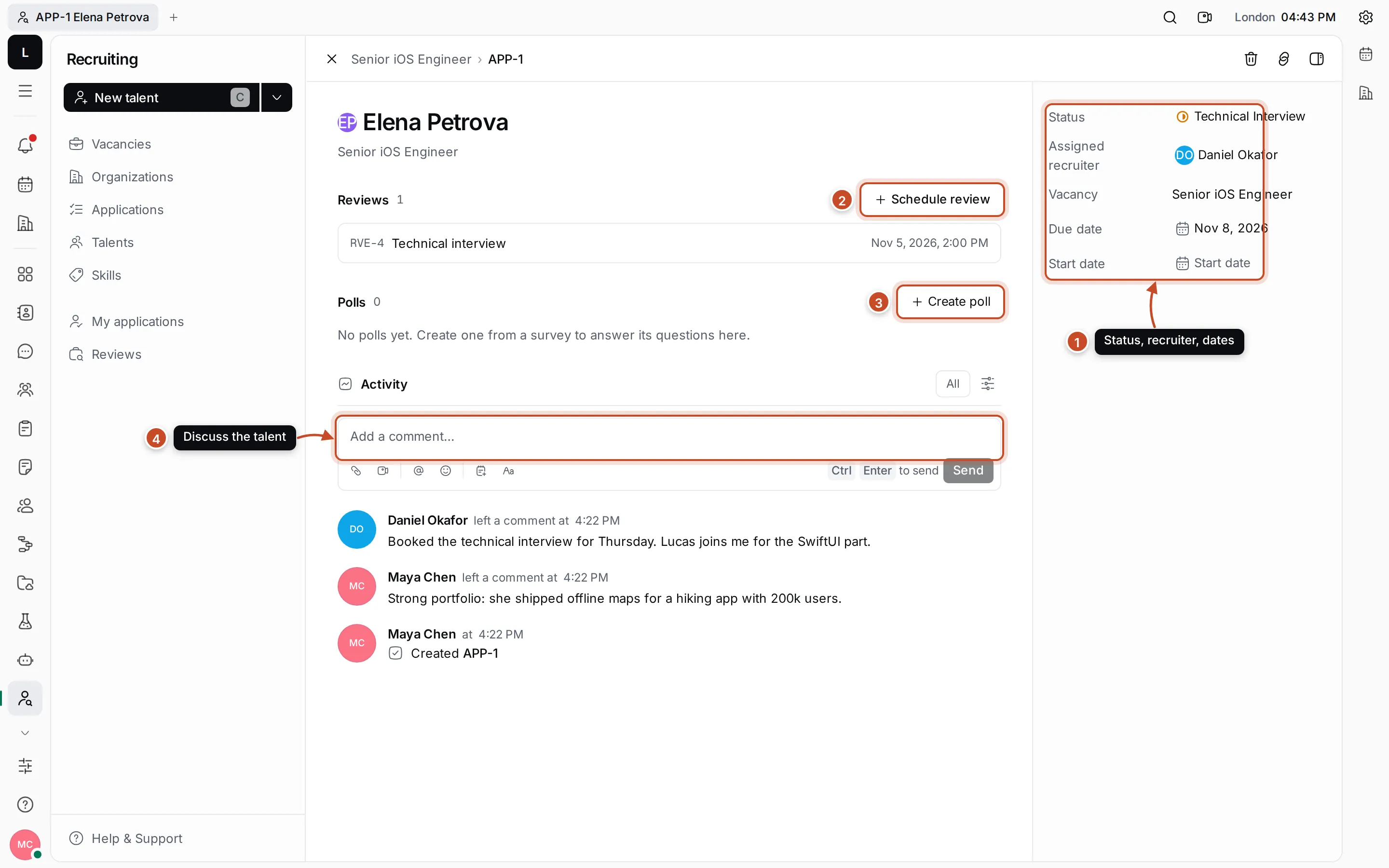
- Details. The Status, the Assigned recruiter, the vacancy, the Due date and the Start date (when they would start). Click a value to change it.
- Reviews. The interviews for this application. Schedule review plans a new one with the talent and the application filled in. See Interviews and reviews.
- Polls. Surveys answered about this application, such as an interview scorecard. See Answer surveys with polls.
- Comments. Talk about the talent with the rest of the hiring team. Everything that changes on the application shows in the activity too.
The title is the talent’s name; click it to open their talent page. The bar at the top has Copy link and Delete.