Work // Trainings
Assign a training and follow results
To ask people to take a training, you send a request. Each trainee is notified and finds it under Incoming requests. You follow their results on the request.
Send a request
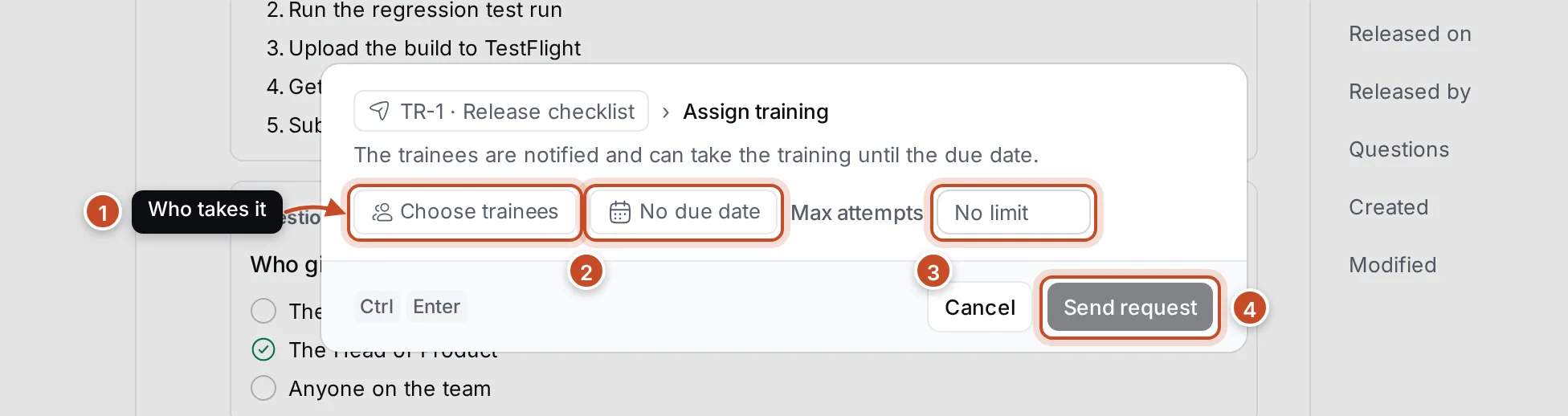
Section titled “Send a request”- Open a released training and click Assign training. You can also choose Assign training from the training’s ⋯ menu.
- Click Trainees (1) and pick the people who should take it. Type to search.
- Set a Due date (2) if it should be done by a day.
- Set Max attempts (3) to limit how many times each trainee may try. Leave it empty for no limit.
- Click Send request (4).
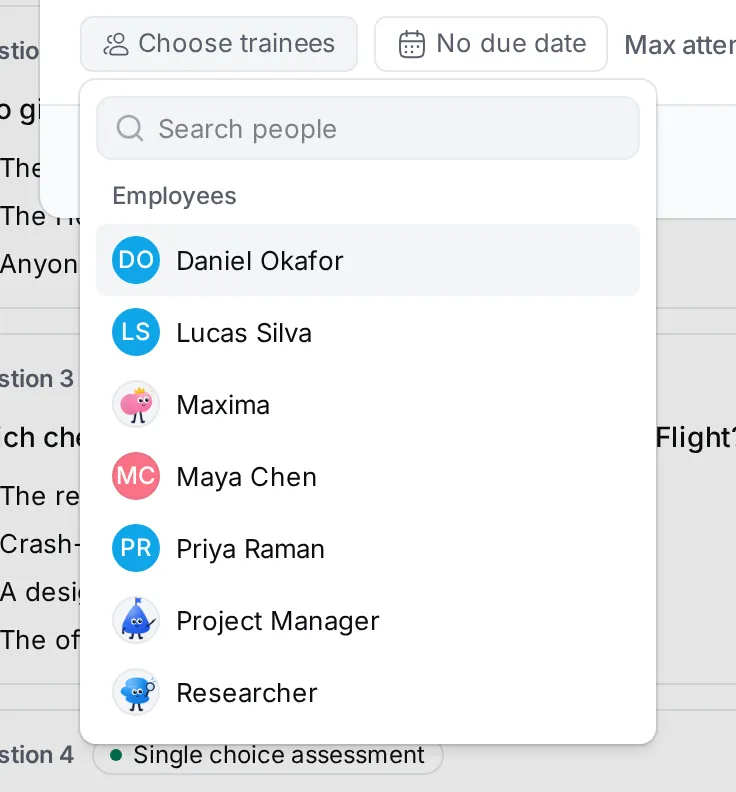
The trainees get a notification that you sent them a training request.
Follow your requests
Section titled “Follow your requests”Sent requests in the navigator lists every request you sent: the training and its revision, whether the request is Active or Canceled, how many trainees have passed (1), the attempts allowed, the due date and the owner.
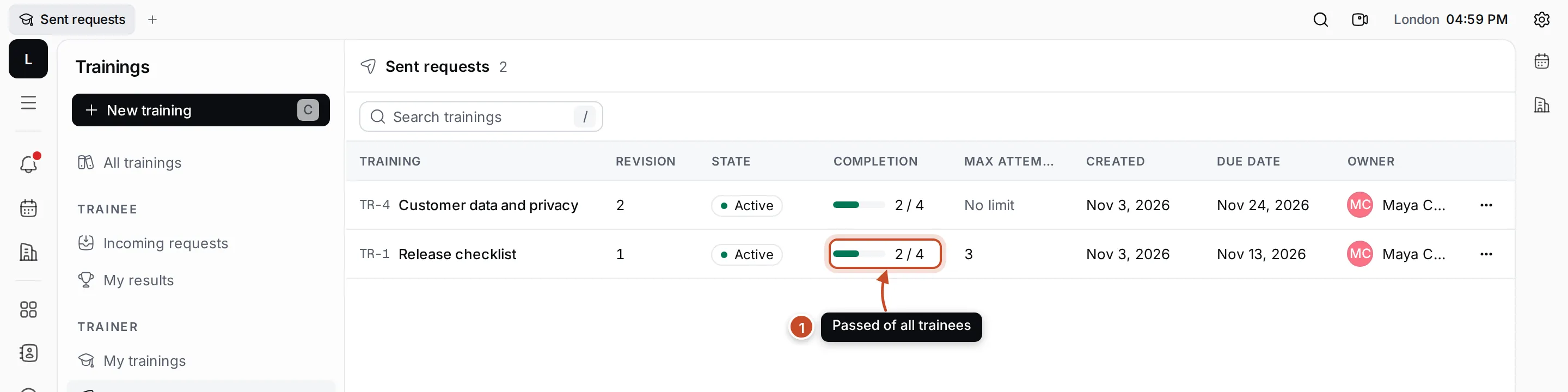
Click a request to open it.
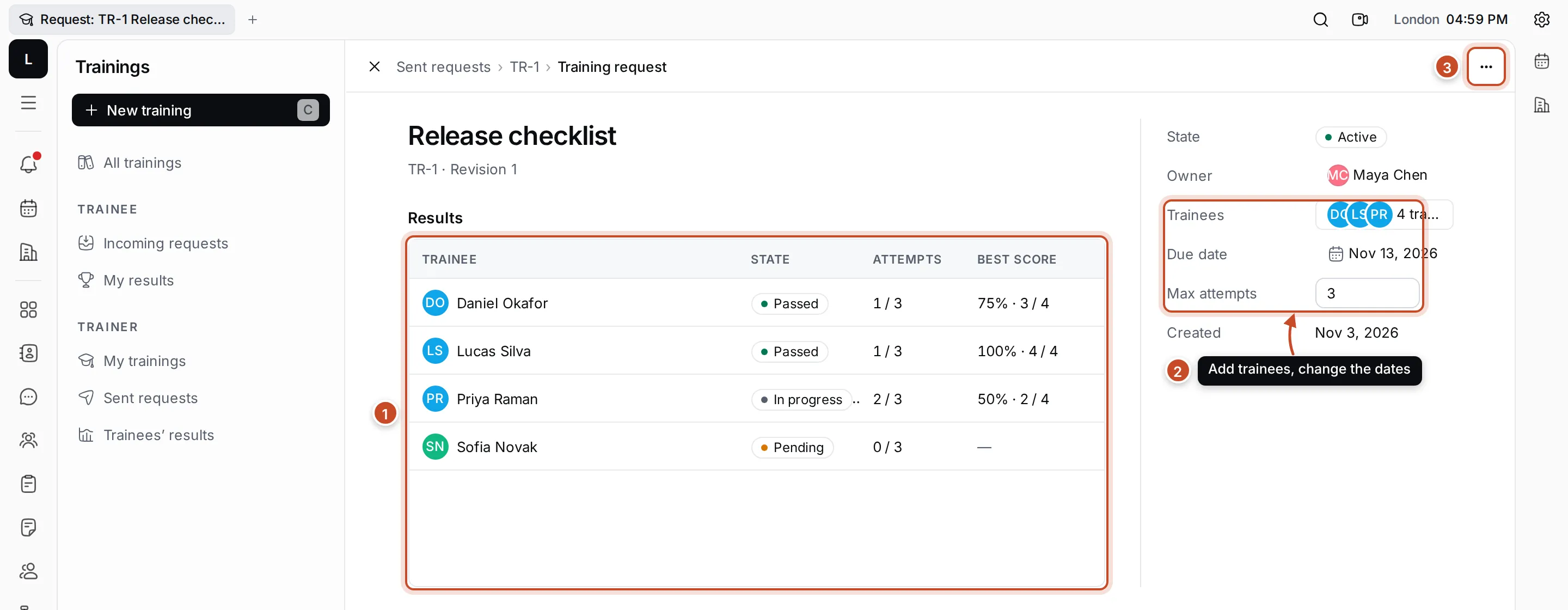
- Results: a row per trainee with their state, the attempts they’ve used and their best score. Click a row to see their latest attempt and each answer.
- Properties: add trainees, change the Due date or Max attempts, or change the owner. New trainees are notified.
- ⋯: Cancel request. Trainees can no longer take the training for it; their results are kept.
A trainee’s state is one of:
| State | What it means |
|---|---|
| Pending | Hasn’t started |
| In progress | Has started an attempt and not submitted it |
| Passed | Reached the passing score |
| Failed | Submitted below the passing score, and has no attempts left or hasn’t tried again yet |
| Canceled | The request was canceled |
Trainees’ results
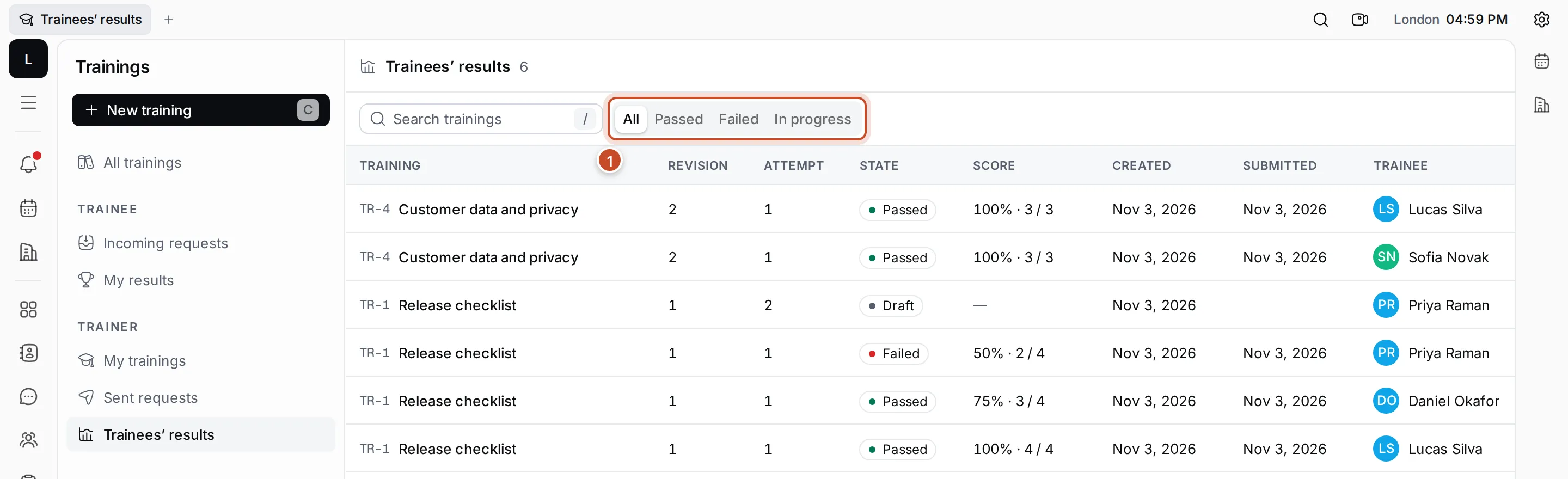
Section titled “Trainees’ results”Trainees’ results lists every attempt at your requests: the training, revision, attempt number, state, score, when it was started and submitted, and the trainee. Use the tabs to see only Passed, Failed or In progress attempts.