Talents and skills
A talent is a person you might hire: someone who applied, someone a colleague recommended, or someone you met. Add them once, then apply them to one or more vacancies.
Add a talent
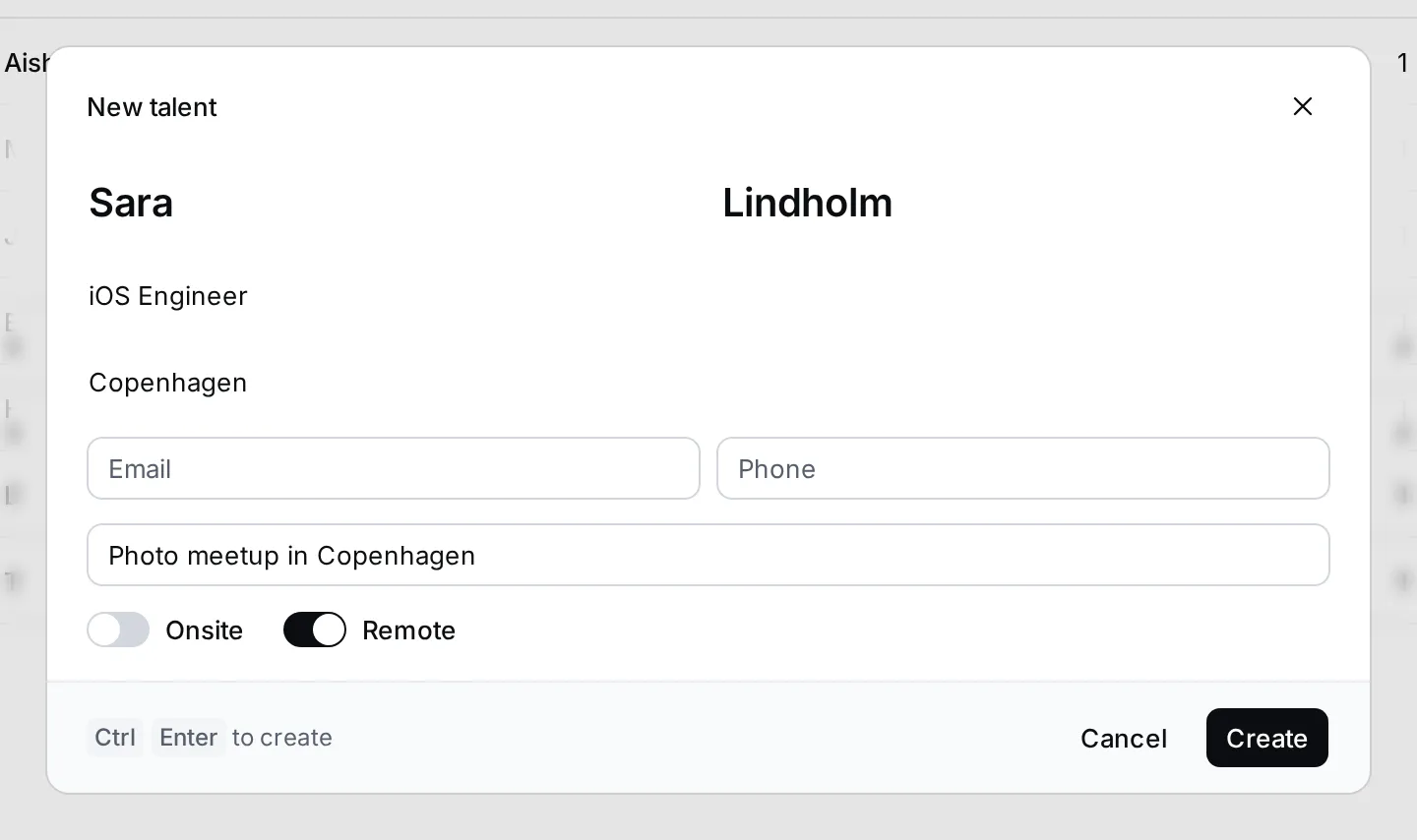
Section titled “Add a talent”- In Recruiting, click New talent at the top of the navigator, or press C.
- Type their First name and Last name.
- Add their Title (their current job), Location, Email and Phone if you have them.
- In Source, note where they came from, such as a referral or a meetup.
- Switch on Onsite or Remote (or both) for where they want to work.
- Click Create, or press Ctrl Enter.
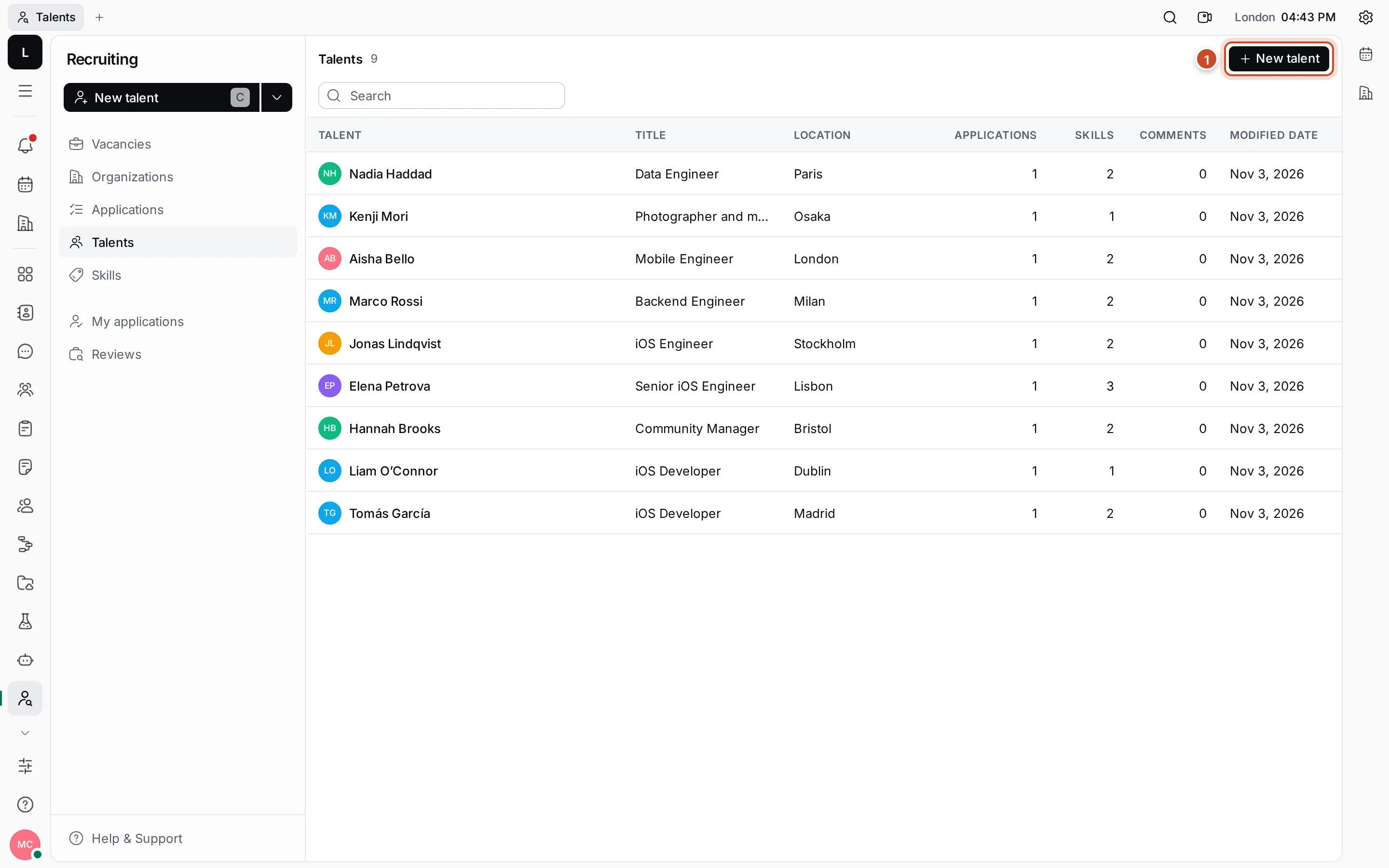
Talents in the navigator lists everyone, with their title, location, how many applications and skills they have, and their comments. Type in Search to find someone by name.
The talent page
Section titled “The talent page”Click a talent to open their page. It brings together everything about them.
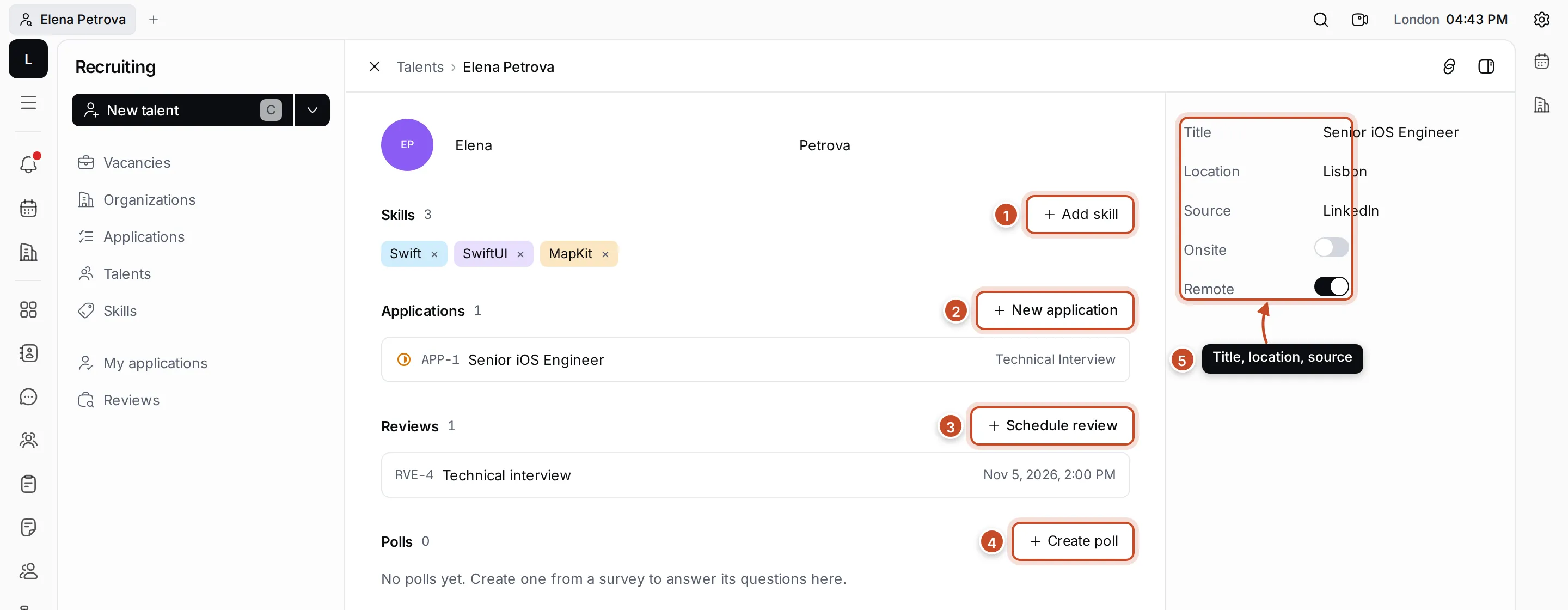
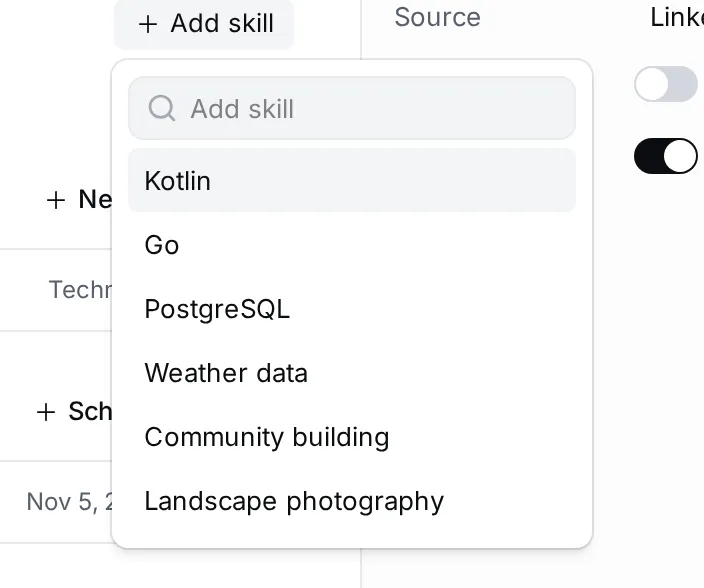
- Skills. Click Add skill to tag them with a skill, or × on a skill to remove it.
- Applications. The vacancies they applied to, with each application’s stage. New application applies them to another vacancy.
- Reviews. Their interviews. Schedule review plans a new one; see Interviews and reviews.
- Polls. Surveys answered about them, such as a phone screen. See Answer surveys with polls.
- Details. Their Title, Location and Source, and the Onsite and Remote switches. Click a value to change it. Click their first or last name at the top to correct it.
Below are the talent’s activity and comments, so you can share what you know about them.
Talents are also people in Contacts. Their email, phone and other channels are kept there.
Skills
Section titled “Skills”Skills are tags on talents, such as Swift or Community building. They help you see at a glance who knows what.
- On a talent’s page, click Add skill.
- Type to search, and click a skill to add it.
Skills in the navigator lists every skill, grouped by category, with how many skills each category has. Workspaces start with a set of categories, such as Backend development, Database development and Mobile development; skills without one go under Other.
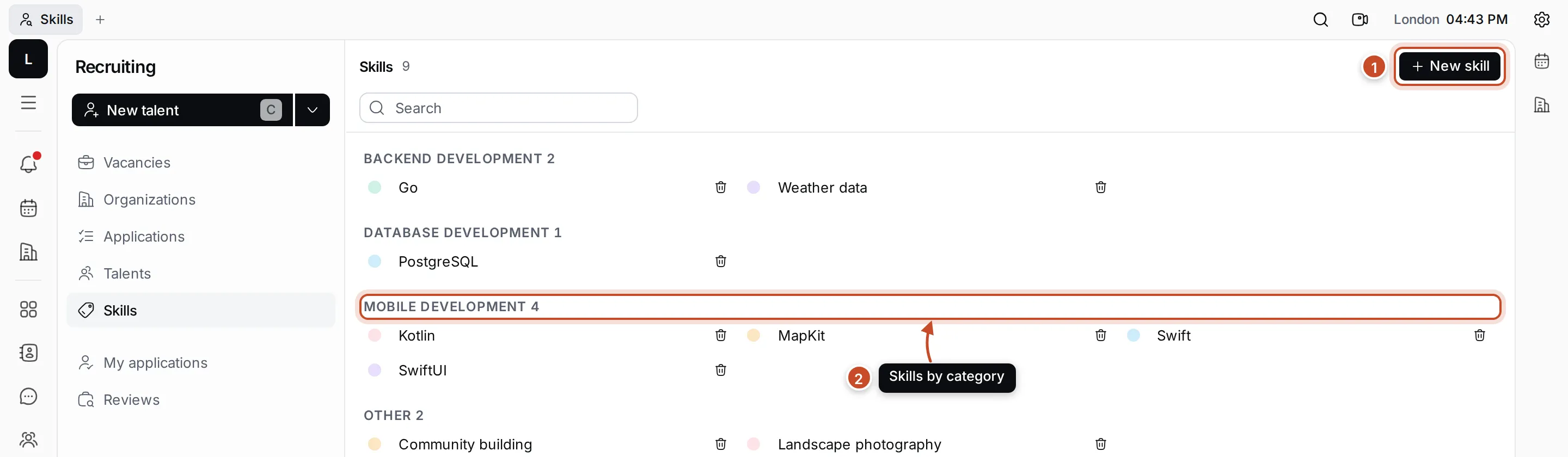
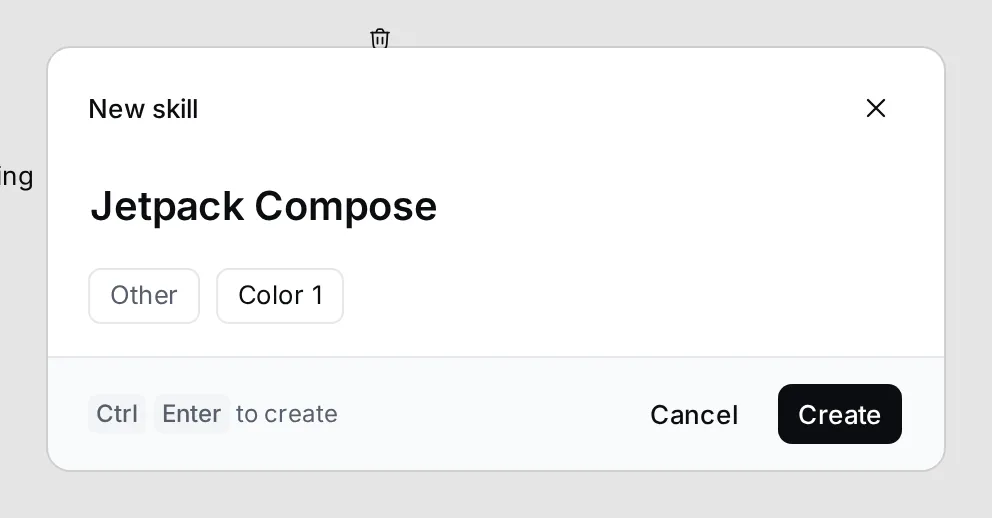
- Add a skill: click New skill, type its name, choose a Category and a Color, and click Create.
- Rename a skill: click its name in the list and type.
- Delete a skill: click its bin icon and confirm. Talents lose the skill too.