ChatGPT
Connect ChatGPT to Maxint Work and you can ask ChatGPT about your work, and have it make changes, while you chat. ChatGPT reaches your workspace through the Maxint Work connector: you sign in to Maxint Work, choose one workspace, and ChatGPT acts as you there.
What ChatGPT can do once connected:
- Find and read issues, projects, milestones, documents, cards, chat channels, calendar events, processes, test cases and files.
- Create and update them: create an issue, change its status or assignee, comment, log time, write or add to a document, post a chat message, plan time, request time off and more.
- Work with your role in that workspace. ChatGPT sees only what you can see and does only what you’re allowed to do. Everything it changes shows in the app under your name.
- Use Maxint Work as a source for deep research and company knowledge (see below).
What it doesn’t do:
- It never reaches another workspace. Each connection is for one workspace; connect again to add another.
- It can’t change workspace settings, members or roles.
- It doesn’t act on its own. It works when you ask it something in ChatGPT.
- With Read-only access, it can’t create or change anything at all.
Each person connects their own ChatGPT. Connecting yours doesn’t give anyone else’s ChatGPT access, and nobody needs to set anything up for the workspace first.
Connect ChatGPT
Section titled “Connect ChatGPT”-
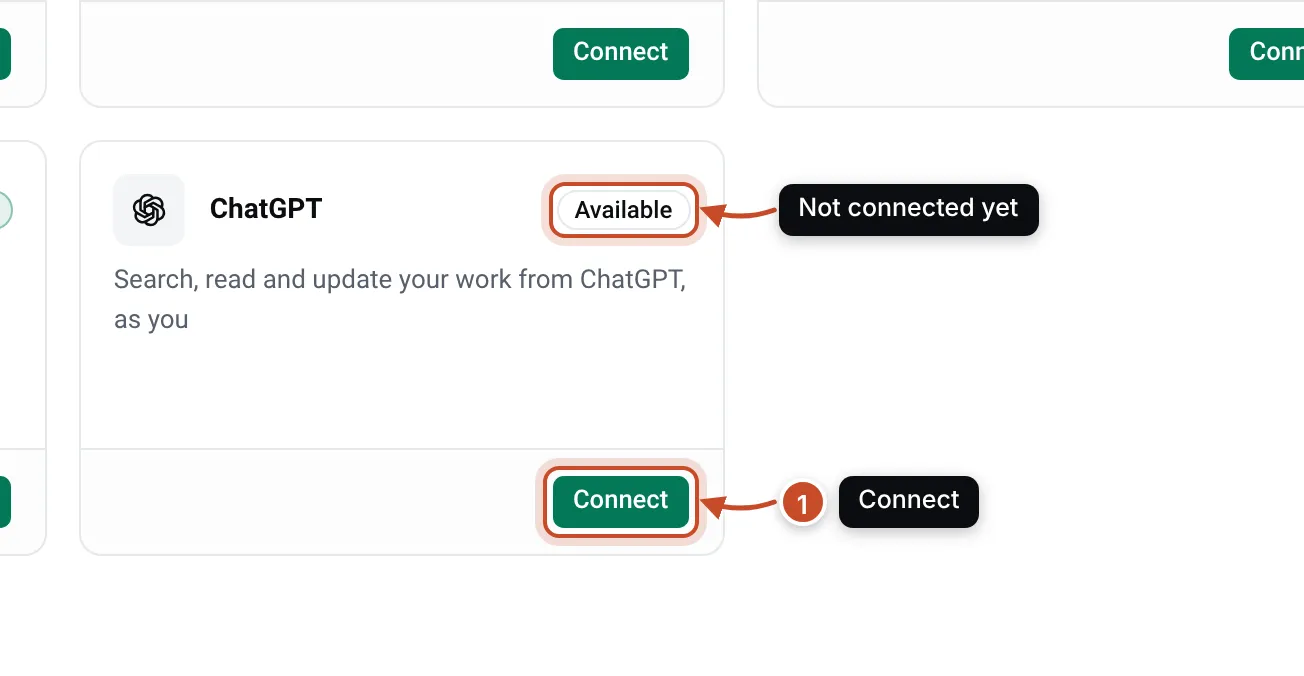
In Maxint Work, open Settings › Integrations and click Connect on the ChatGPT card (1).
-
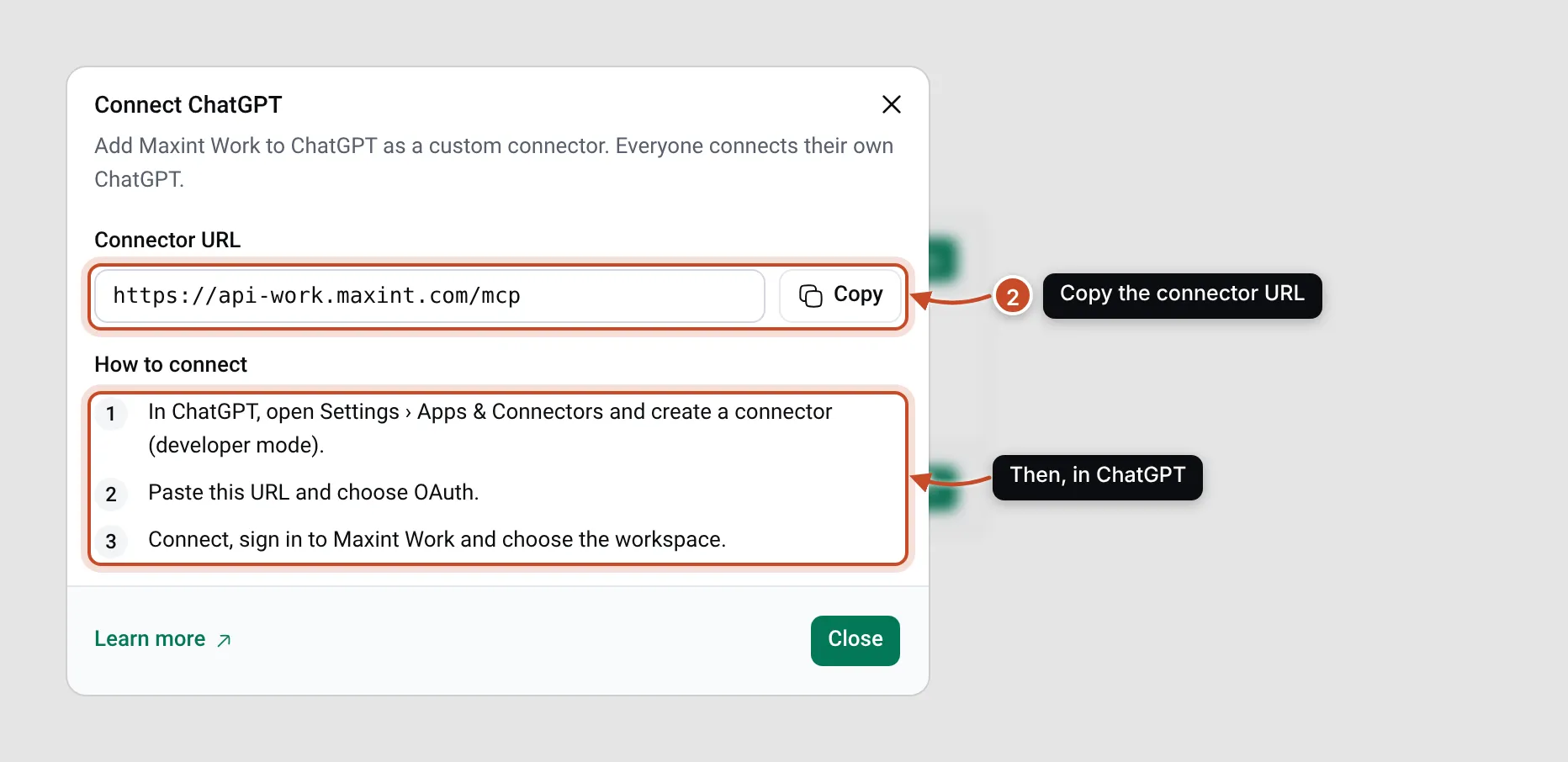
In Connect ChatGPT, click Copy next to Connector URL (2). The dialog says Connector URL copied. The steps under How to connect repeat what to do in ChatGPT.
-
In ChatGPT, open your settings and find the apps and connectors section. Custom connectors need developer mode: turn it on there if it is off.
-
Create a connector. Name it Maxint Work, paste the connector URL, and choose OAuth as the way to sign in. Leave the client fields empty: ChatGPT registers itself with Maxint Work.
-
Create the connector, then connect it. A browser window opens Maxint Work. Sign in if you aren’t signed in already.
-
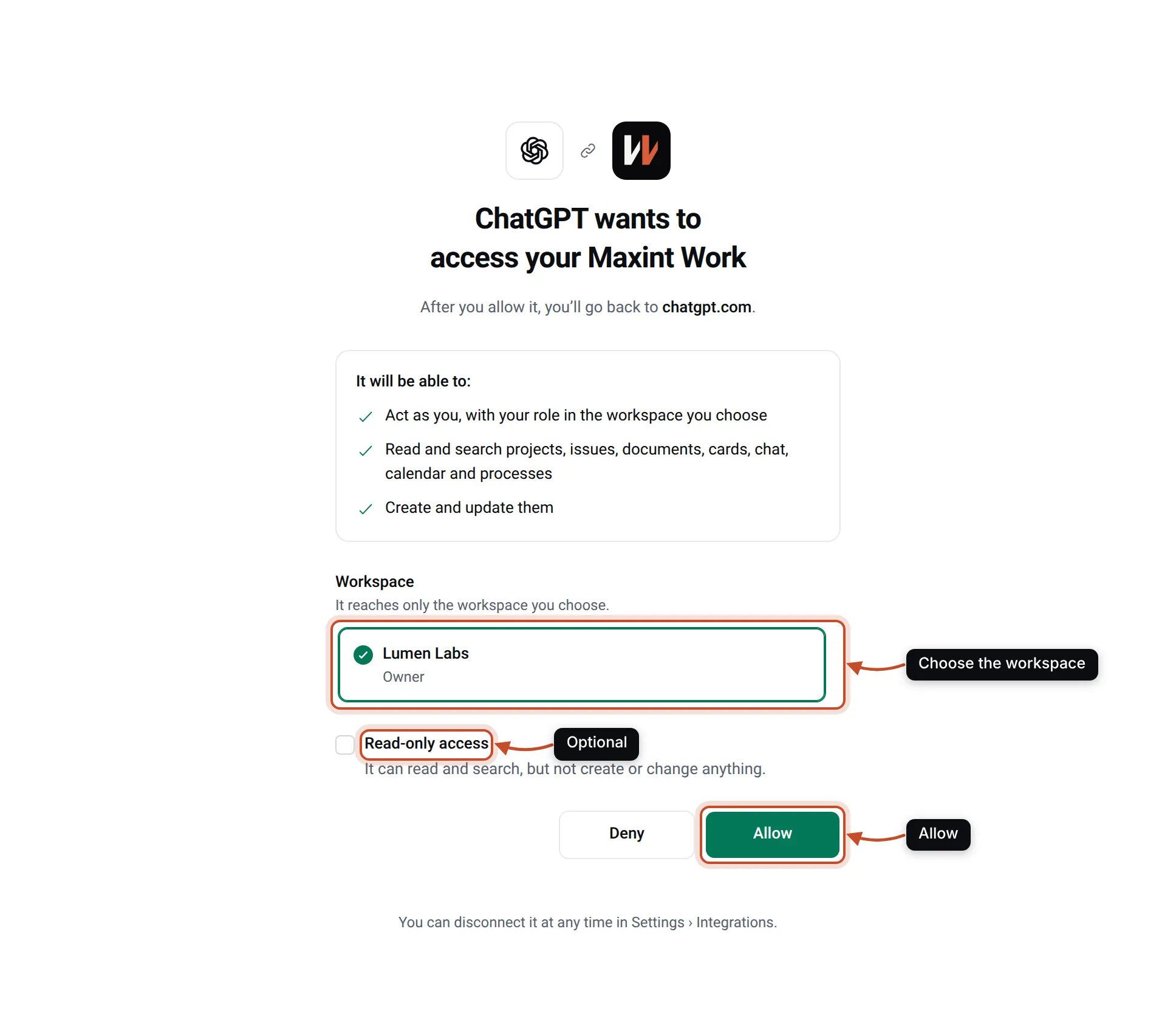
Maxint Work shows ChatGPT wants to access your Maxint Work. Under Workspace, choose the workspace ChatGPT may reach. Tick Read-only access if ChatGPT should only read.
-
Click Allow. You go back to ChatGPT, and the Maxint Work connector shows as connected there.
The consent page tells you what you’re agreeing to:
- It will be able to: act as you with your role, read and search your work, and (unless you chose read-only) create and update it.
- After you allow it, you’ll go back to chatgpt.com. This is the address ChatGPT registered. If it shows any other address, click Deny.
- The workspace list shows only workspaces where you’re a member, with your role in each (Owner, Maintainer or User). Guests can’t connect assistants. If you are a guest everywhere, the page says There’s no workspace you can connect.
If the page says This request has expired, more than ten minutes passed or the request was already answered. Start connecting again from ChatGPT.
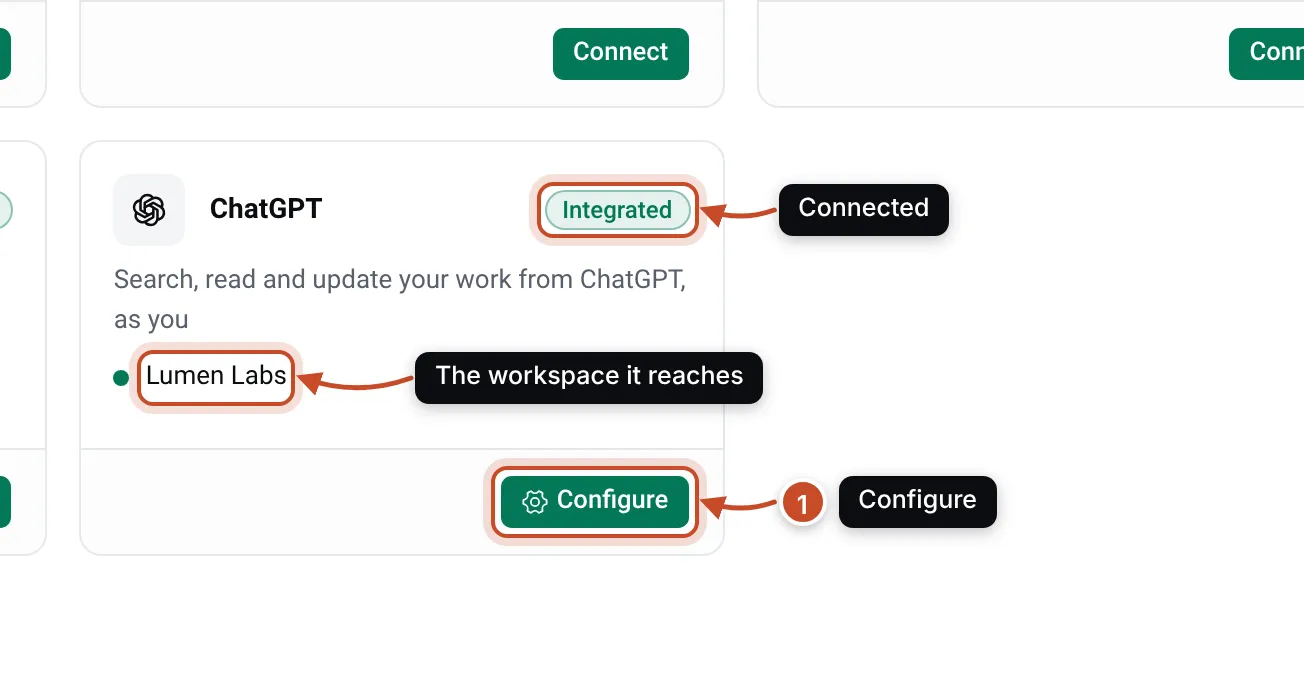
Back in Maxint Work, the ChatGPT card on Settings › Integrations now says Integrated and lists the workspace under Connected workspaces.
Use Maxint Work in ChatGPT
Section titled “Use Maxint Work in ChatGPT”Add the Maxint Work connector to a chat from ChatGPT’s tools or sources menu, then ask in your own words. Each result links back to the item in the app. Some requests to try:
- “What’s assigned to me in Maxint Work this week, by due date?”
- “Create an issue in the Lumen project: offline maps don’t load saved trips. High priority, assign it to me.”
- “Summarise the Q4 launch plan document and list its open questions.”
- “Look at my calendar today and plan my afternoon around my open issues.”
- “Find what we decided about the onboarding flow, in documents and chat.”
Every Maxint Work tool says whether it only reads or changes something, so ChatGPT can ask you to confirm before a change. Read what it proposes before you confirm.
Deep research and company knowledge
Section titled “Deep research and company knowledge”Deep research and company knowledge read from Maxint Work through two of its tools: search, which finds issues, documents, cards, messages and more, best matches first, and fetch, which reads one result in full. Both only read, so they work on a read-only connection too.
Pick Maxint Work as a source when you start deep research, or include it in company knowledge. ChatGPT then cites the issues and documents it used, with links that open them in Maxint Work.
Read-only access
Section titled “Read-only access”Tick Read-only access on the consent page when ChatGPT should look things up but never change anything. ChatGPT then gets only the tools that read and search. A read-only connection shows a Read-only badge in Configure.
To change a connection from read-only to full access, or the other way round, disconnect it and connect again.
See and disconnect connections
Section titled “See and disconnect connections”Your ChatGPT connections last up to a year. When one runs out, ChatGPT asks you to connect again.
-
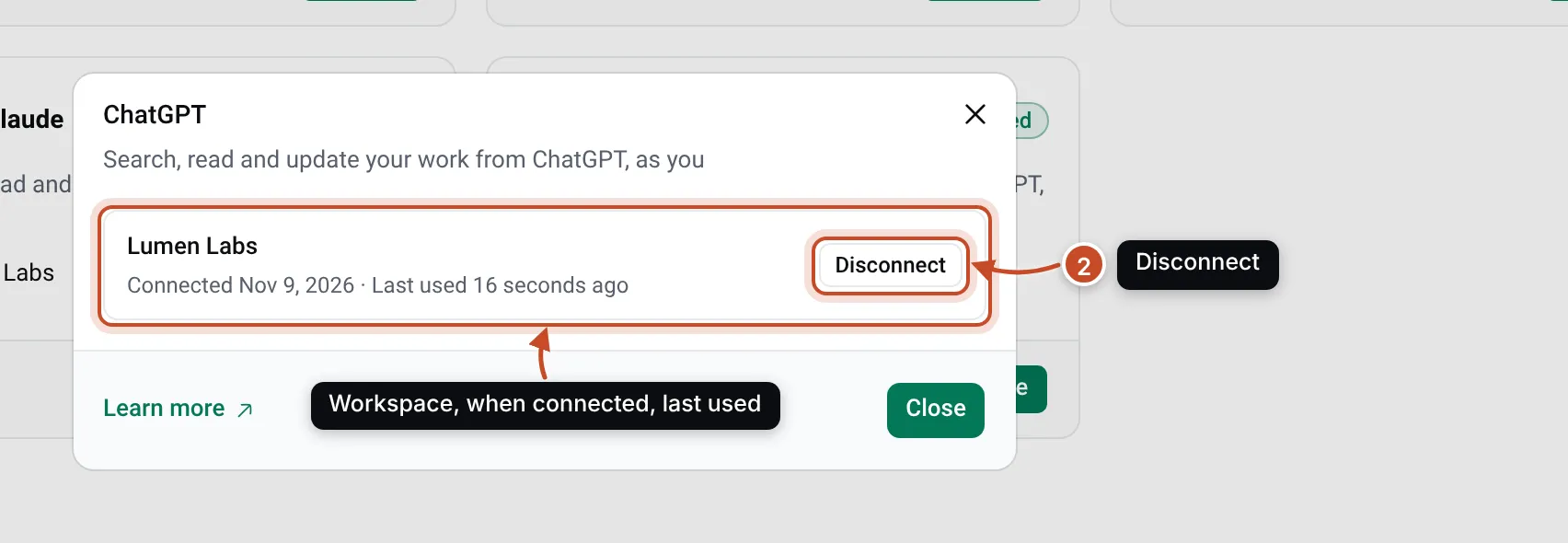
Open Settings › Integrations and click Configure on the ChatGPT card.
-
Under Connected workspaces, each row shows the workspace, a Read-only badge when it has one, and when it was connected and last used. Click Disconnect (2) on the row.
-
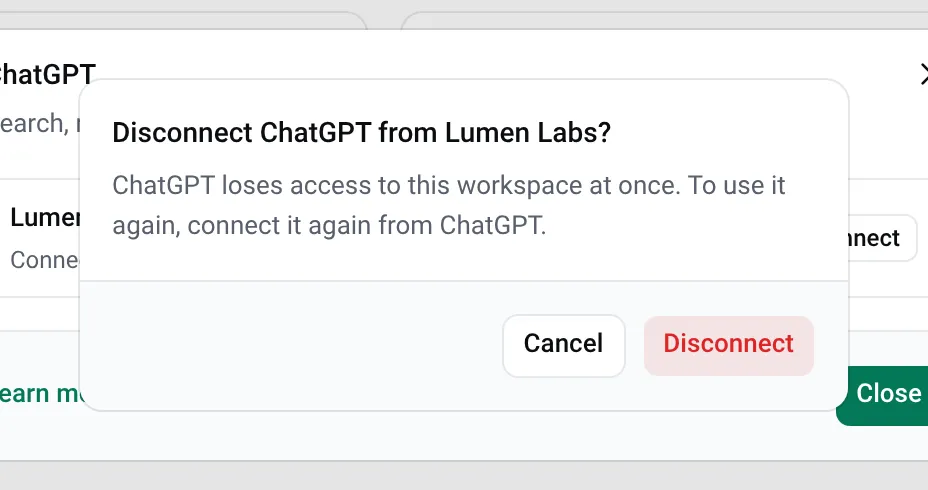
Confirm Disconnect ChatGPT from …?. ChatGPT loses access to that workspace at once.
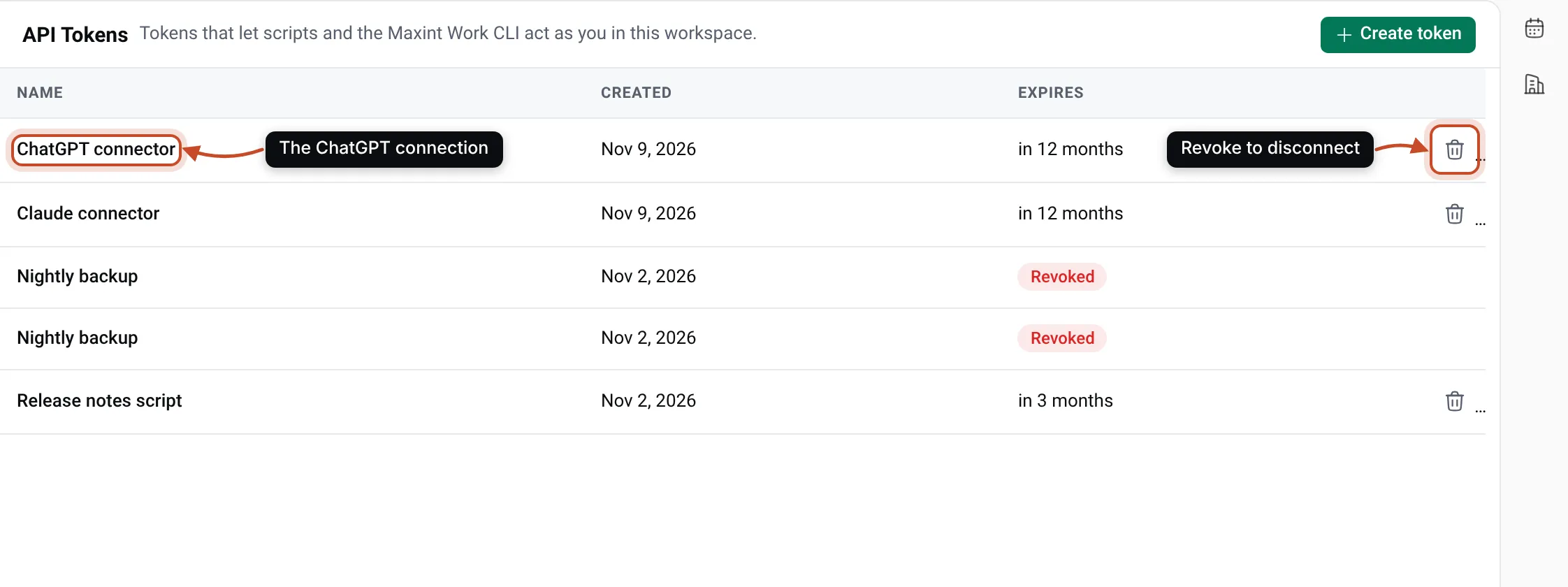
Each connection also shows in Settings › API Tokens as ChatGPT connector. Revoking it there disconnects ChatGPT too.
To use ChatGPT with the workspace again, connect it again from ChatGPT. Deleting the connector in ChatGPT’s own settings stops ChatGPT from using it. Disconnect it in Maxint Work as well, so the connection ends on both sides.
Related
Section titled “Related”- Claude: the same connector for Claude, Claude Desktop and Claude Code.
- MCP server reference: for developers, sign-in details and every tool.
- Roles and permissions: what your role lets ChatGPT do.