Customers
A customer is a person or an organization you sell to. Every lead belongs to one customer, and one customer can have leads in several funnels. Customers are contacts too: they also appear in Contacts.
See your customers
Section titled “See your customers”Click Customers in the navigator.
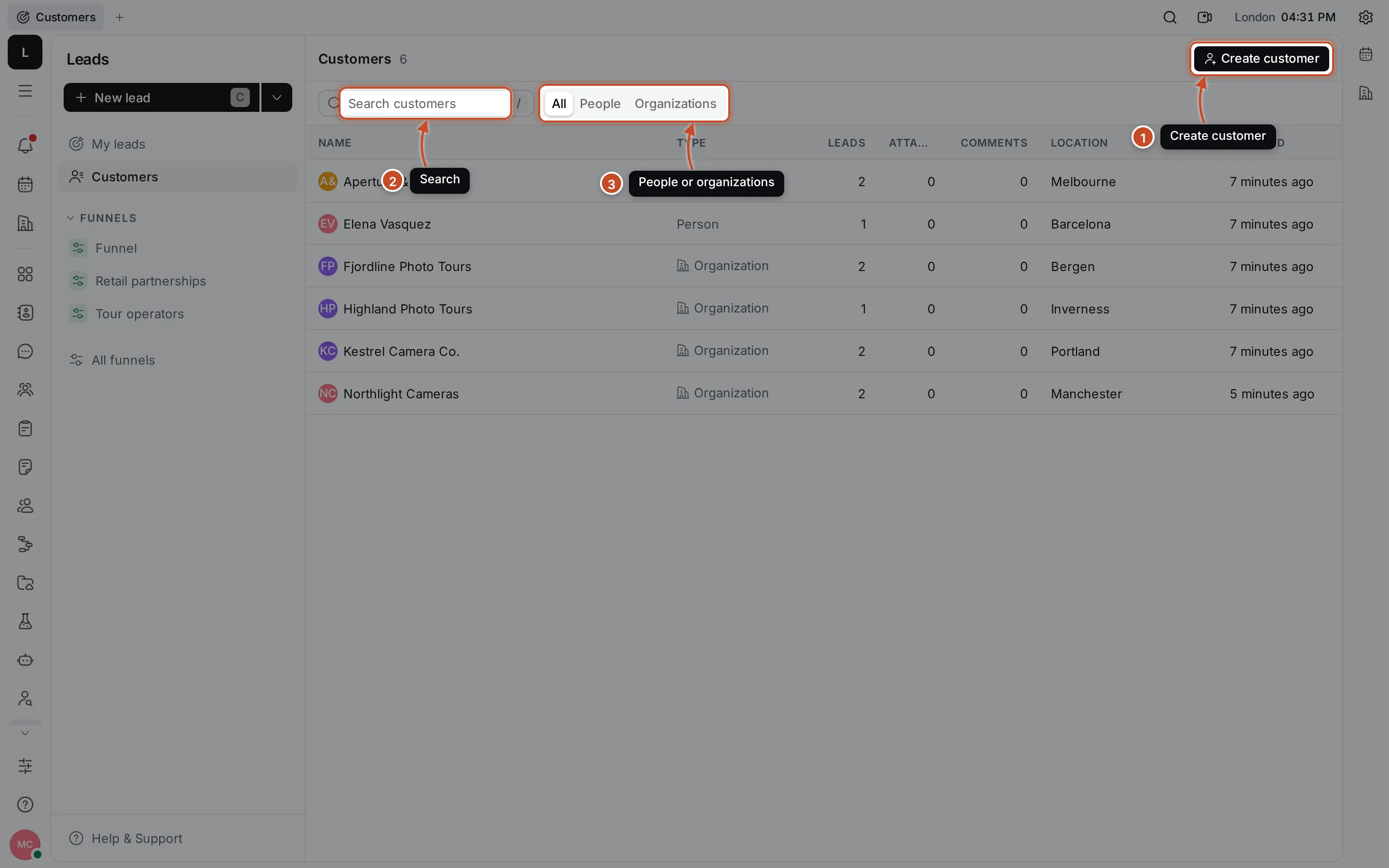
- Create customer adds a customer.
- Search customers finds a customer by name. Press / to jump to it.
- All, People and Organizations narrow the table to one kind.
The table shows each customer’s type, how many leads they have, their attachments and comments, their location and when they were last changed. Click a row to open the customer.
Create a customer
Section titled “Create a customer”- Click Create customer in Customers. You can also click the arrow next to New lead and choose Create customer.
- Choose Person or Organization.
- Enter the First name and Last name, or the Organization name.
- Add the Location, Email and Phone if you have them.
- Click Create.
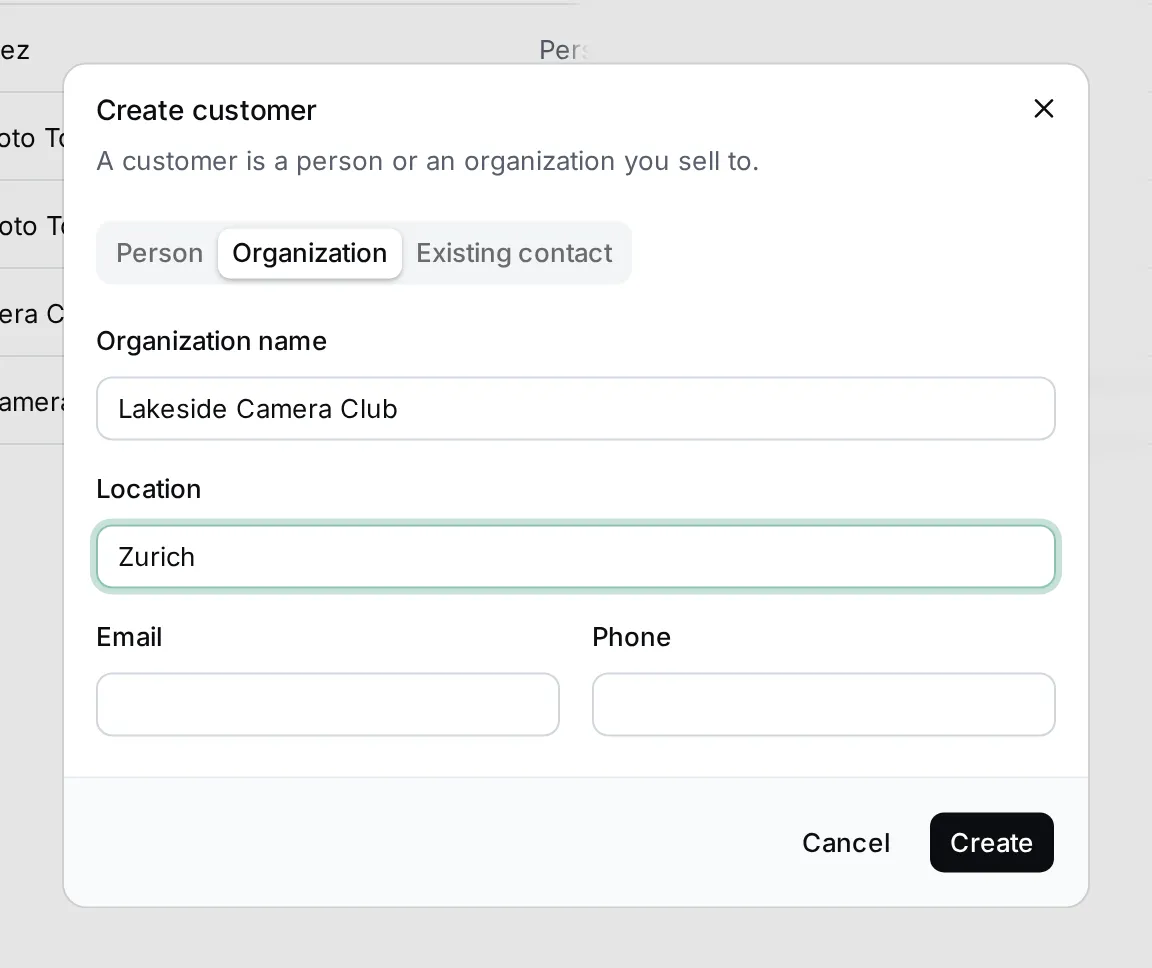
To make someone who is already in Contacts a customer, choose Existing contact, pick the person or organization, and click Make customer. Lumen Labs did this for Northlight Cameras, a partner already in its contacts.
A customer’s page
Section titled “A customer’s page”Click a customer to open their page.
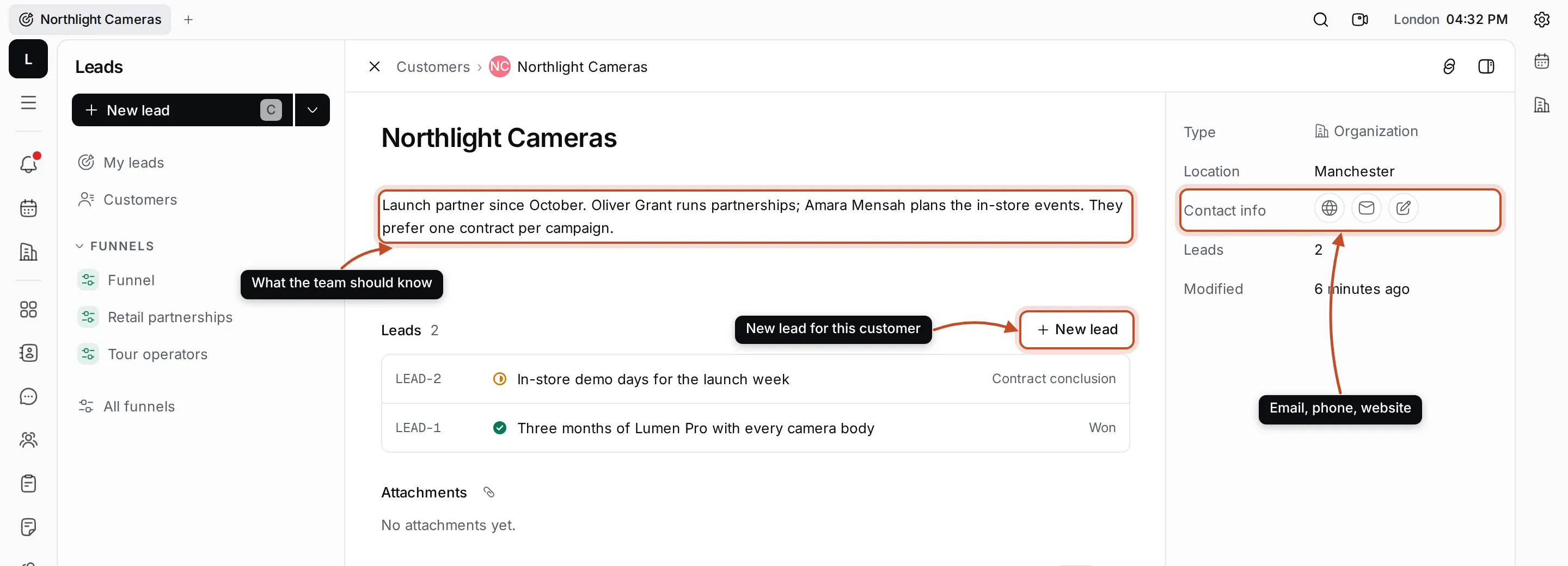
- Customer description is a place for what the team should know: who to talk to, how they like to work. Click it to write; it’s saved when you click elsewhere.
- Leads lists the customer’s leads with their status. New lead creates a lead for this customer.
- Attachments and Activity hold the customer’s files and comments.
The details panel shows the type and location. The icons under Contact info are the customer’s email, phone and website; click the pencil to add, change or remove them. Rename an organization by clicking its name; for a person, change the First name and Last name in the details panel.