Add and find products
A product is one kind of item in your inventory. It belongs to one category and can have variants.
Create a product
Section titled “Create a product”- Open the category the product belongs in and click New product. You can also click New product in the navigator (or press C) from anywhere in Inventory.
- Enter the Product name.
- Check the category. It starts as the category you came from; click it to pick another.
- Click Create (or press Ctrl Enter).
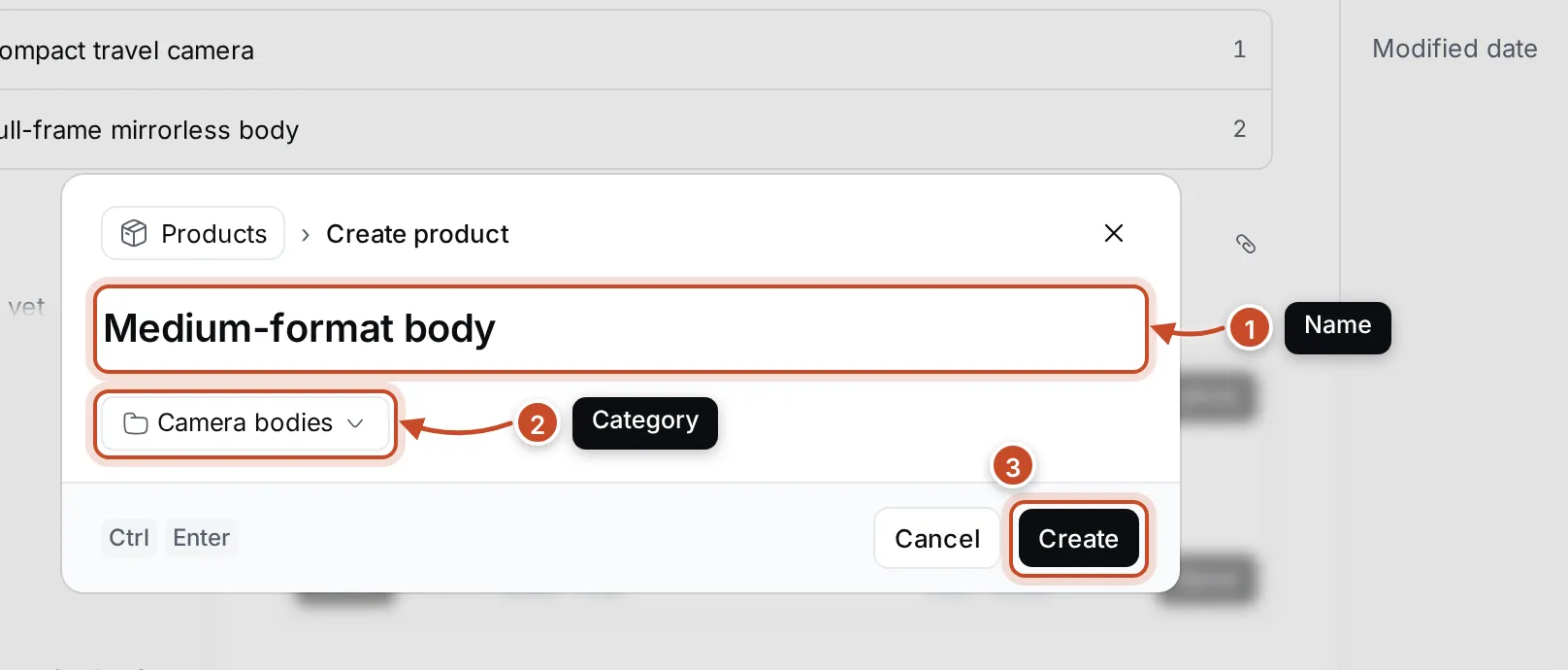
The product appears in its category. Open it to add variants and files.
Find products
Section titled “Find products”Click Products in the navigator to see every product in one table, with its category, number of variants and the date it was last changed.
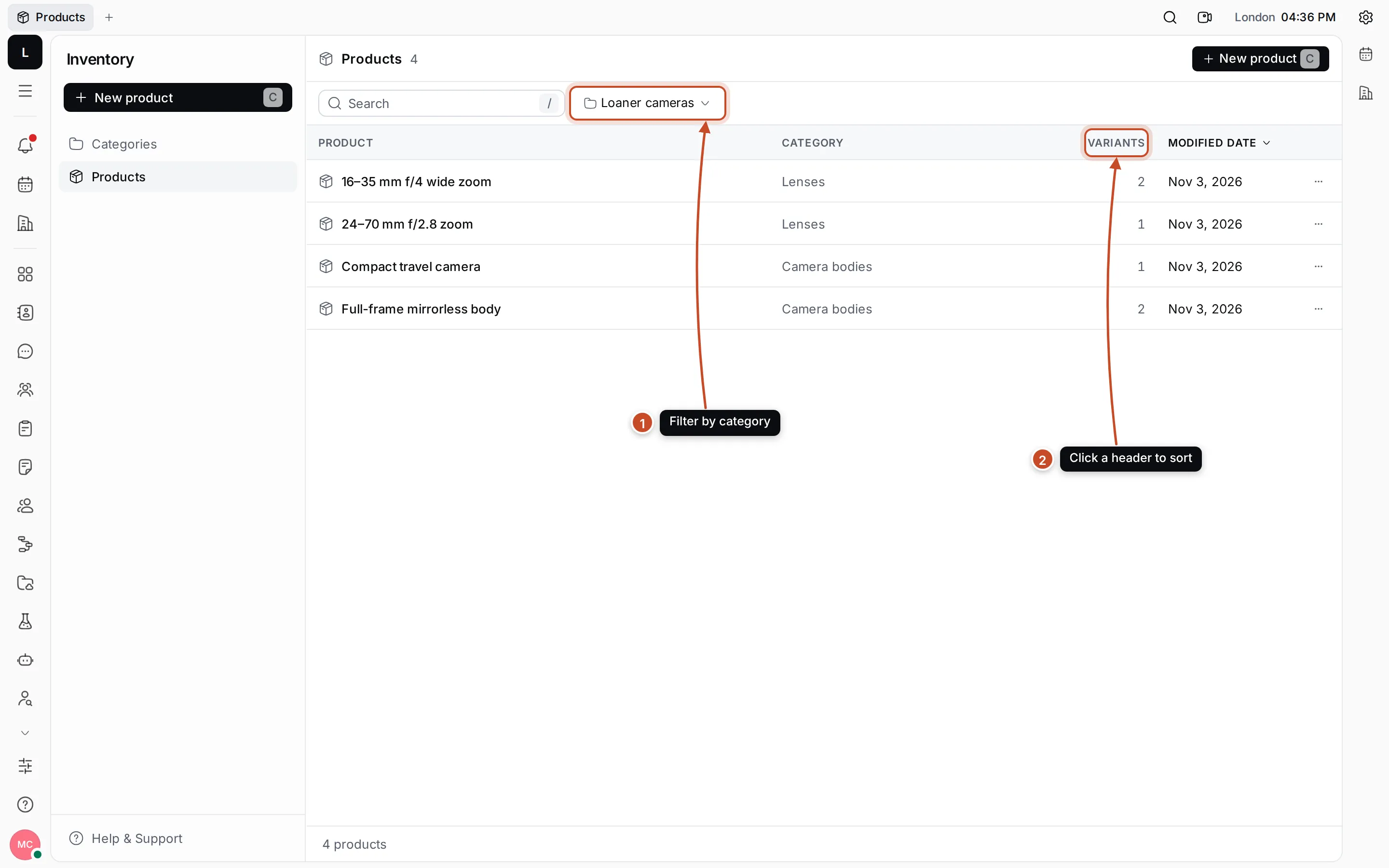
- The category filter shows only the products of one category and its subcategories. Choose All categories to see everything again.
- Click a column header to sort by it. Click again to reverse the order.
Type in Search (or press /) to find products by name. The filter and sort are part of the page’s address, so you can share a link to exactly this list.
Click a product’s category to open that category.
A product’s page
Section titled “A product’s page”Click a product to open it.
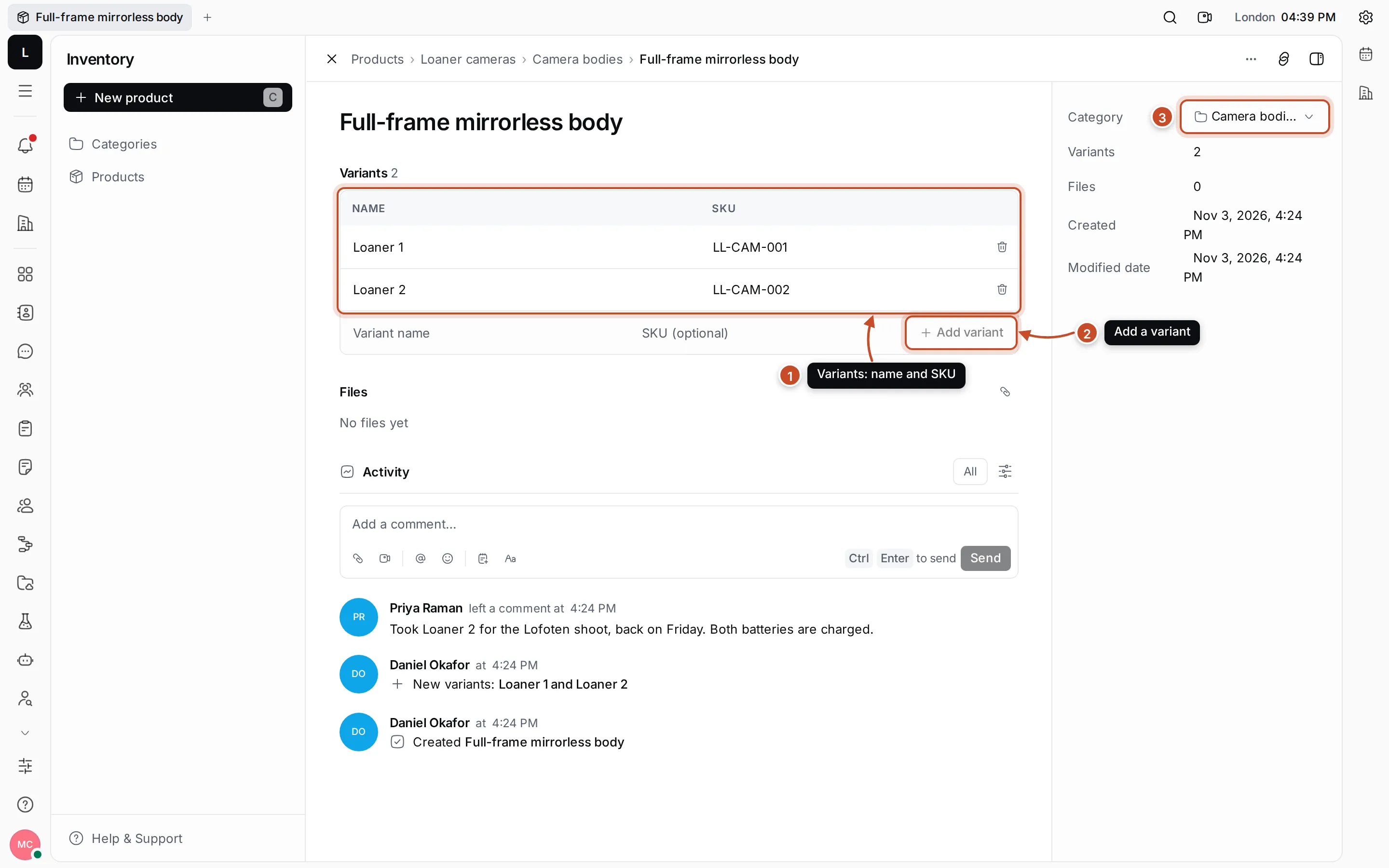
- Variants lists the product’s variants. See Variants and SKUs.
- Add variant adds one.
- Category in the details panel shows where the product is. Pick another category to move the product there.
Click the name to rename the product. Files holds manuals, receipts and photos: click the paperclip or drop files on the section. Activity shows every change and the team’s comments, such as who has a loaner camera this week.
Delete a product
Section titled “Delete a product”Choose Delete from the product’s ⋯ menu, at the top of its page or on its row in the list. The product is deleted with its variants and files after you confirm.