Work // Leads
Funnels
A funnel is a list of leads that share a purpose and a set of statuses. Use one funnel per kind of deal, so each team sees the leads it works on. Lumen Labs keeps Retail partnerships apart from Tour operators.
Create a funnel
Section titled “Create a funnel”- In Leads, click + next to Funnels in the navigator. You can also click the arrow next to New lead and choose Create funnel.
- Enter a Name and, if you like, a Description.
- Choose the Owners. You’re an owner to begin with.
- Turn on Private if only the funnel’s members should see it.
- Choose the Members, then click Create.
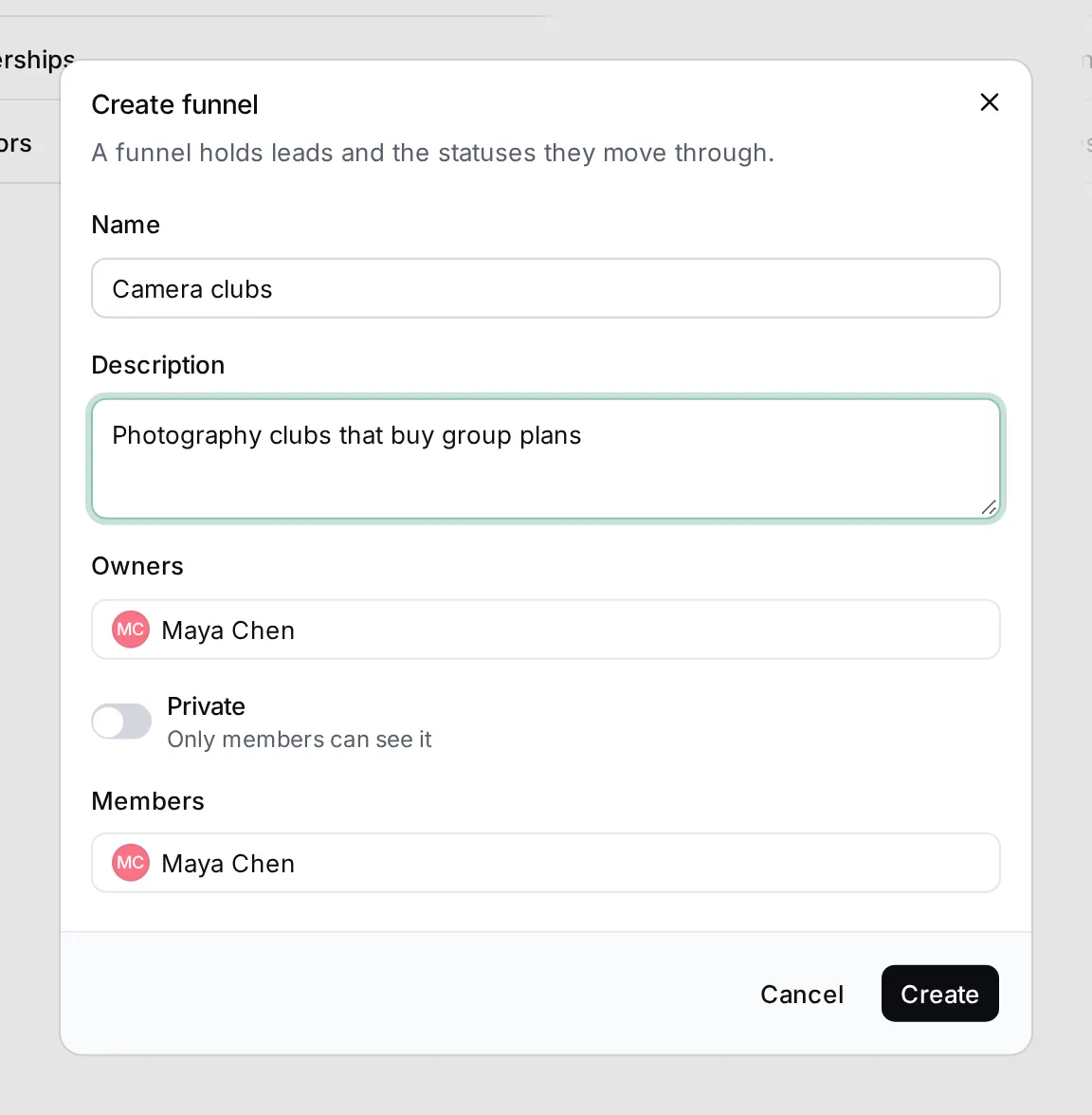
The new funnel appears under Funnels in the navigator.
Edit a funnel
Section titled “Edit a funnel”Hover over a funnel in the navigator and click ⋯. The same menu is on each row of All funnels.
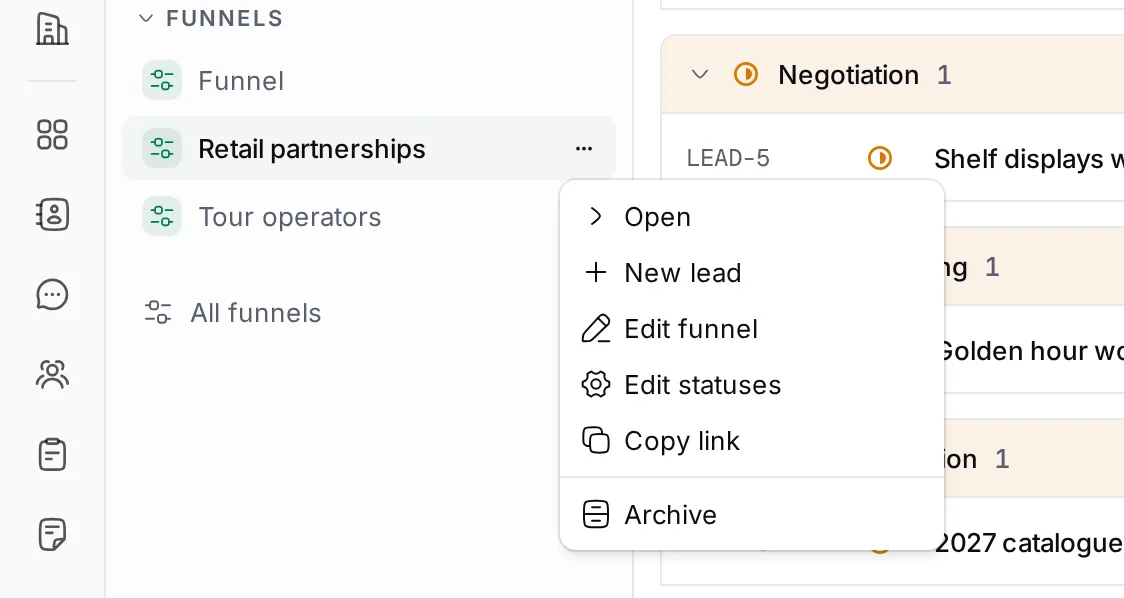
- New lead opens the New lead dialog with this funnel chosen.
- Edit funnel opens the same dialog as when you created it: name, description, owners, private and members.
- Edit statuses opens the funnel’s type in Settings › Space types, where a workspace owner can rename, add or reorder statuses.
- Copy link copies a link to the funnel.
- Archive hides the funnel and its leads. You’re asked to confirm first.
See all funnels
Section titled “See all funnels”Click All funnels at the bottom of the funnel list to see every funnel in a table, with its description, number of members and whether it’s private or archived.
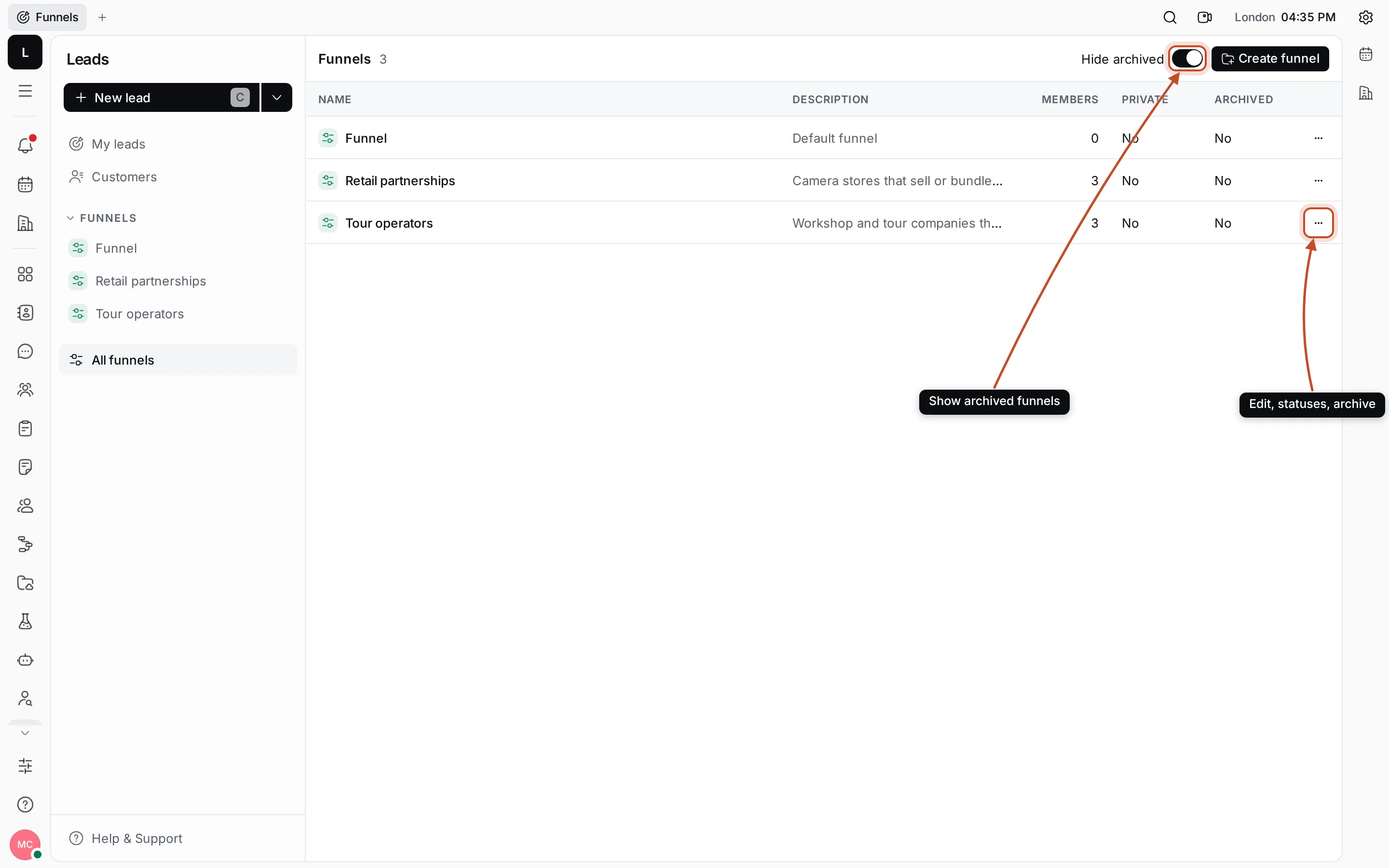
Hide archived is on by default. Turn it off to see archived funnels, then choose Unarchive from a funnel’s ⋯ menu to bring it back.
Next: create leads in your funnel.