Take a training
When someone asks you to take a training, you get a notification and the request appears under Incoming requests.
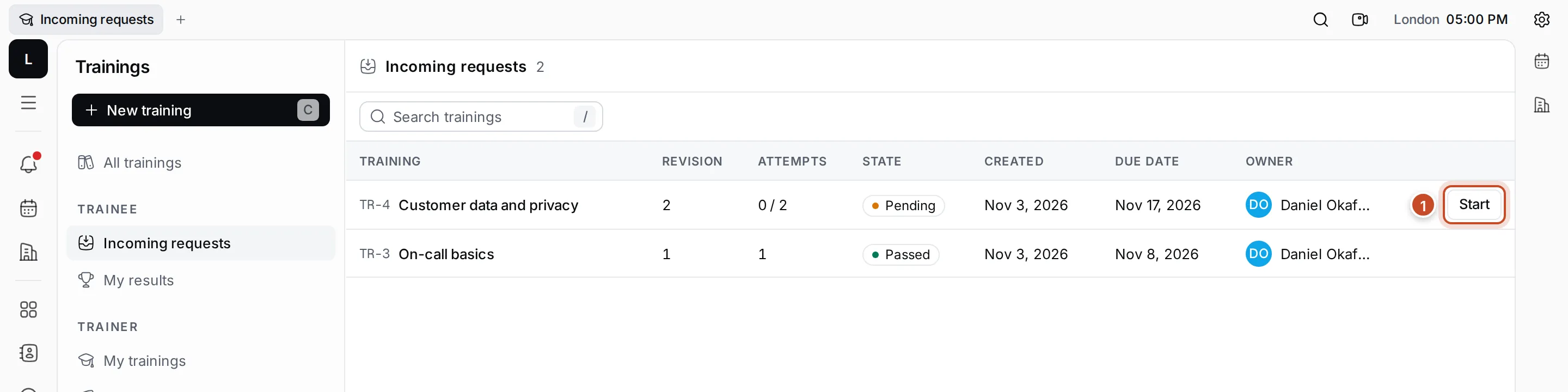
Each row shows the training and its revision, the attempts you’ve used out of those allowed, your state, the due date (red when it has passed) and who asked you.
Take it
Section titled “Take it”- Open Trainings › Incoming requests and click Start on the request. Continue opens an attempt you’ve started; Retake starts a new one after you failed.
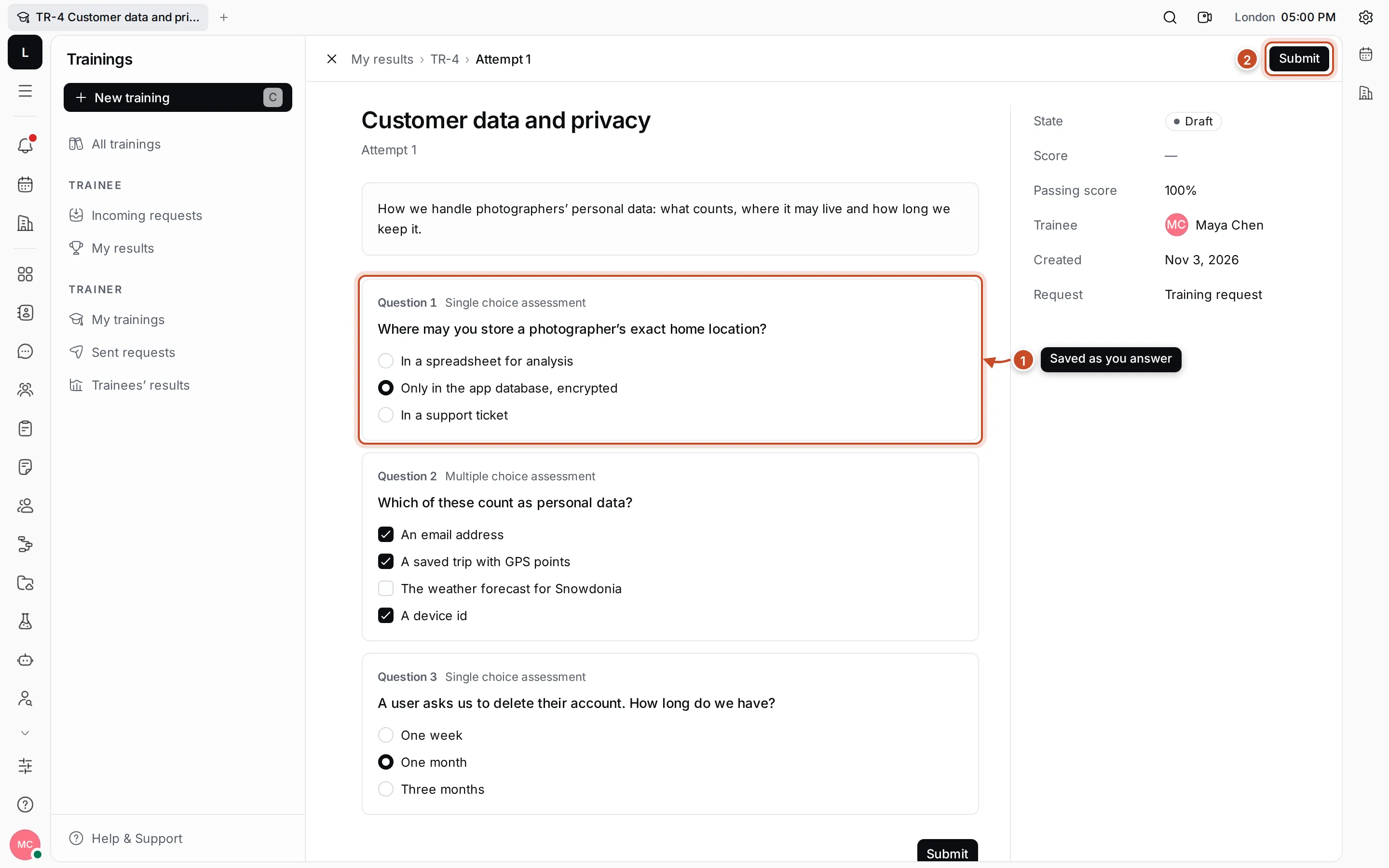
- Read the description, then answer each question (1): pick an option, tick every option that applies, or put the options in order. Your answers are saved as you go, so you can stop and continue later.
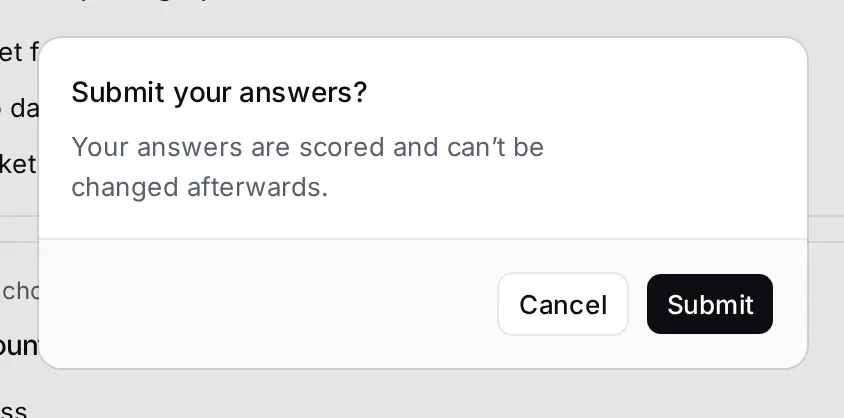
- Click Submit (2) and confirm.
Your score
Section titled “Your score”The attempt then shows whether you Passed or Failed, your score (such as 100% · 3 / 3: three of three scored questions right) and the passing score. Each answer is marked Right or Wrong, with the right answer next to a wrong one.
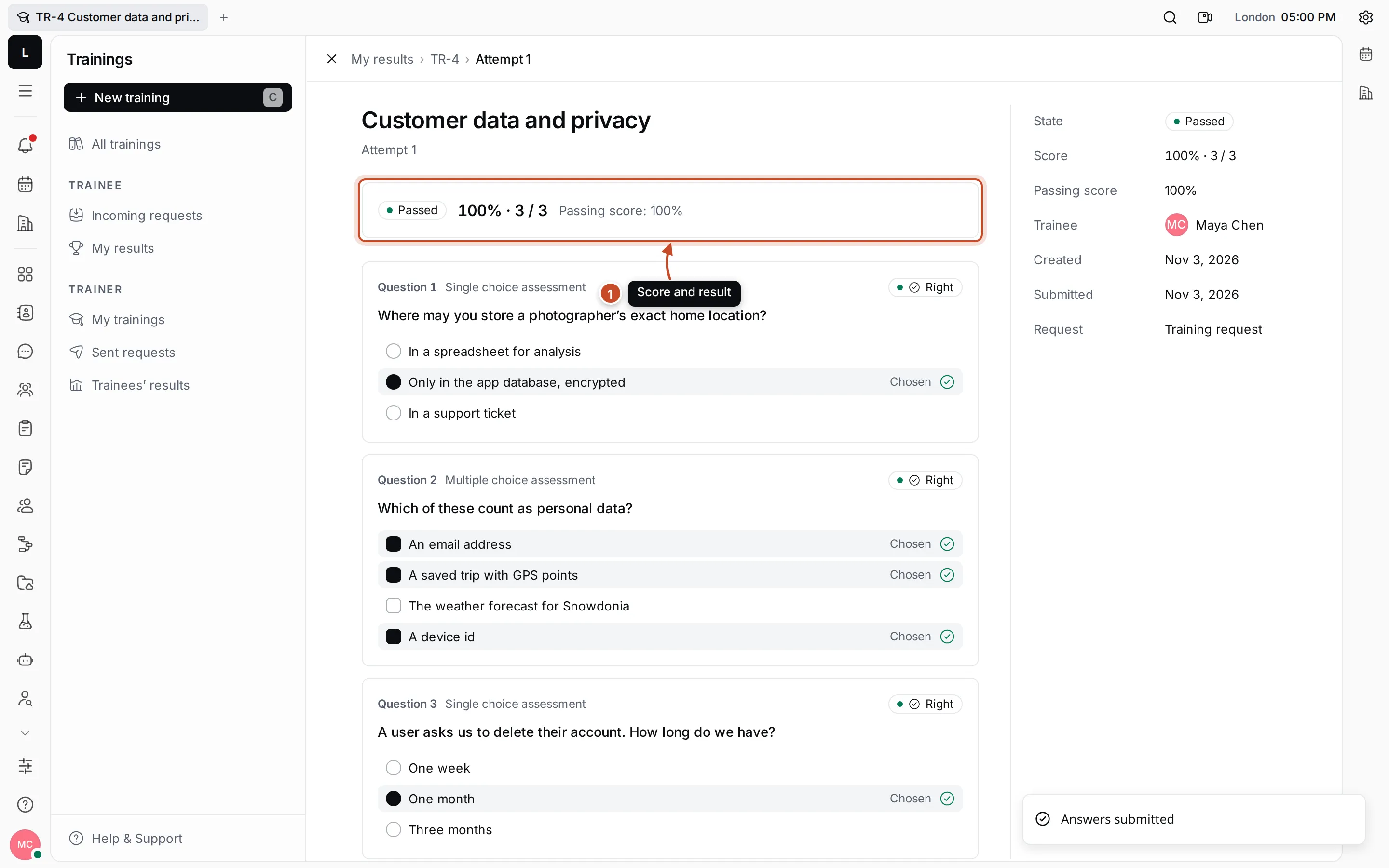
If you failed and have attempts left, go back to the request and click Retake.
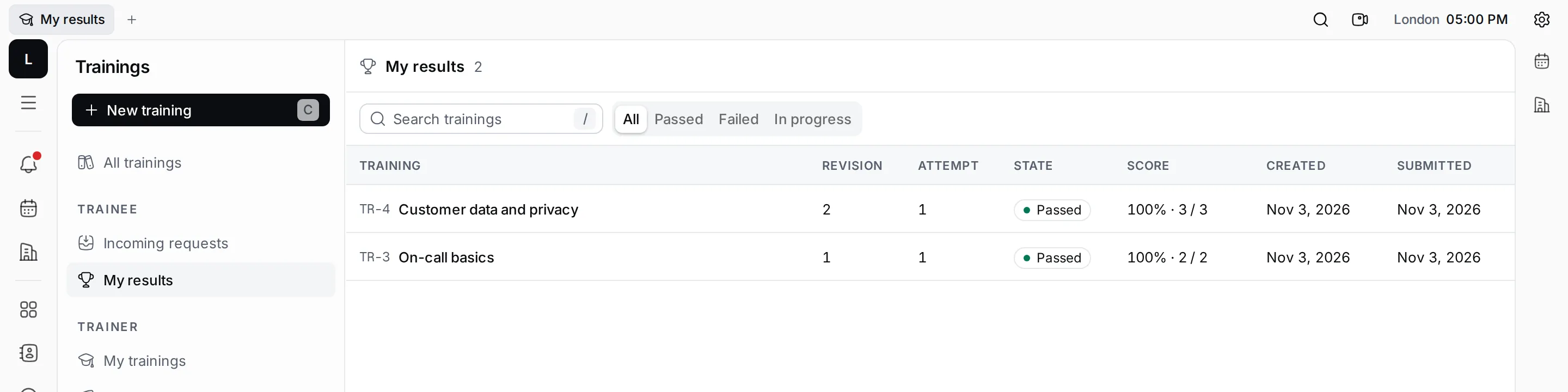
My results in the navigator lists all your attempts, with their state, score and when you submitted them. Use the tabs to see only Passed, Failed or In progress attempts.
See Assign a training and follow results for the trainer’s side.