Create and edit leads
A lead is one sales opportunity with one customer. You create it in a funnel, then keep its status, assignee and dates up to date as the deal moves on.
Create a lead
Section titled “Create a lead”- Open the funnel and click New lead (or press C). The dialog starts in the funnel you have open.
- Check the funnel at the top of the dialog. Click it to pick another one.
- Click Choose customer and pick the customer. If they aren’t a customer yet, click the person icon next to it to create one without leaving the dialog.
- Enter the Lead title, for example “Lumen Pro trial cards at the till”.
- Set the status, the assignee, a Due date and a Start date if you know them. A new lead starts in the funnel’s first status.
- Click Create lead (or press Ctrl Enter).
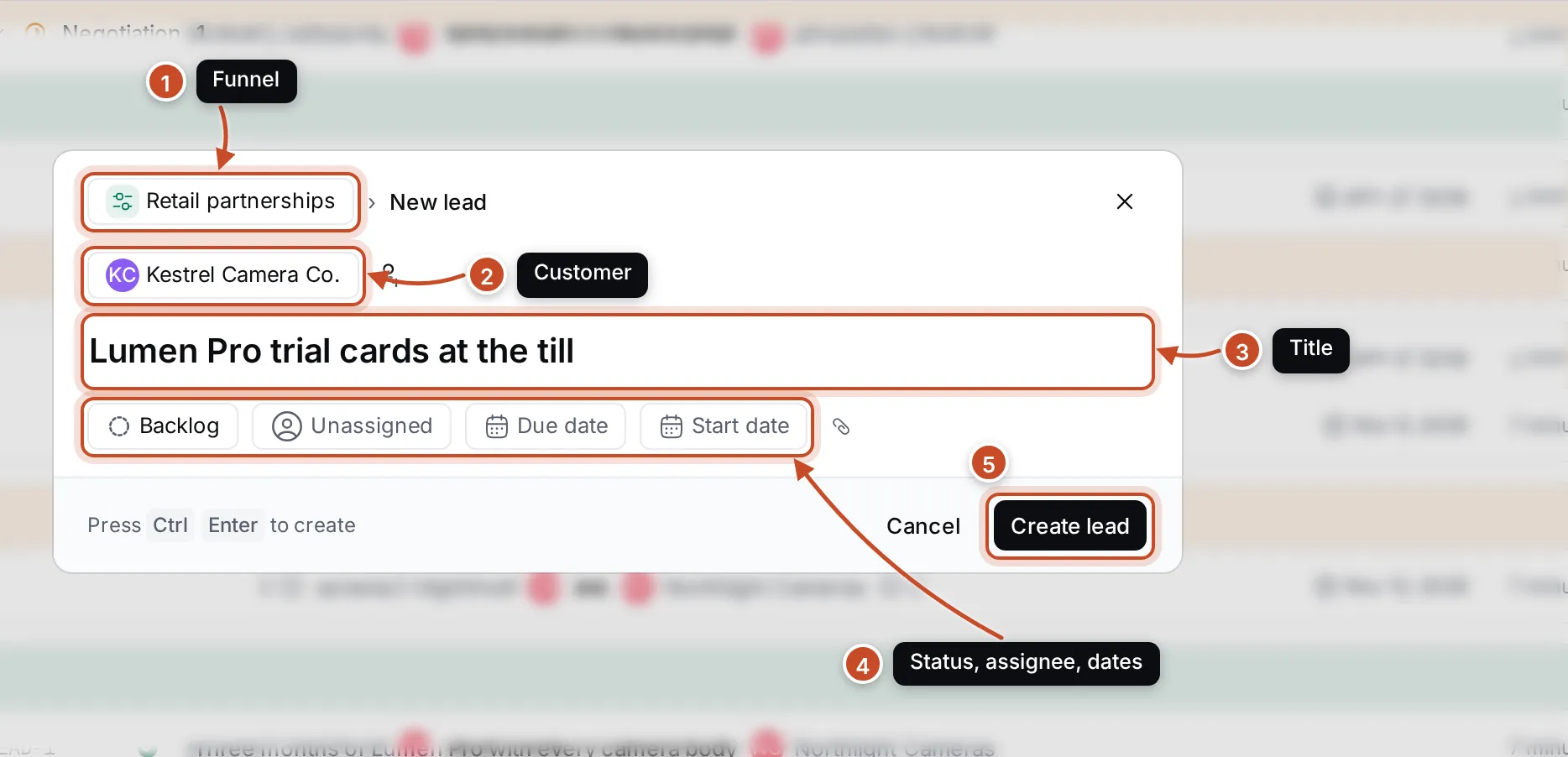
Create lead stays greyed out until the lead has a customer and a title. A message with Open confirms the new lead and its ID.
You can also start a lead from elsewhere, with part of it filled in:
- Click + on a status group in the list, or on a column of the board, to create the lead in that status.
- Click New lead on a customer’s page to create it for that customer.
- Choose New lead from a funnel’s ⋯ menu.
Click the paperclip in the dialog to attach files, such as a price list, to the new lead.
Edit a lead
Section titled “Edit a lead”Click a lead to open it. Press Esc to close it again.
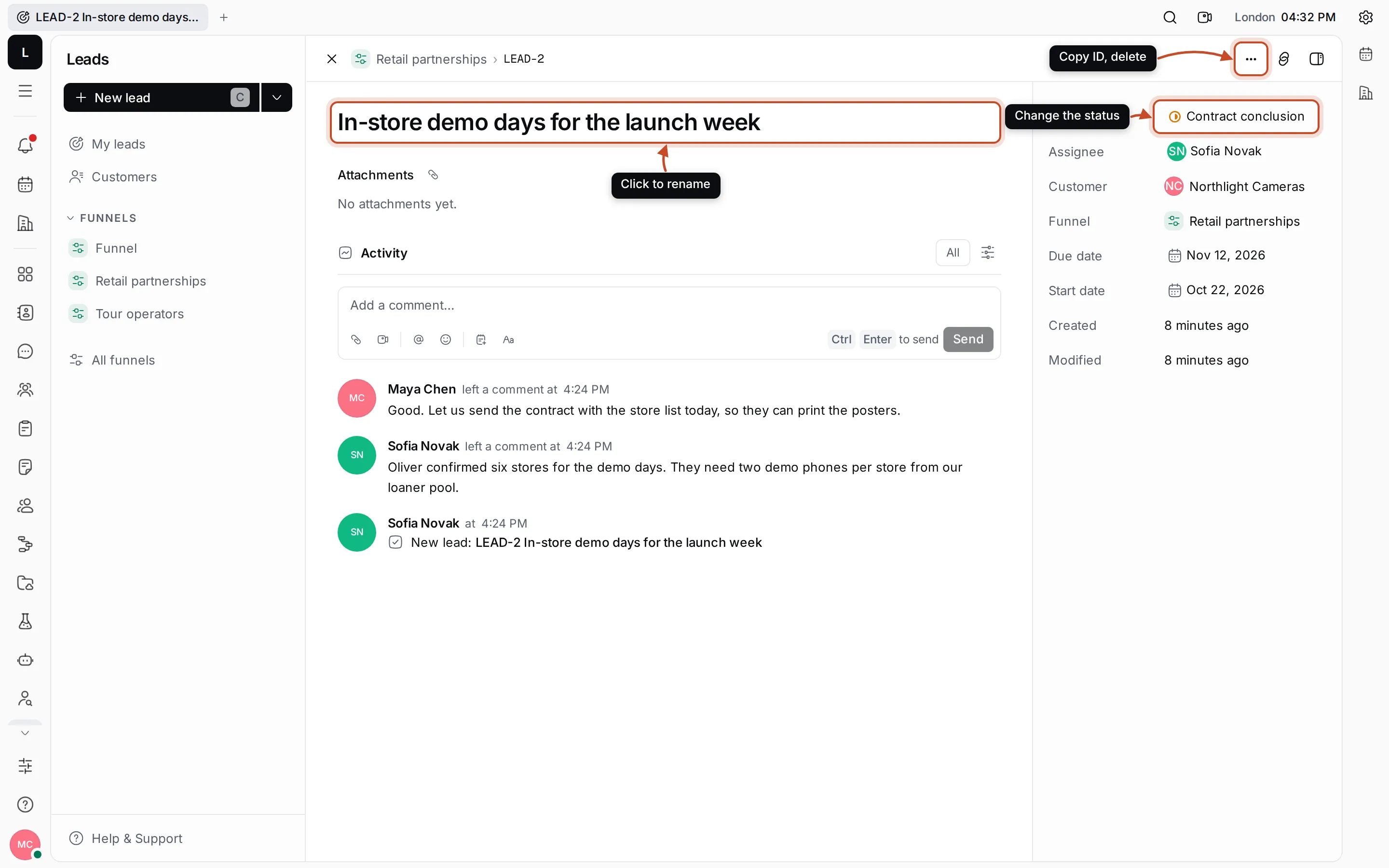
- Click the title to rename the lead.
- Change the Status, Assignee, Due date or Start date in the details panel on the right. The Assignee list shows the people assigned before at the top.
- Customer and Funnel link to the lead’s customer and funnel. A lead can’t move to another customer.
- Click the paperclip next to Attachments to add files.
The details panel can be made wider, or hidden with the button at the top right. On narrow screens it shows under the title.
Comment on a lead
Section titled “Comment on a lead”The Activity section lists every change, such as a new status or assignee, and the team’s comments. Write in Add a comment… and press Ctrl Enter or click Send. Comments can have files, reactions and threads.
Delete a lead
Section titled “Delete a lead”Click ⋯ at the top of the lead, or right-click it in a list, and choose Delete. The lead is deleted with its comments and attachments, for everyone, after you confirm.
The same menu has Open in new tab, Copy link and Copy ID.