Versions and archiving
An effective document can’t be edited. To change it, you start a new version: a draft copy that goes through review and approval like the first one. Until the new version is effective, the old one stays in effect, so the team always has one valid version to follow.
Start a new version
Section titled “Start a new version”- Open the effective document and click New version.
- Choose Minor change (for example v1.1 to v1.2) or Major change (v1.1 to v2.0).
- Enter the Reason for the change.
- Click Create draft. The new draft opens with the content and people of the version before it.
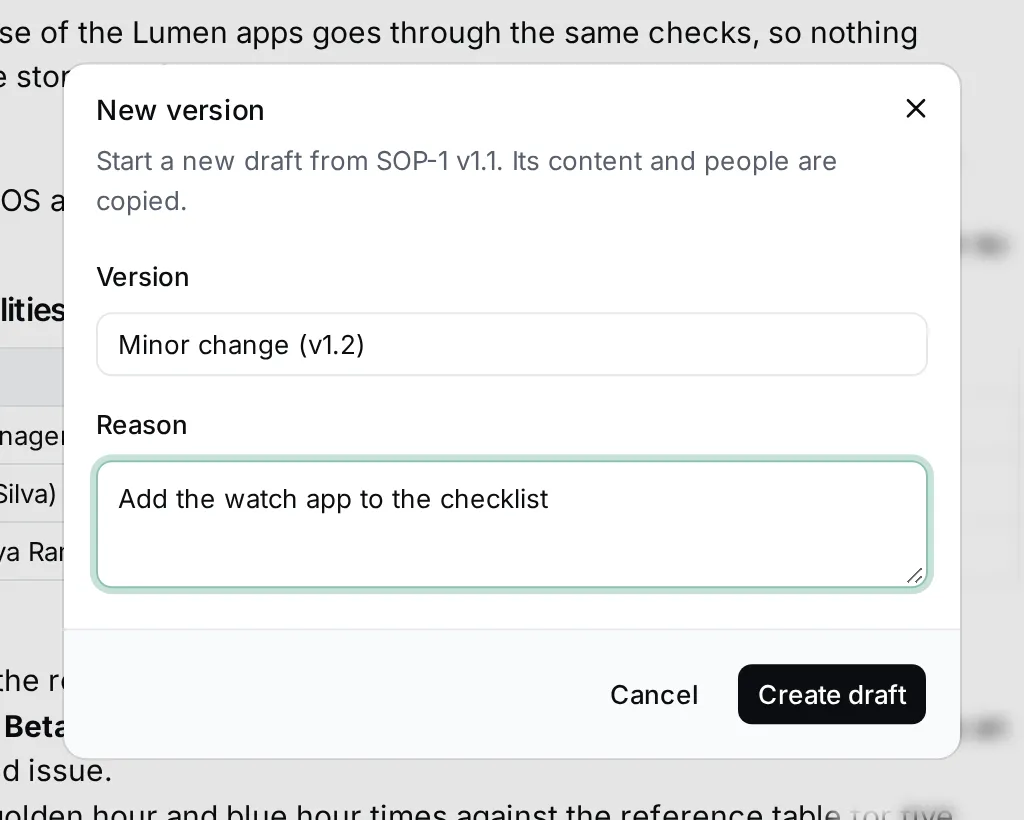
Edit the draft, then send it for review and approval. When it becomes effective, the version before it is Archived automatically.
A document can have only one draft at a time: finish or delete the open one before you start another.
See a document’s versions
Section titled “See a document’s versions”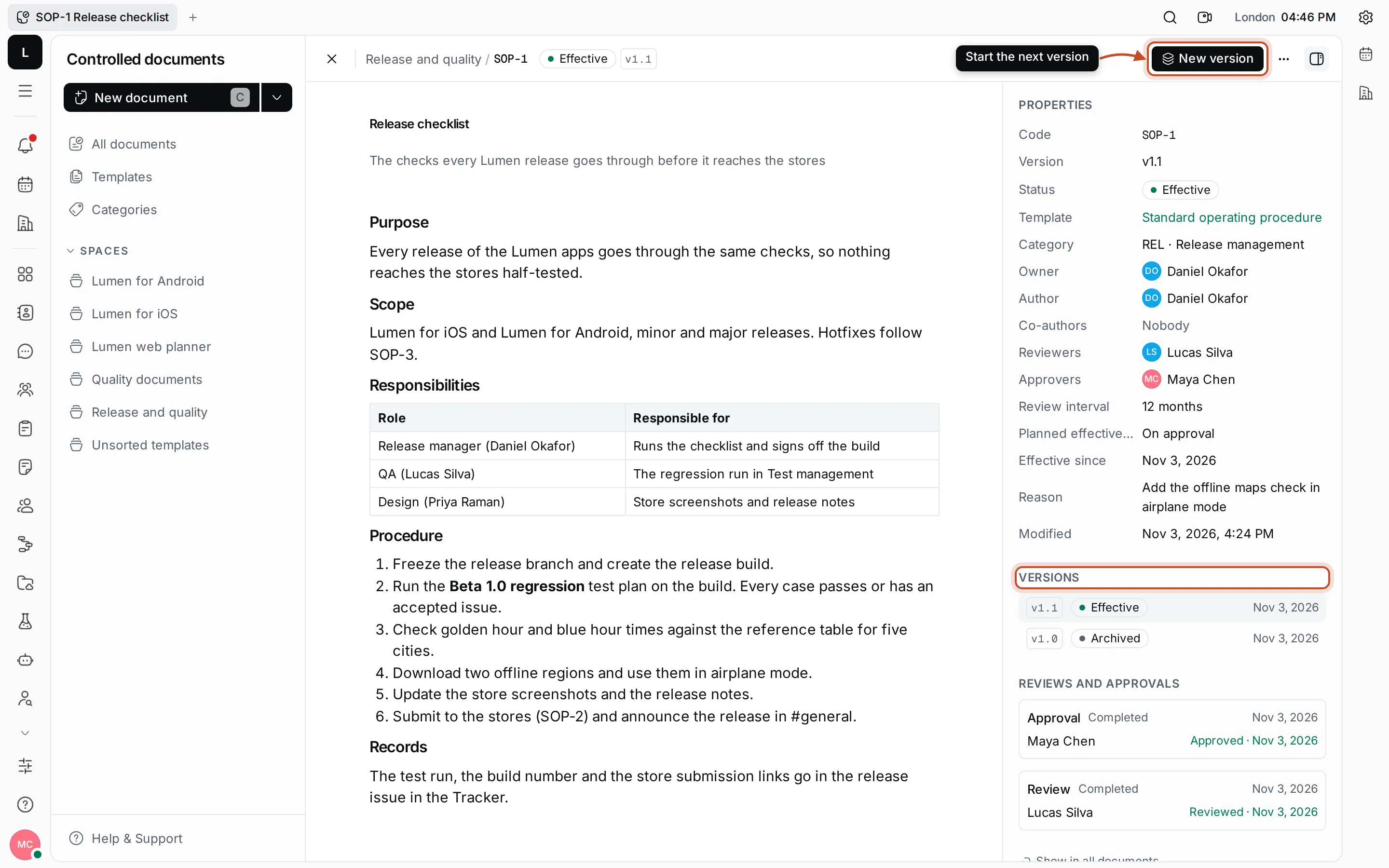
Versions in the properties panel lists every version with its status and date; the one you’re looking at is highlighted. Click a version to open it. Reviews and approvals below it shows who reviewed and approved this version, and when.
The lists and the space’s tree show each document once, at its effective version, unless you’re working on a newer draft of it.
Retire a document
Section titled “Retire a document”Click ⋯ at the top of an effective document.
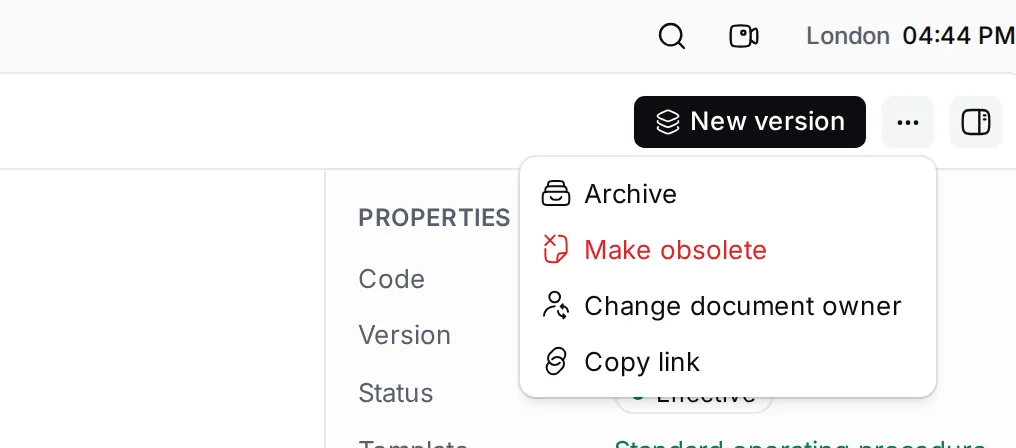
- Archive ends the document’s effect. It stays readable, and you find it under the Archived tab of All documents.
- Make obsolete withdraws the document entirely. It leaves the space’s tree.
Both ask you to confirm first.